User Guide to Merchant CloudPOS Transactions
This document will help you understand how to process sales, refunds, voids, and tip adjustments. Each section is designed to be simple, clear, and practical so you can complete your day-to-day tasks with confidence.
Learn how CloudPOS handles payments—whether card, ACH, or cash—along with tools for managing refunds, voids, and tips.
CloudPOS supports a wide range of payment functions.
Navigation & Core Actions
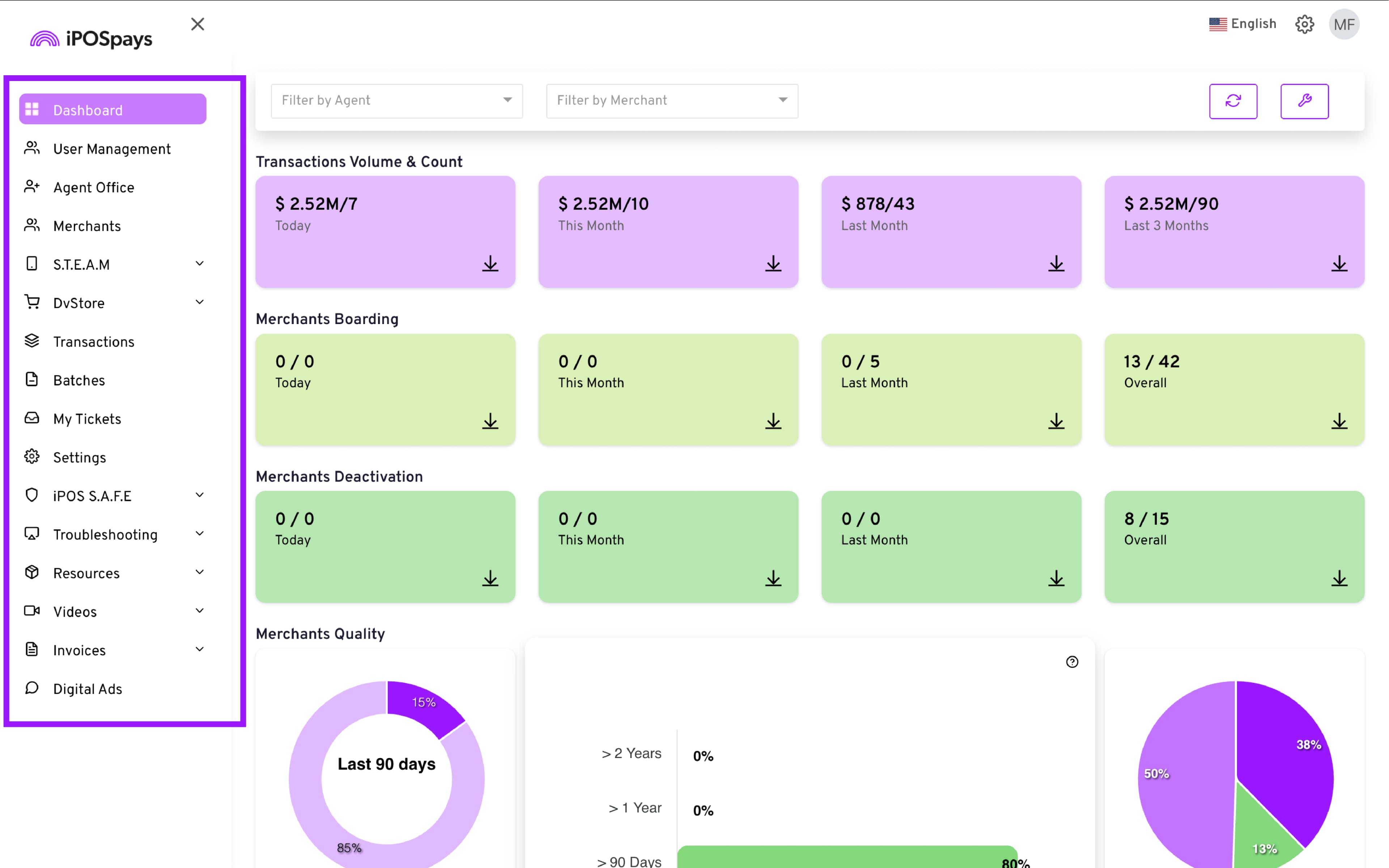
On the left side panel, you will see a list of all available modules to facilitate navigation throughout the portal. The left side panel displays a comprehensive list of all accessible modules, which are provided to streamline navigation within the portal.
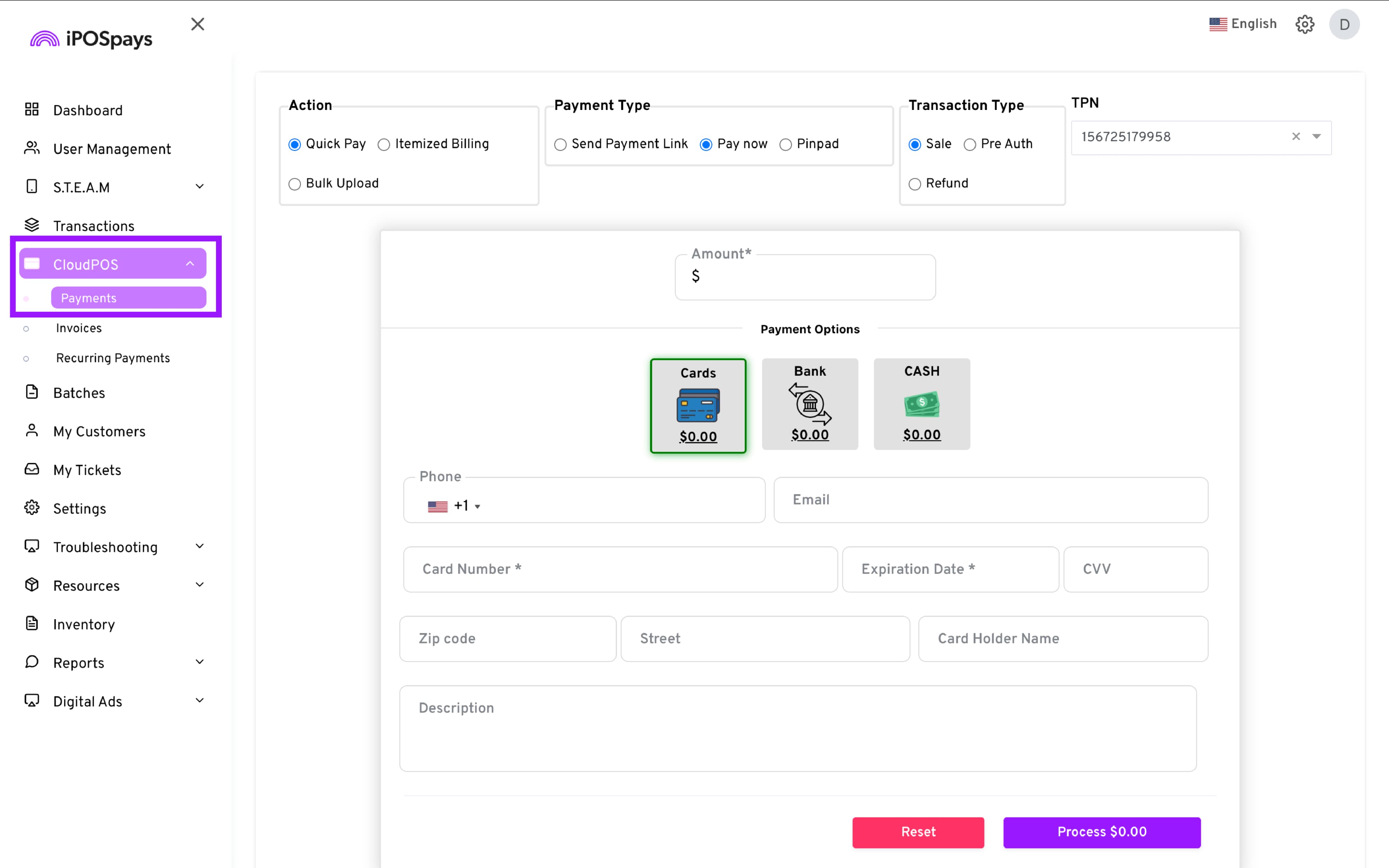
CloudPOS - Payments Overview:
- Click CloudPOS → Payments from the left sidebar.
- In the Payments module, you will find the following options:
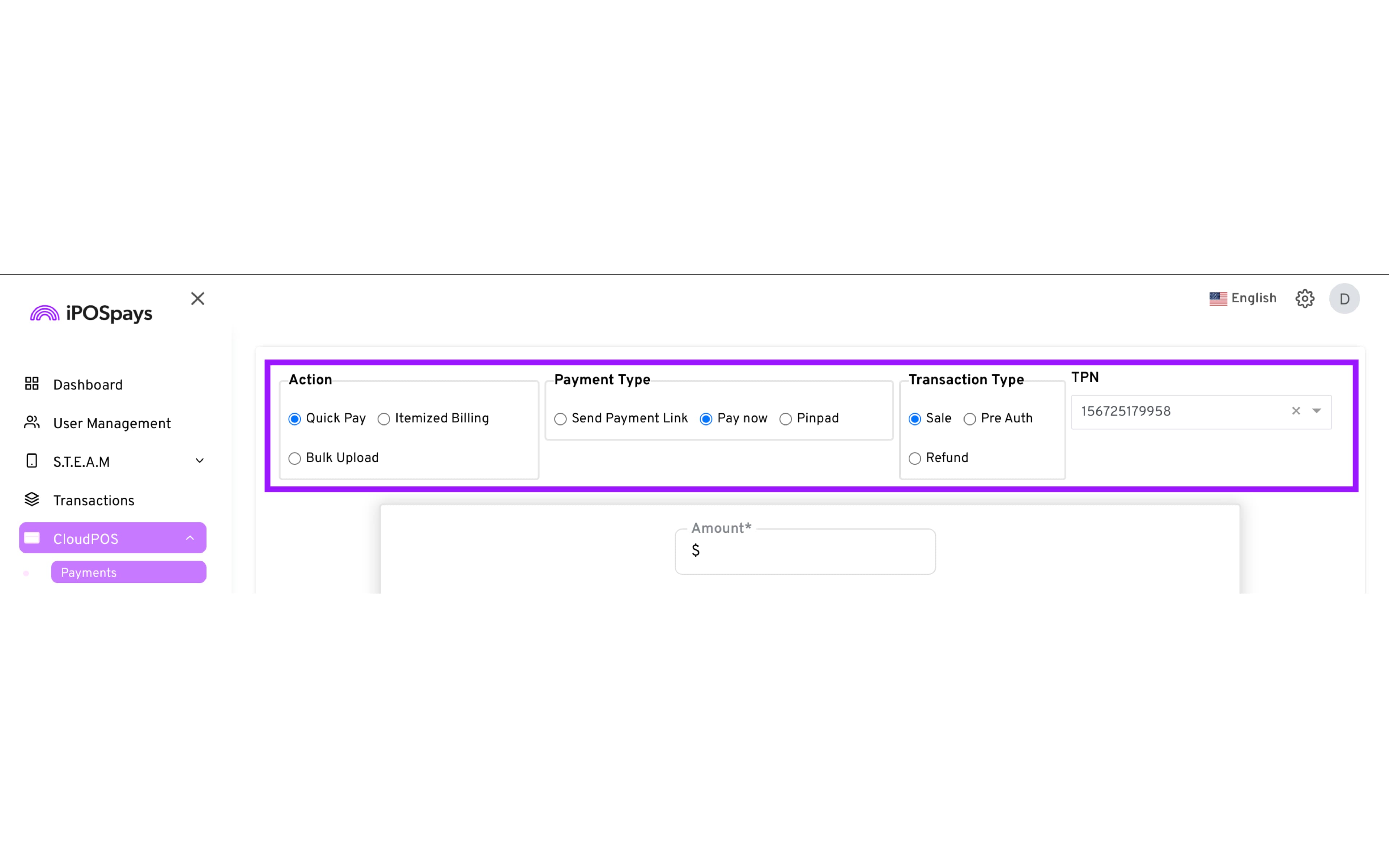
Action Section
| Option | Description |
|---|---|
| Quick Pay | Allows you to quickly collect a payments without adding line item details |
| Itemized Billing | Generates an invoice utilizing the inventory items or services configured under the Inventory module |
| Bulk Upload | Uploads multiple invoices at once, usually through a file. |
Payment Type Section
| Option | Description |
|---|---|
| Send Payment Link | Generates a payment link that can be sent via email or text for the customer to complete the payment |
| Pay Now | Allows you to complete the payment by entering the customer and card details from your virtual terminal. |
| Pin Pad | Sends the transaction to a pinpad device for the customer to complete the payment by presenting their card. |
Transaction type Section
| Option | Description |
|---|---|
| Sale | Initiates a charge to the customer |
| Pre Auth | Places a hold on funds in the customer’s bank |
| Refund | Returns funds to the customer. |
TPN Section
| Option | Description |
|---|---|
| Drop Down Menu | Allows you to select under which TPN you wish to perform this transaction |
This document covers transactions performed using the “Quick Pay” action on the CloudPOS Payments module.
Supported Payment Methods
CloudPOS supports sale transactions for the following payment methods
-
Card
-
Bank
-
Cash
Essential Information for Bank Payments
-
The merchant must be onboarded as a customer with Paya to get credentials for Bank payments
-
PPD/CCD Setup is required to access Pay Now ACH transactions.
-
Validation rules vary depending on the Tell ID configured in Paya.
-
Requirements can range from basic routing/account numbers to SSN or a driver’s license.
-
Ensure proper Tell ID alignment.
How to Perform Transactions
In order to perform a transaction, CloudPOS requires a selection for Action, Payment type, Transaction Type and if applicable, TPN.
Pay Now - Sale Transactions
Cards
- Configure the transaction:
— Action: Quick Pay
— Payment Type: Pay now
— Transaction Type: Sale
-
From the dropdown on the right, select your desired CloudPOS TPN.
-
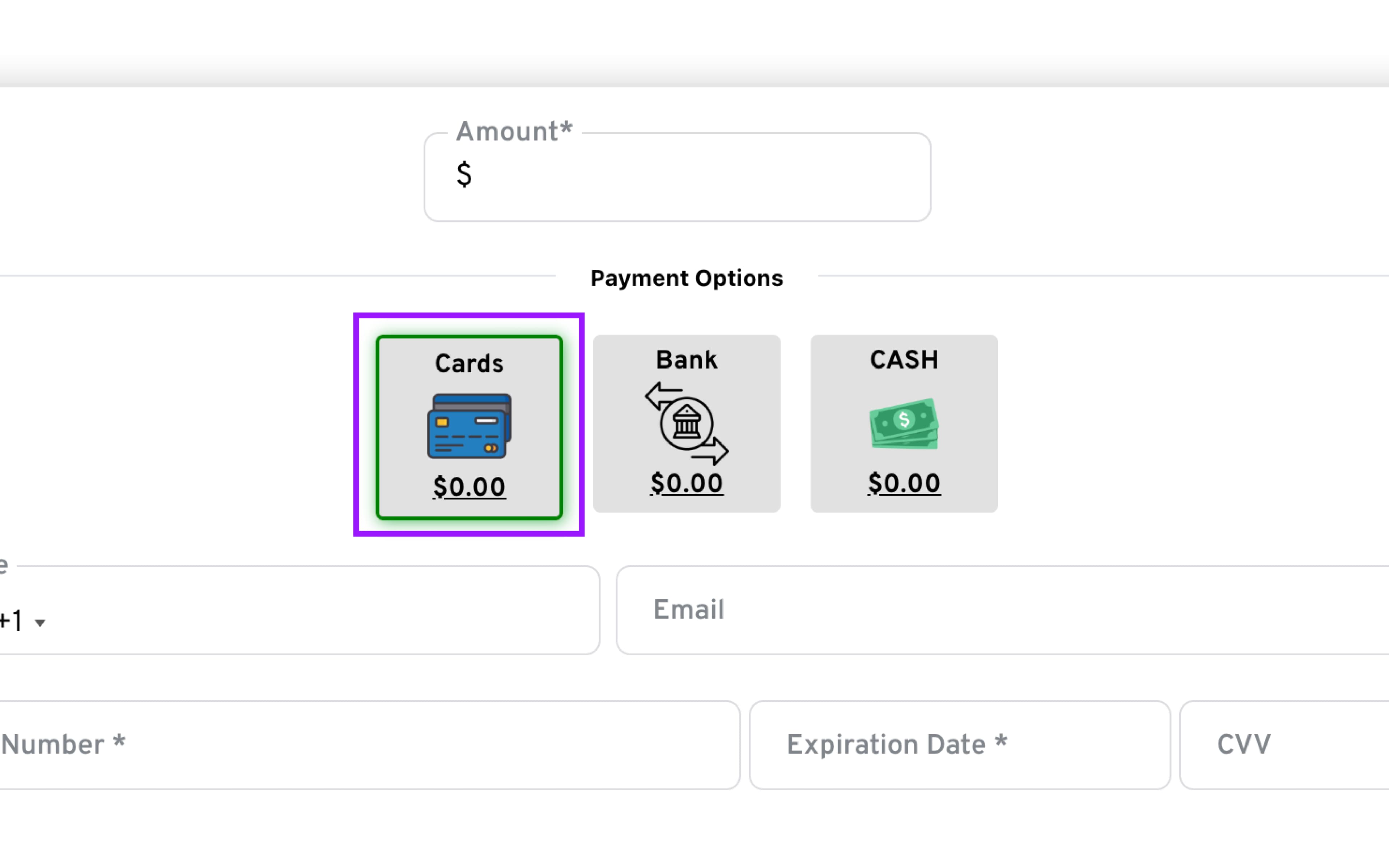
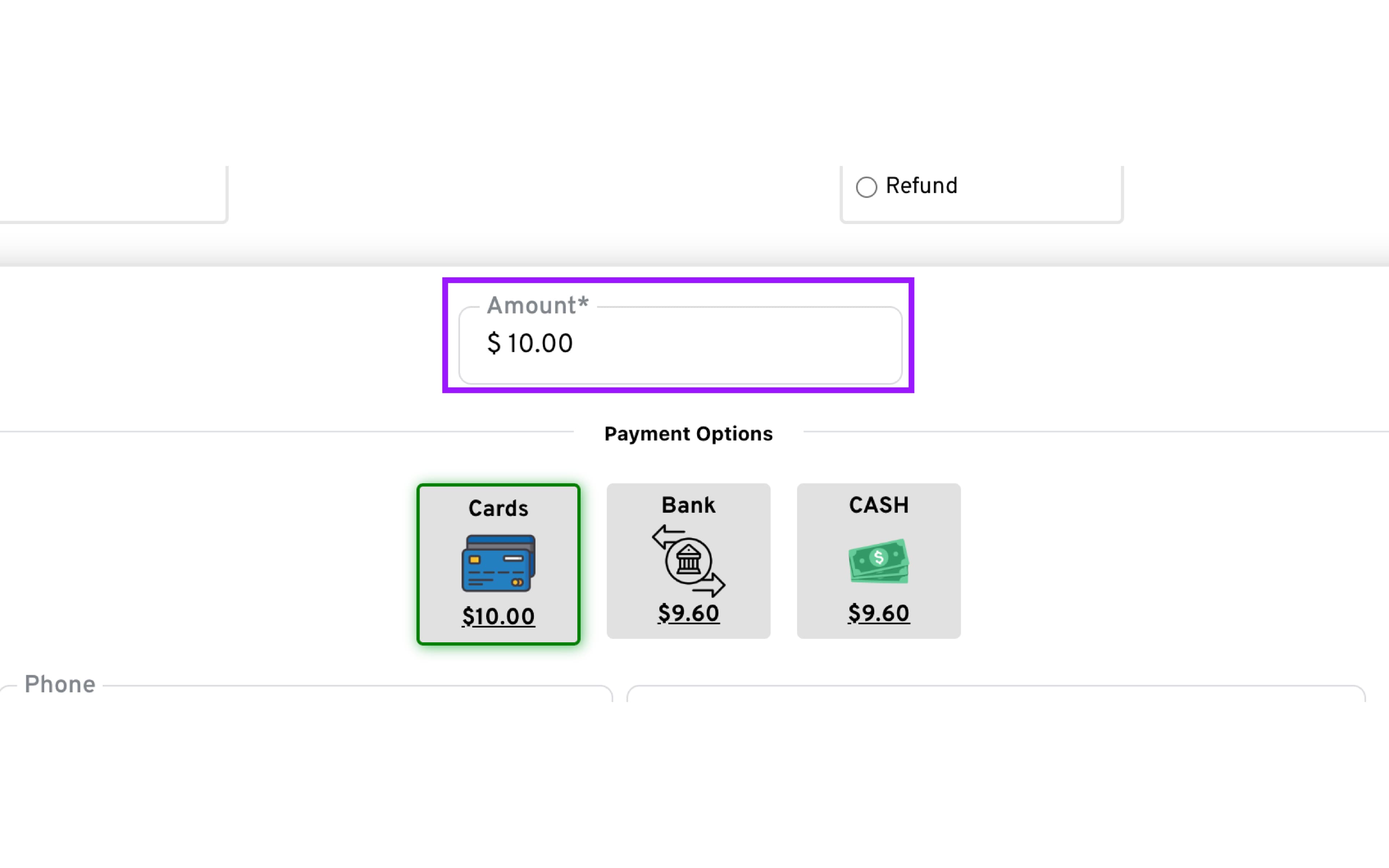
Enter Amount and Select Cards as the Payment Option
-
Enter Customer Details: Fill in the required fields, which may vary depending on configuration
-
Click Process to submit the transaction
-
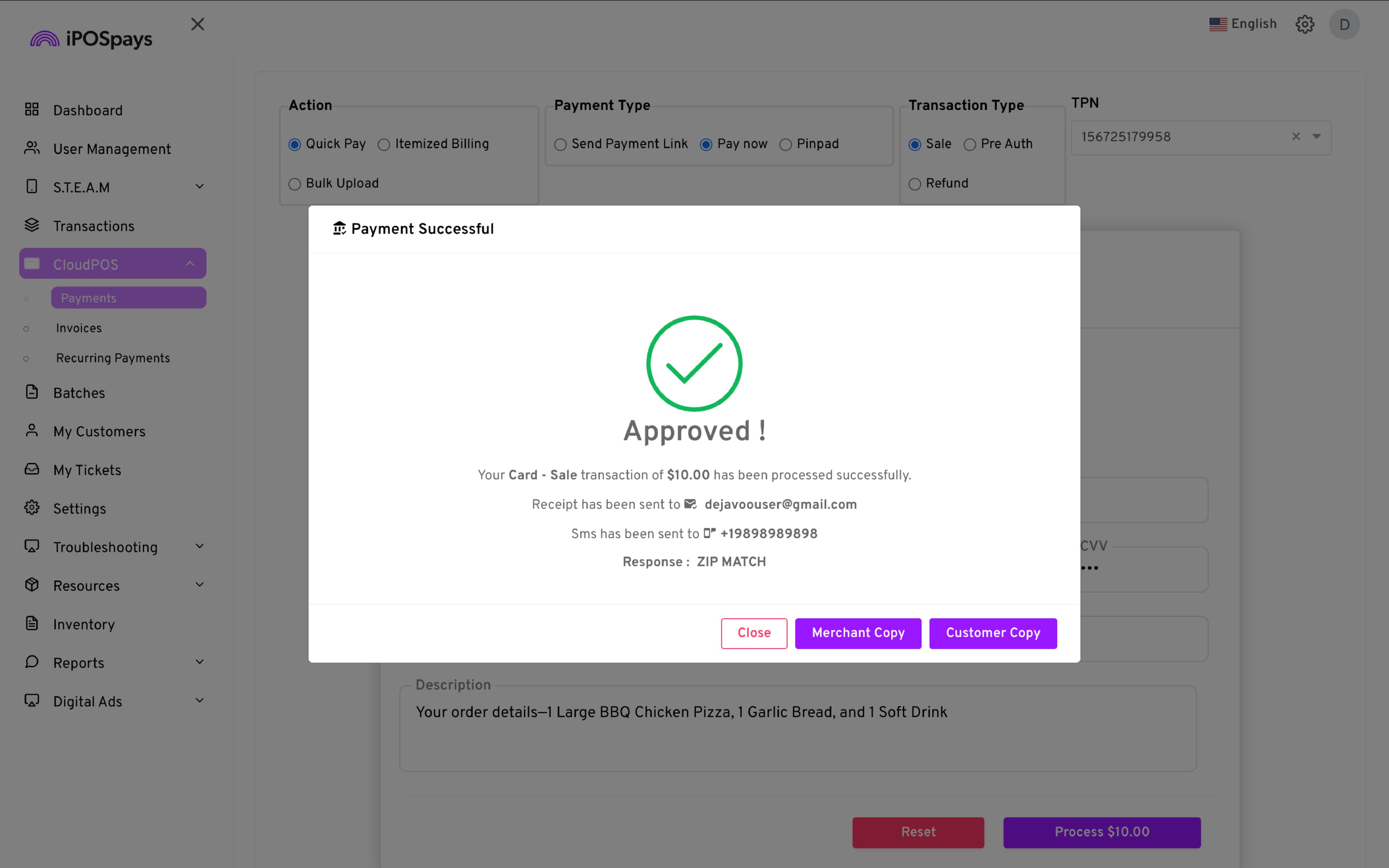
Review Result: A dialog will appear showing Success or Failure.
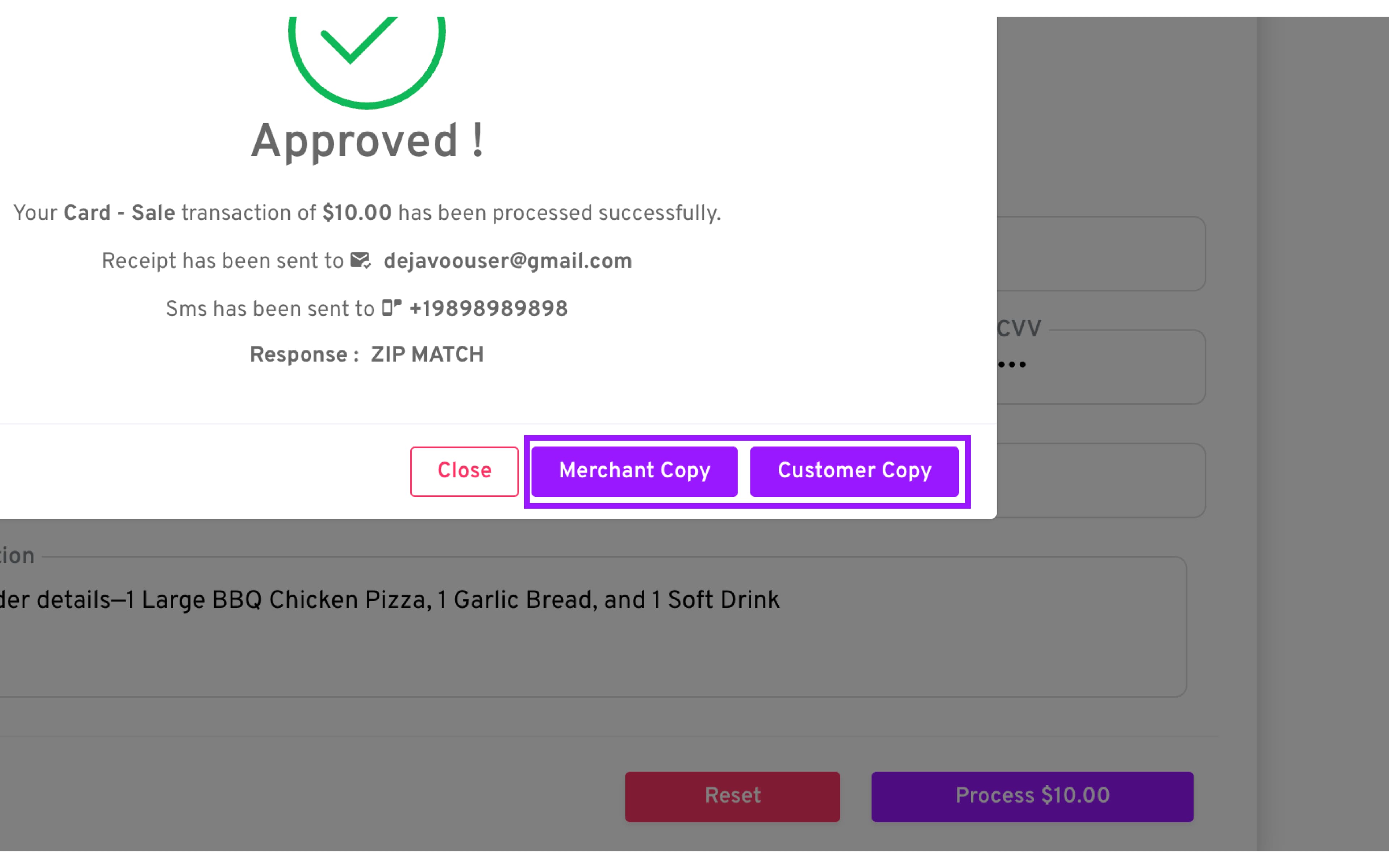
- Receipt: Select which type of receipt you would like to download as PDF (Merchant Copy or Customer Copy). Printing is supported if your computer is connected to a printer.
Bank
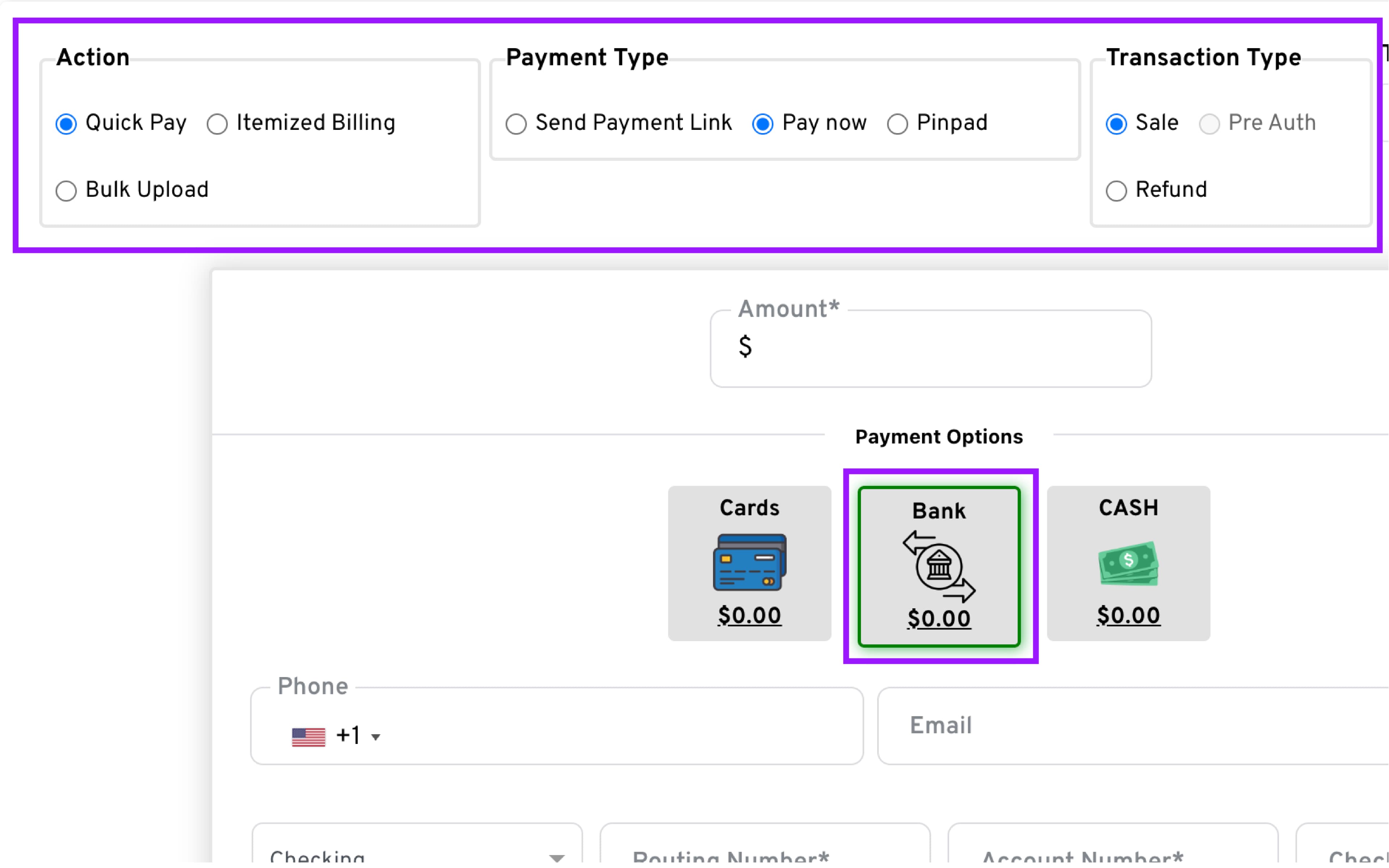
- Configure the transaction:
— Action: Quick Pay
— Payment Type: Pay now
— Transaction Type: Sale
-
Select TPN: From the dropdown on the right, choose the CloudPOS TPN you want to use.
-
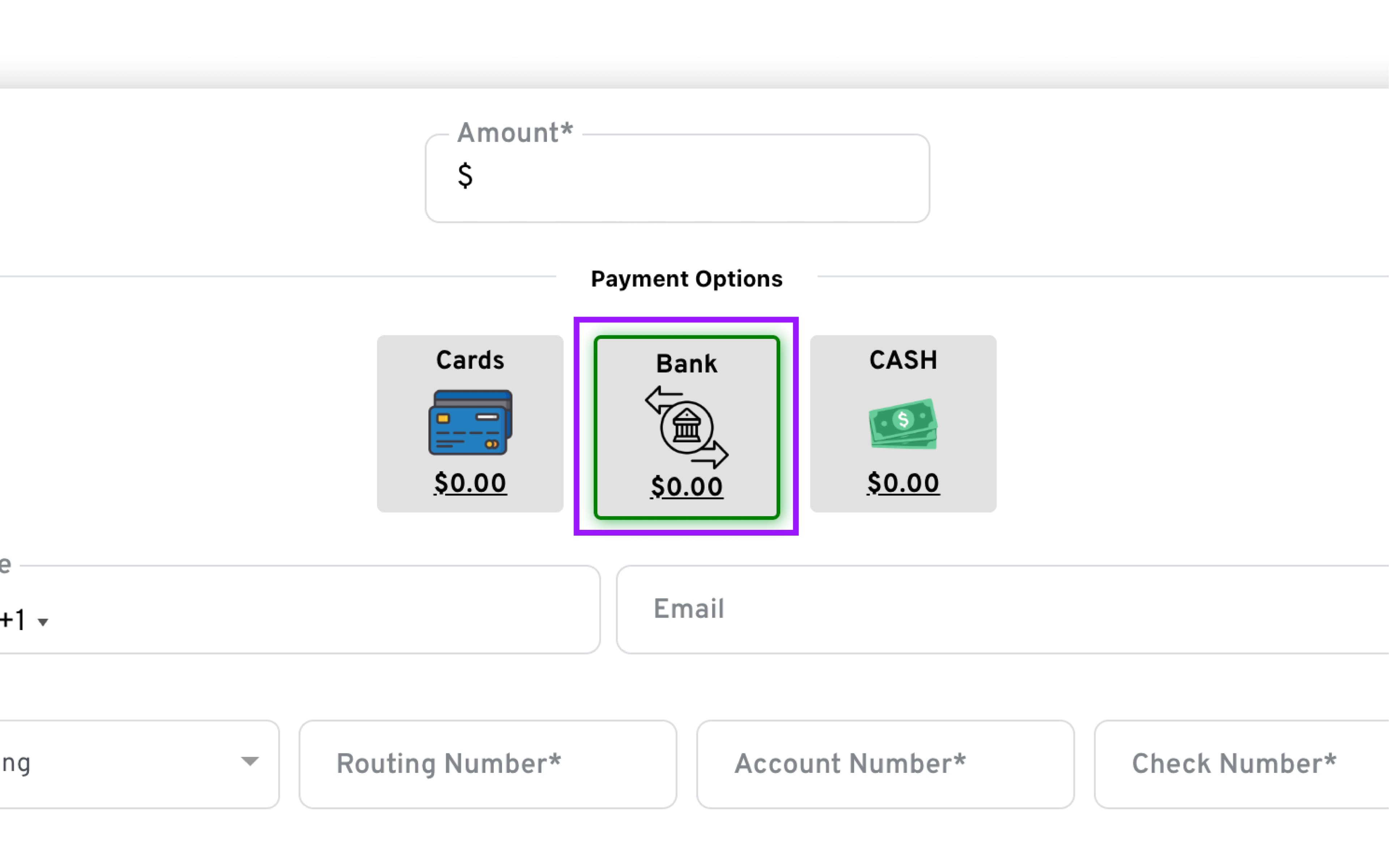
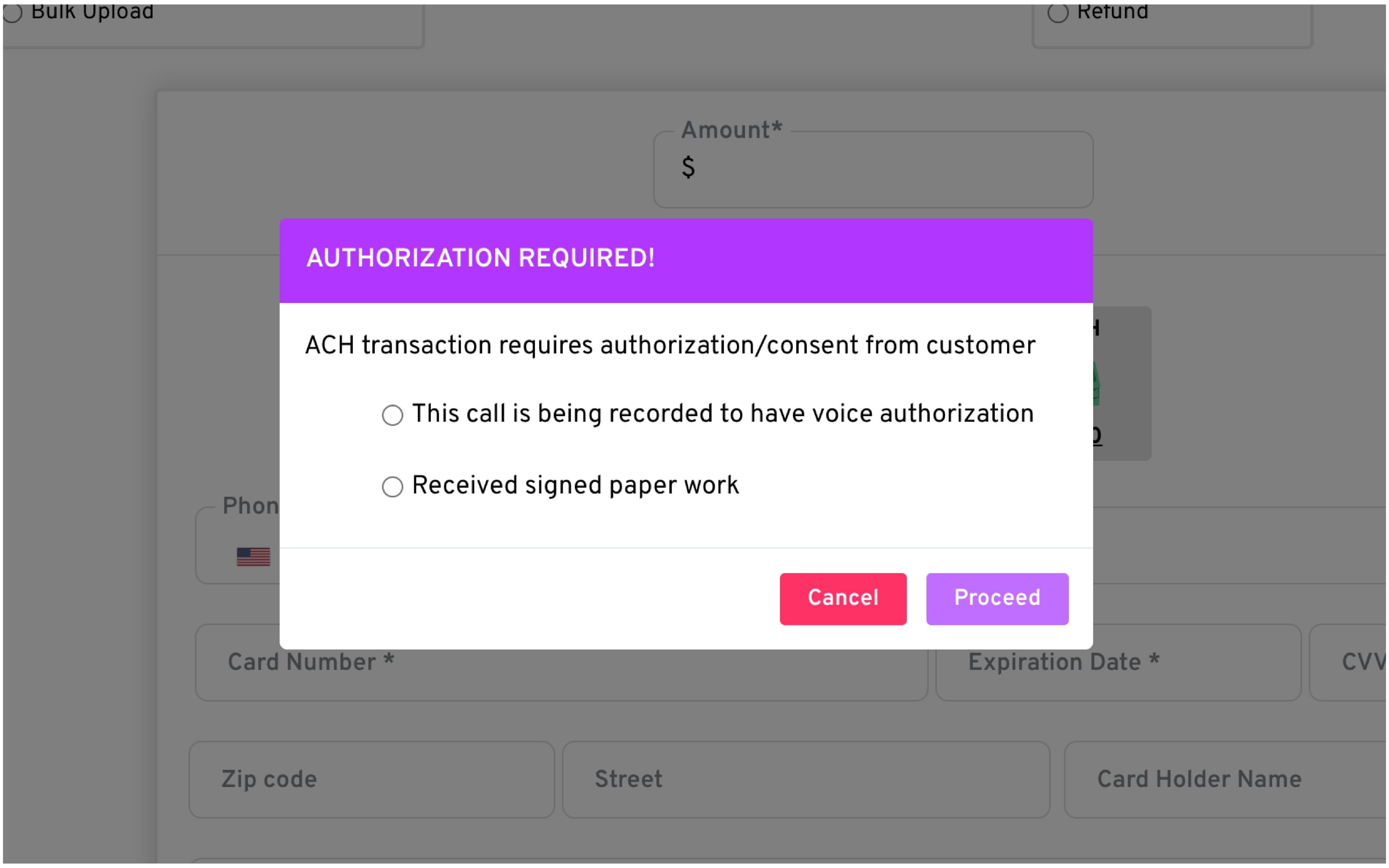
Enter the amount and select Bank as the Payment Option: A pop-up will appear asking you to choose the customer authorization method required for Paya ACH.
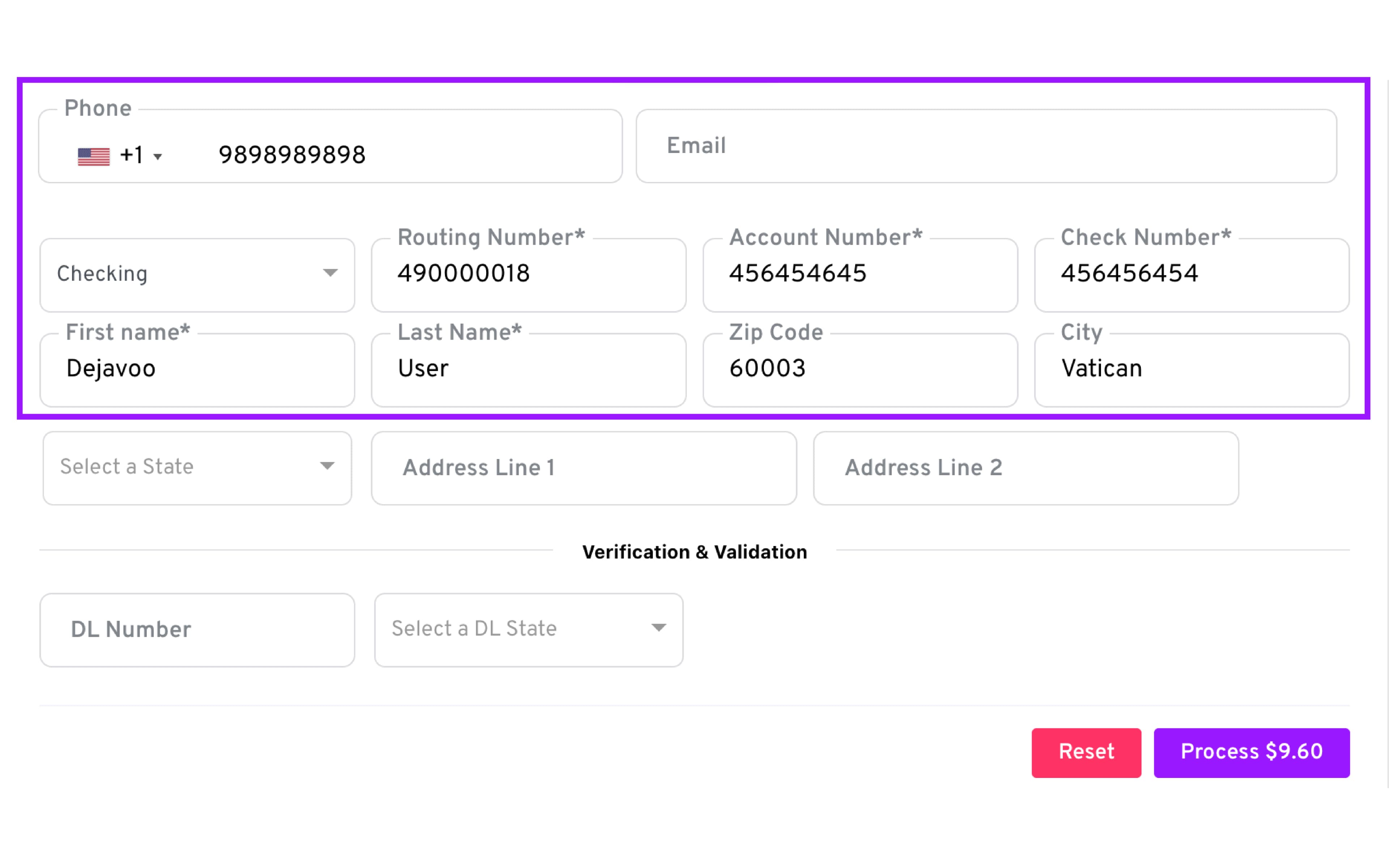
- Fill in the required customer and authorization fields. The required fields may vary depending on the Paya ACH credentials for the merchant account.
-
Click Process to complete the transaction.
-
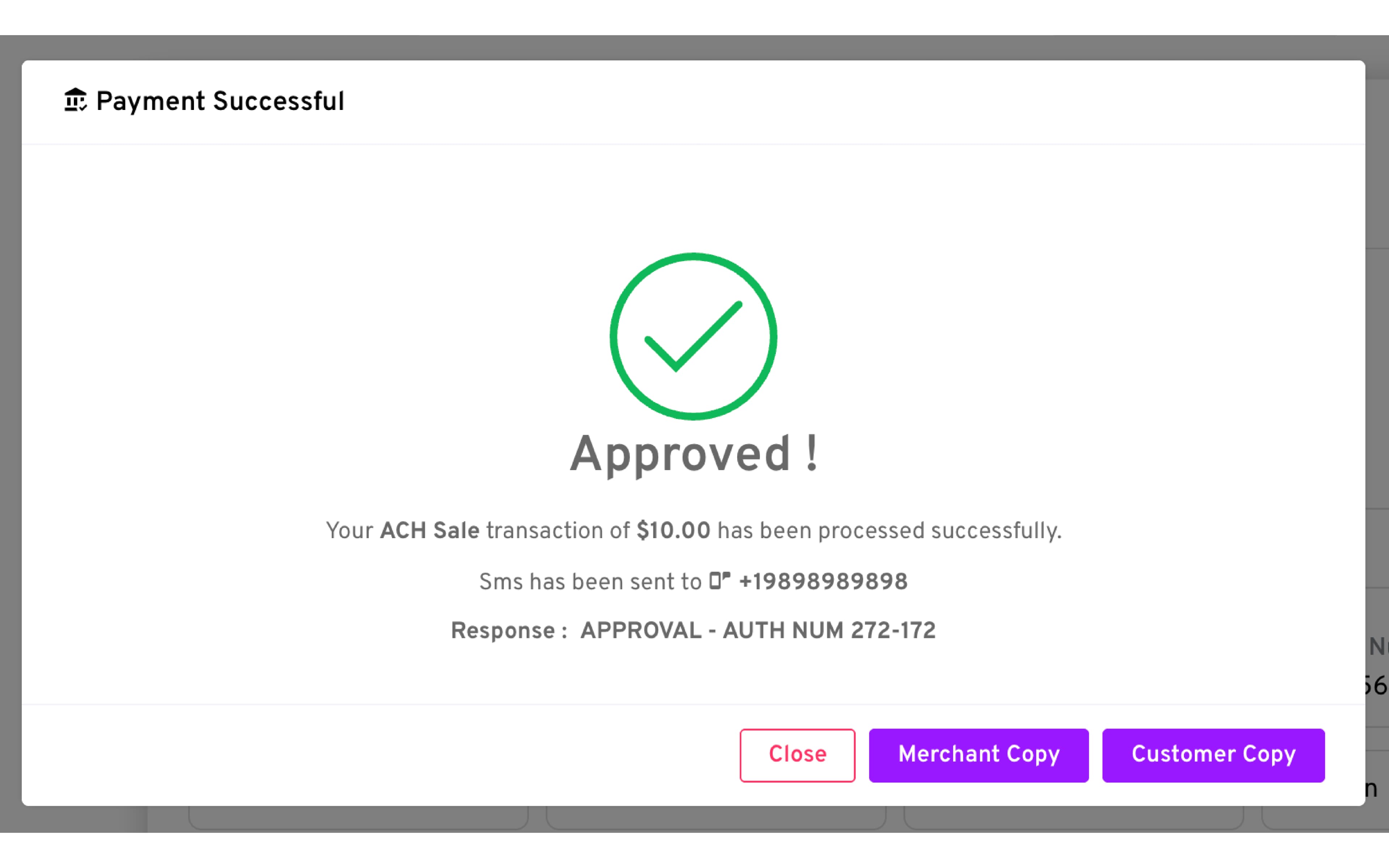
A confirmation message will appear on the screen to indicate the transaction status (approved or declined)
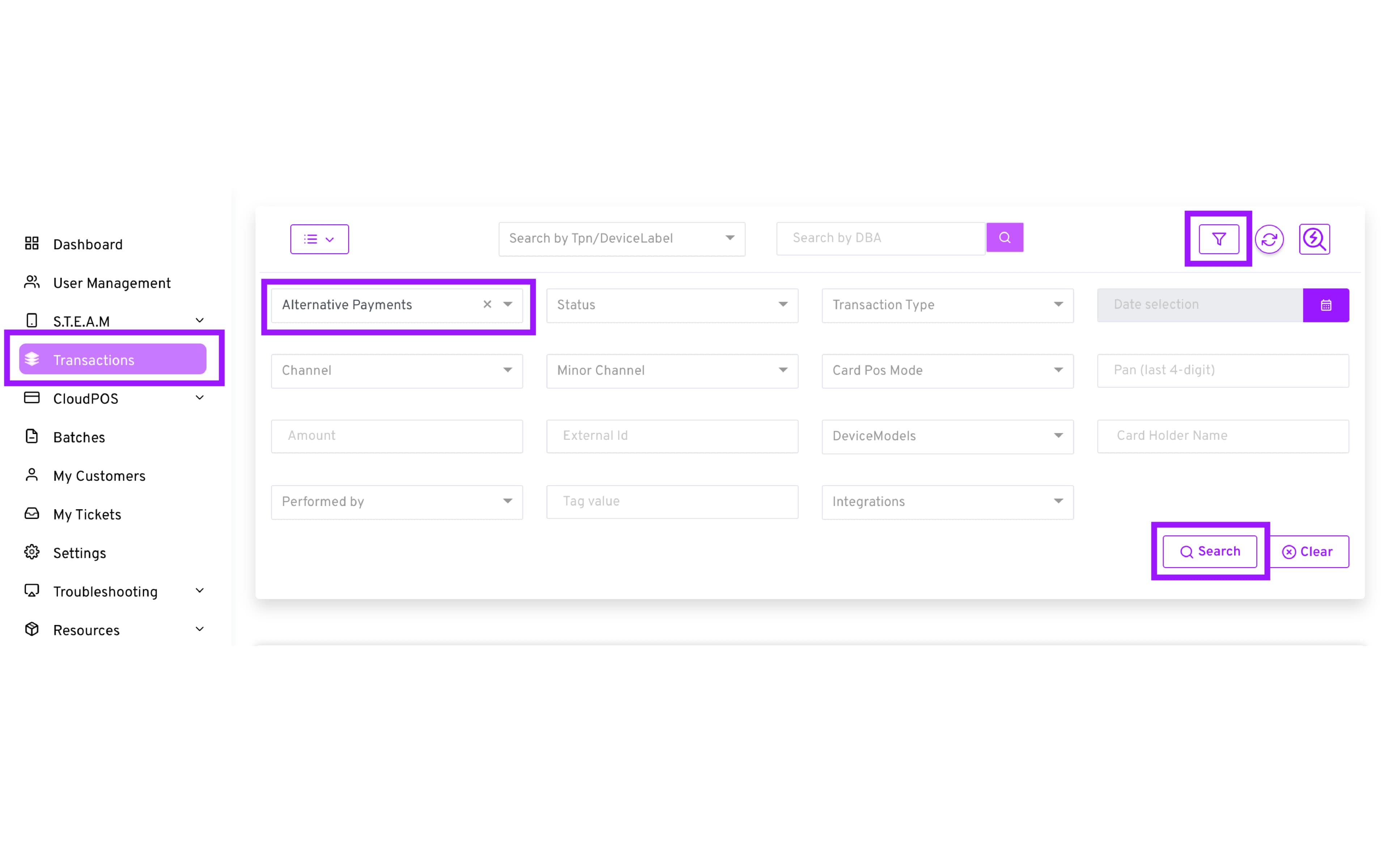
Bank (ACH), Cash, and Gift transactions are considered to be Alternative Payments. To locate these transactions in the Transactions Module, you will need to set the filter Payments → Alternative Payments
Cash
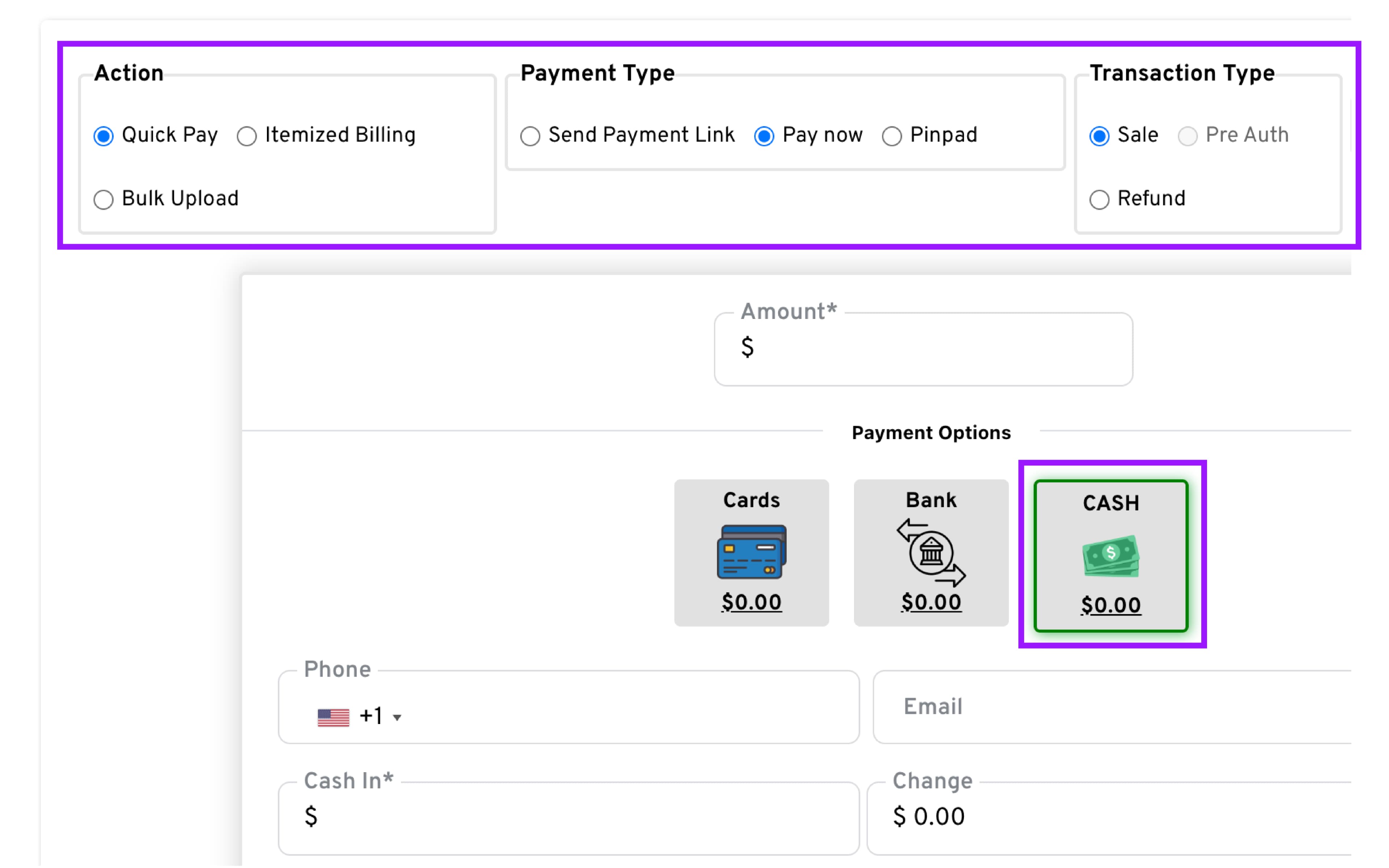
- Configure the transaction:
— Action: Quick Pay
— Payment Type: Pay now
— Transaction Type: Sale
-
Select TPN: From the dropdown on the right, choose the CloudPOS TPN you want to use.
-
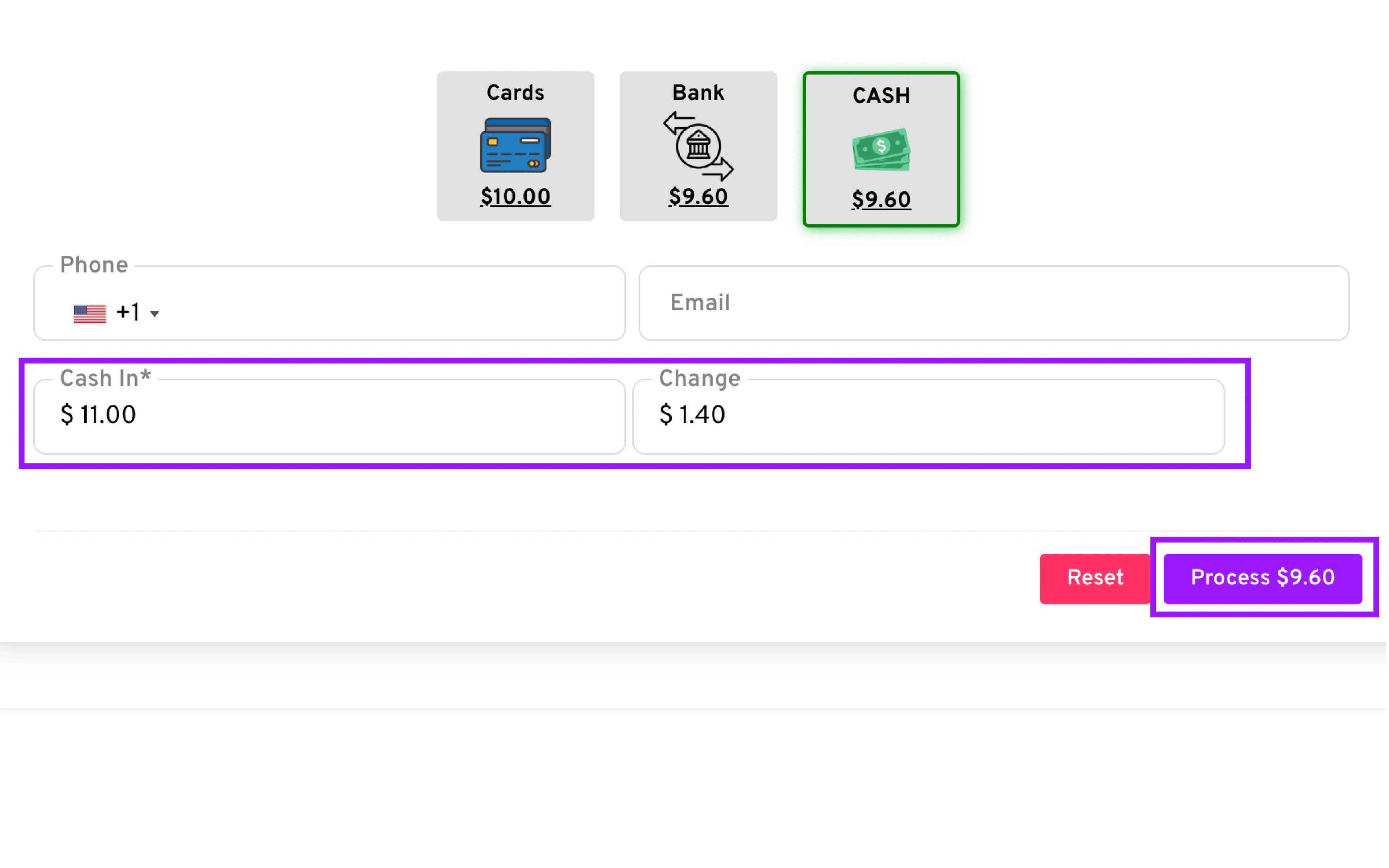
Enter the amount and select Cash as the Payment Option
-
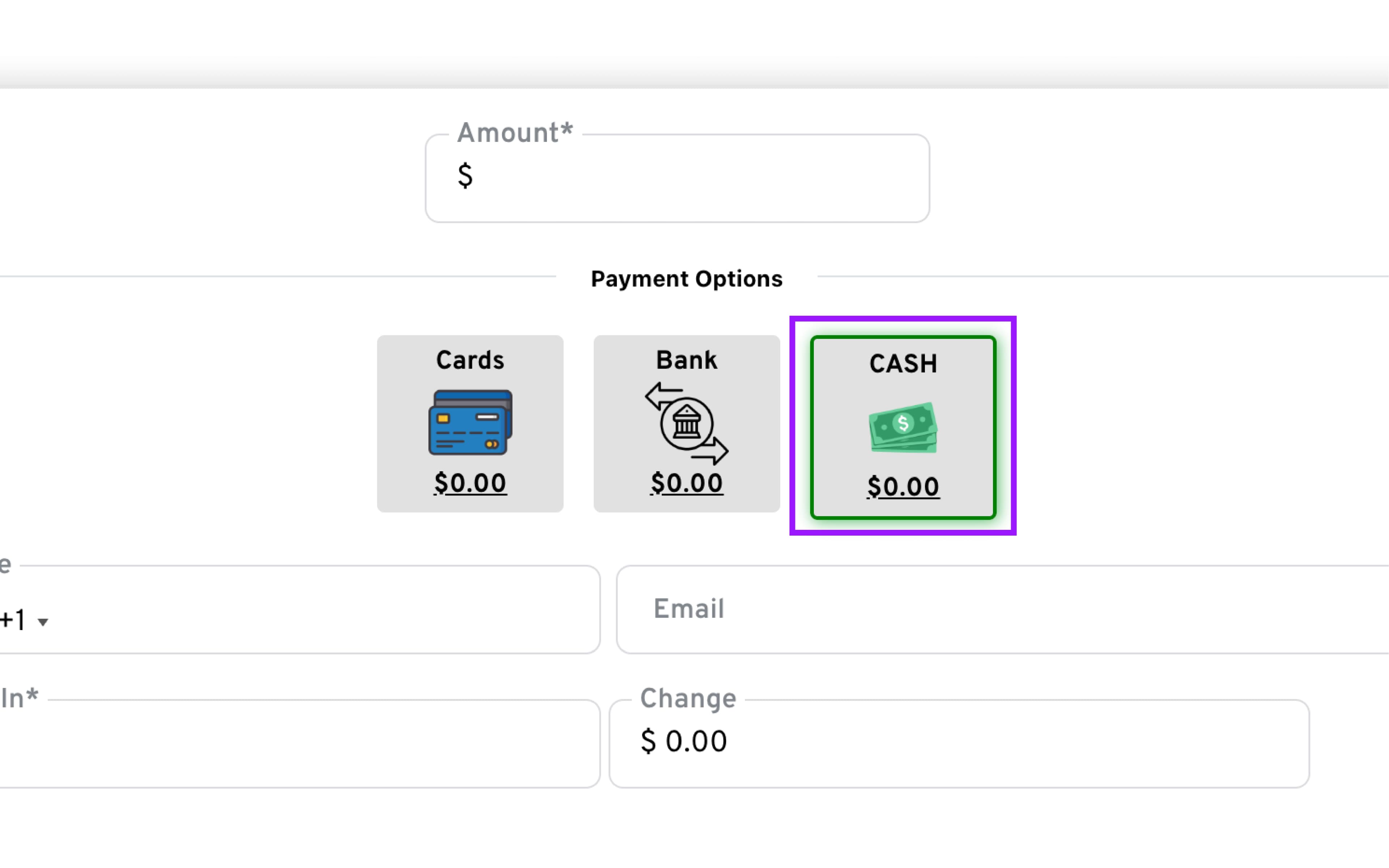
Enter phone number and/or email in their respective fields.
-
Enter the amount given by the customer in the ‘Cash In’ field. The change is calculated automatically and displayed in the ‘Change’ field.
-
Click Process to complete the transaction.
-
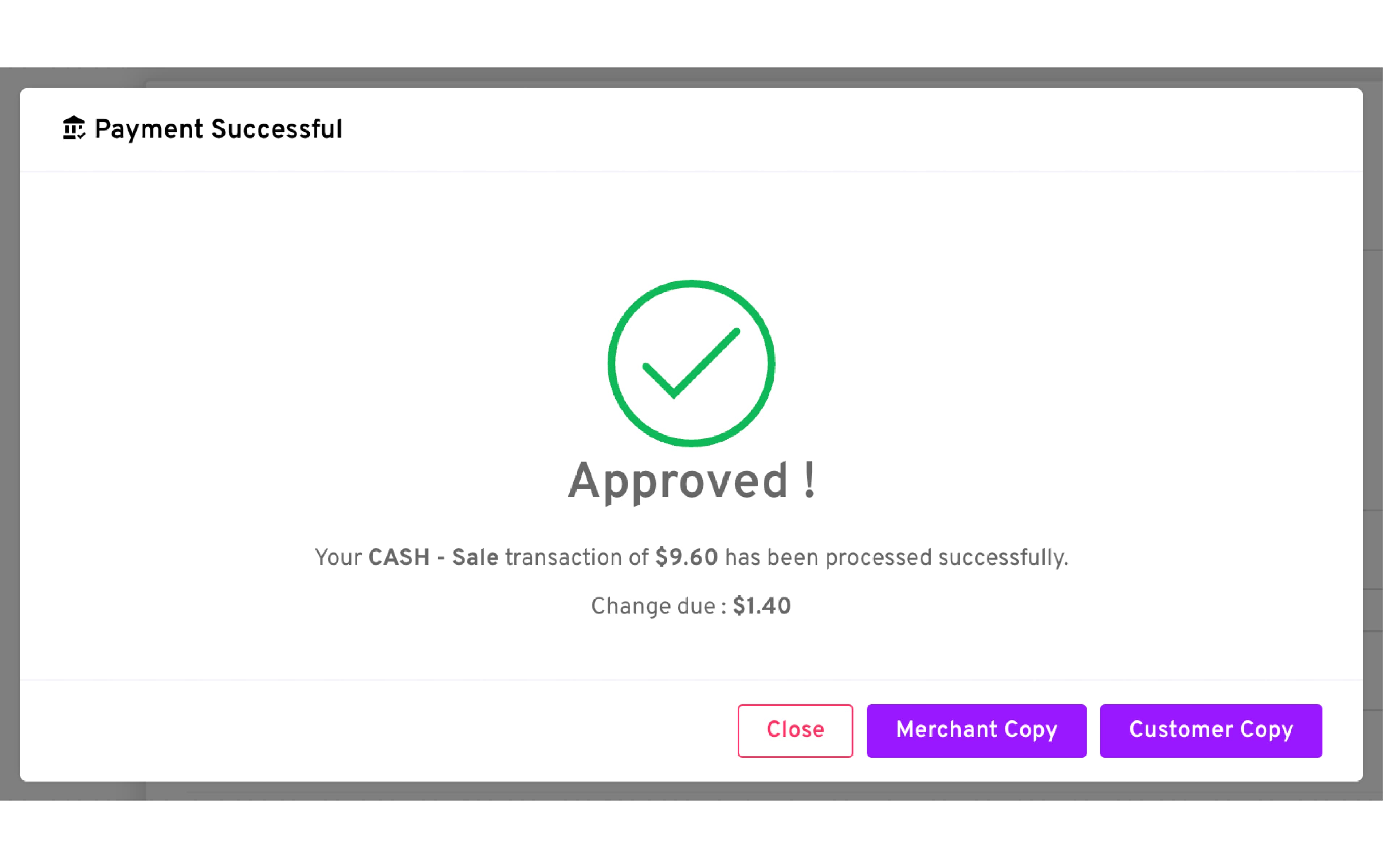
A confirmation message will appear on the screen to indicate the transaction status
Pay Now - Refund Transactions
Cards
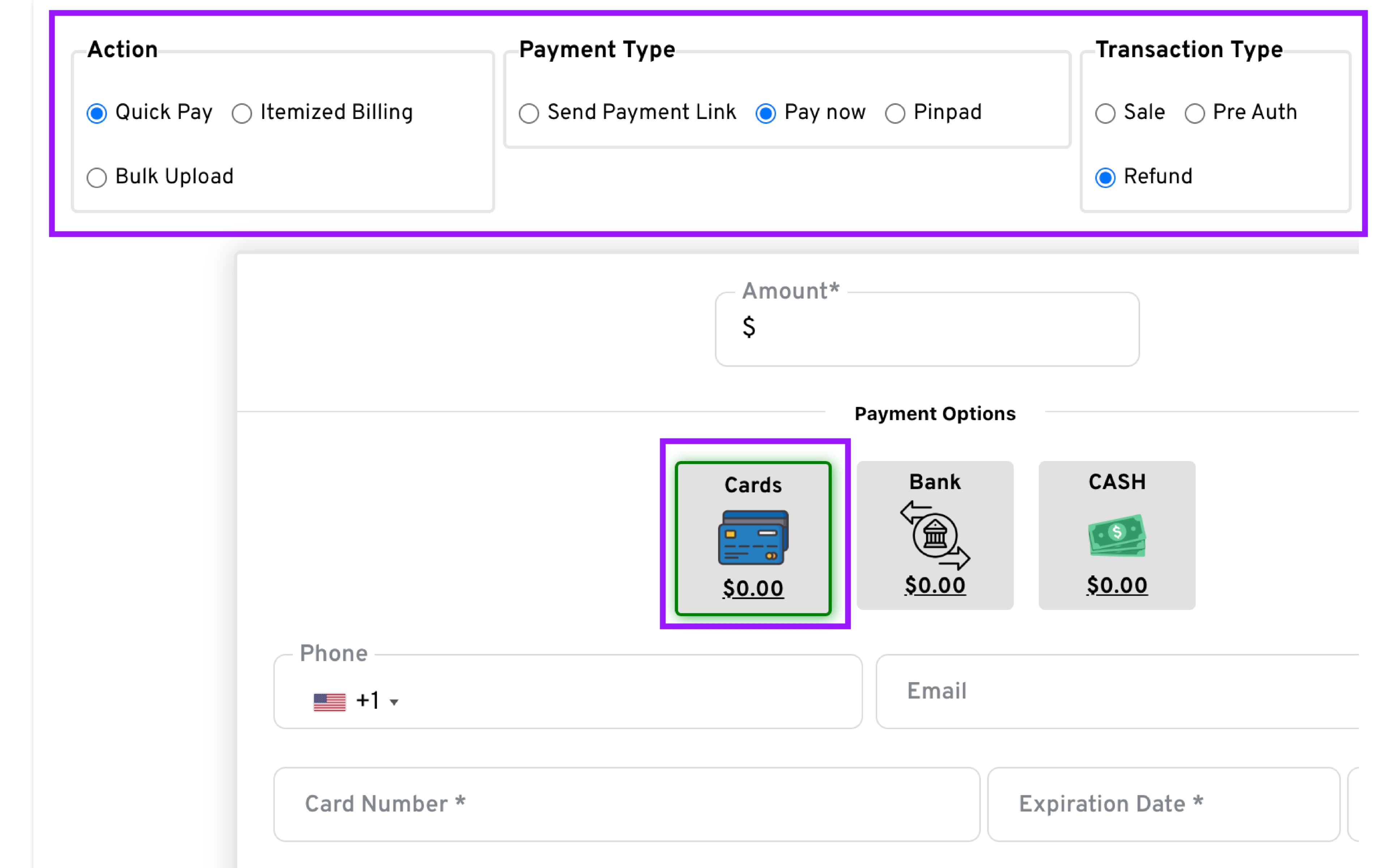
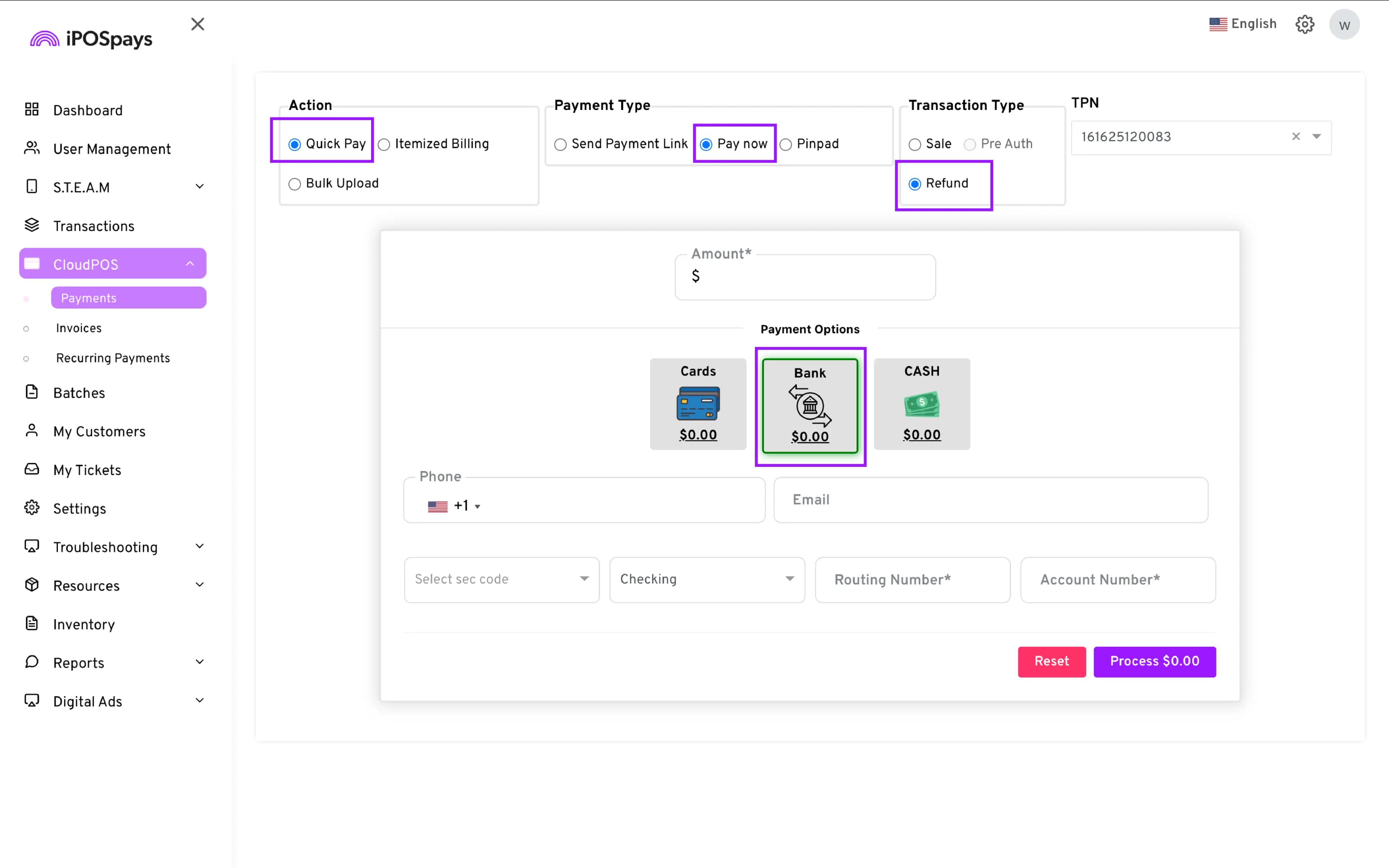
- Configure the transaction:
— Action: Quick Pay
— Payment Type: Pay now
— Transaction Type: Refund
-
Select TPN: From the dropdown on the right, choose the CloudPOS TPN you want to use.
-
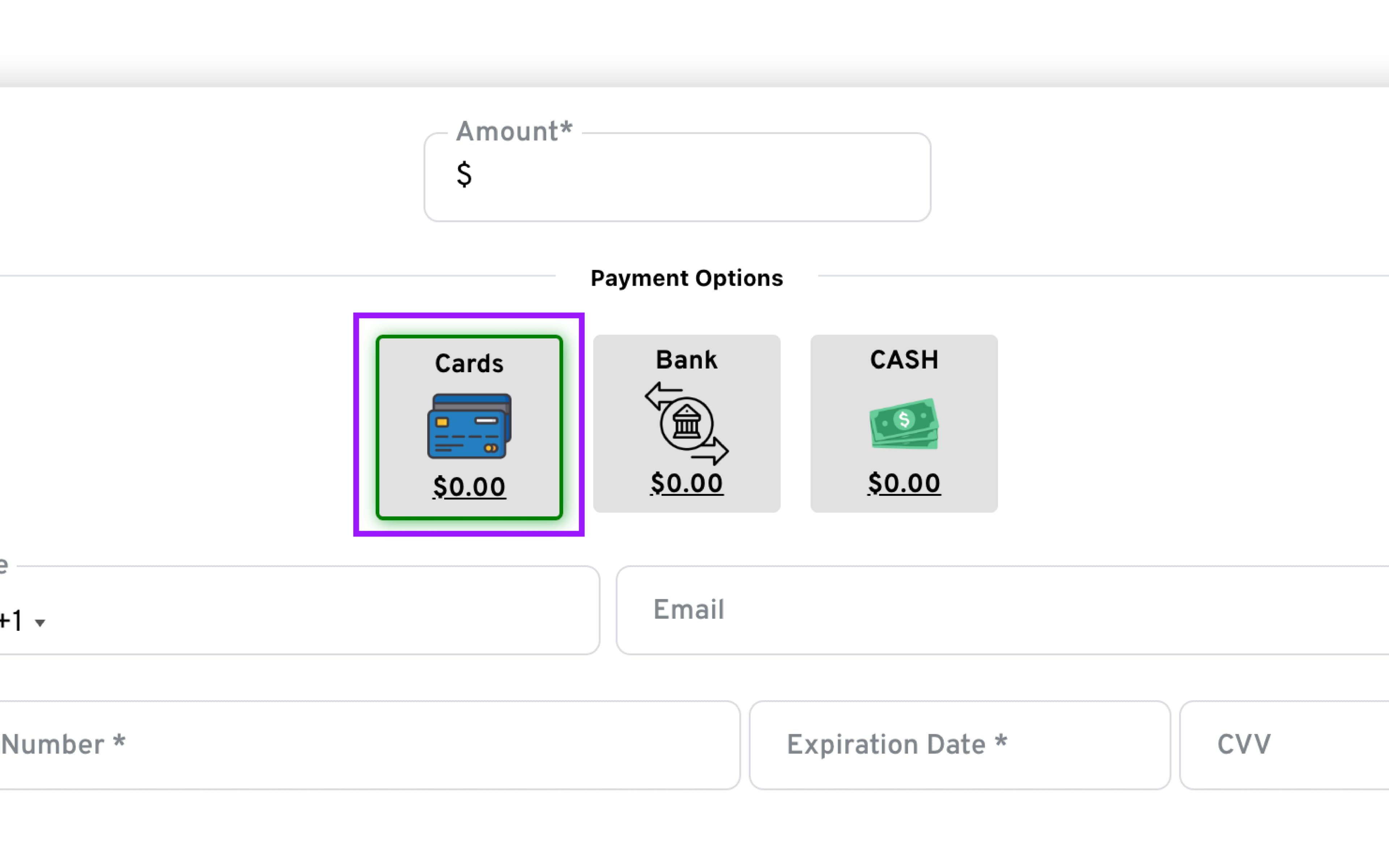
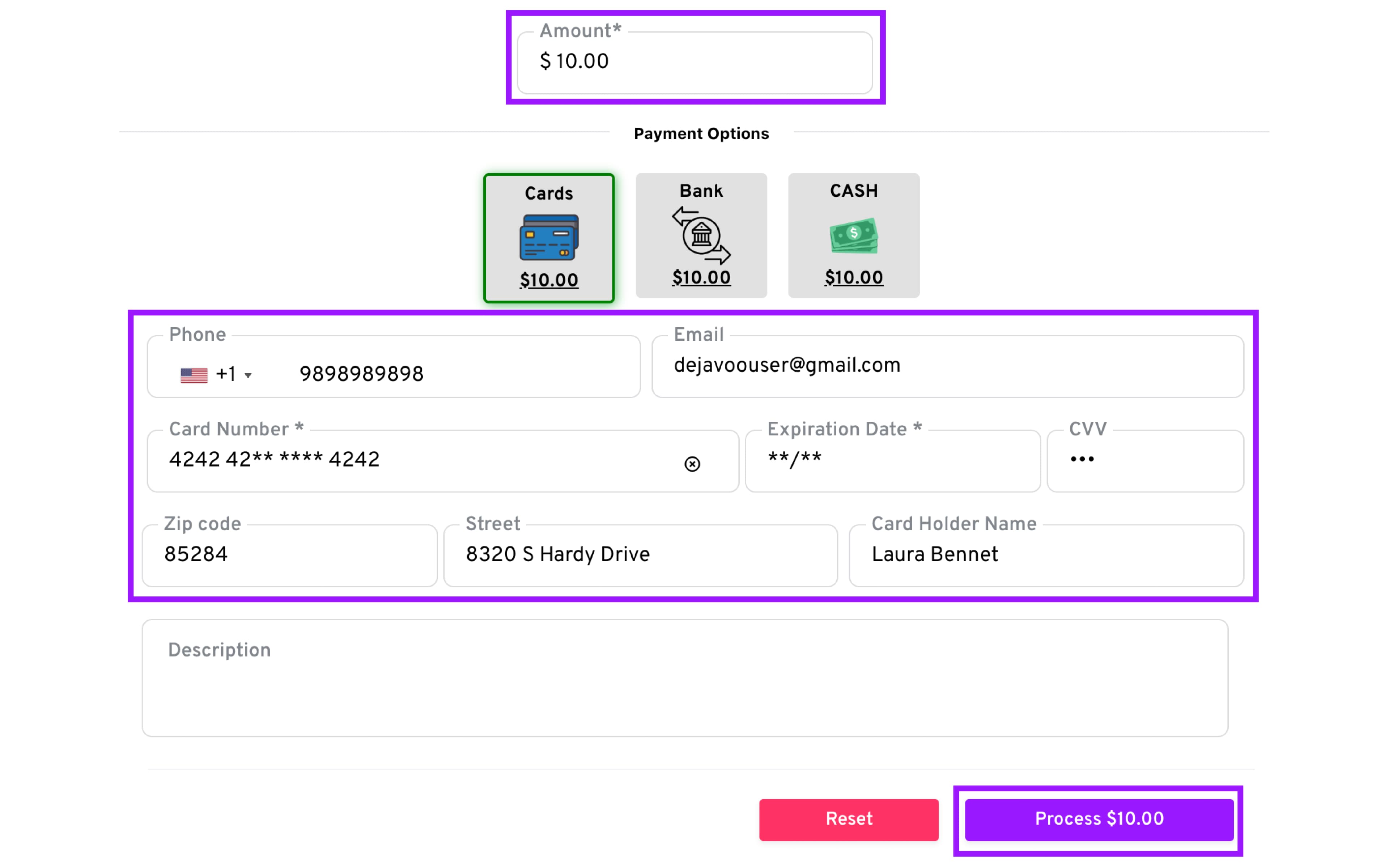
Enter the refund amount and select Cards as the Payment Option
-
Enter Customer Details: Fill in the required fields, which may vary depending on configuration
-
Click Process
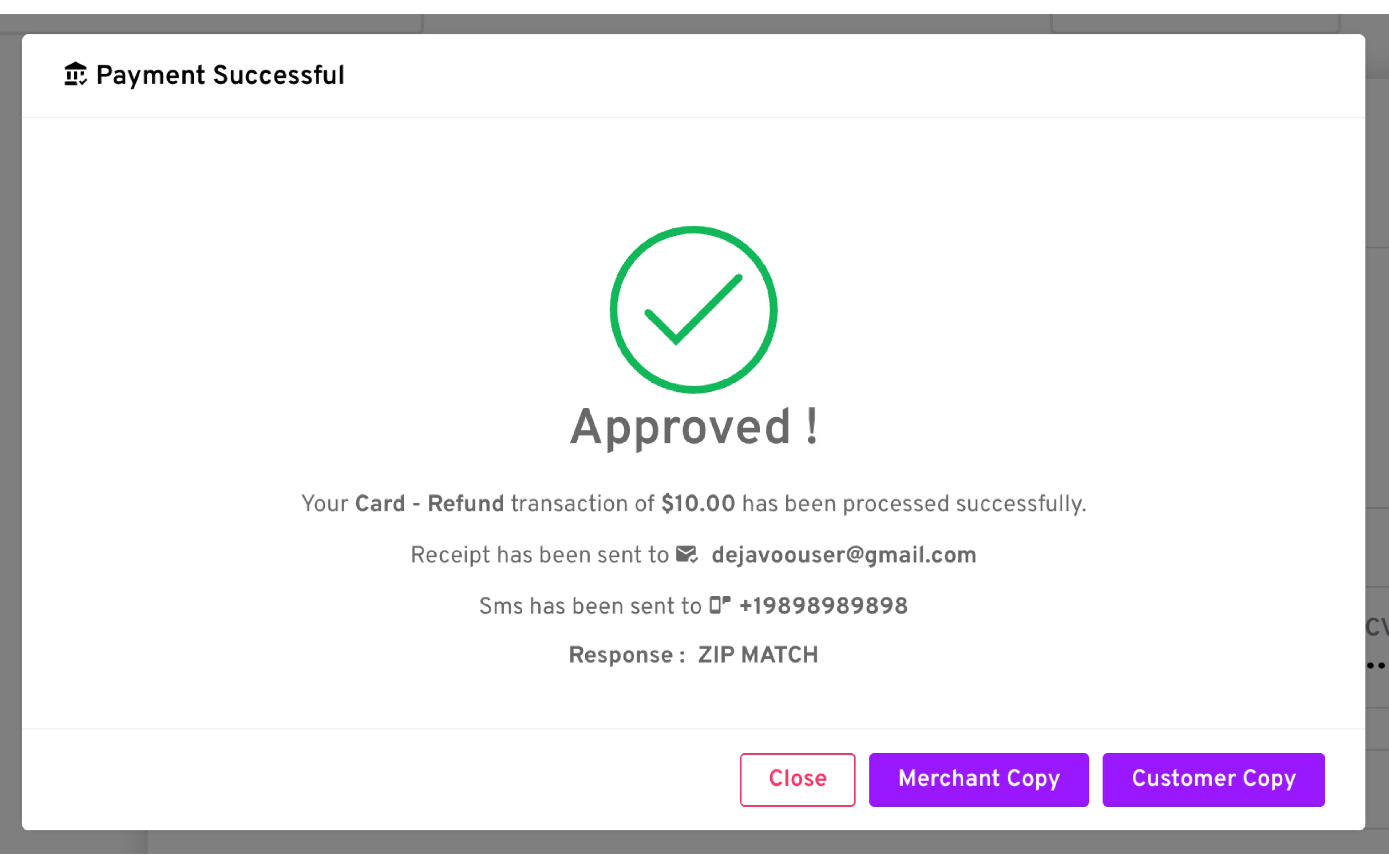
- A dialog will show Success or Failure.
Bank
- Configure the transaction:
— Action: Quick Pay
— Payment Type: Pay now
— Transaction Type: Refund
-
Select TPN: From the dropdown on the right, choose the CloudPOS TPN you want to use.
-
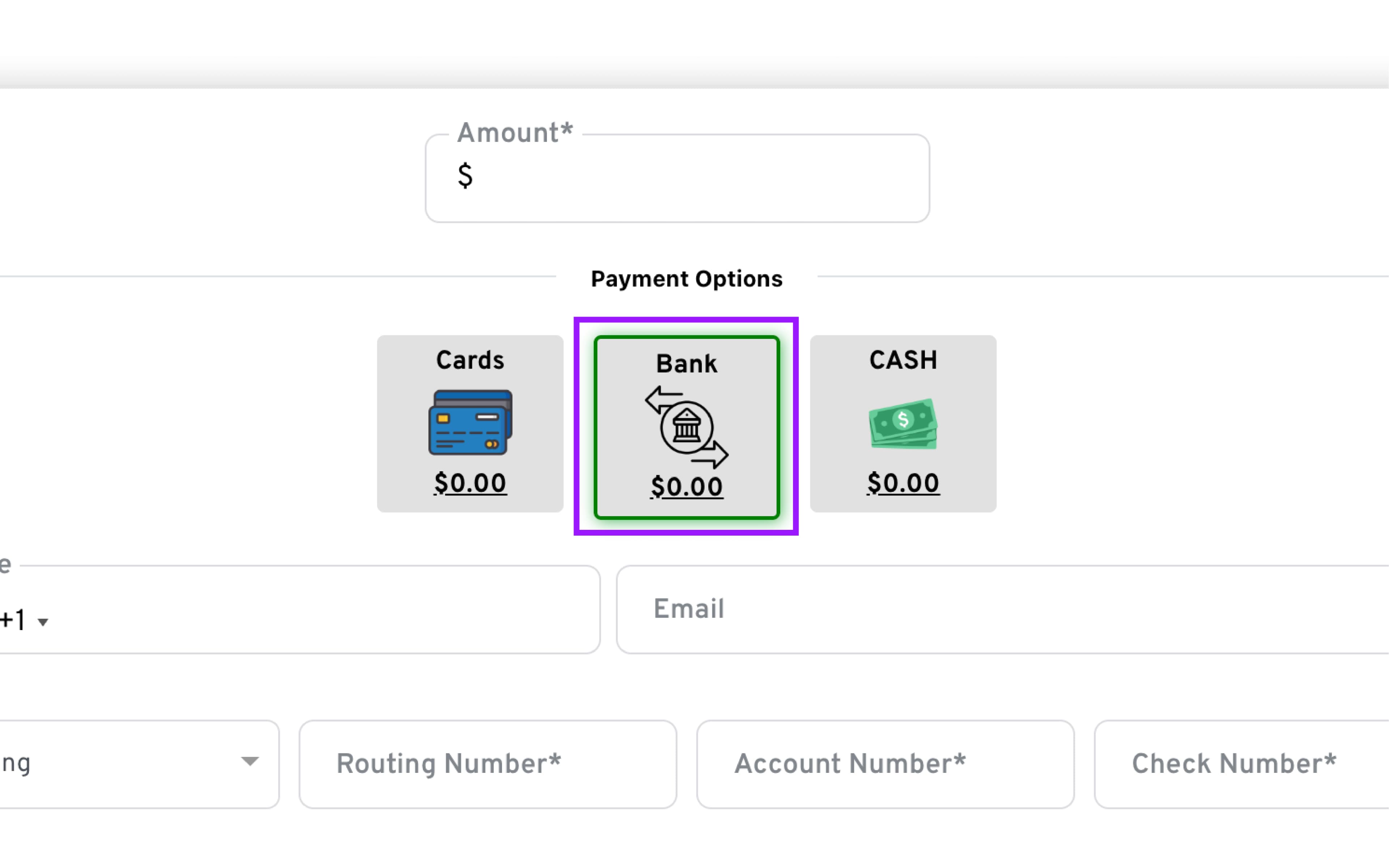
Enter the amount and select Bank as the Payment Option: A pop-up will appear asking you to choose the customer authorization method required for Paya ACH.
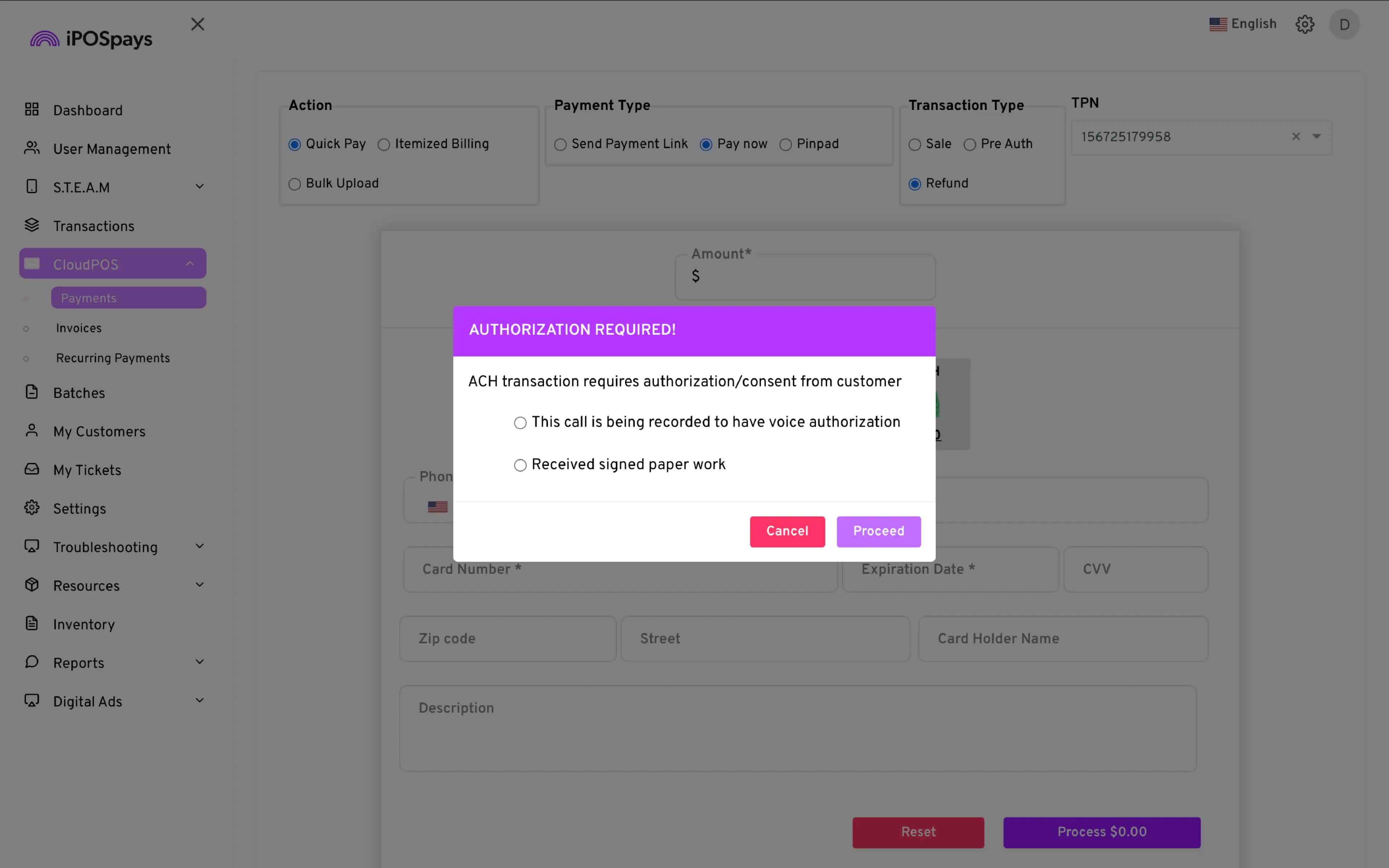
-
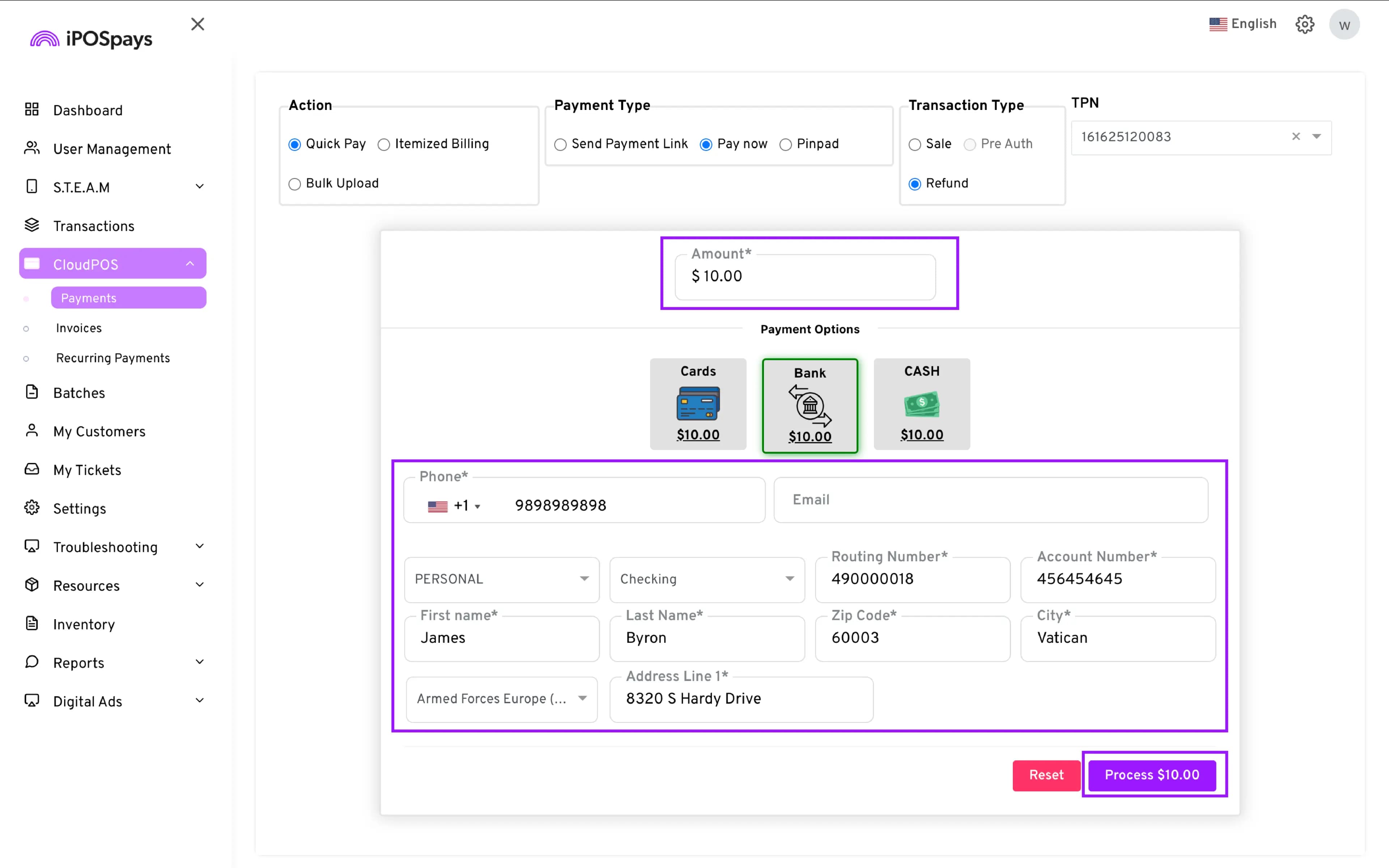
Fill in the required customer and authorization fields.
-
Click Process to complete the transaction.
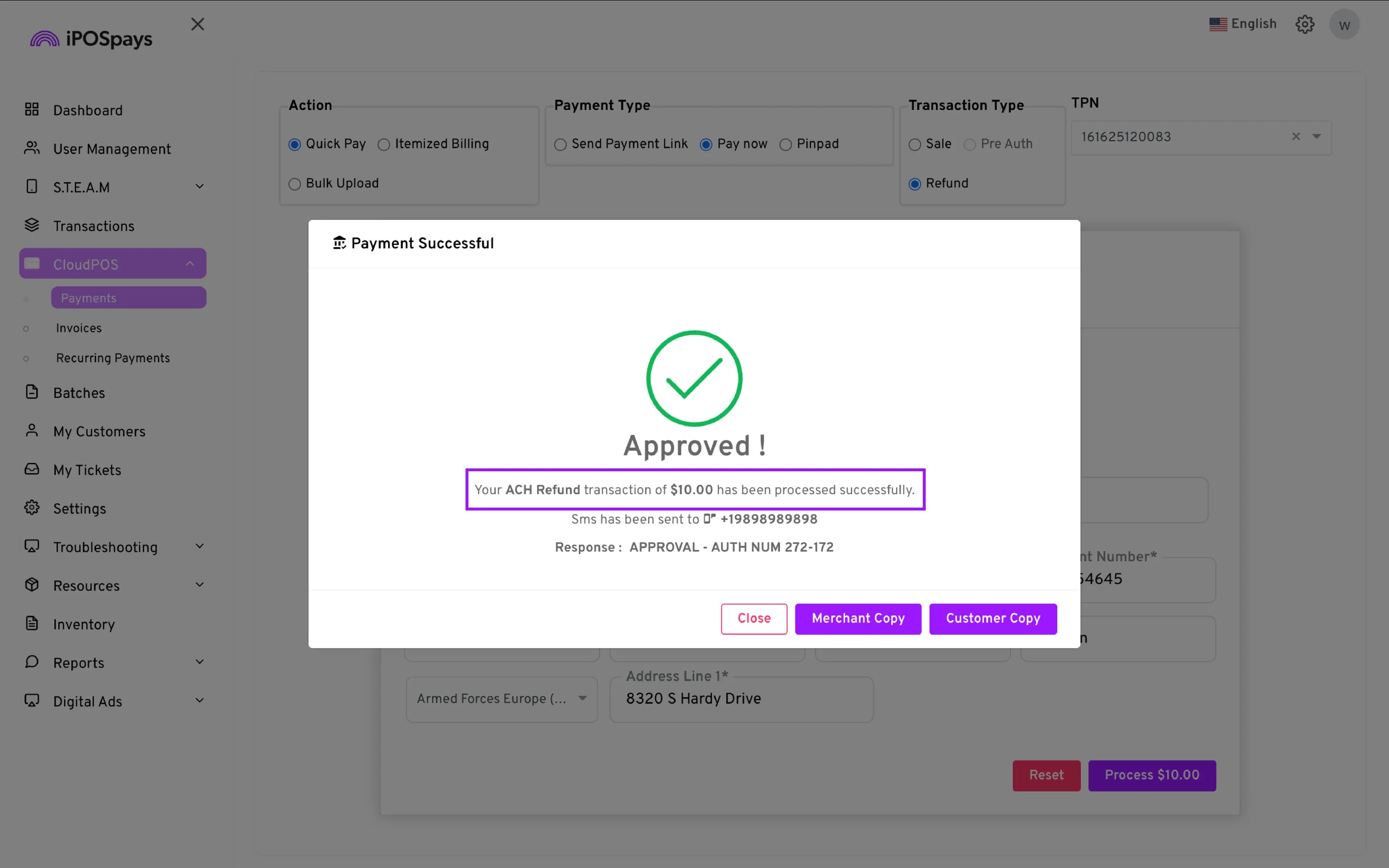
- A dialog will show Success or Failure.
Cash
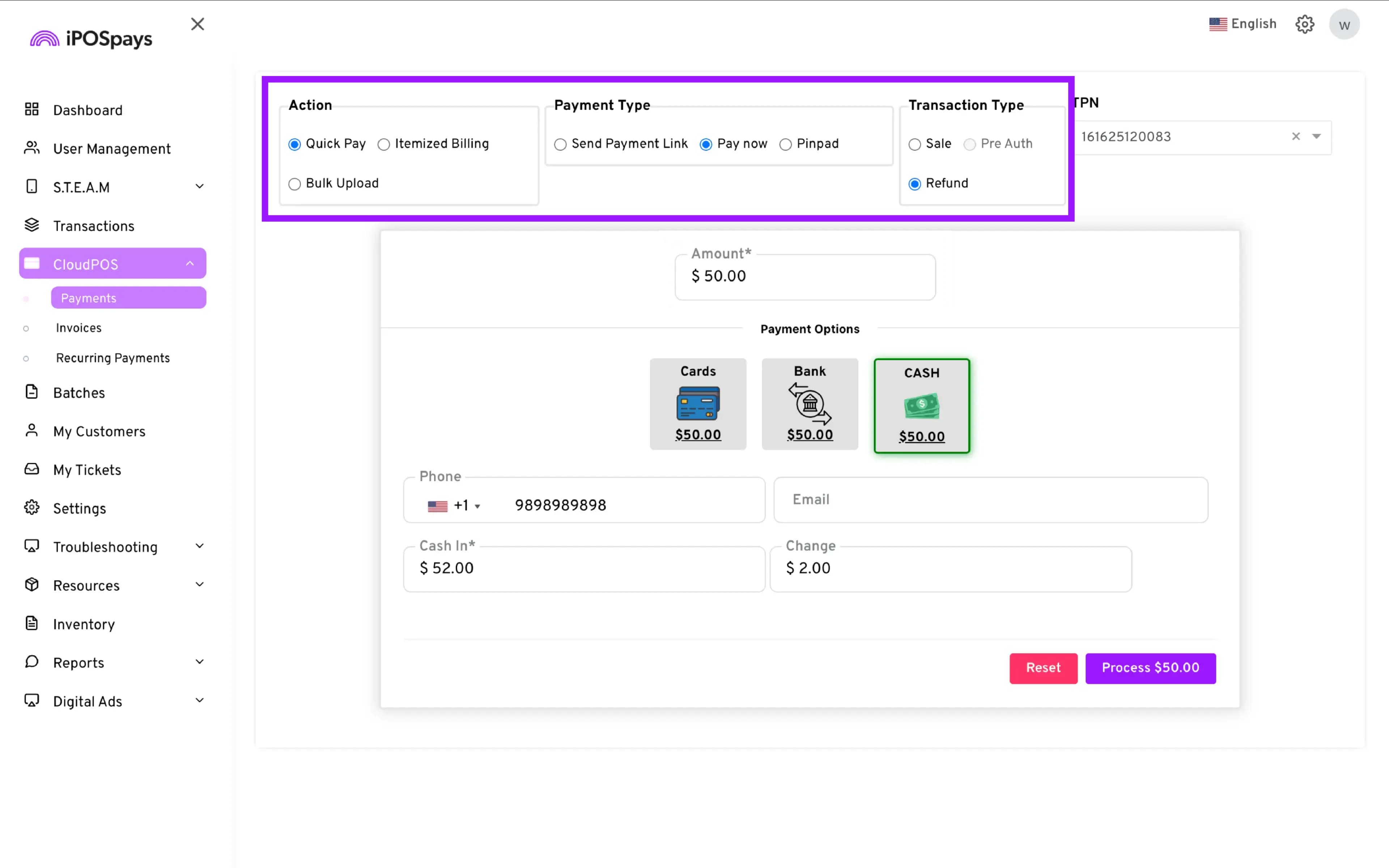
- Configure the transaction:
— Action: Quick Pay
— Payment Type: Pay now
— Transaction Type: Refund
-
Select TPN: From the dropdown on the right, choose the CloudPOS TPN you want to use.
-
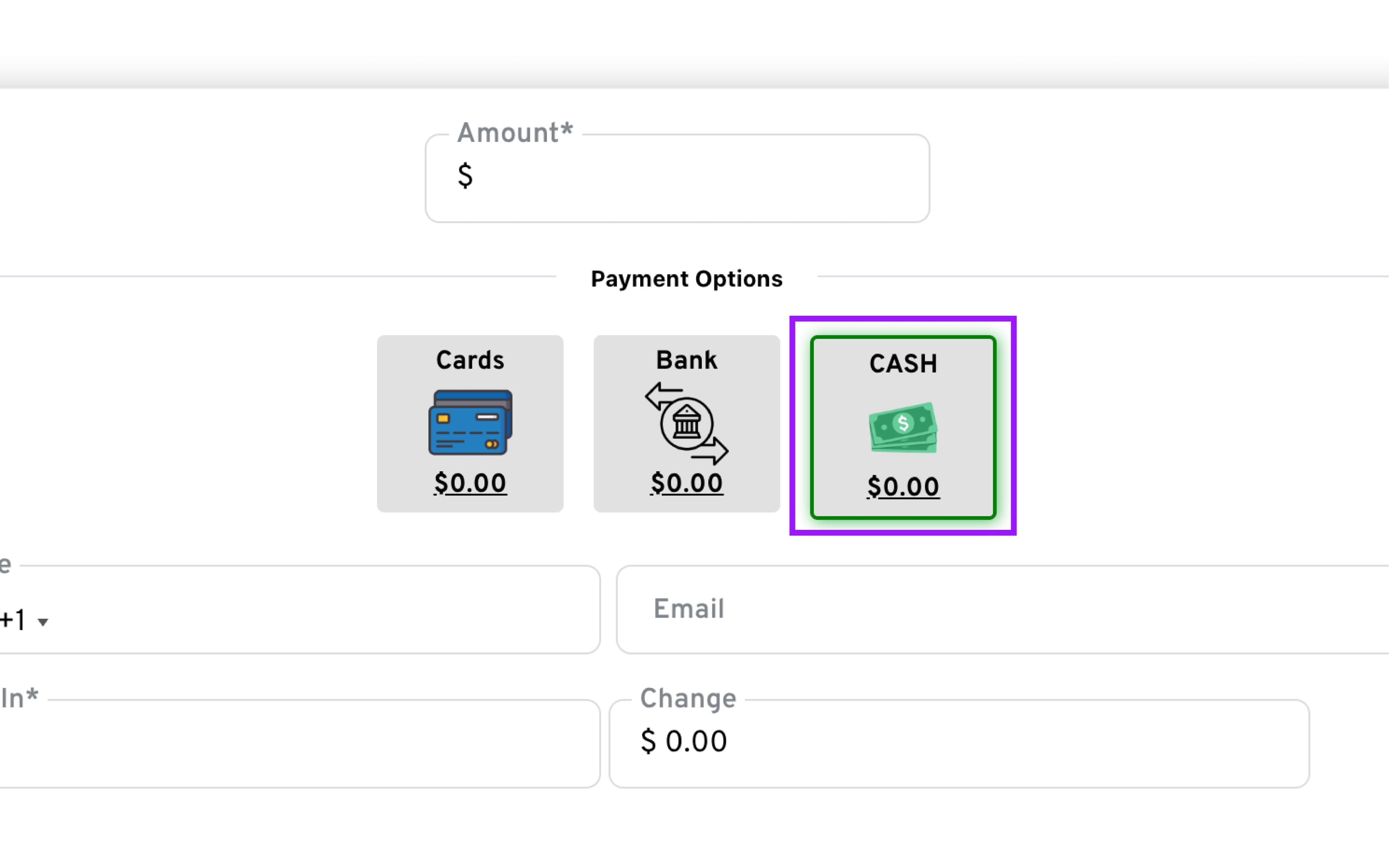
Enter the amount and select Cash as the Payment Option
-
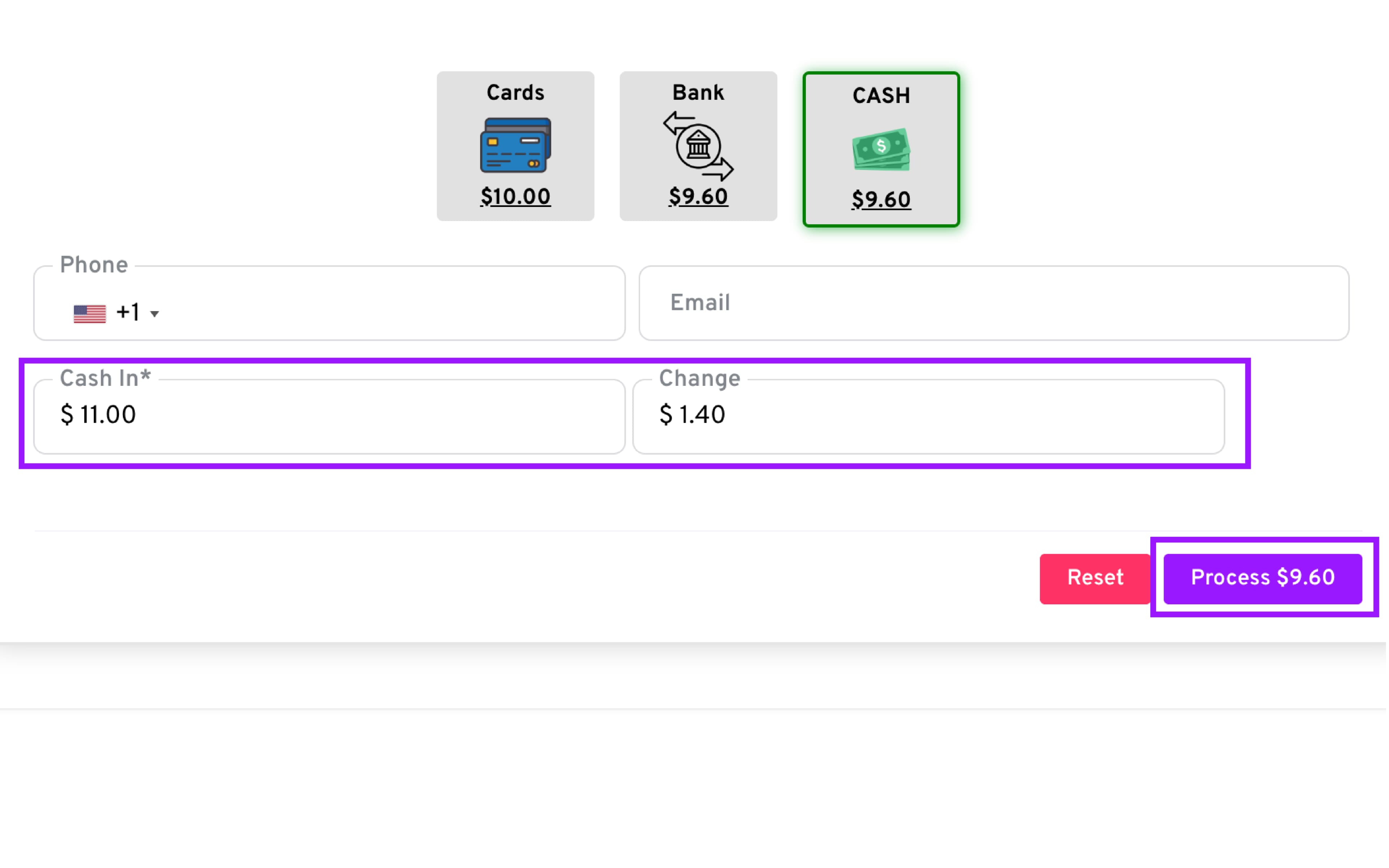
Enter phone number and email in their respective fields.
-
Enter the amount given by the customer in the ‘Cash In’ field. The change is calculated automatically and displayed in the ‘Change’ field.
-
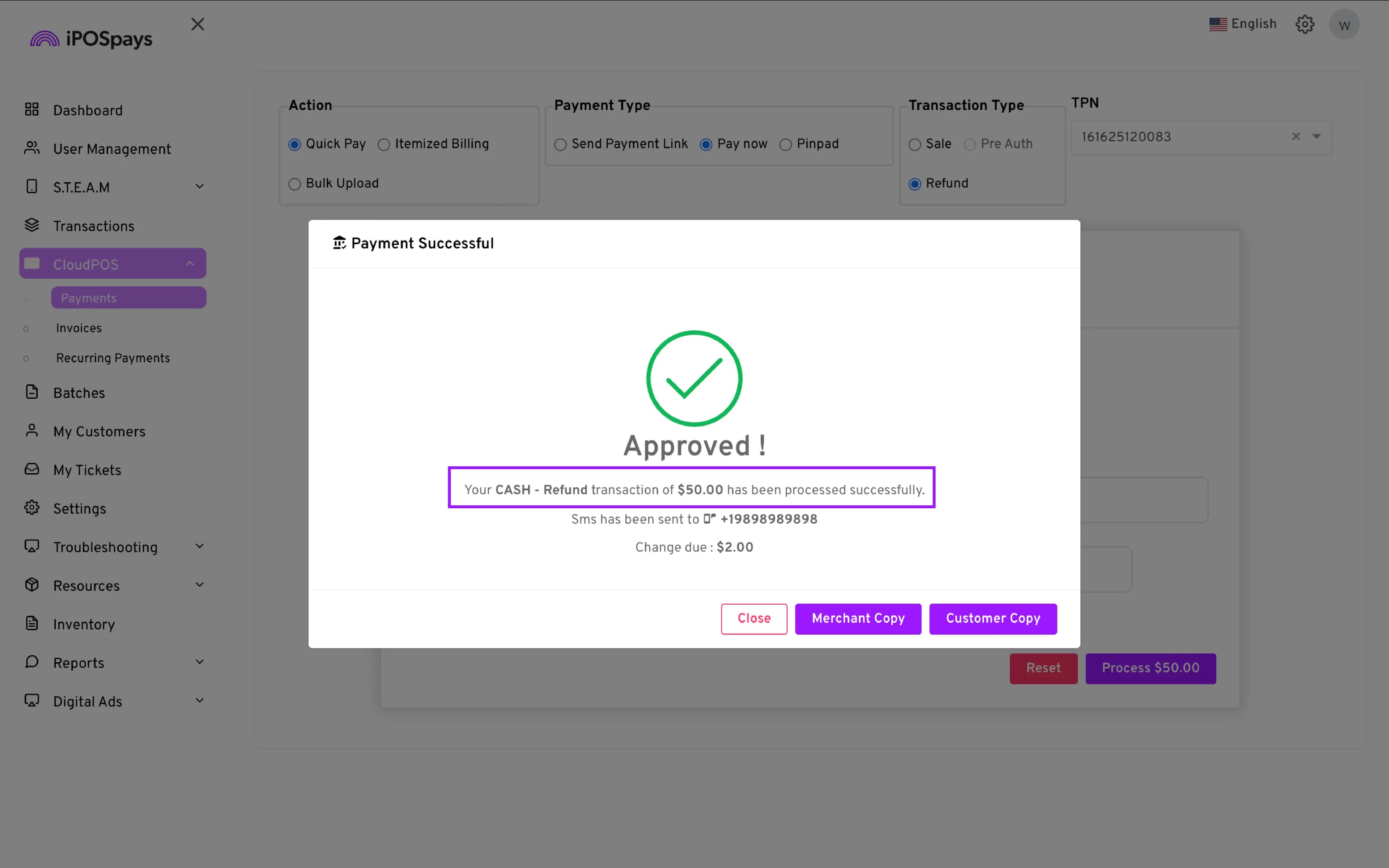
Click Process to complete the transaction.
-
A confirmation message will appear on the screen to indicate the transaction status
Pay Now - Pre-Auth Transactions (Cards Only)
What is a Pre-Auth?
A Pre-Authorization (Pre Auth) temporarily places a hold on a customer’s card for a specified amount without completing the full charge. It ensures funds are available and allows you to adjust the amount before finalizing.
- Configure the transaction:
— Action: Quick Pay
— Payment Type: Pay now
— Transaction Type: Pre Auth
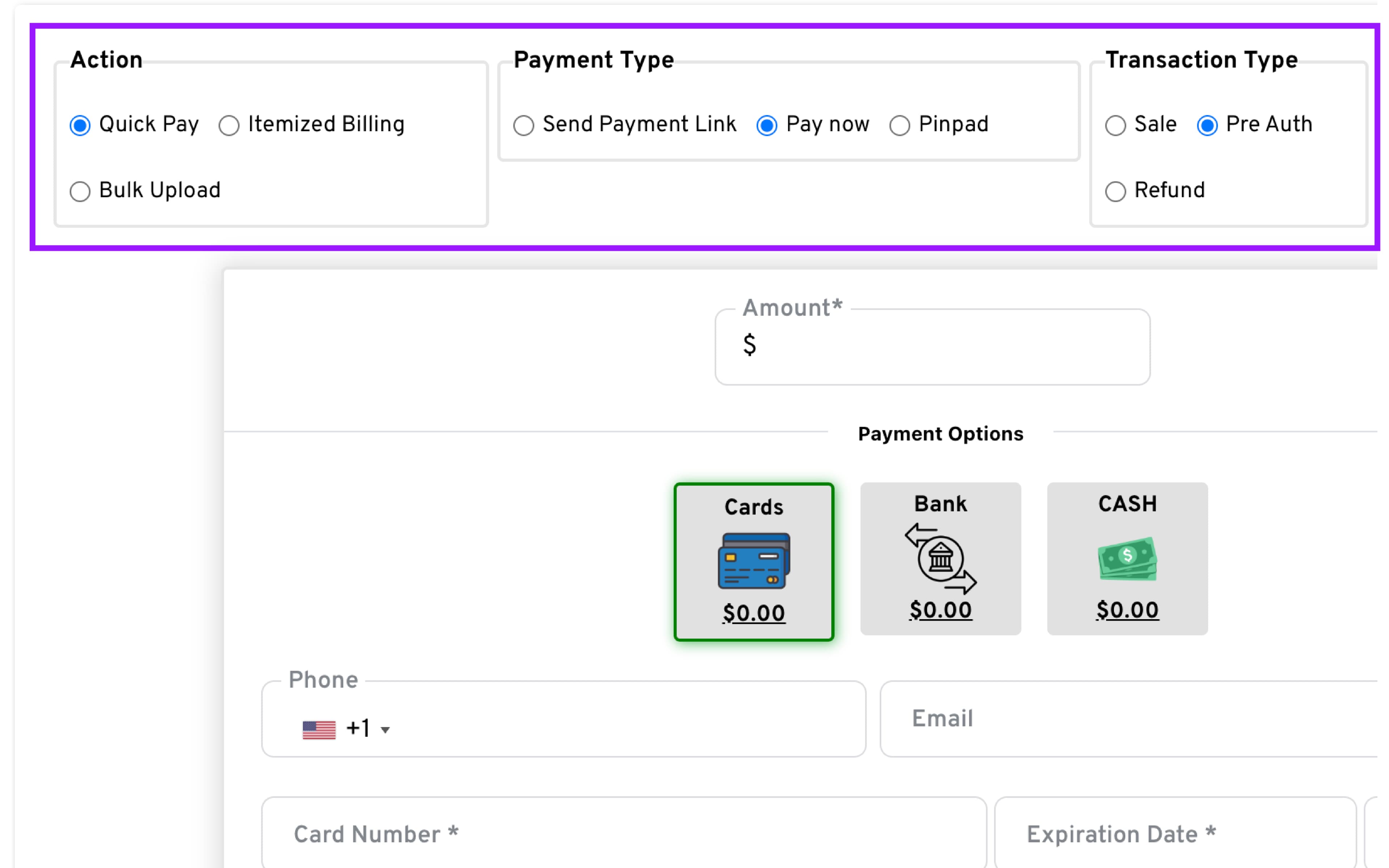
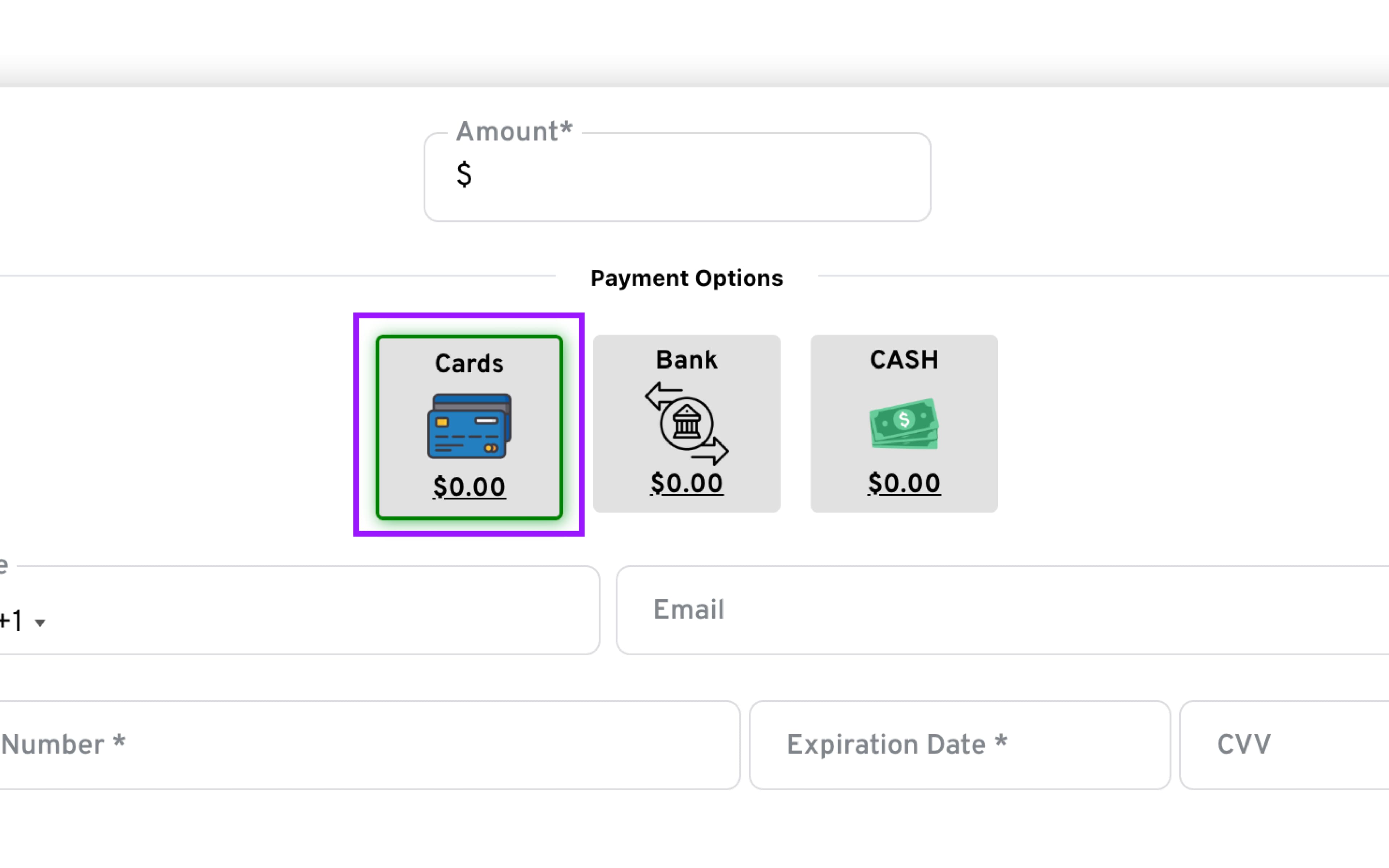
- Enter the amount and select Cards as the Payment Option
-
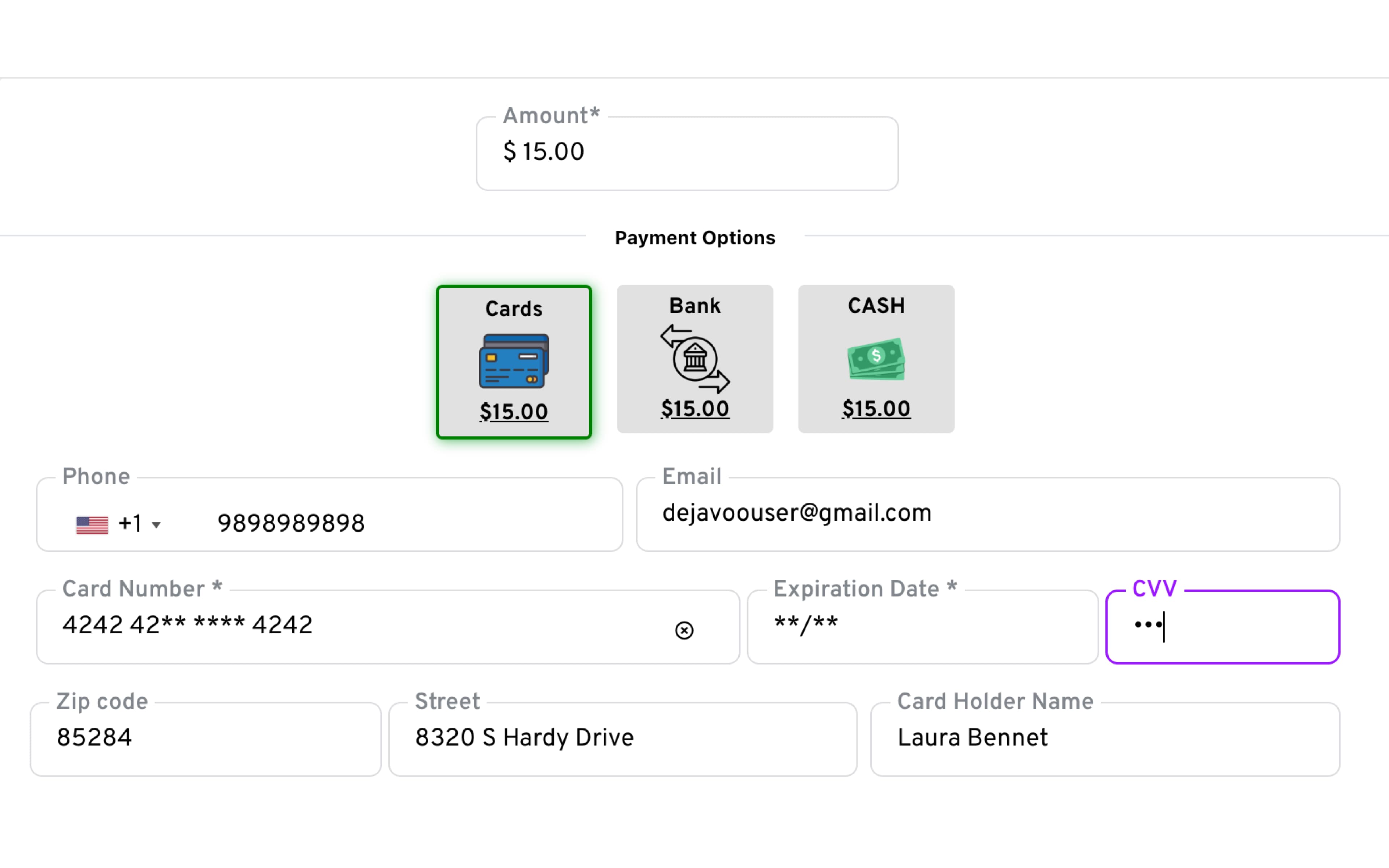
Enter Customer Details: Fill in the required fields, which may vary depending on configuration
-
Click - Process, to submit the transaction
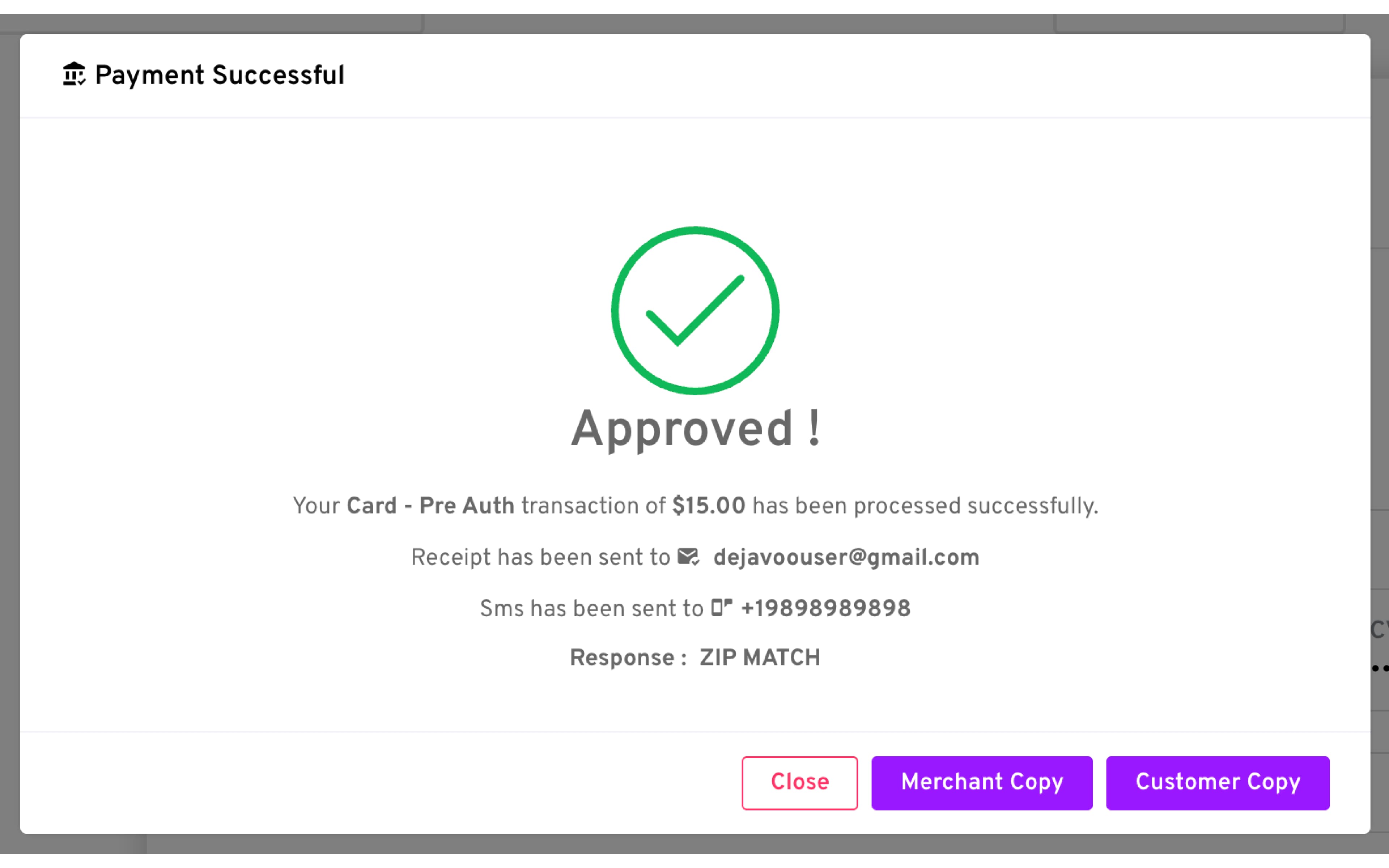
- Review Result: A dialog will appear showing Success or Failure.
Finalize a Pre Auth - Perform Ticket Transaction:
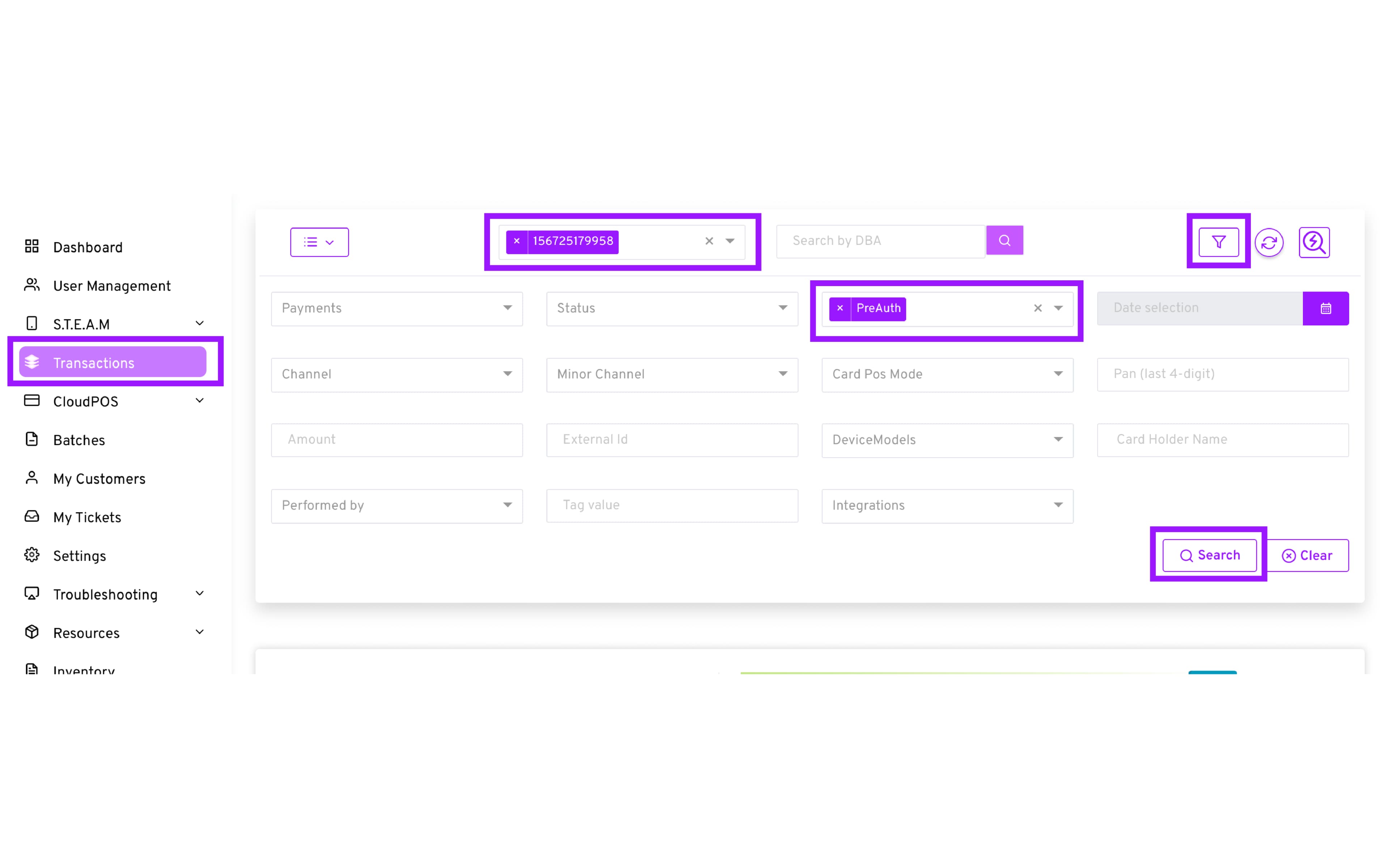
- Go to the Transactions Module: utilize the filter options to locate the Pre-Auth transaction you wish to finalize
- After locating the desired transaction, select “Ticket/Void” → then ensure to select “Ticket” from the drop-down menu.
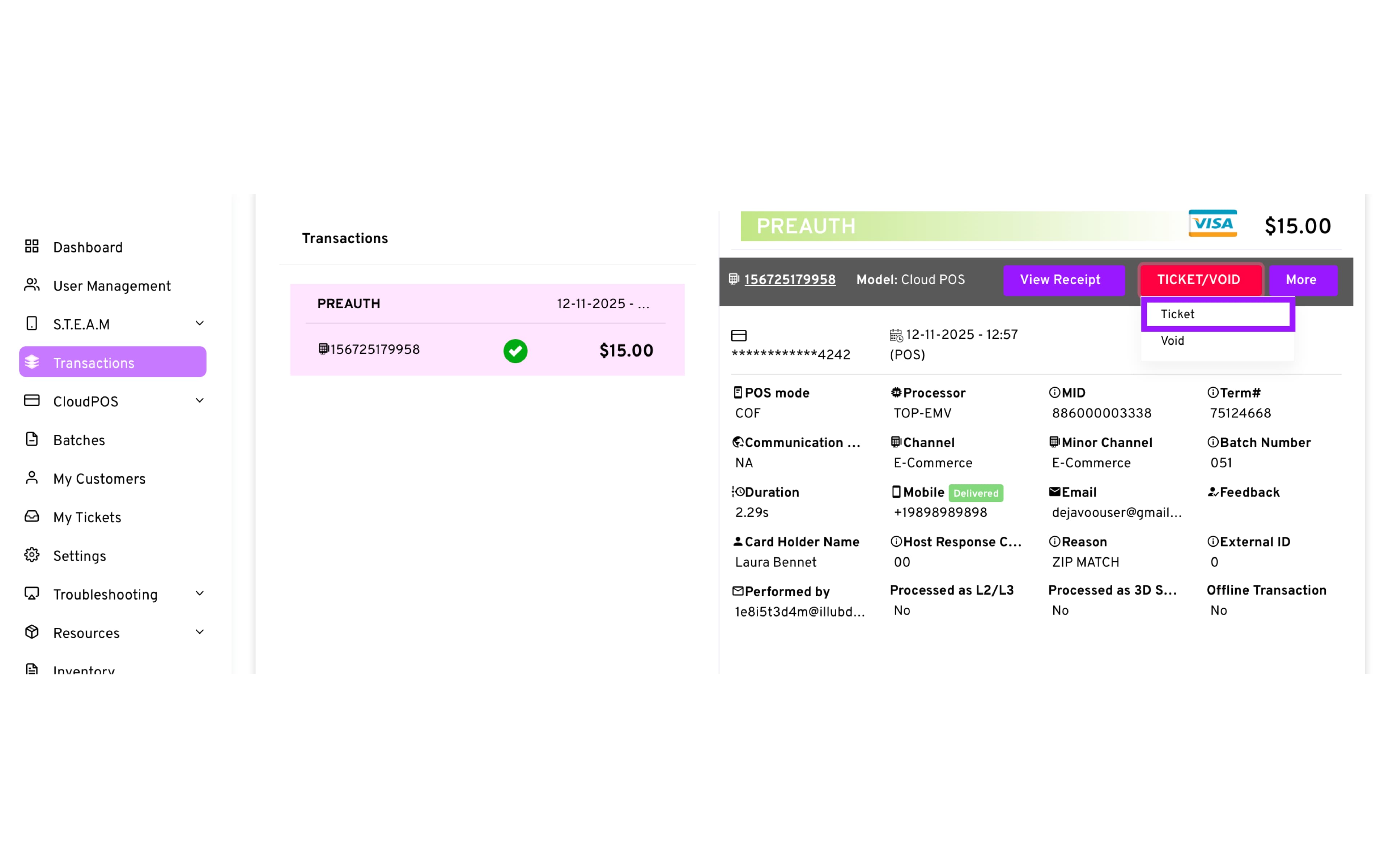
The Ticket action is used to complete a Pre Auth. This action converts the hold into a finalized charge, usually done at checkout or when the final amount has been determined.
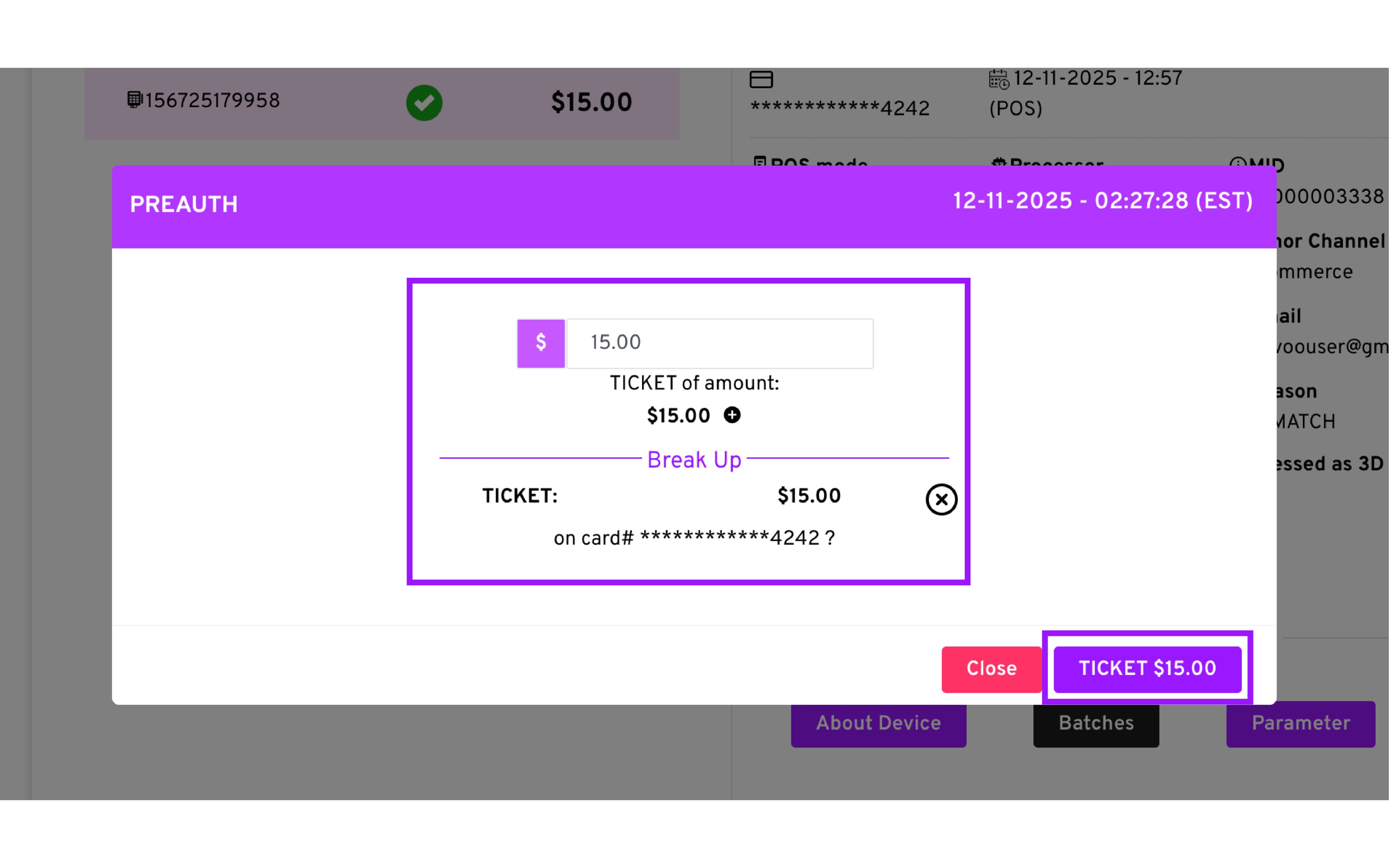
- Adjust the Amount: If needed, the original amount that was “Pre-Authorized” can be modified to finalize the transaction for a higher or lower amount.
-
Finalize the Transaction by selecting “Ticket”
-
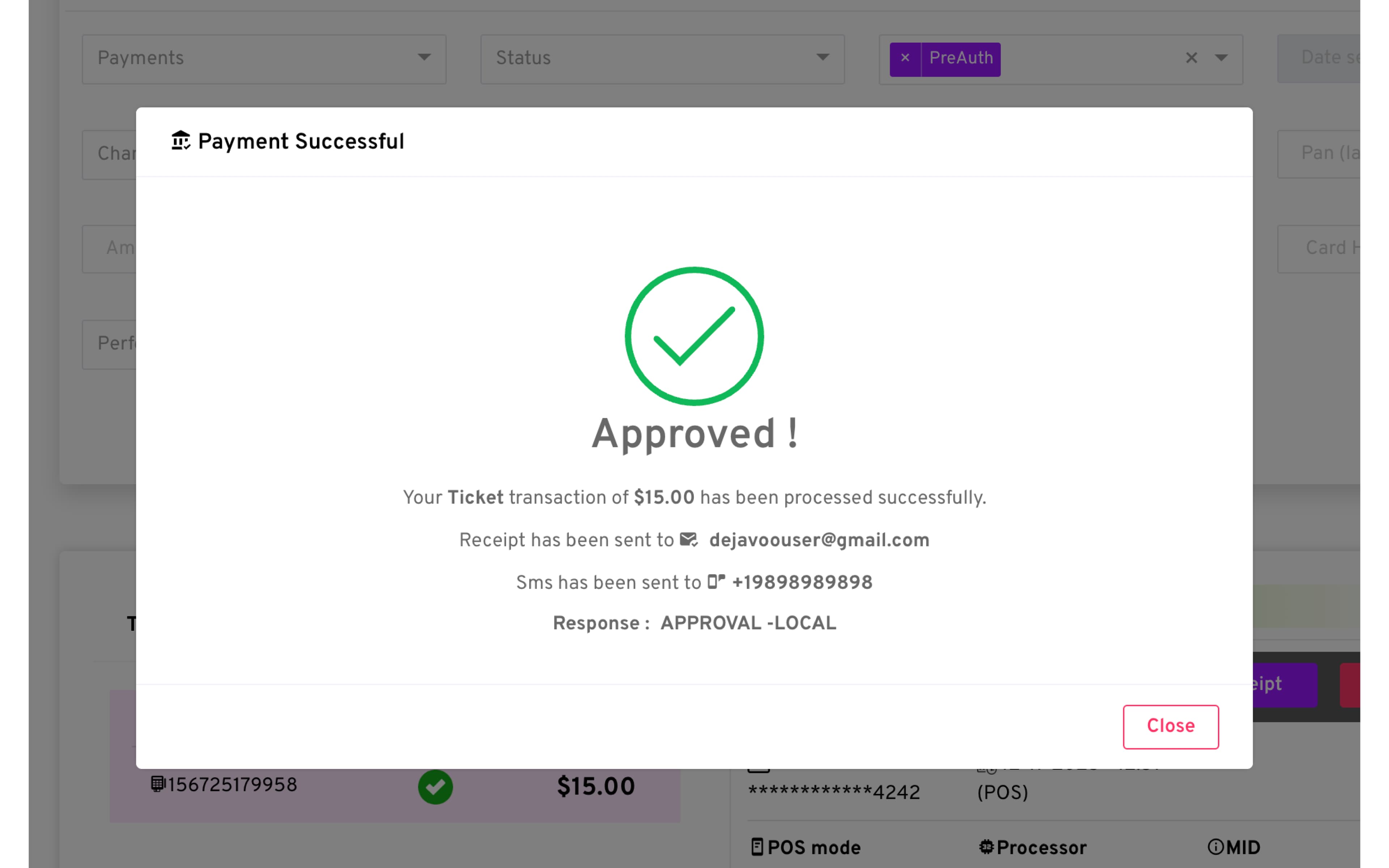
Review Result: A dialog will appear showing Success or Failure.
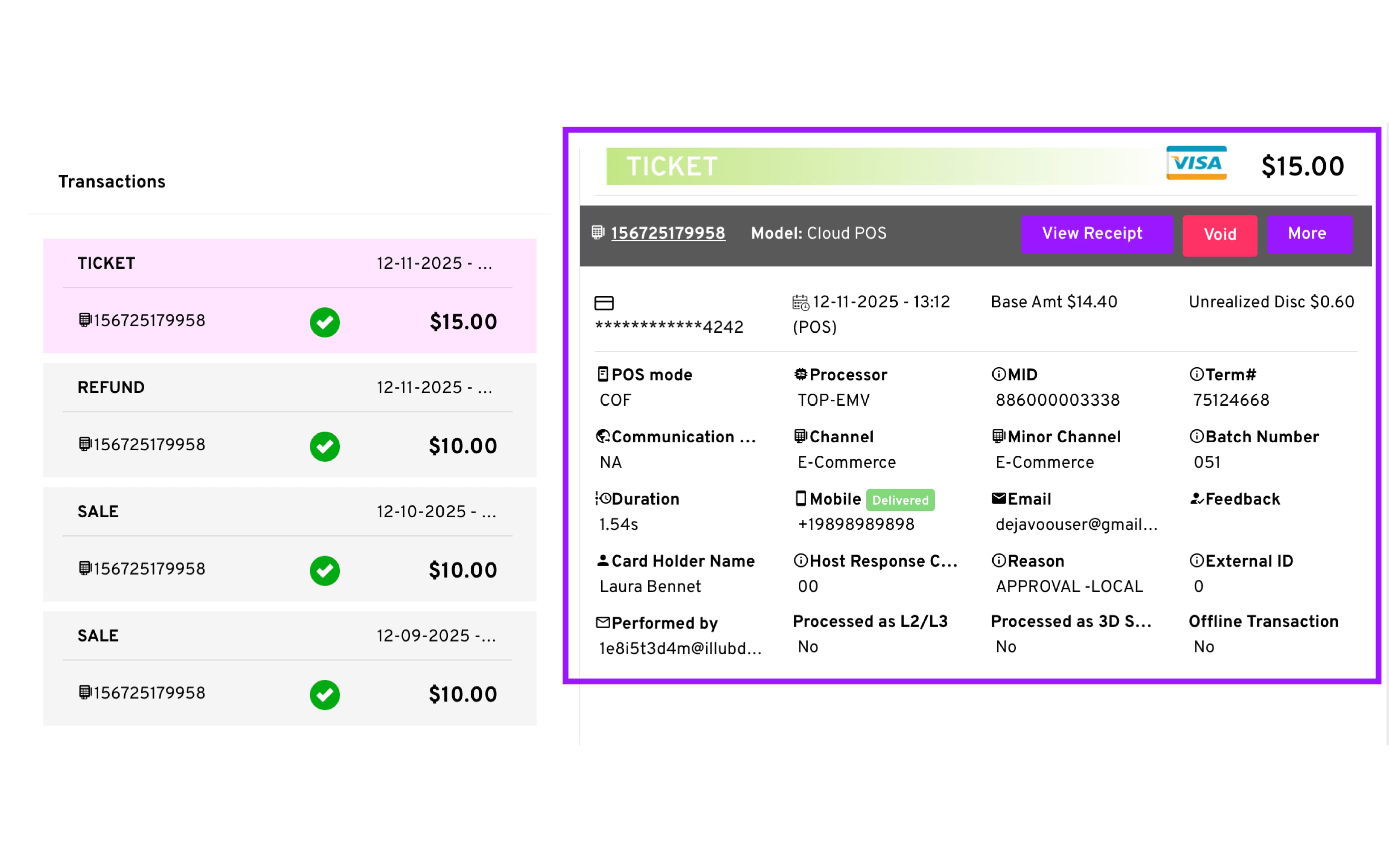
- The transaction is now finalized, and the transaction label will update from PREAUTH to TICKET, indicating a successful completion.
Send Payment Link Transactions
Payment Links only support Transaction Type - Sale
Also, it’s important to note that generating a Payment Link payment type automatically generates an Invoice to facilitate the merchant to track the status of the transaction.
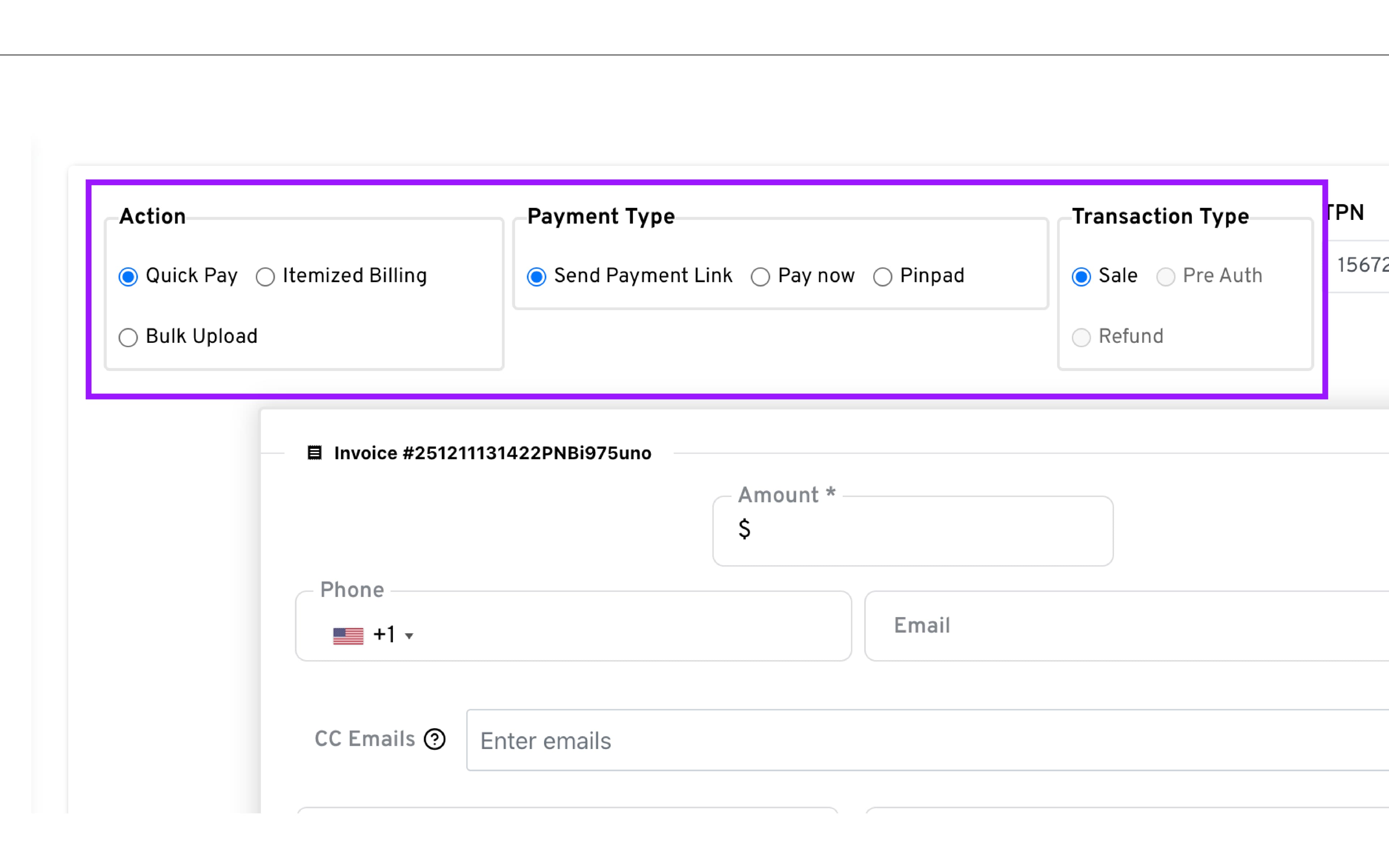
- Configure the Transaction
— Action: Quick Pay
— Payment Type: Send Payment Link
— Transaction Type: Sale
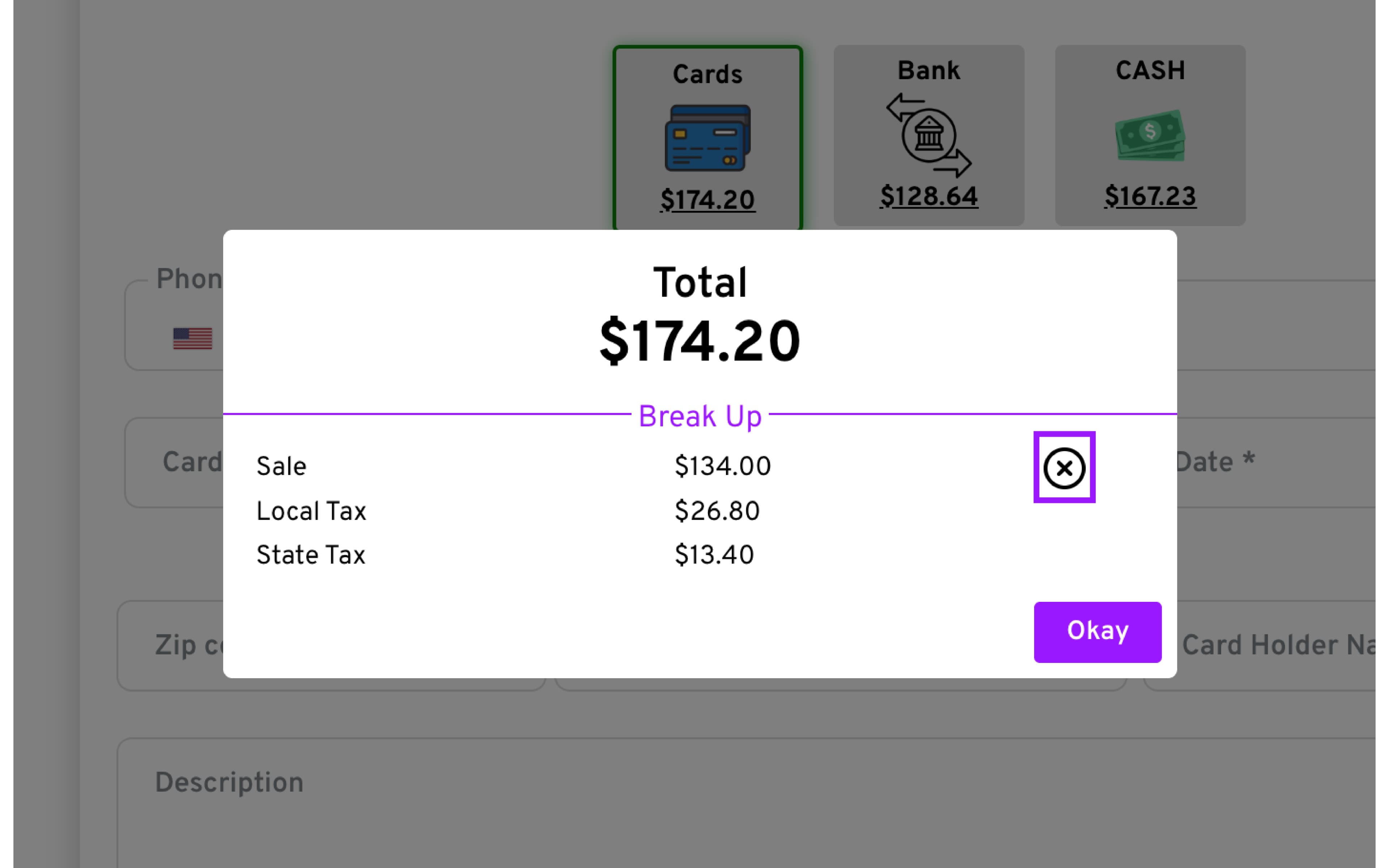
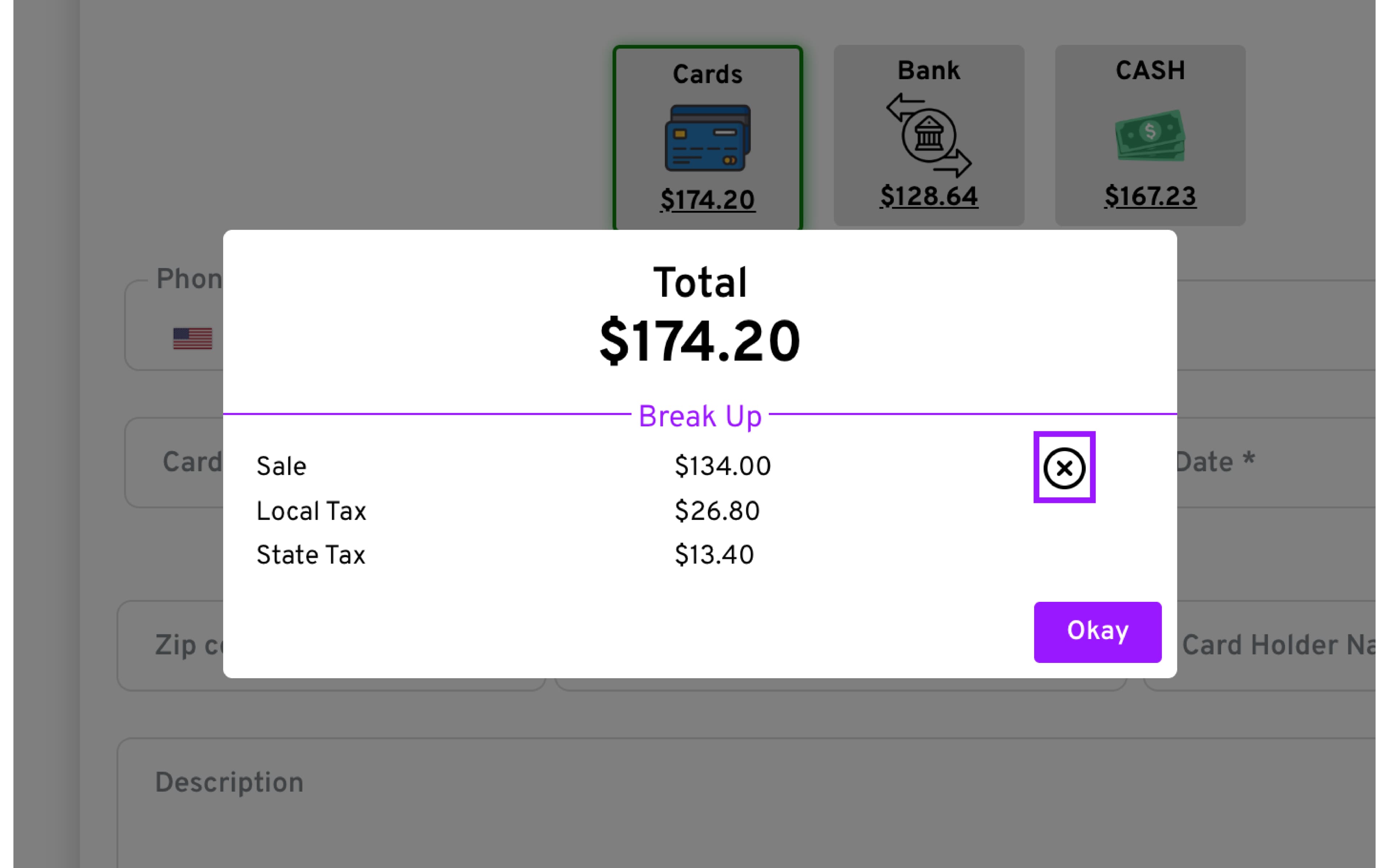
- Input Amount: Will prompt the Break Up screen, which, depending on the configurations, may allow you to remove (bypass by pressing X ) transaction fees and taxes. Click “Okay” to close the break-up pop-up screen
-
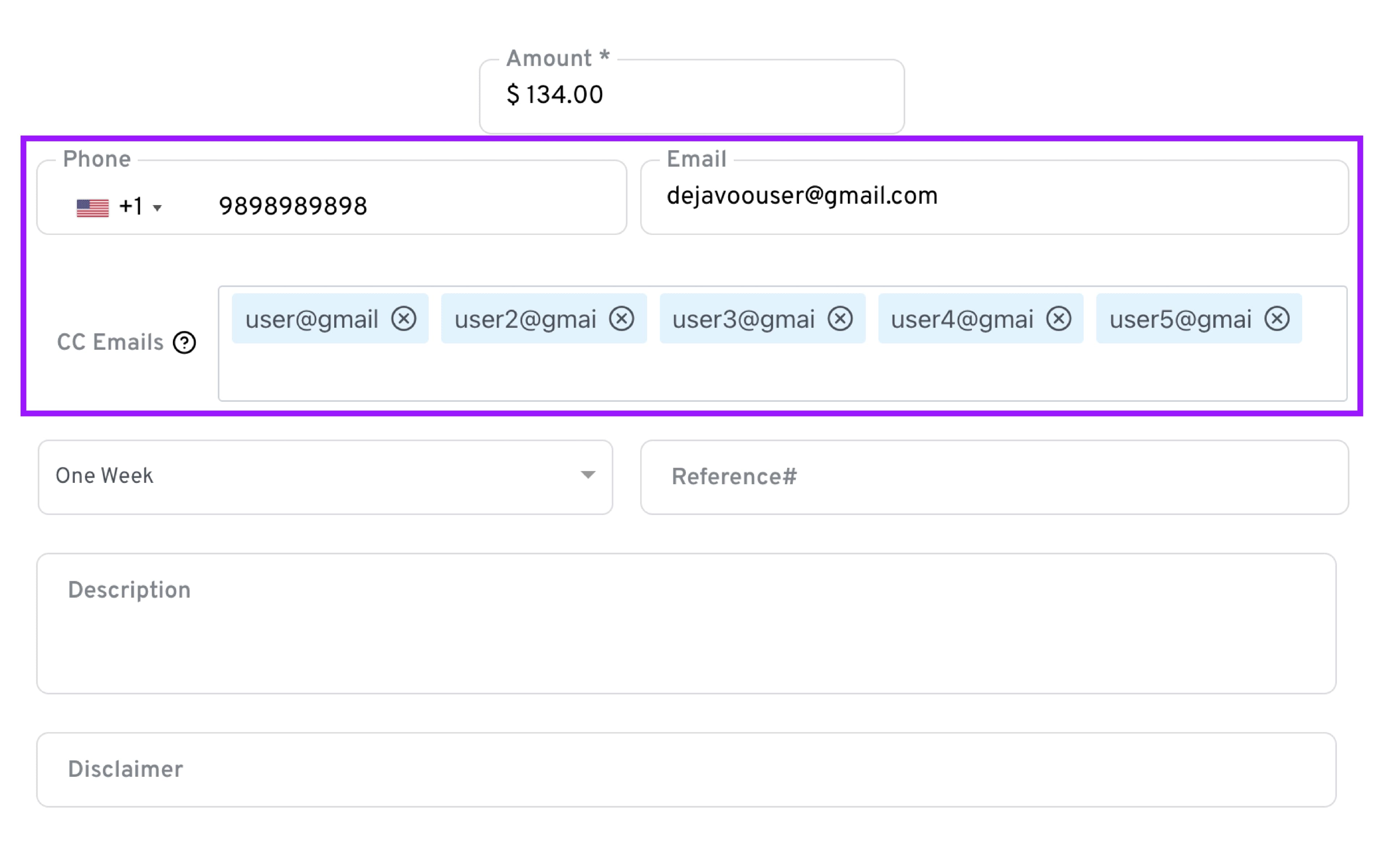
Customer’s contact information: Provide Email and/or Phone number for Payment Link delivery method.
- You may add up to 5 additional emails in order for multiple recipients to receive the request for payment.
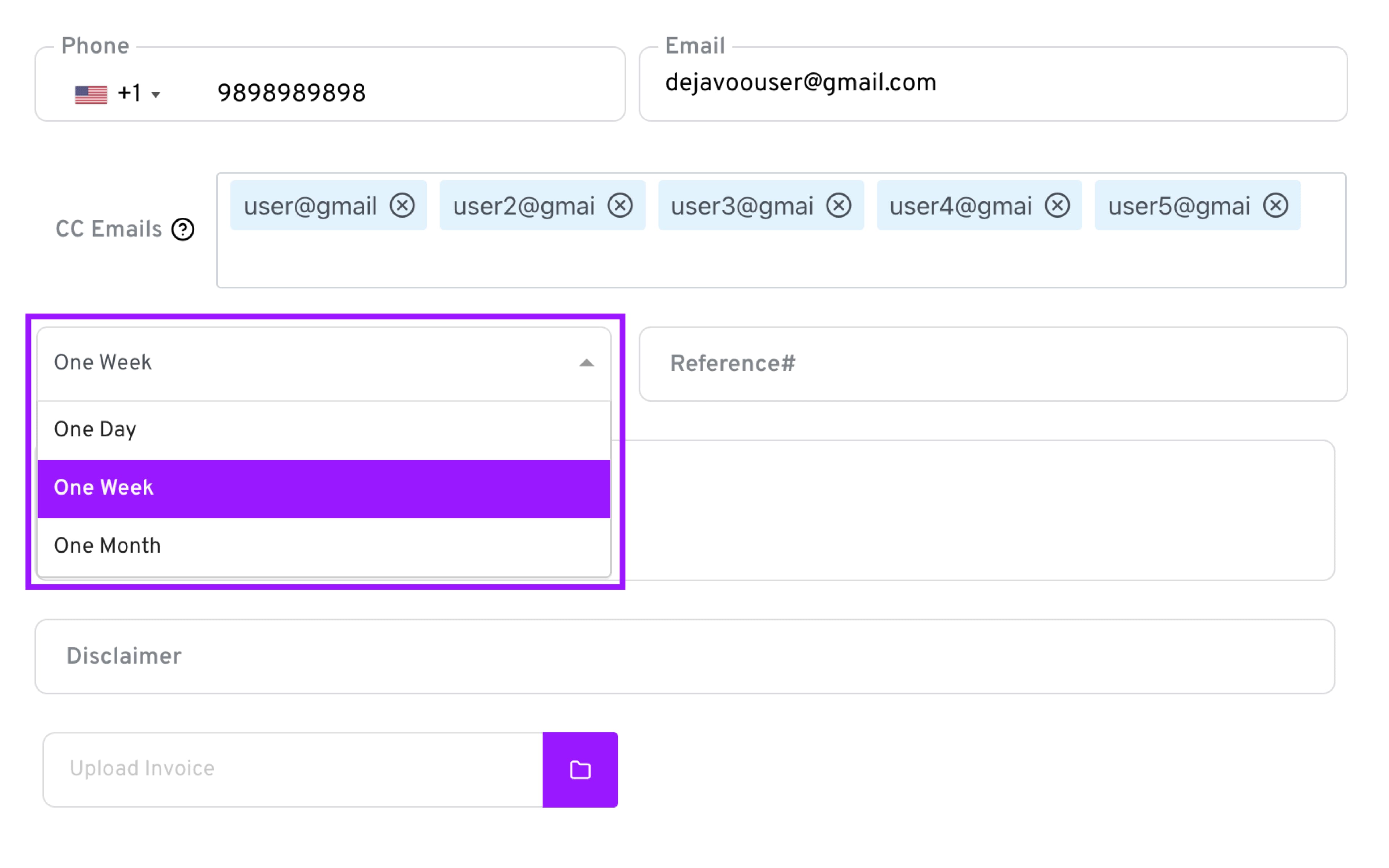
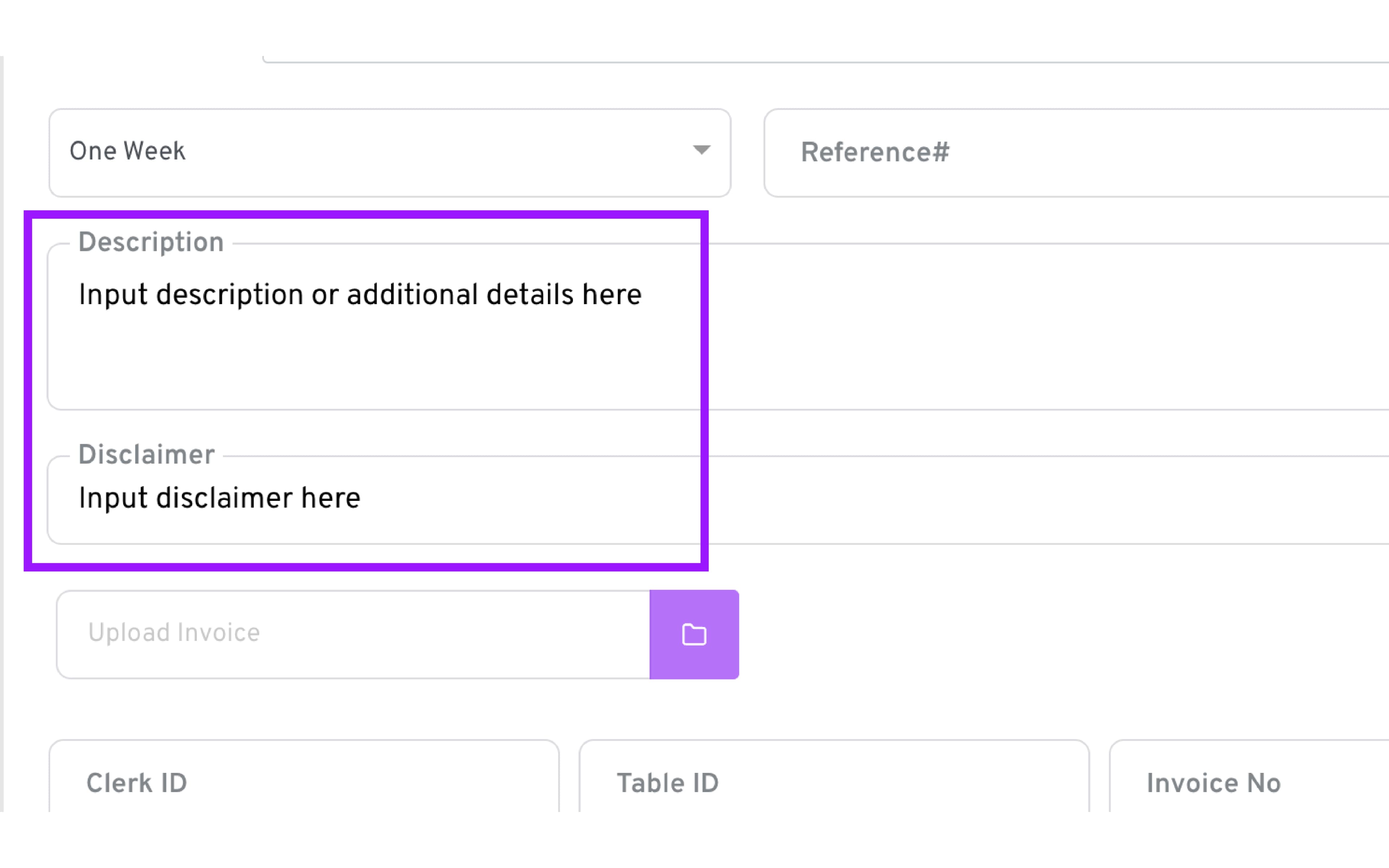
- Configure the expiry time for the payment link to remain valid for, currently the available options are:
— One Day
— One Week
— One Month
-
Enter a Reference ID if needed. This helps you easily identify and track the transaction later.
-
Add Description. You can use this field to provide additional details about the payment to help the merchant or reviewer understand the purpose clearly.
-
Add Disclaimer. Enter a note to limit responsibility or set boundaries, ensuring clarity and protecting the organization.
-
Upload Invoice File: Upload an invoice if required for customer reference
-
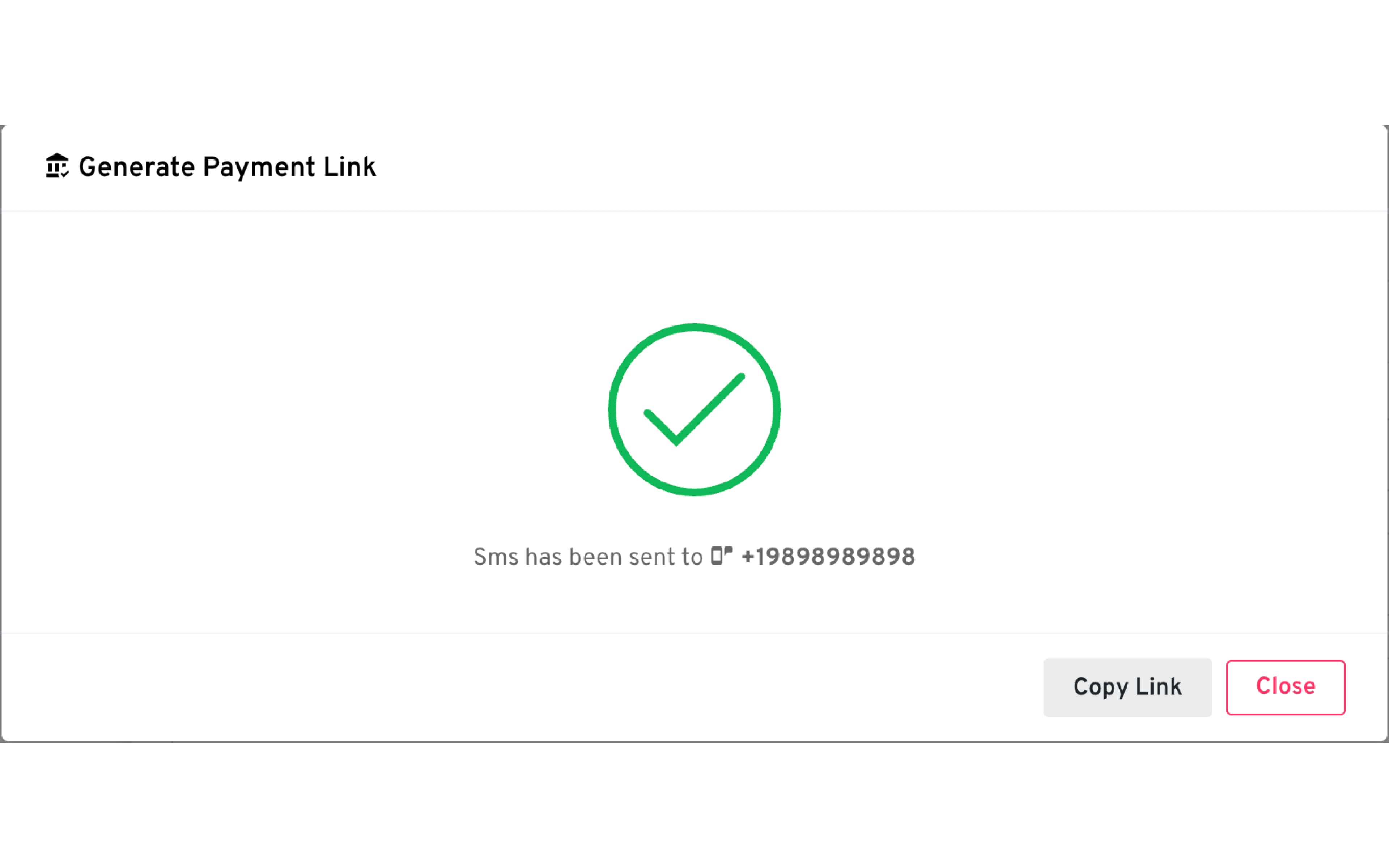
Click Send Payment Link to generate the email or SMS notification to the customer.
- This will generate a pop-up screen advising on the status of the Payment Link (success or failure)
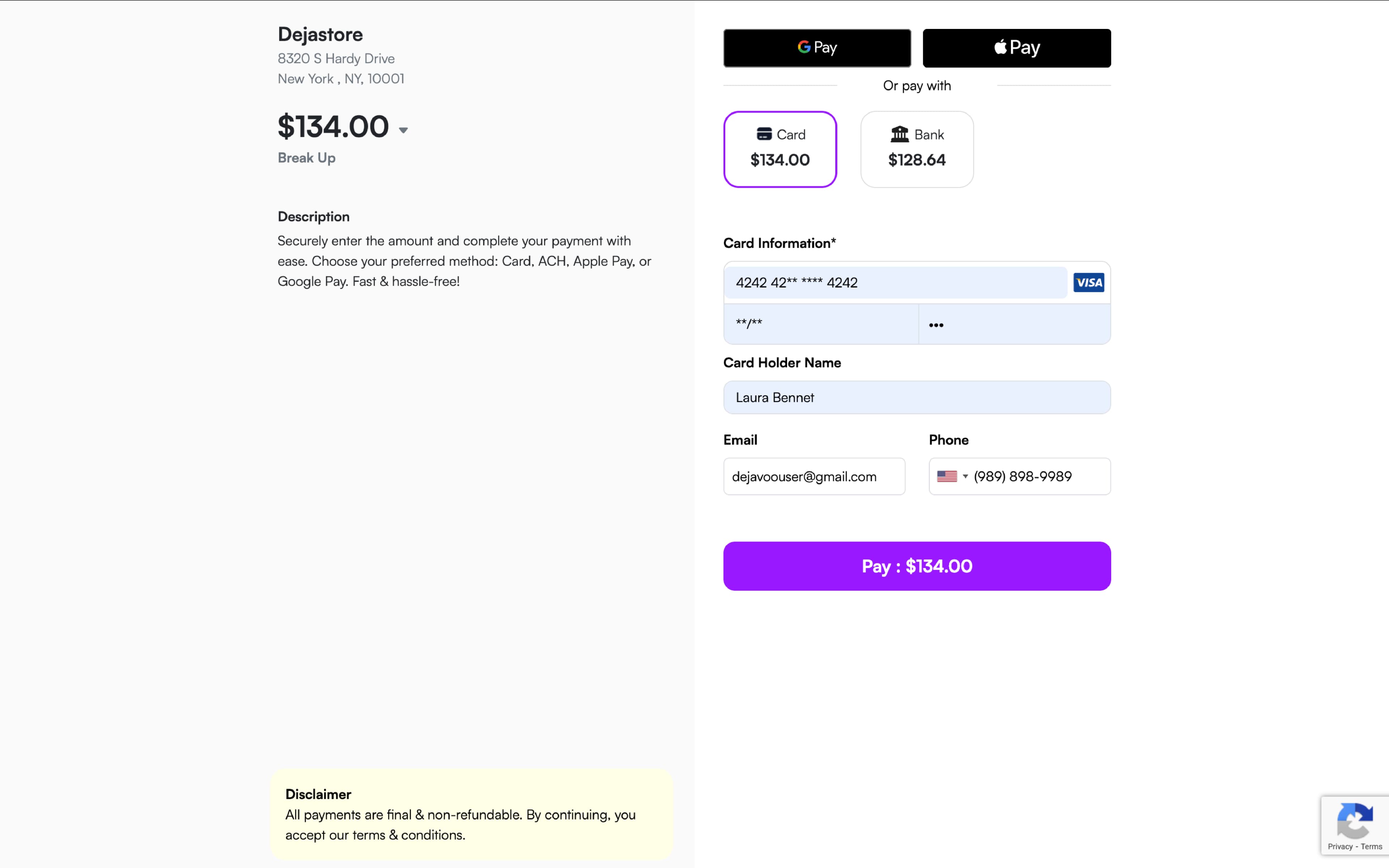
- The customer will receive an email or SMS with a link that will direct them to the Hosted Payment Page (HPP) to complete the payment
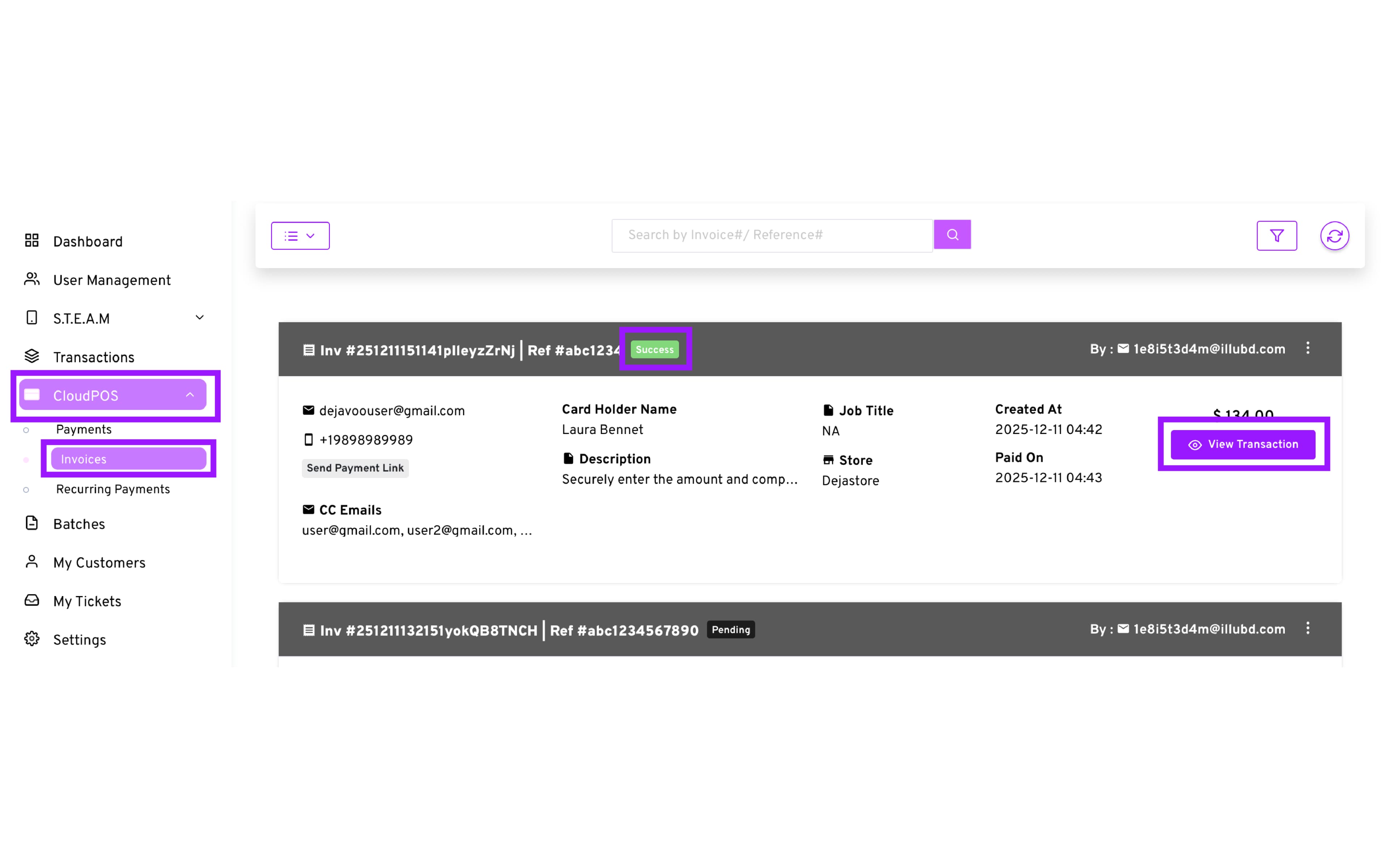
You may verify the status of a Payment Link transaction by navigating to CloudPOS → Invoices, and locating the transaction in question.
The transaction will have a label displaying its current status (Success, Pending, Cancelled, Expired)
If the invoice has been paid (Success), you can click on View Transaction to obtain all the details related to this transaction.
CloudPOS transaction with Pinpad
CloudPOS supports PIN pad transactions enabling merchants to connect their Dejavoo iPOSpays powered payment terminals and collect payments on the terminal.
CloudPOS With PIN pad supports all 3 payment transaction types:
CloudPOS With PIN pad - Sale Transaction
- Configure the transaction:
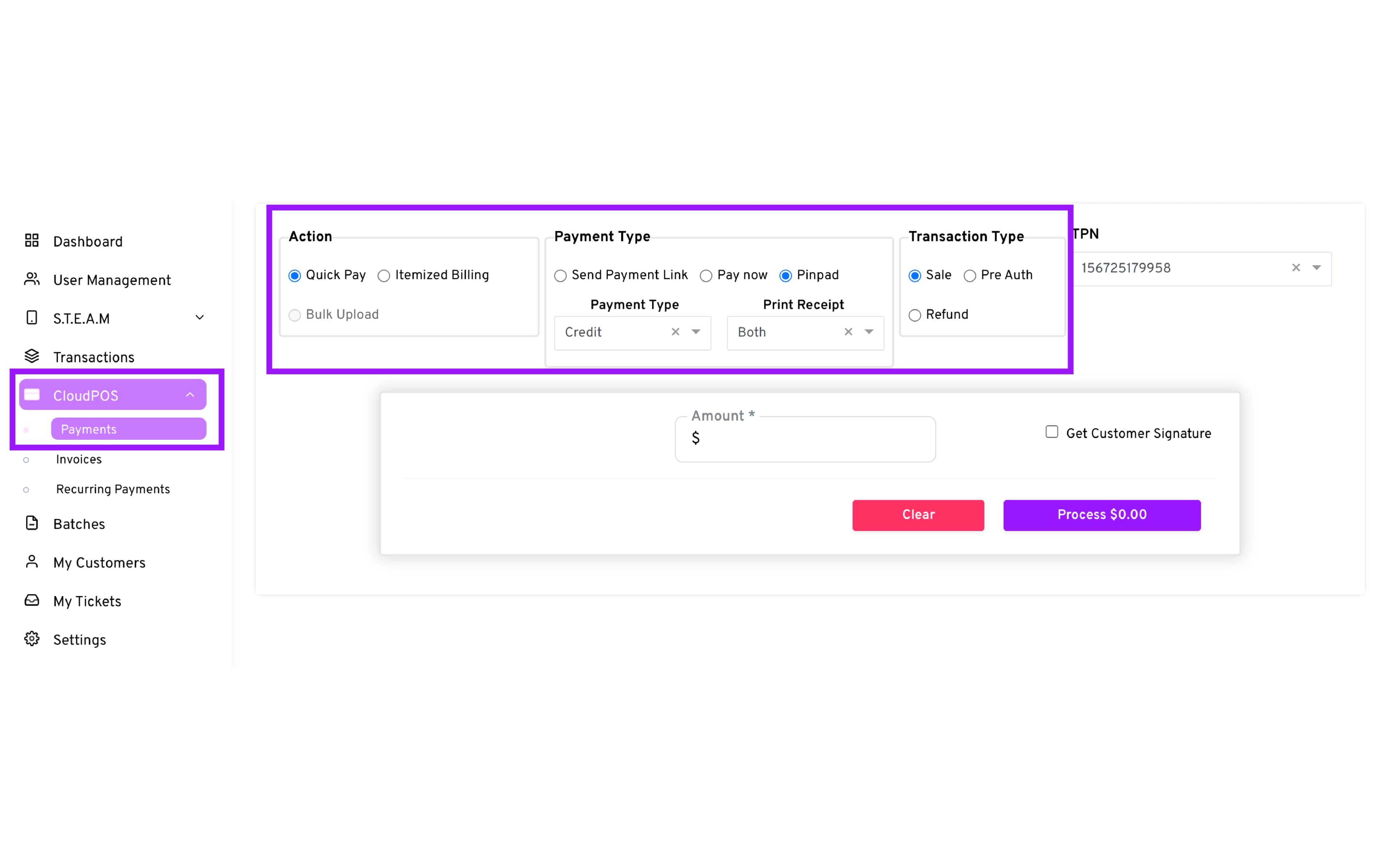
— Action: Quick Pay
— Payment Type: Pinpad
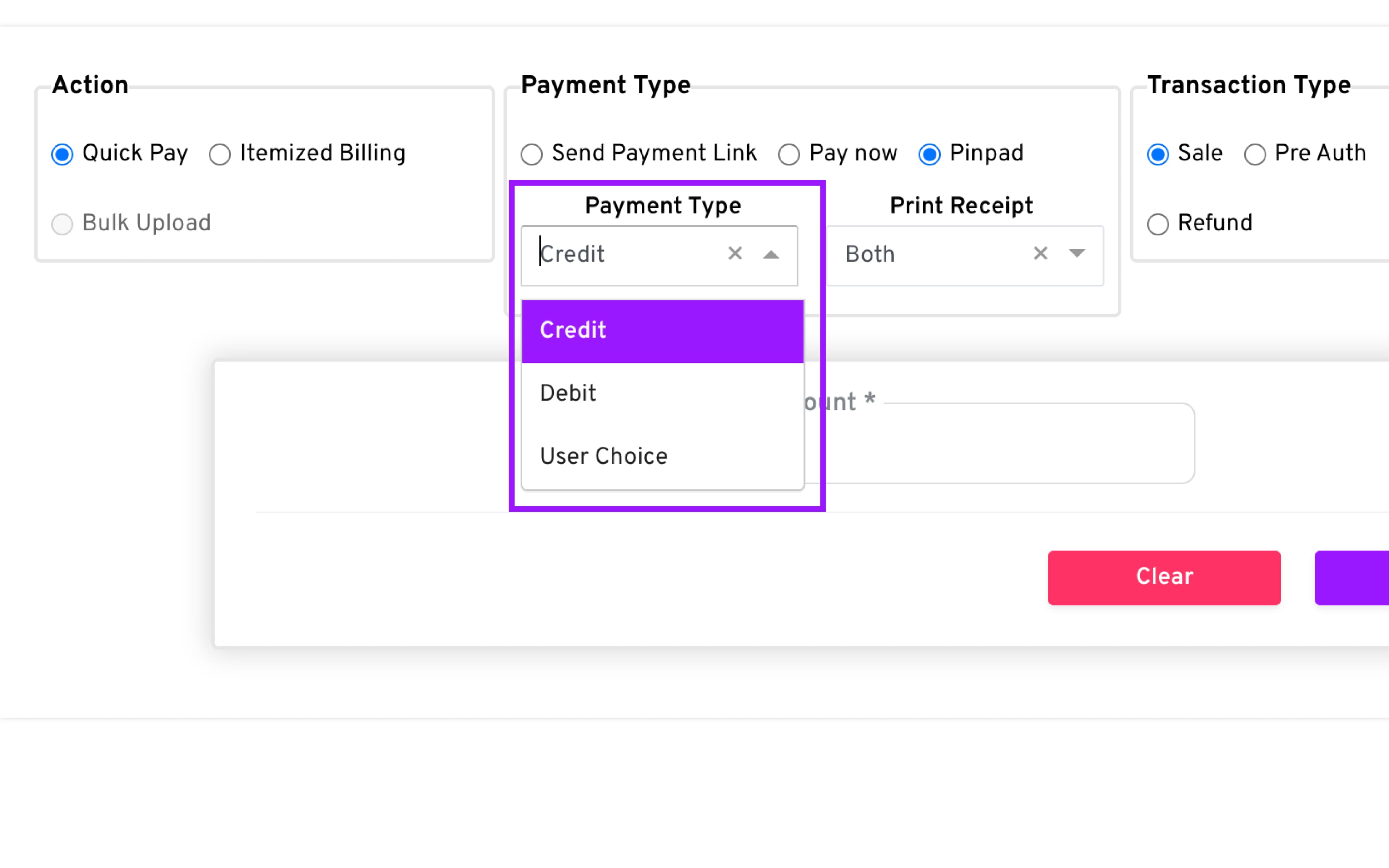
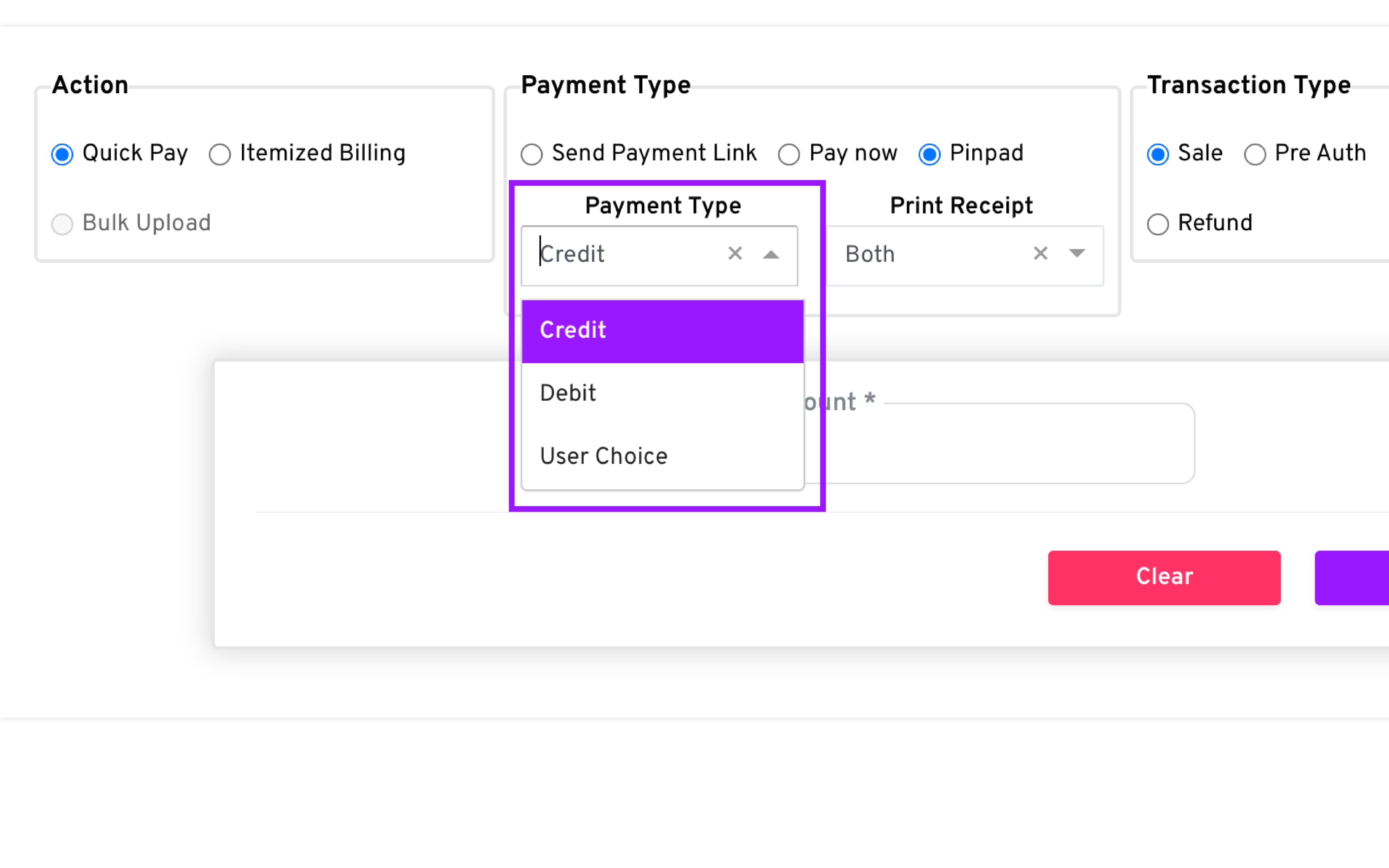
Payment Types:
-
Credit : Payment terminal will only display and accept Credit Card payments
-
Debit : Payment terminal will only display and accept Debit Card payments
-
User Choice : Payment terminal will display and accept both Credit and Debit Card payments as well other enabled payment options such as EBT or Gift Cards
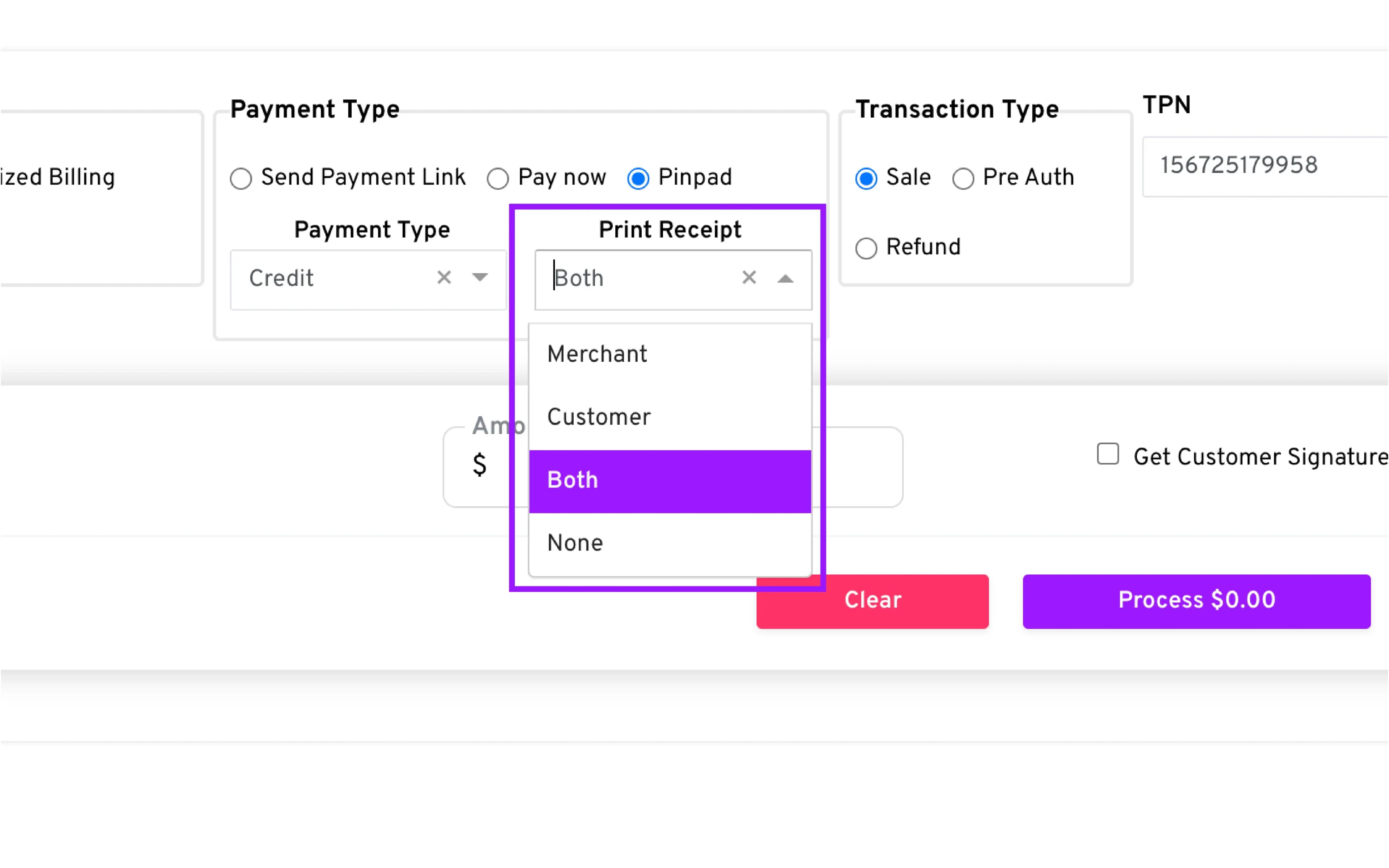
Print Receipt
-
Merchant : Payment terminal will only print the merchant copy of the transaction
-
Customer : Payment terminal will only print the customer copy of the transaction
-
Both : Payment terminal will print both the merchant and customer copies of the transaction
-
None : Payment terminal will not print the transaction receipt.
-
Transaction Type: Sale
-
Enter the Sale Amount
- If Fees or Taxes have been enabled for your TPN, a Breakup screen will appear displaying the totals, and if enabled, you will be able to remove (bypass by pressing X) those fees.
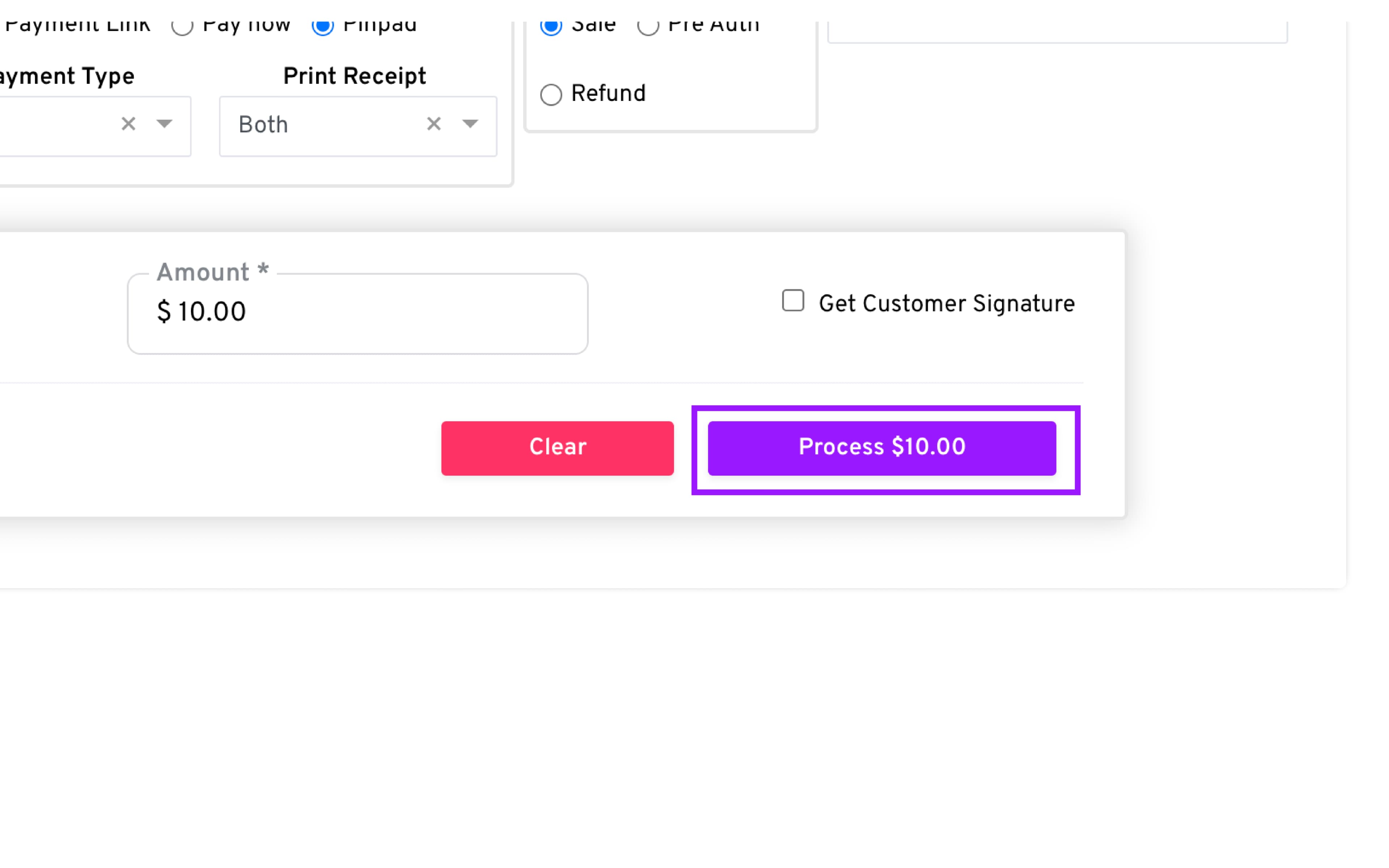
- Click Process to send the transaction to the Pinpad in order for the customer to complete the payment.
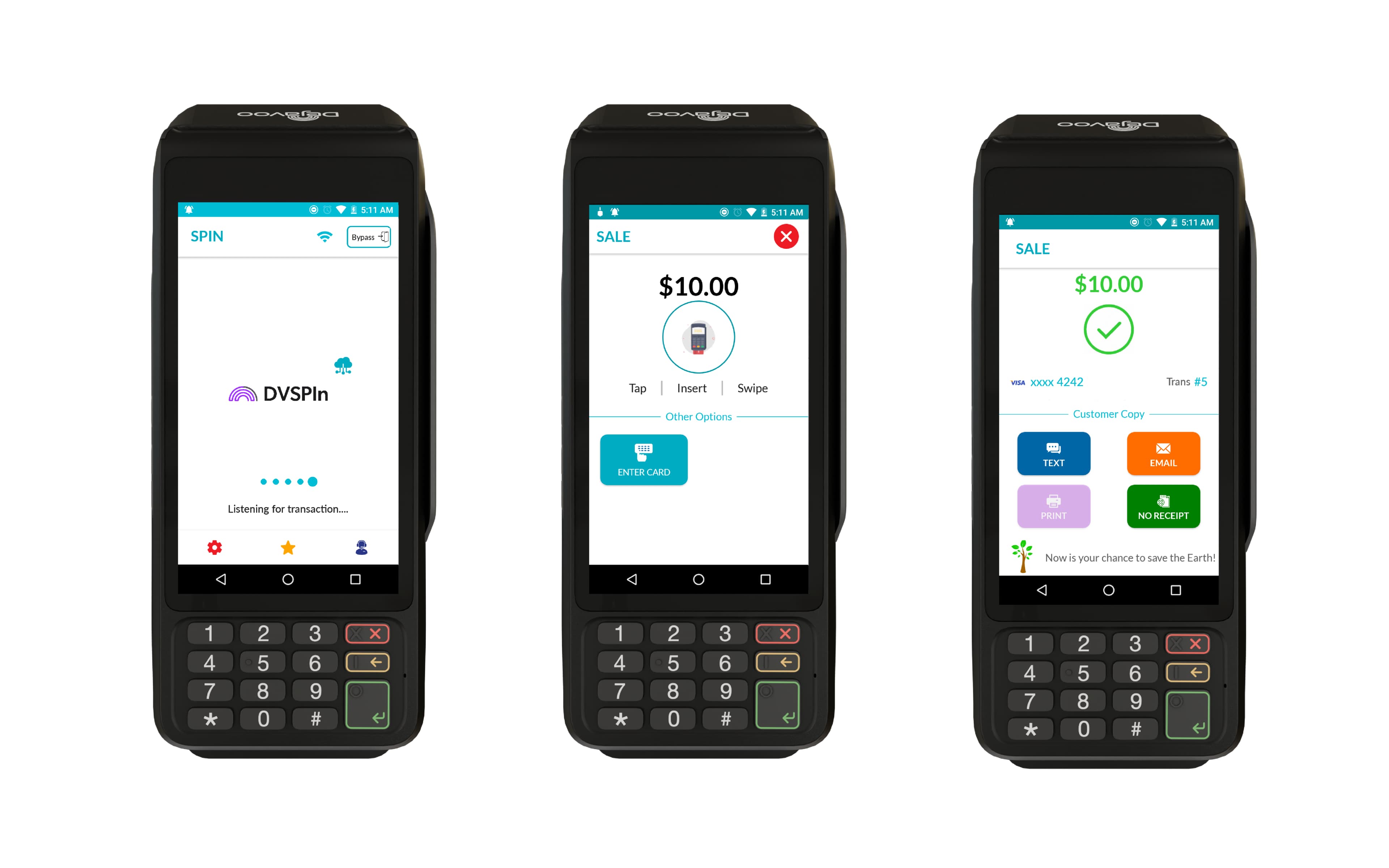
- The terminal will automatically detect the request from CloudPOS, and depending on the TPN configuration, the Tip suggestion screen may or may not appear on the terminal.
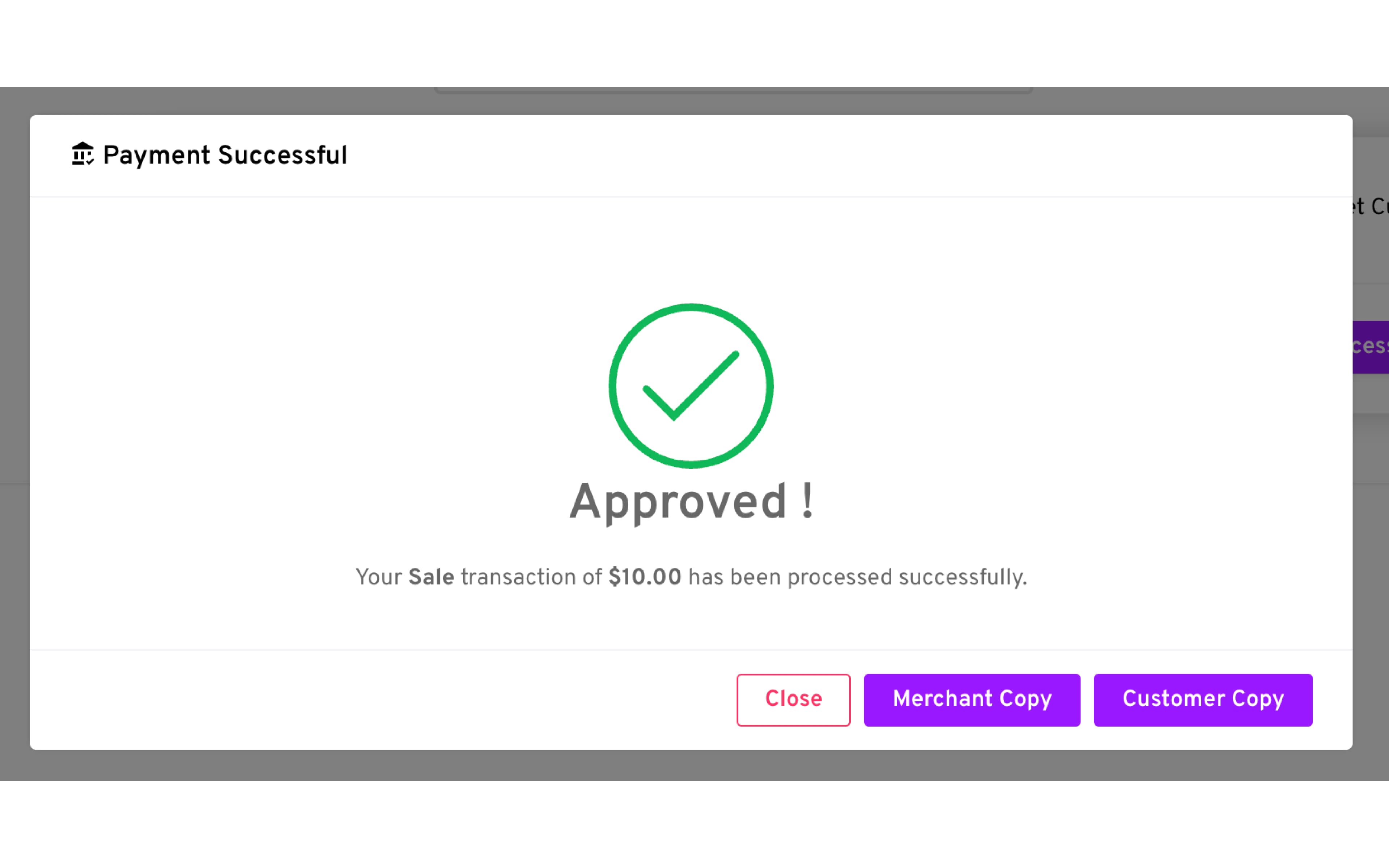
- Review the transaction status: A confirmation dialog will appear showing Success or Failure, based on the transaction response from the payment terminal.
CloudPOS With PIN pad - Refund Transaction
- Configure the transaction:
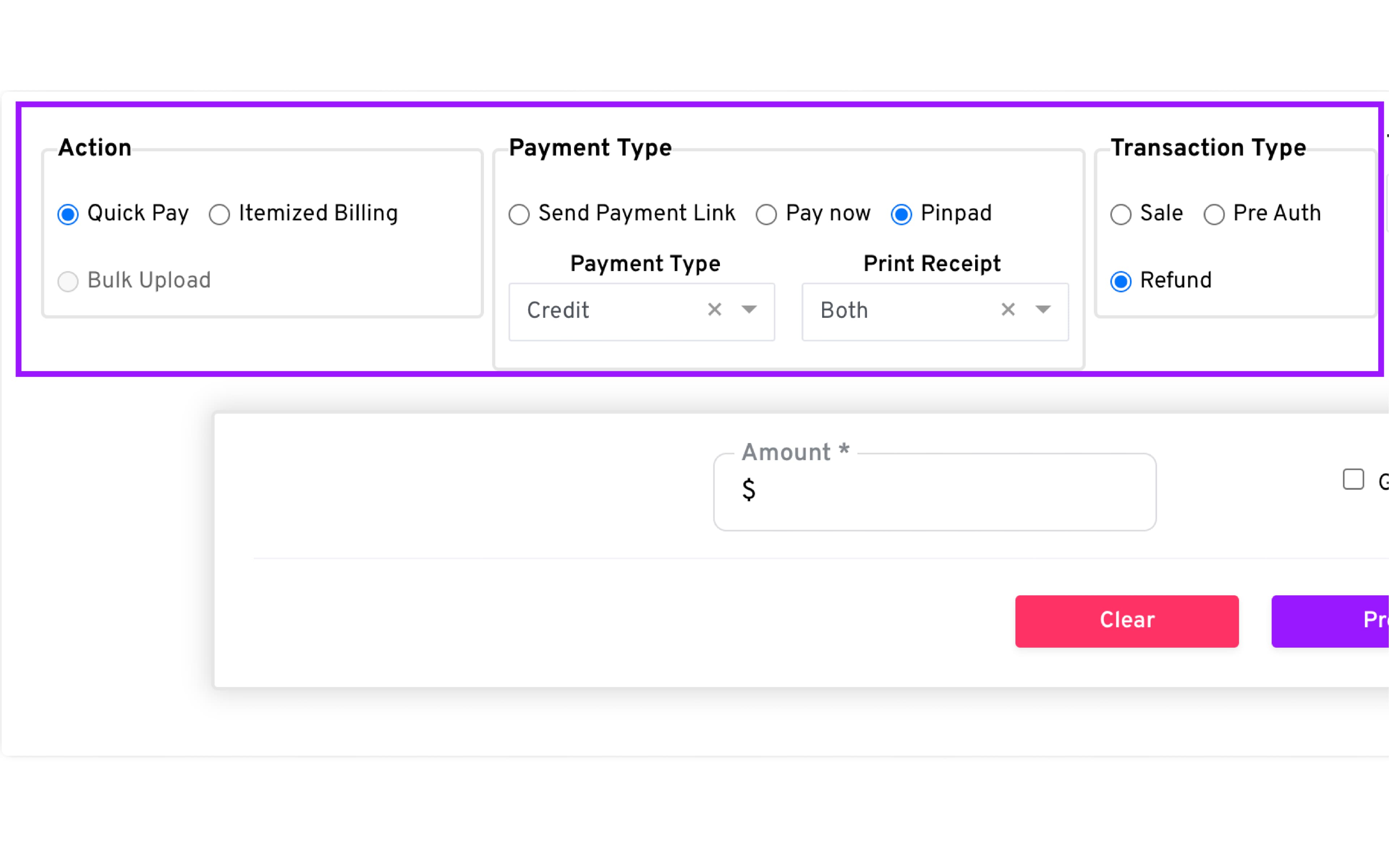
— Action: Quick Pay
— Payment Type: Pinpad
Payment Types:
-
Credit : Payment terminal will only display and accept Credit Card payments
-
Debit : Payment terminal will only display and accept Debit Card payments
-
User Choice : Payment terminal will display and accept both Credit and Debit Card payments as well other enabled payment options such as EBT or Gift Cards
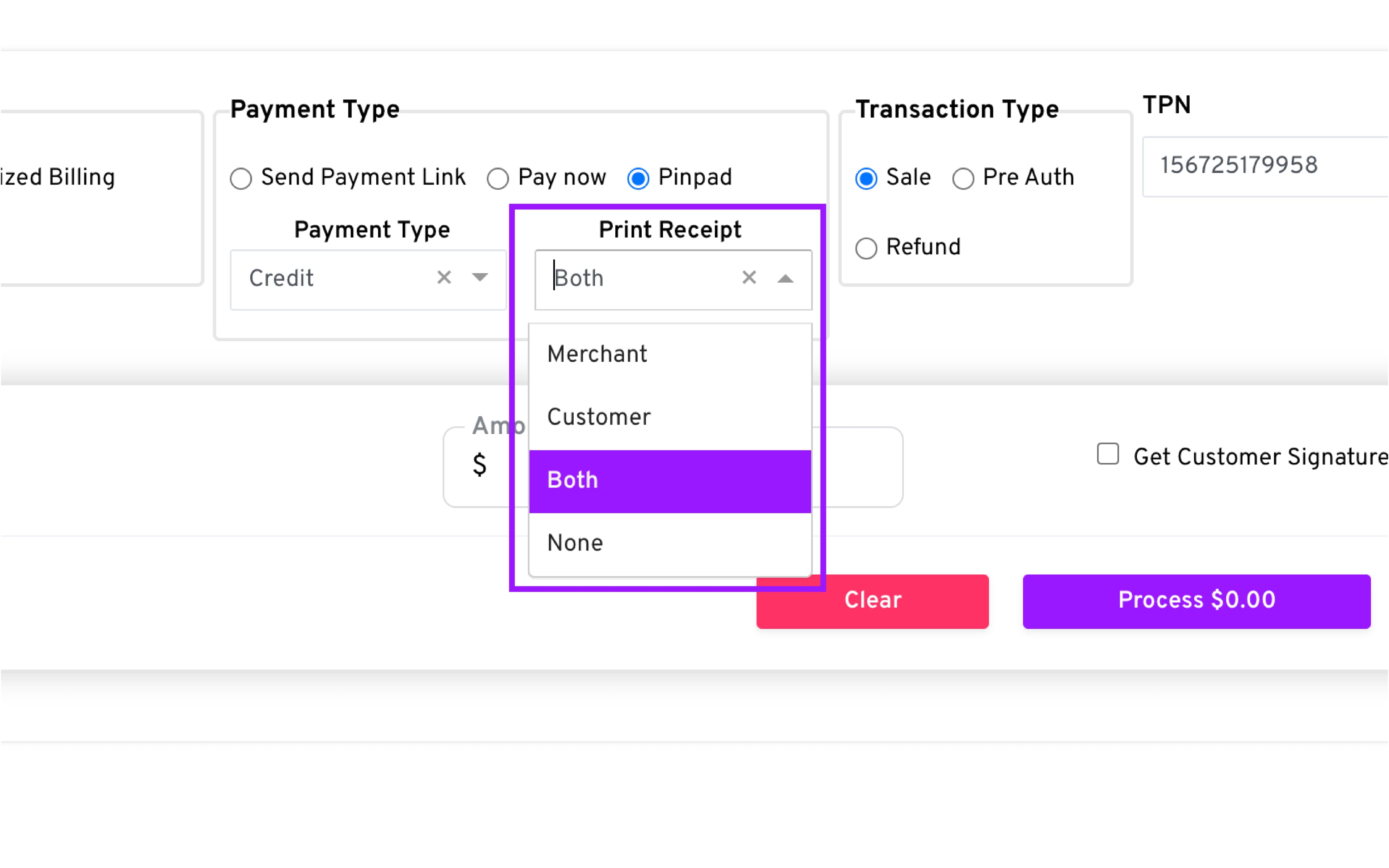
Print Receipt:
-
Merchant : Payment terminal will only print the merchant copy of the transaction
-
Customer : Payment terminal will only print the customer copy of the transaction
-
Both : Payment terminal will print both the merchant and customer copies of the transaction
-
None : Payment terminal will not print the transaction receipt.
-
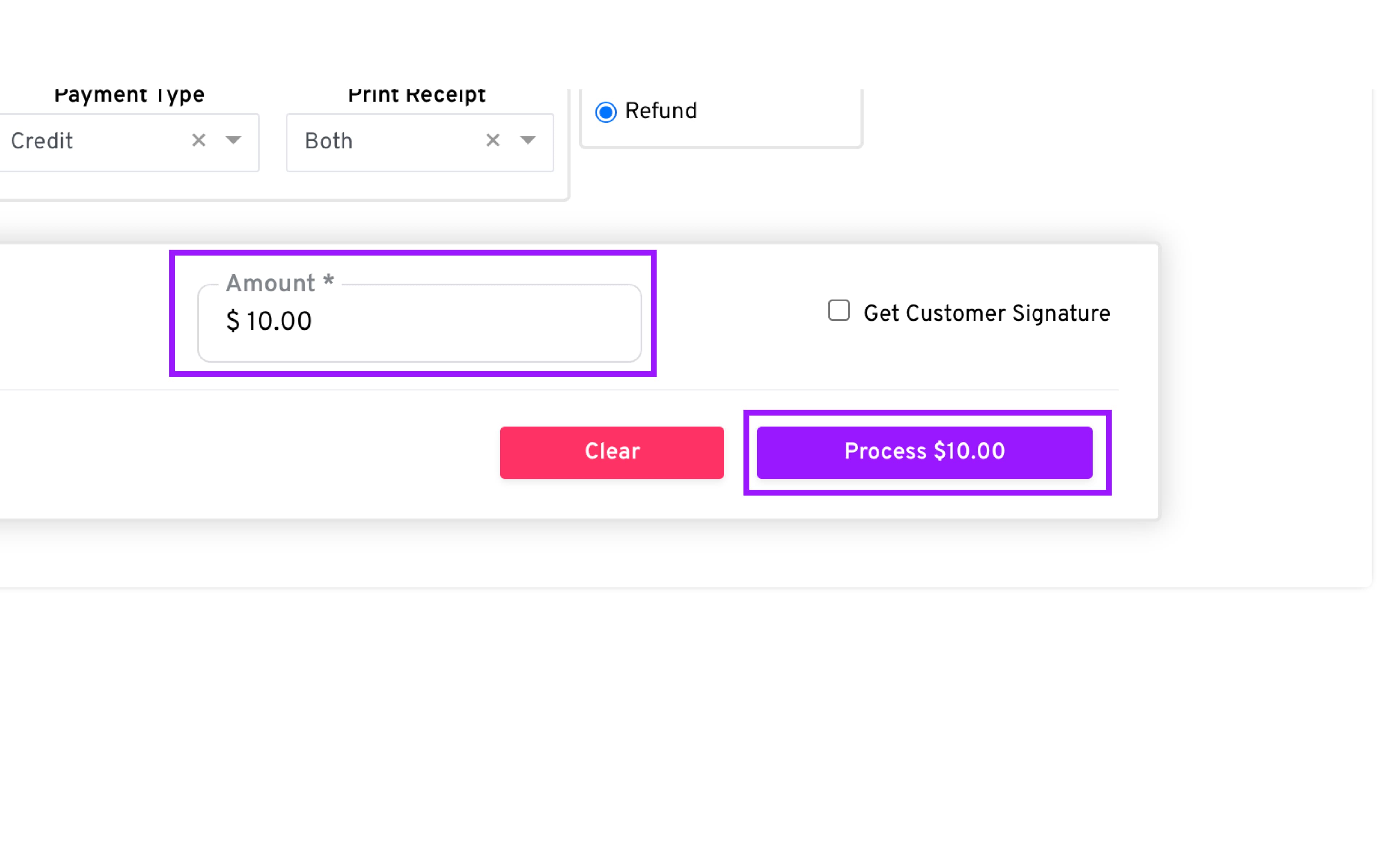
Transaction Type: Refund
-
Enter the Refund Amount
-
Click Process to send the transaction to the Pinpad in order for the customer to complete the payment.
-
The terminal will automatically detect the request from CloudPOS.
-
The customer can then complete the transaction on the payment terminal
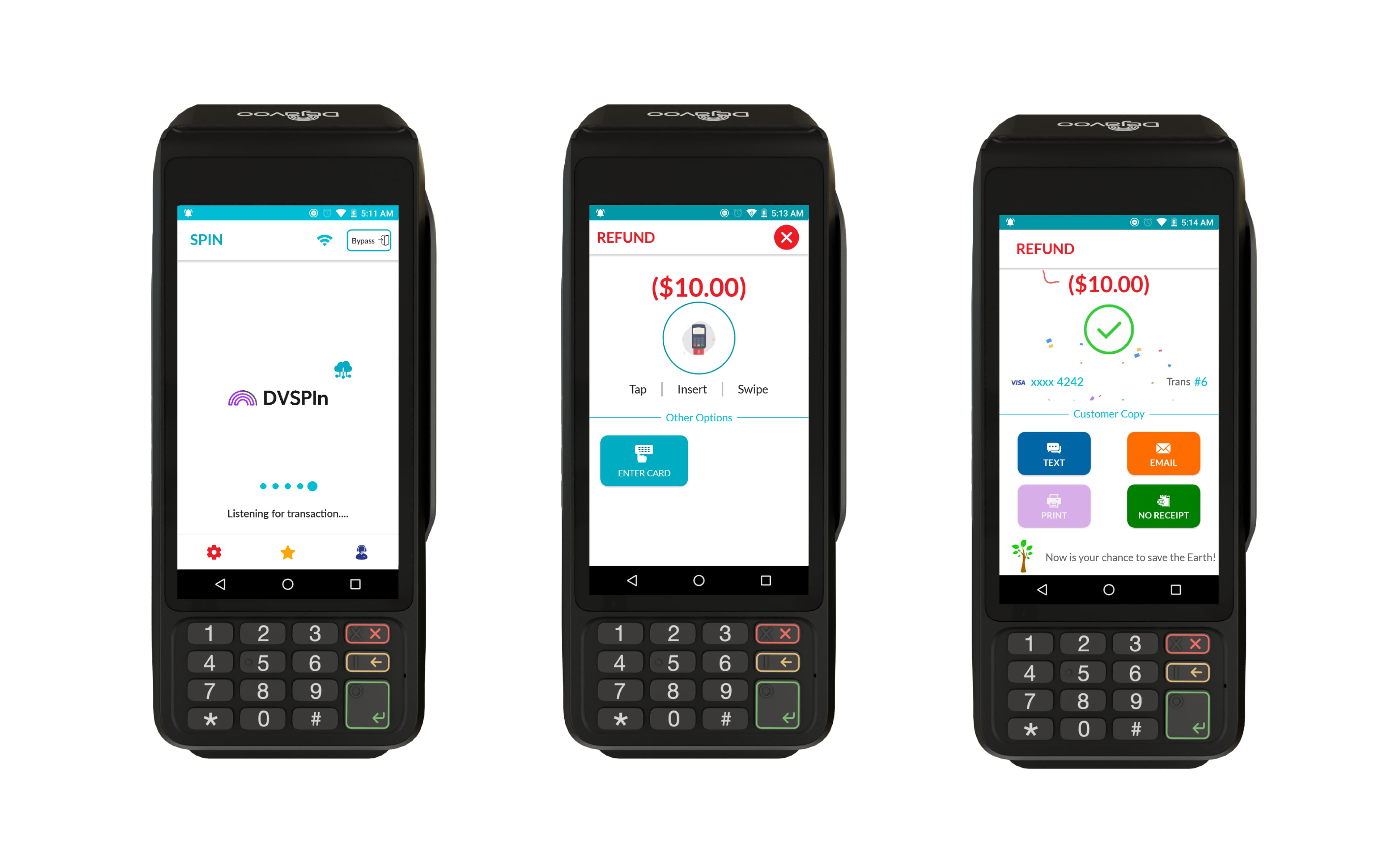
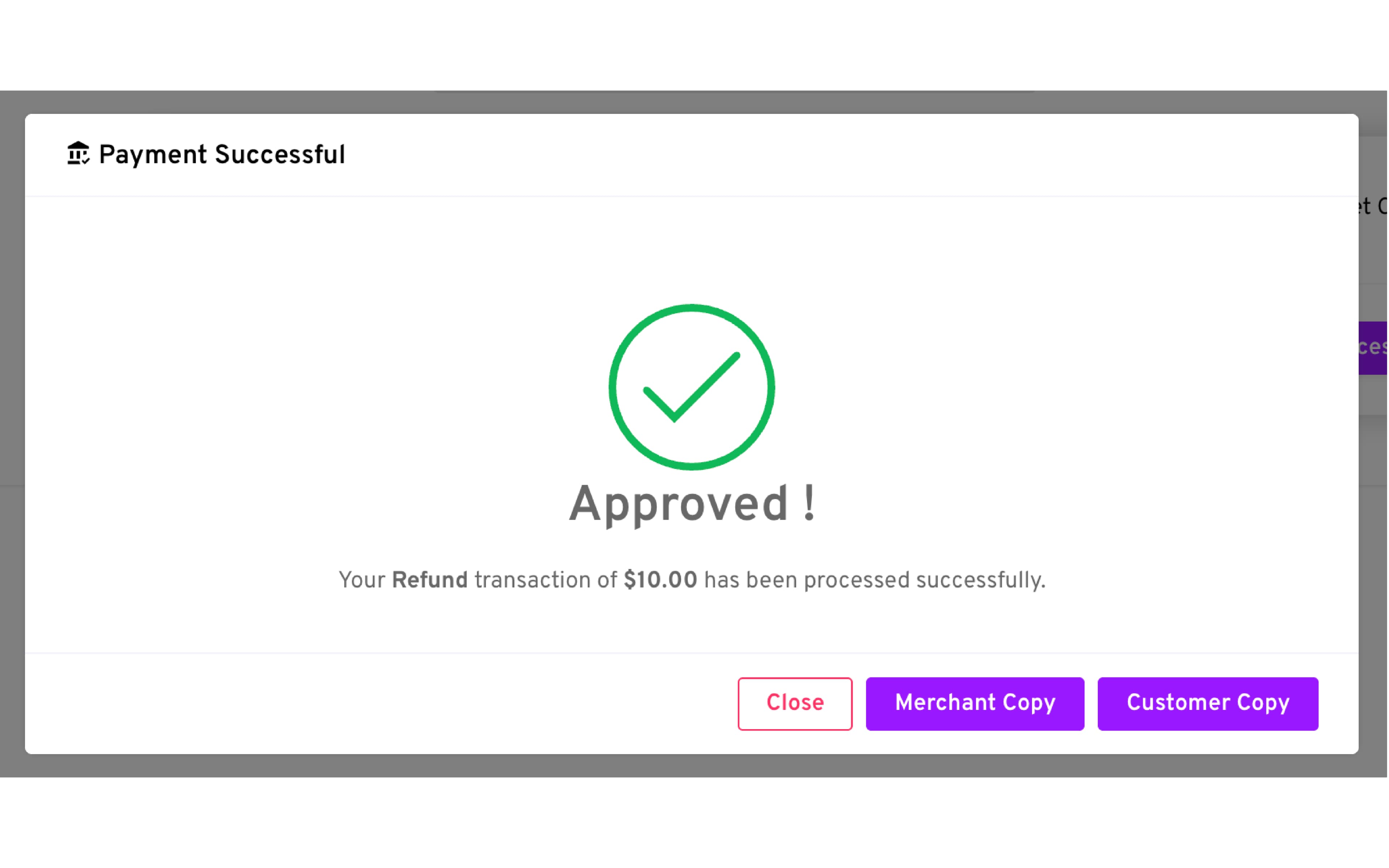
- Review the Result: A confirmation dialog will appear showing Success or Failure, based on the transaction response from the payment terminal
CloudPOS With PIN pad - Pre Auth & Ticket Transaction
- Configure the transaction
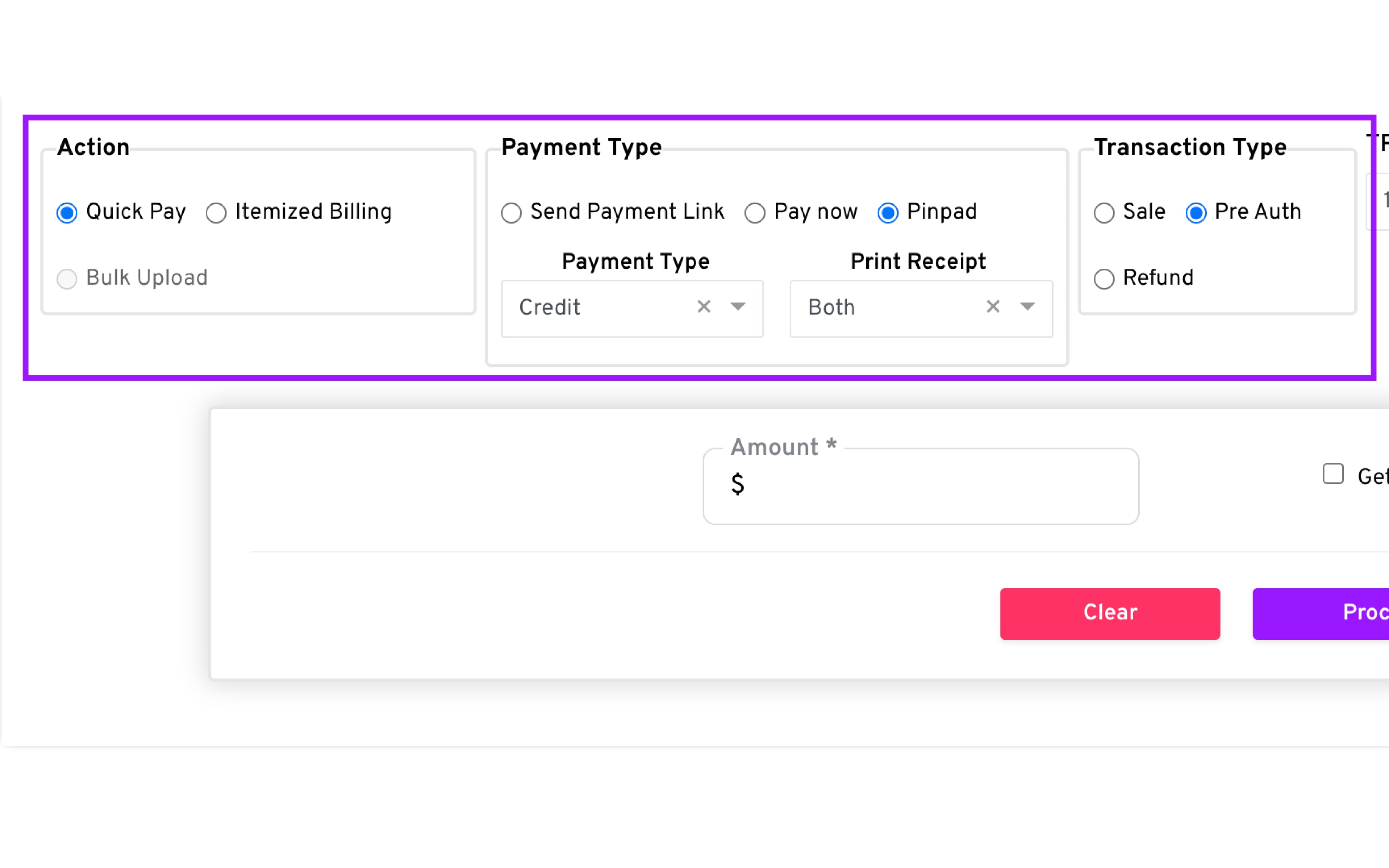
— Action: Quick Pay
— Payment Type: Pinpad
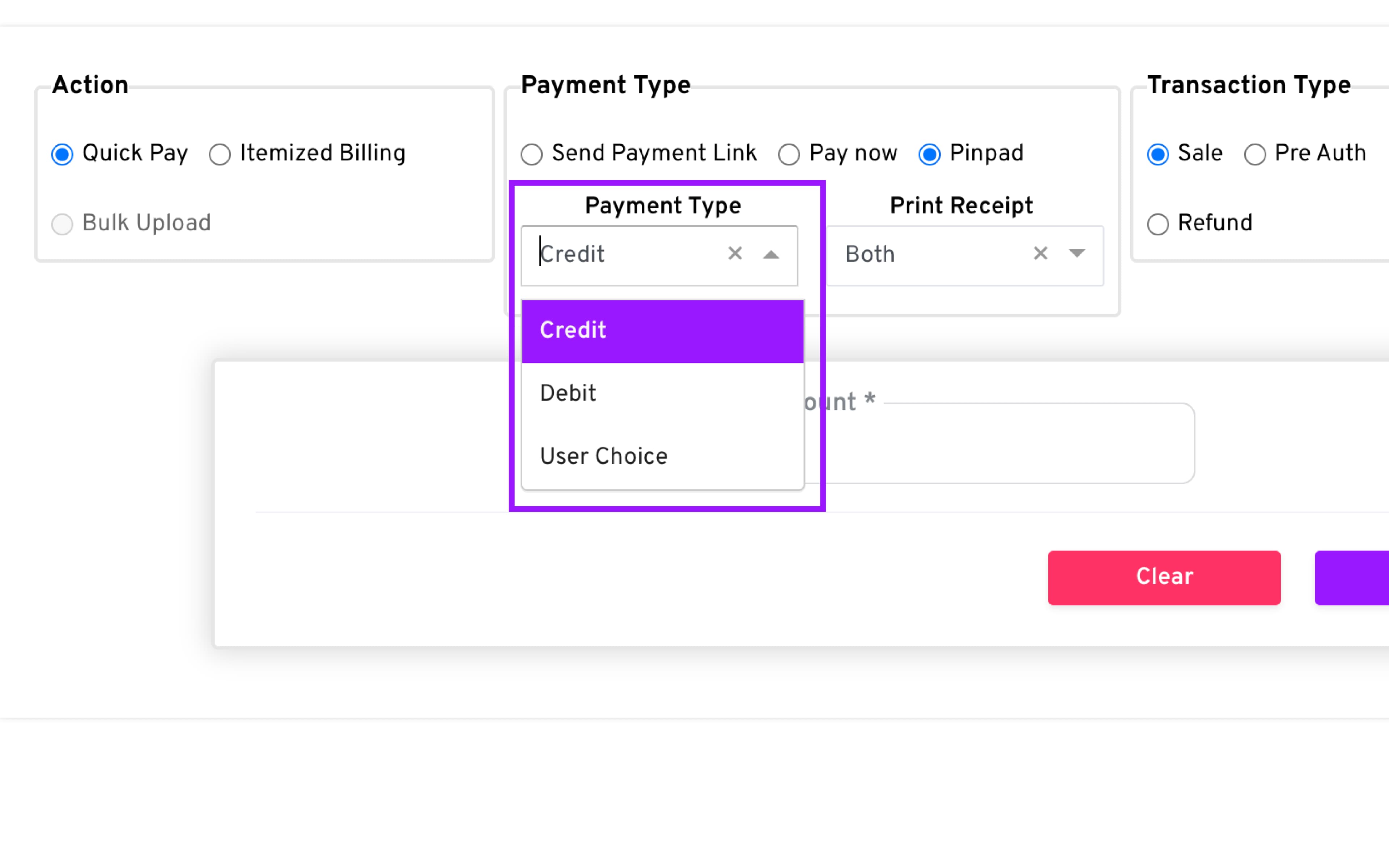
Payment Types
-
Credit : Payment terminal will only display and accept Credit Card payments
-
Debit : Payment terminal will only display and accept Debit Card payments
-
User Choice : Payment terminal will display and accept both Credit and Debit Card payments as well other enabled payment options such as EBT or Gift Cards
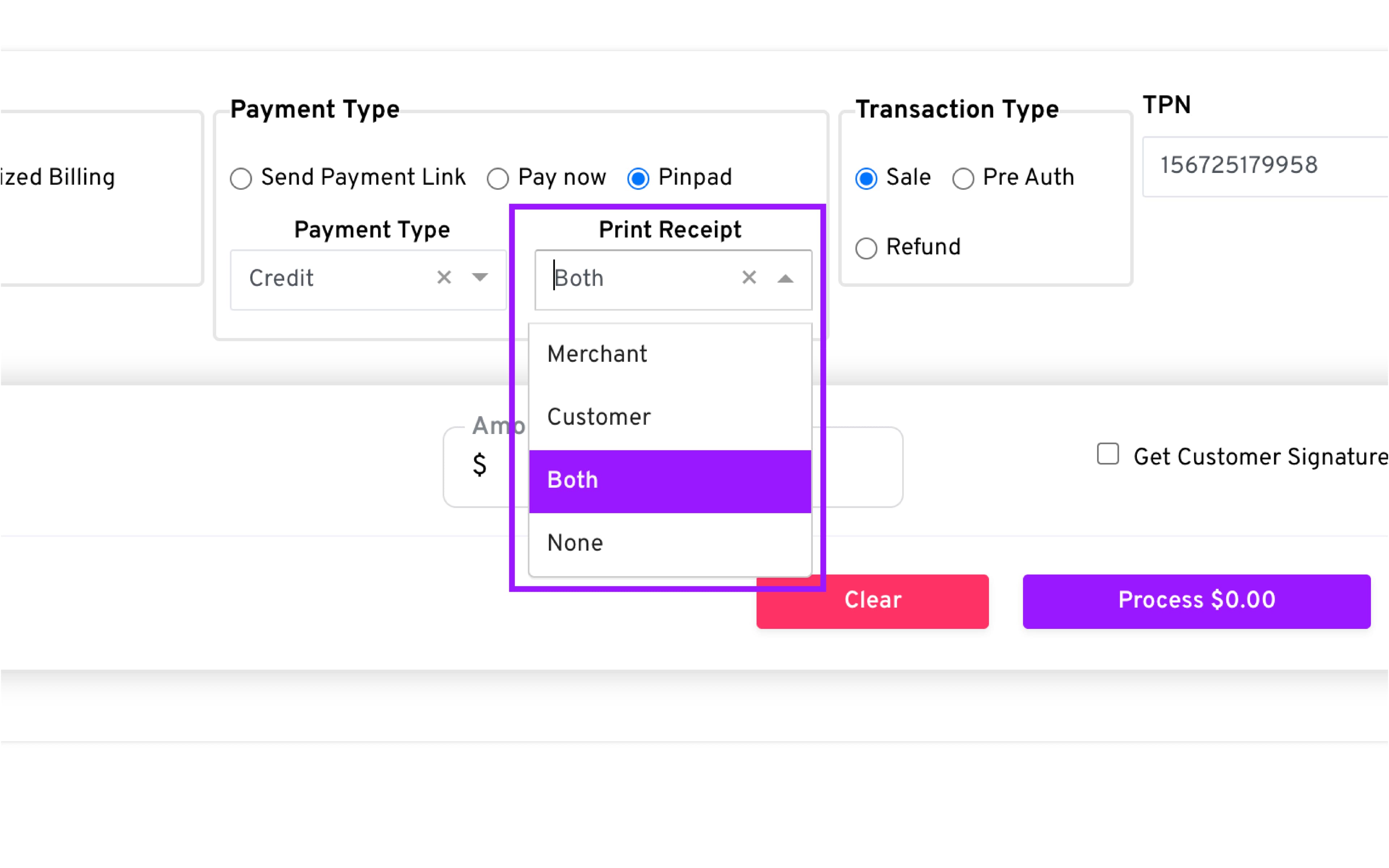
Print Receipt
-
Merchant : Payment terminal will only print the merchant copy of the transaction
-
Customer : Payment terminal will only print the customer copy of the transaction
-
Both : Payment terminal will print both the merchant and customer copies of the transaction
-
None : Payment terminal will not print the transaction receipt.
-
Transaction Type: PreAuth
-
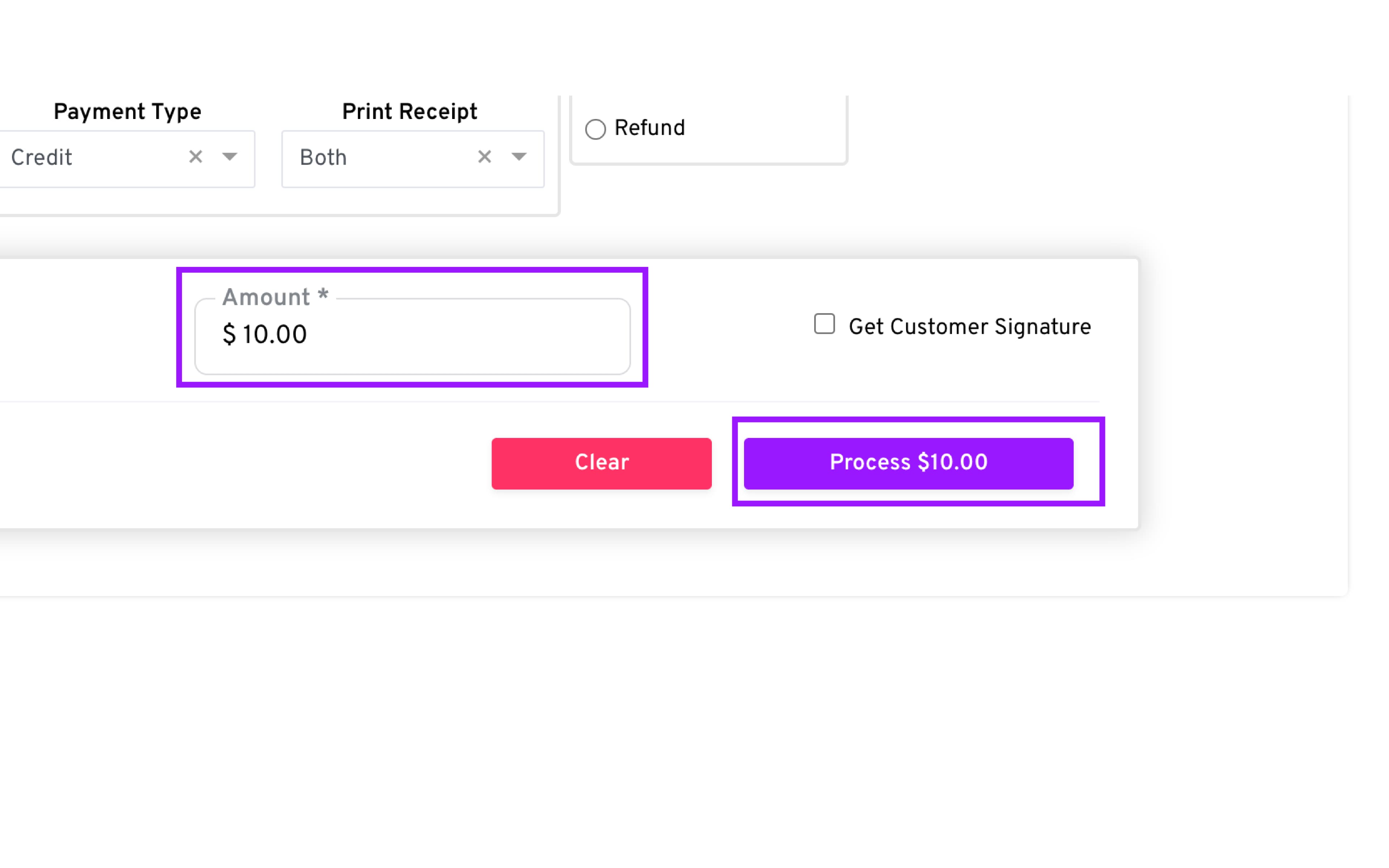
Enter the PreAuth Amount
-
Click Process to send the transaction to the Pinpad in order for the customer to complete the payment.
-
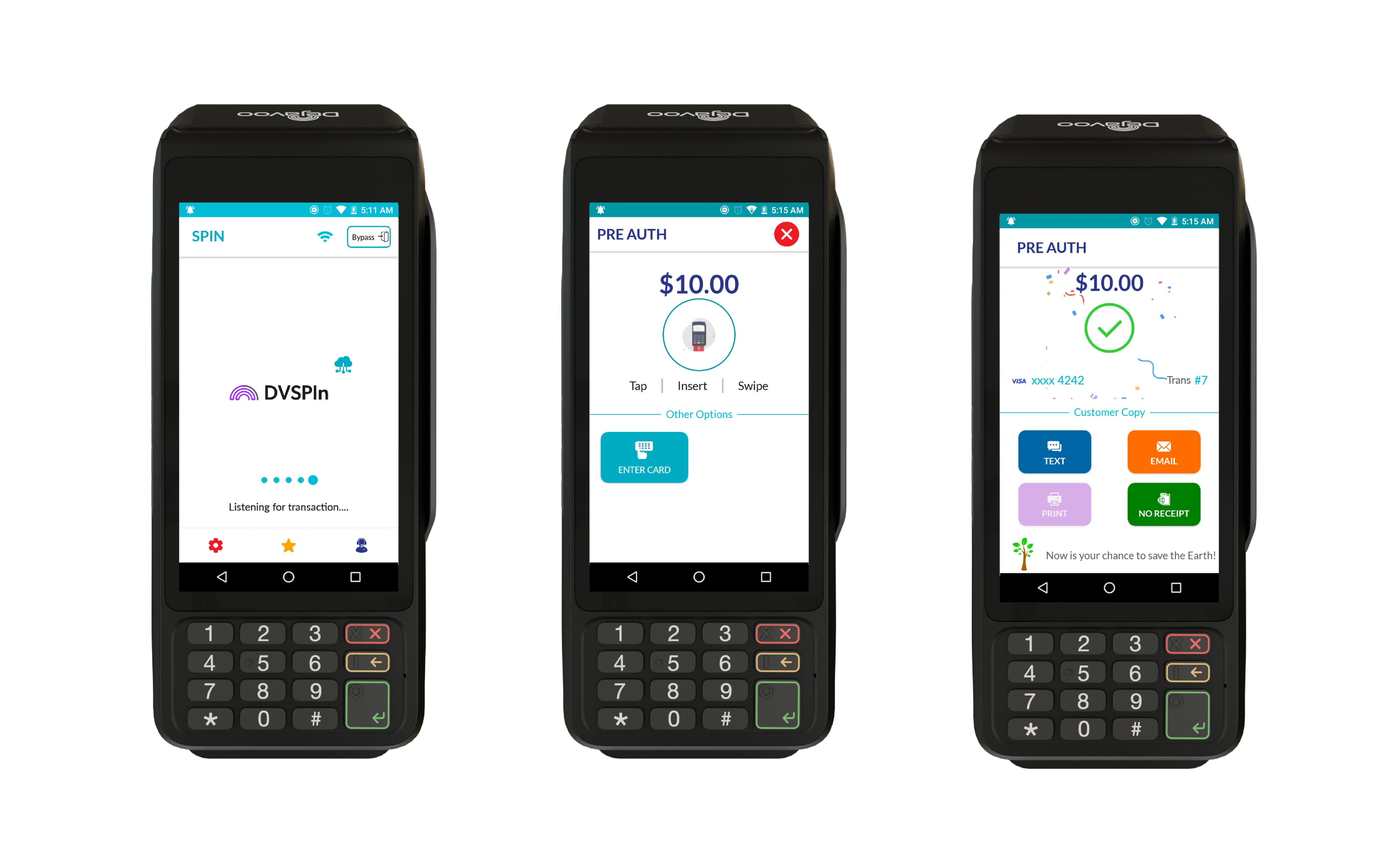
The terminal will automatically detect the request from CloudPOS.
-
The customer can then complete the transaction on the payment terminal
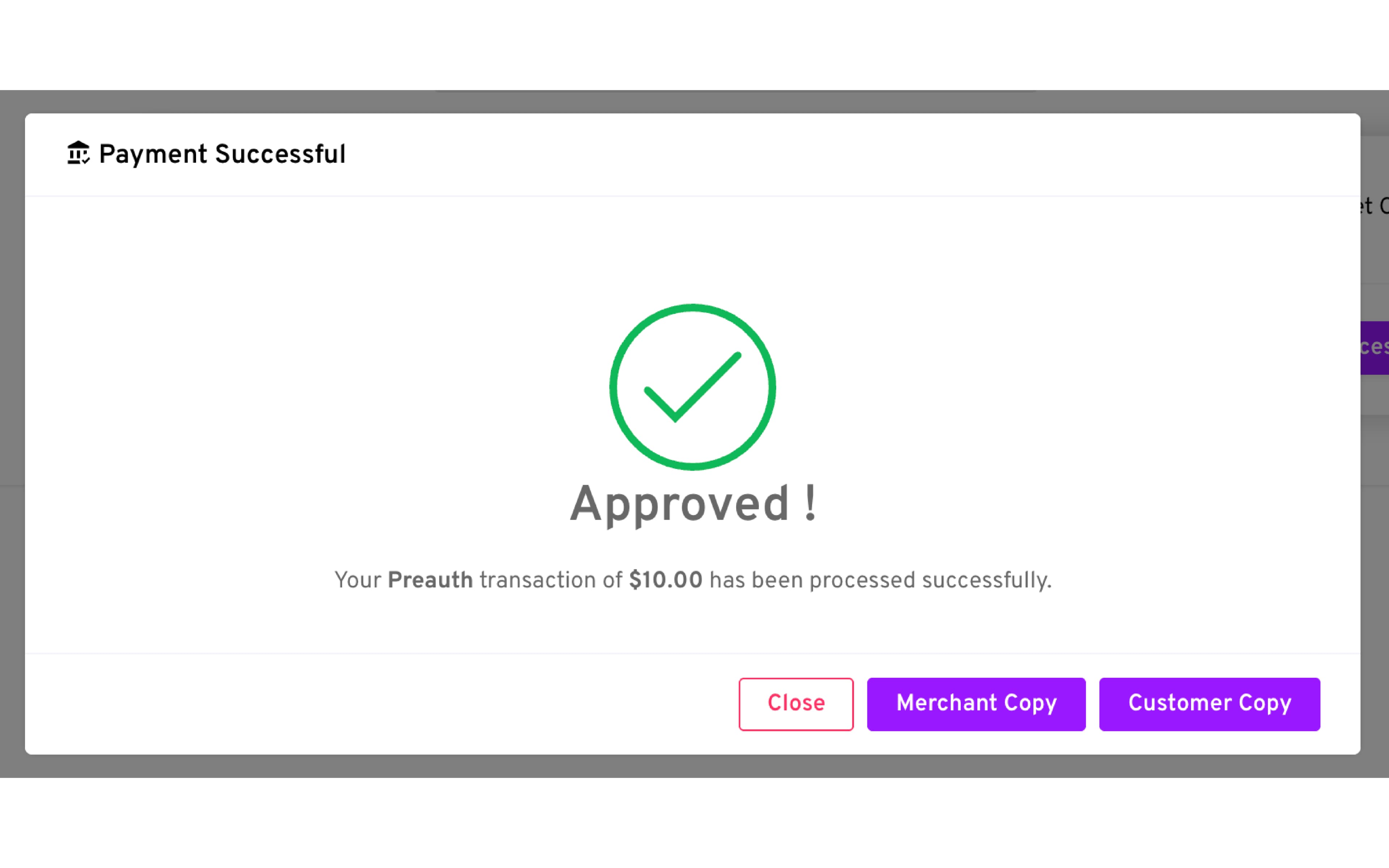
- Review the Result: A confirmation dialog will appear showing Success or Failure, based on the transaction response from the payment terminal
Finalize a Pre Auth Using Ticket
- Go to the Transactions Module: use the filter options to locate the Pre-Auth transaction you wish to finalize
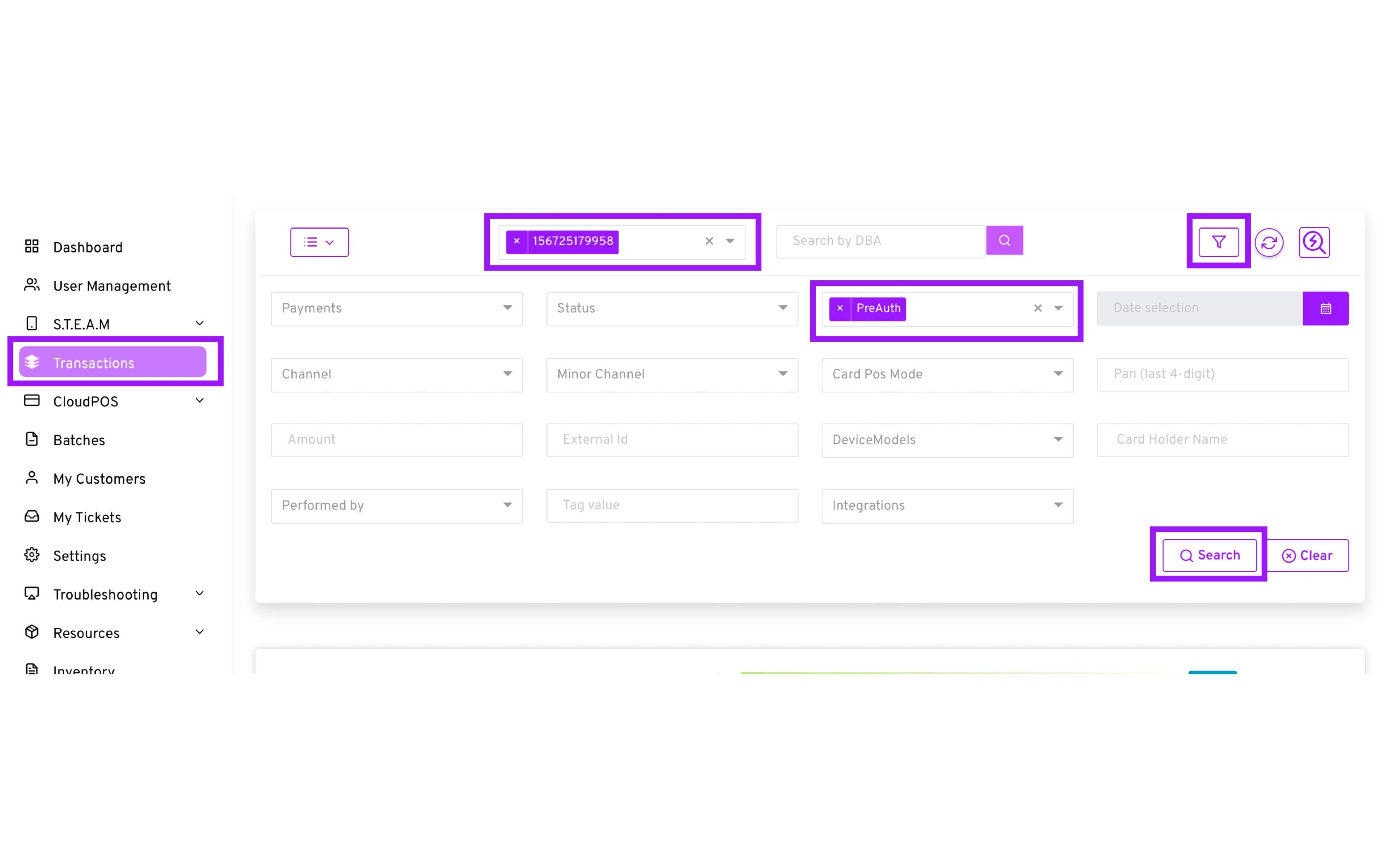
- After locating the desired transaction, select “Ticket/Void” → then ensure to select “Ticket” from the drop down menu
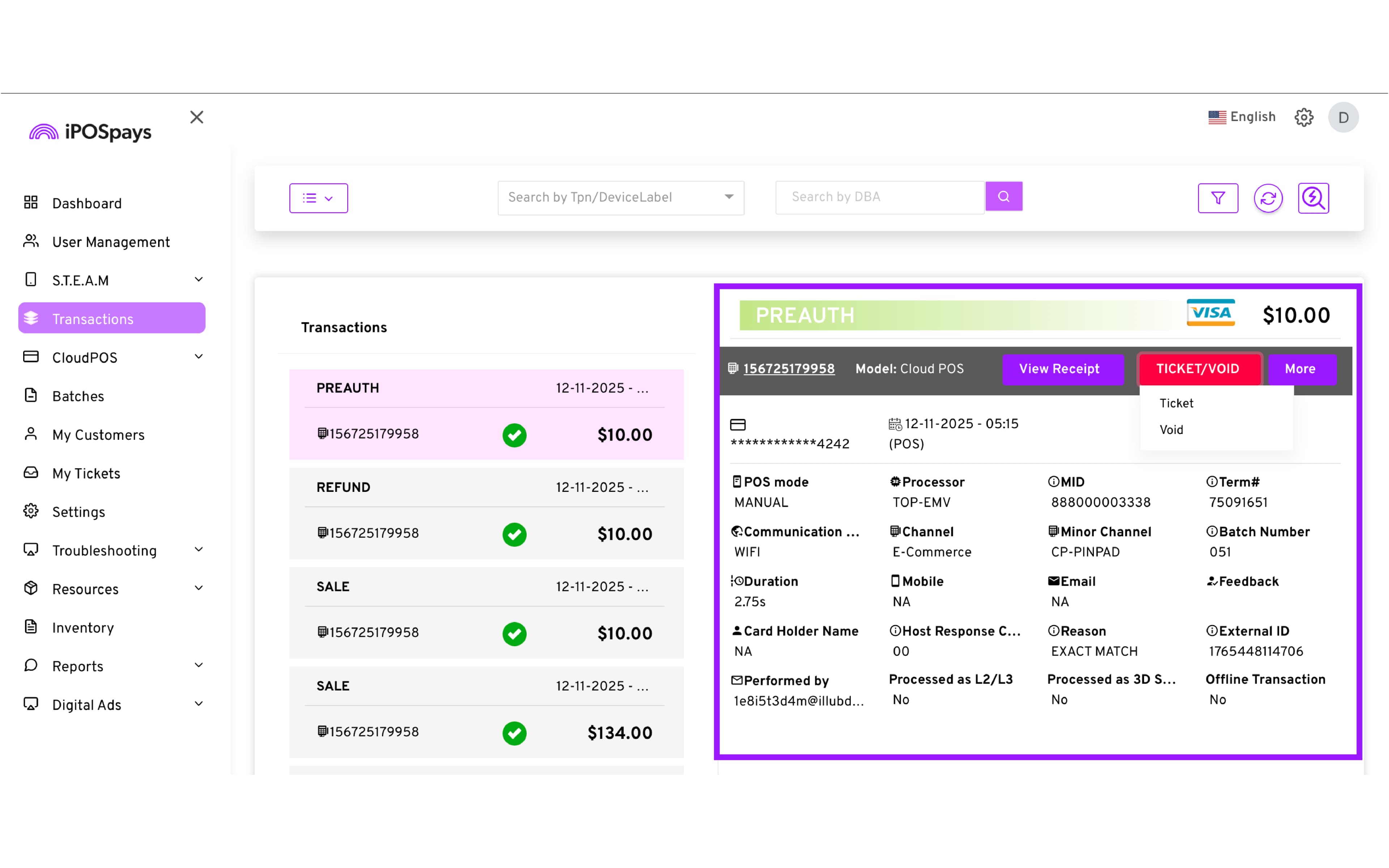
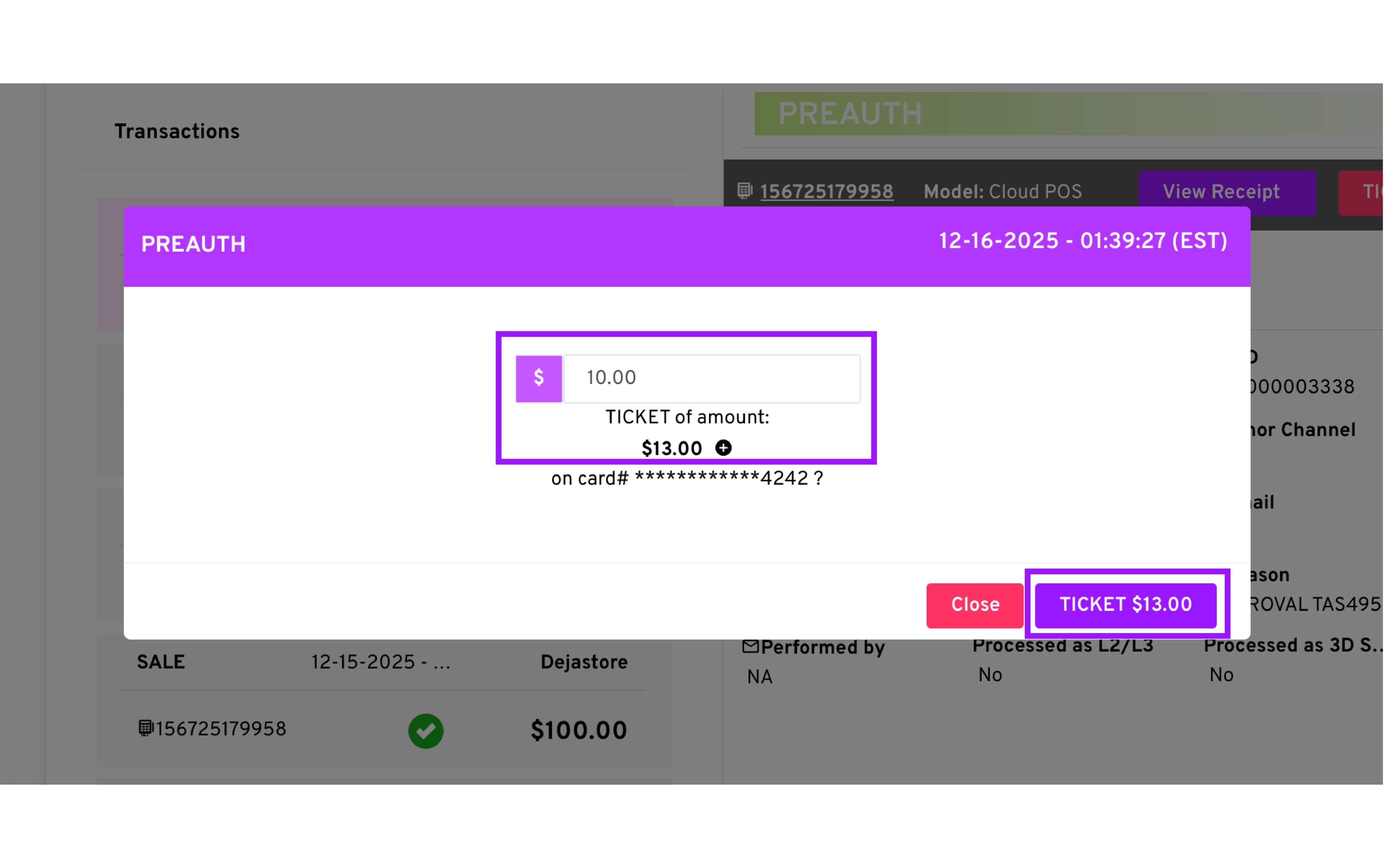
The Ticket action is used to complete a Pre Auth. This action converts the hold into a finalized charge, usually done at checkout or when the final amount has been determined.
- Adjust the Amount: If needed, the original amount that was “Pre-Authorized” can be modified to finalize the transaction for a higher or lower amount.
-
Finalize the Transaction by selecting “Ticket”
-
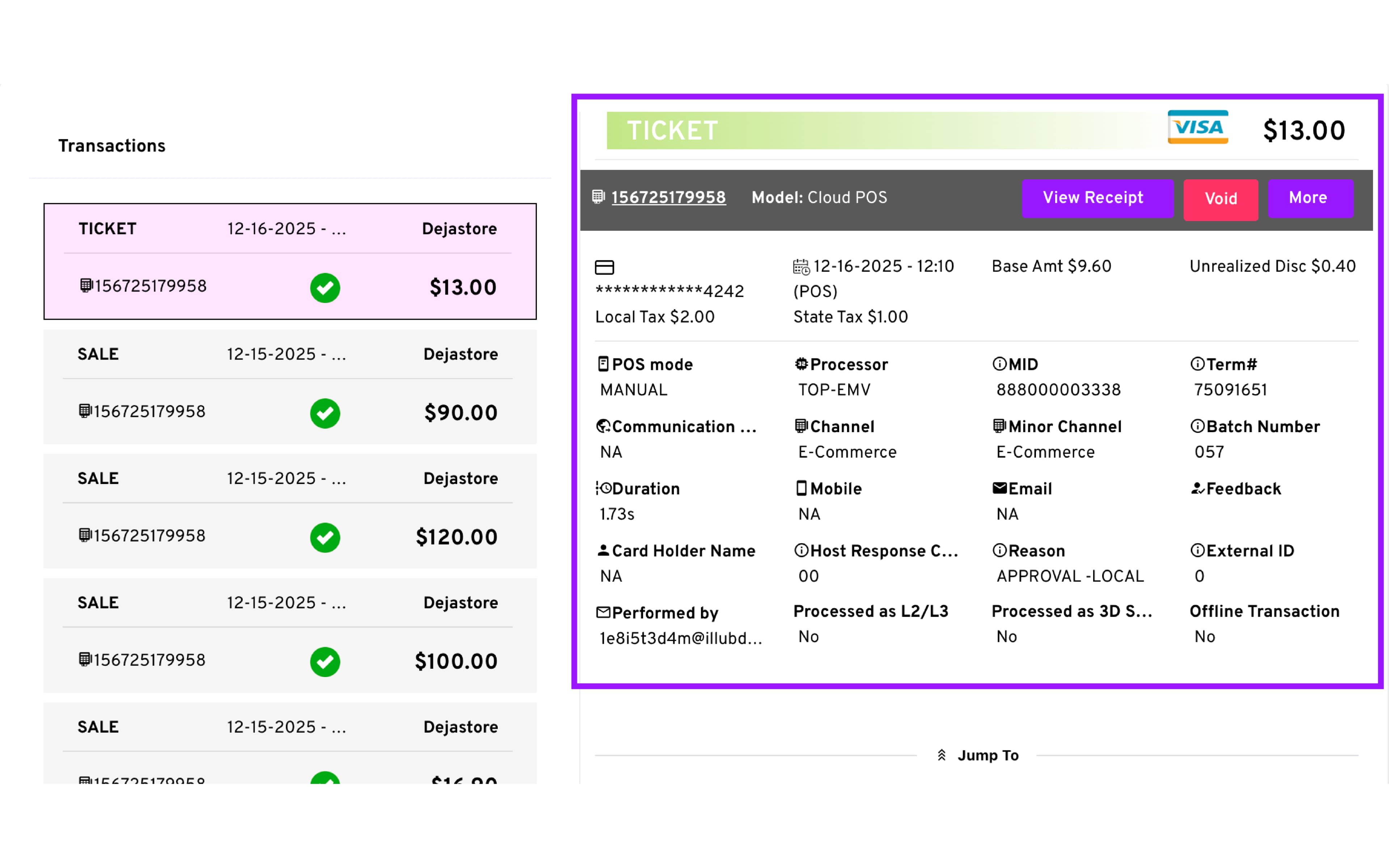
Review Result: A dialog will appear showing Success or Failure.
-
The transaction is now finalized, and the transaction label will update from PREAUTH to TICKET, indicating a successful completion.
How to Void a Transaction
-
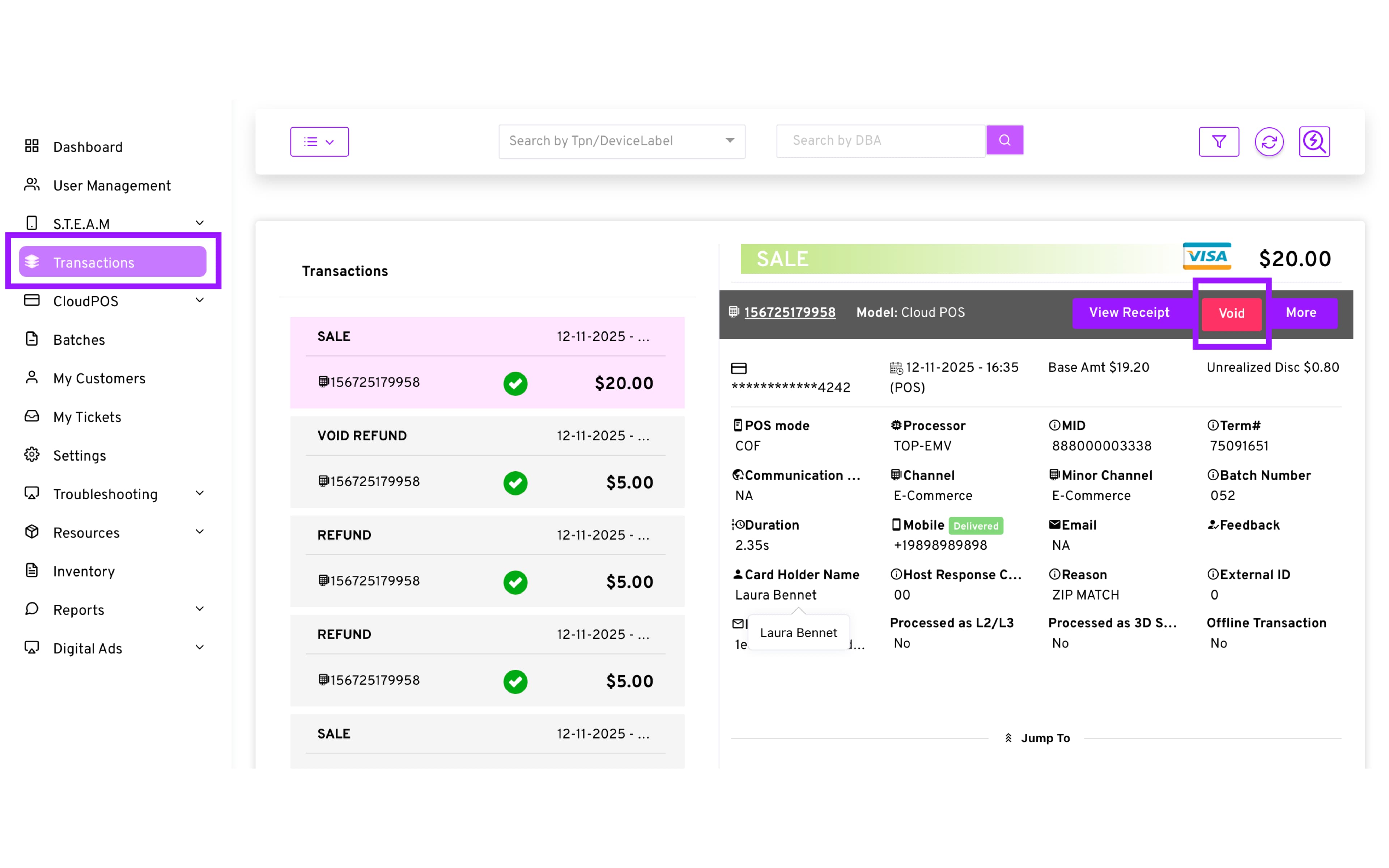
Go to the Transactions module and locate the sale using the TPN and the filter icon located on the top right corner of the screen.
-
Once you have located the desired transaction, Select the Void option
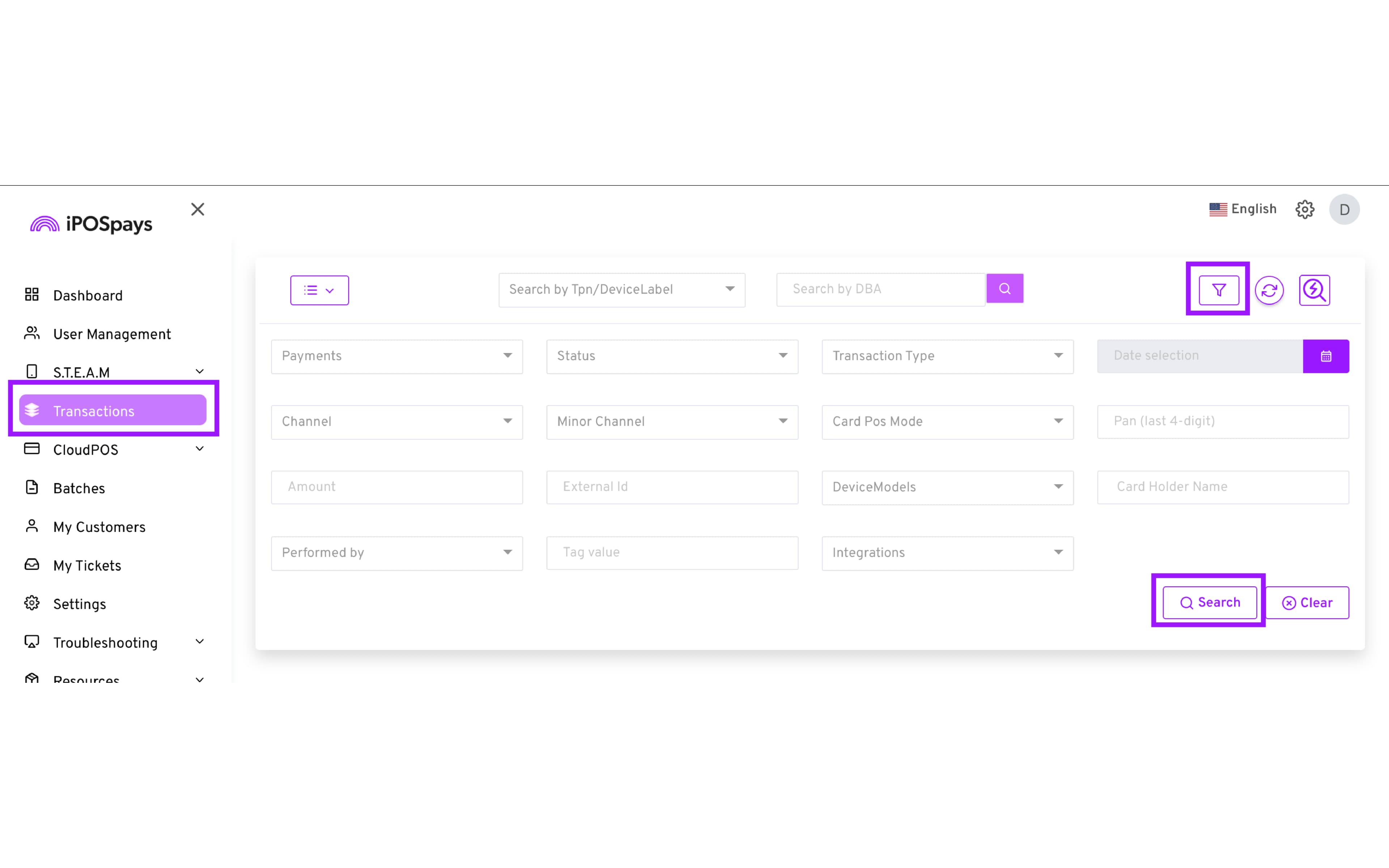
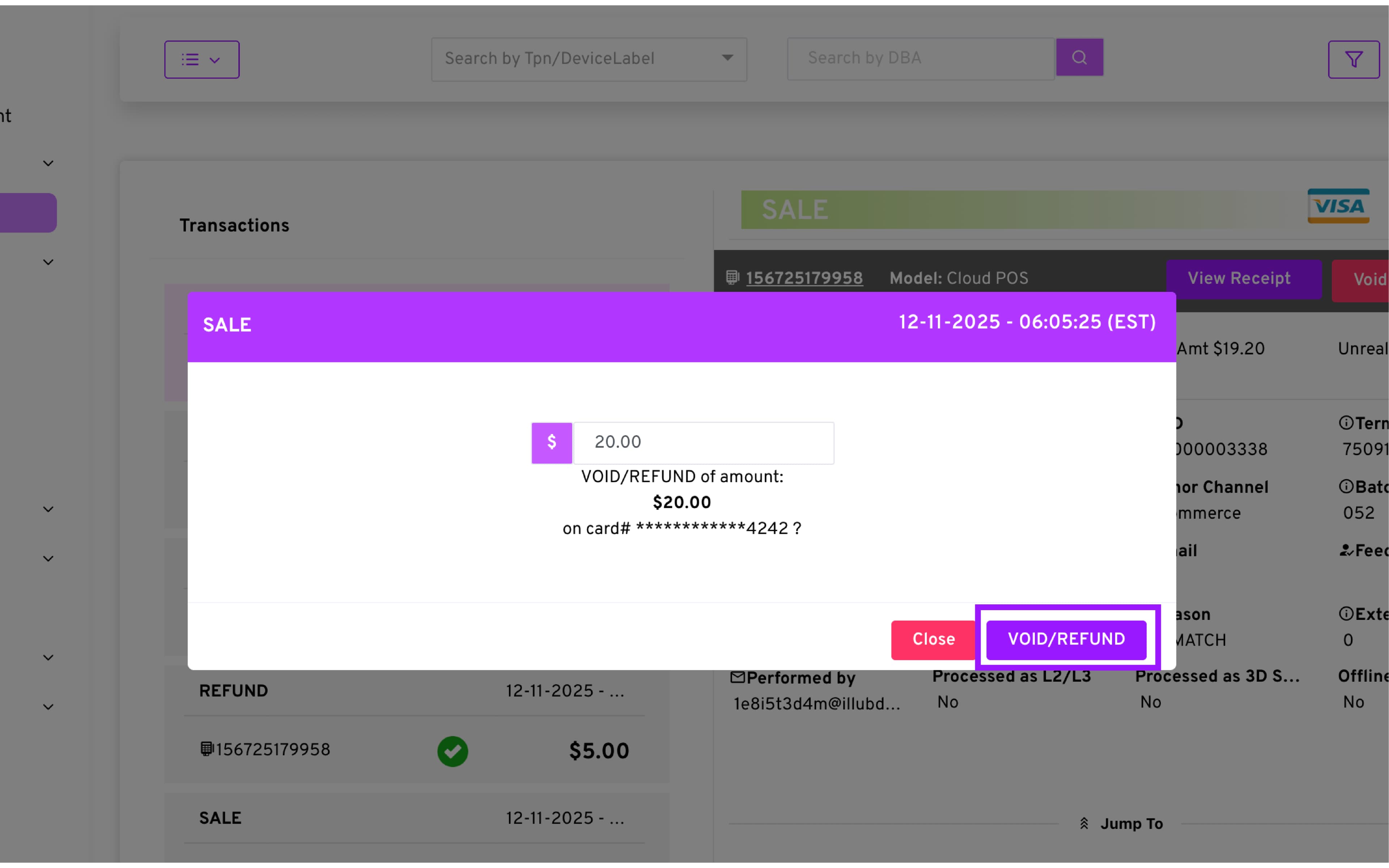
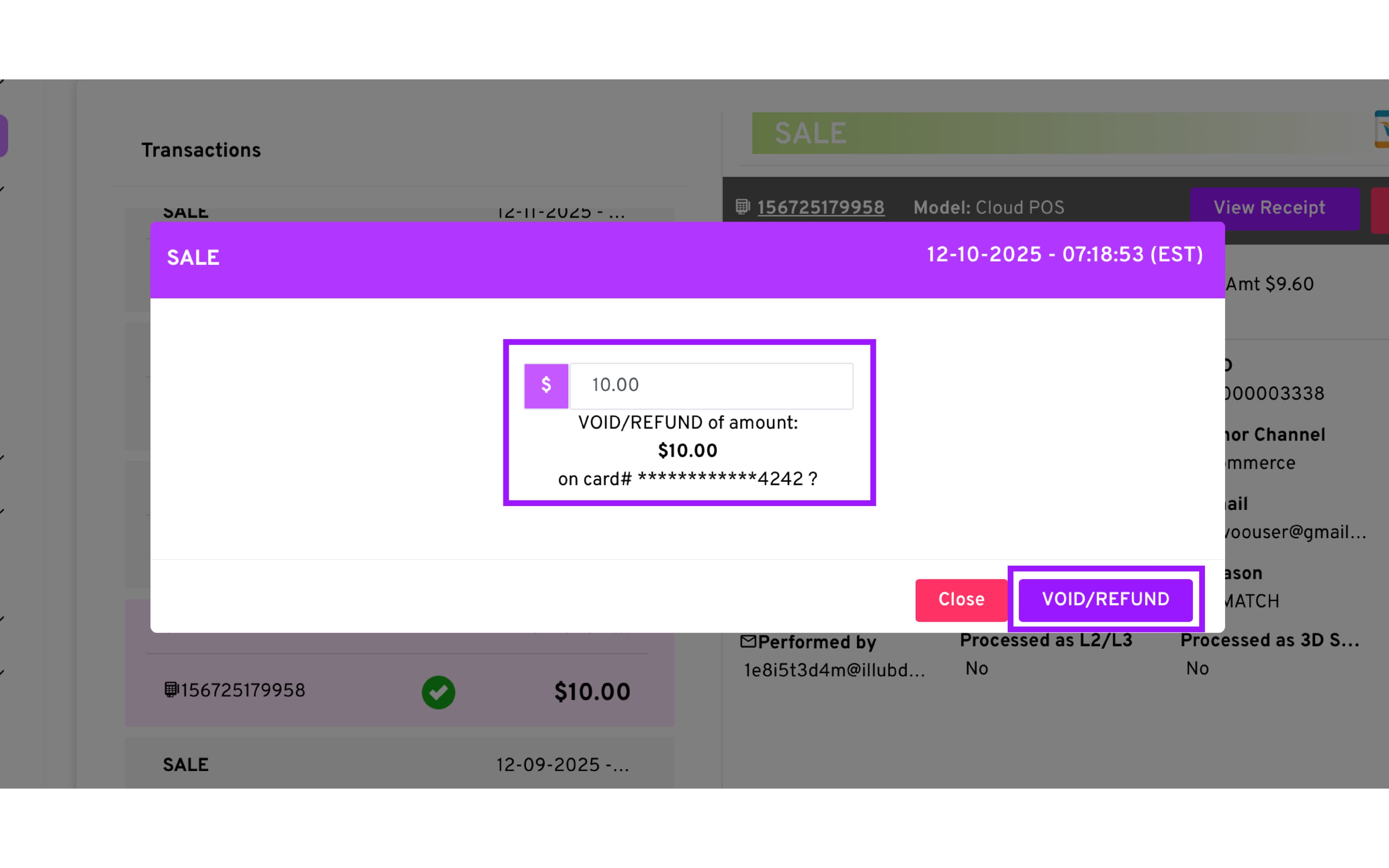
- Adjust the Void amount to perform a partial Void if needed, otherwise, click the Void/Refund button
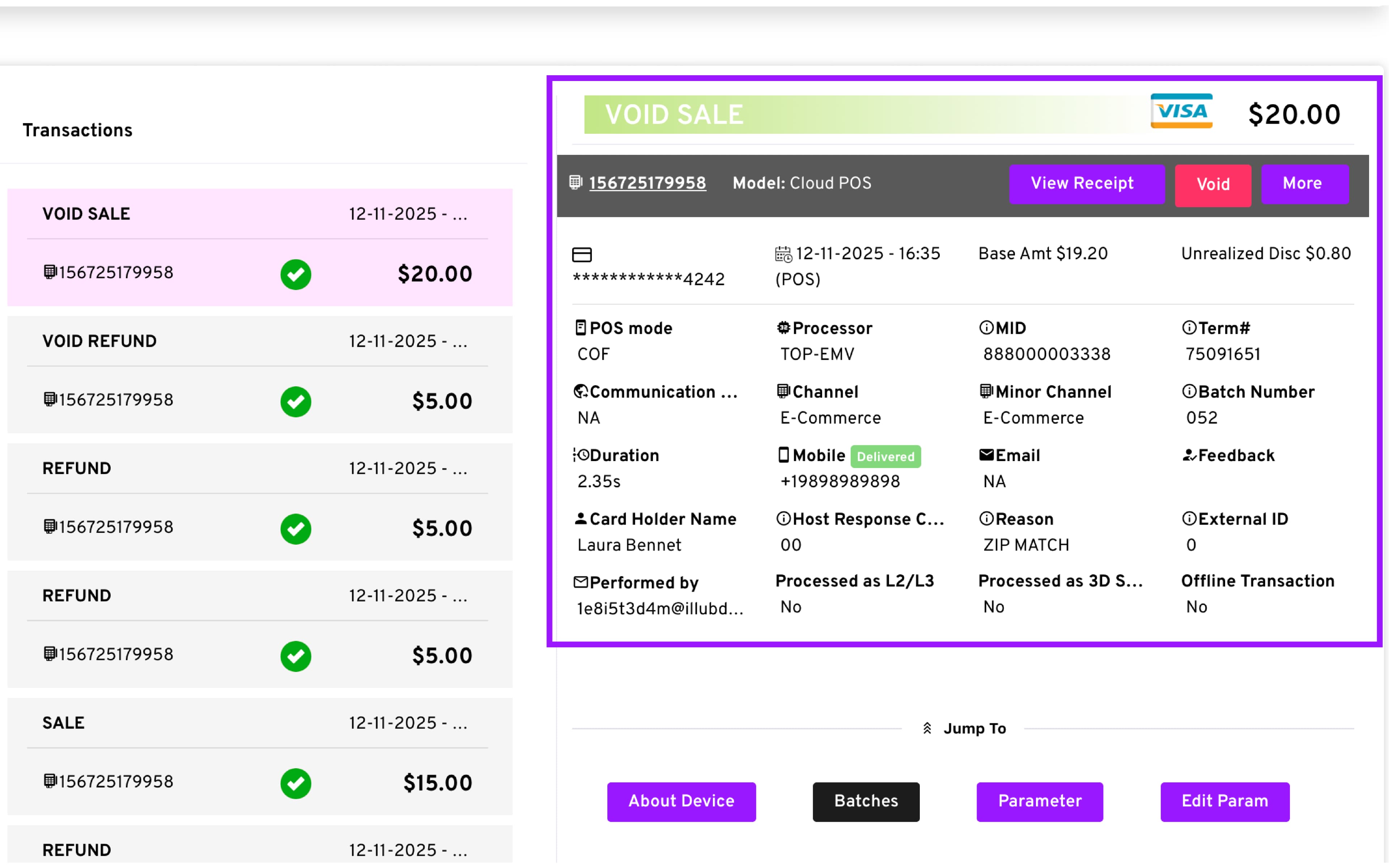
- The transaction label will update to VOID SALE.
Void vs Refund:
-
Void: happens before the original transaction has been settled.
-
Refund: happens after the original transaction has been settled.
How to Process Refunds
Refunds can be done in two ways:
| Method | Description |
|---|---|
| Manual/Standalone Refund | Creates a brand-new refund transaction. (Reference: Pay Now - Refund Transaction for instructions) |
| Refund From Existing Transaction | Uses an existent sale to trigger a refund. |
- Refund From Existing Transaction
Go to the Transactions module and locate the sale using the TPN and the filter icon located on the top right corner of the screen.
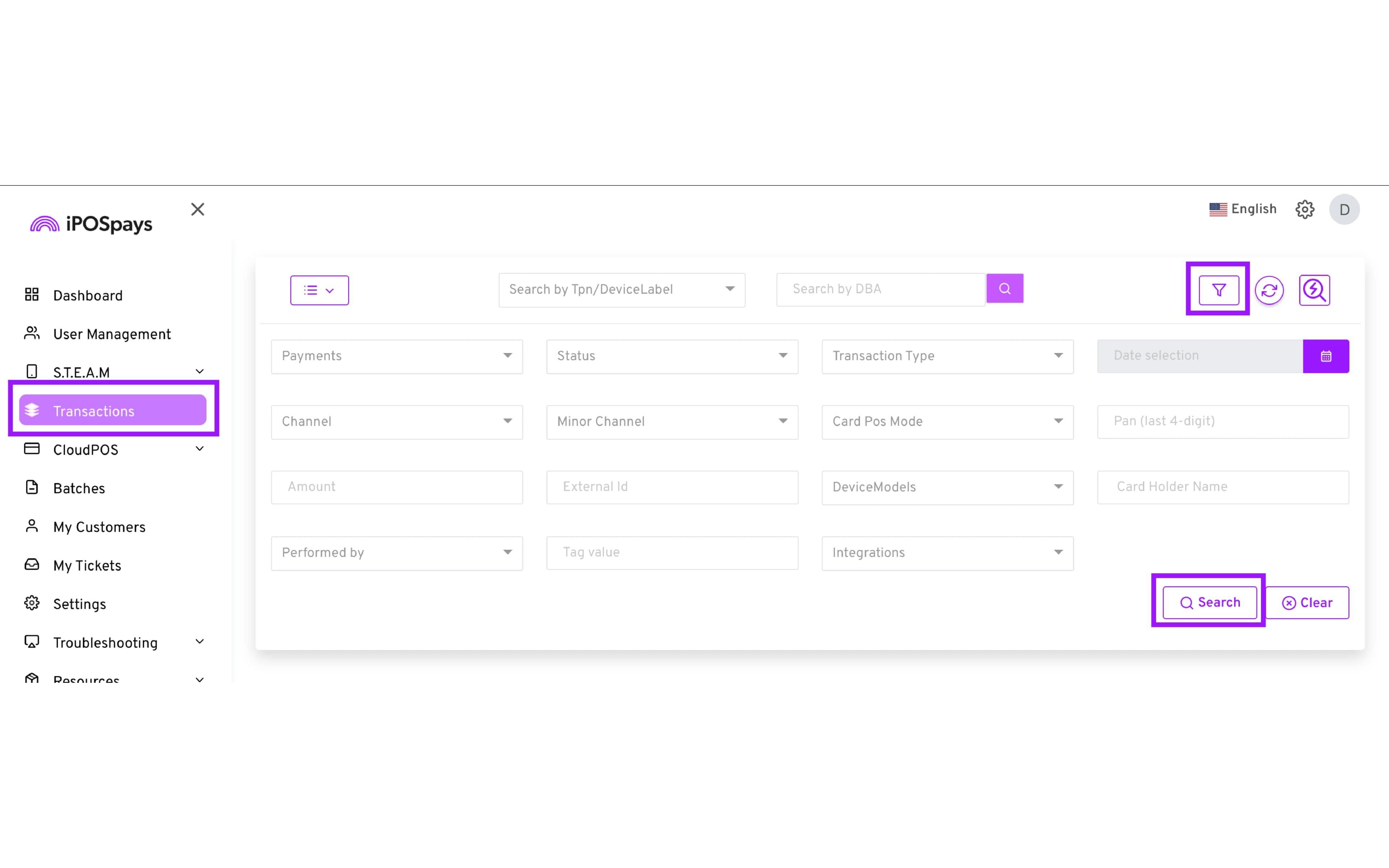
Once you have located the desired transaction, Select the Refund option

Adjust the Refund amount to perform a partial refund if needed, otherwise, click the Void/Refund button
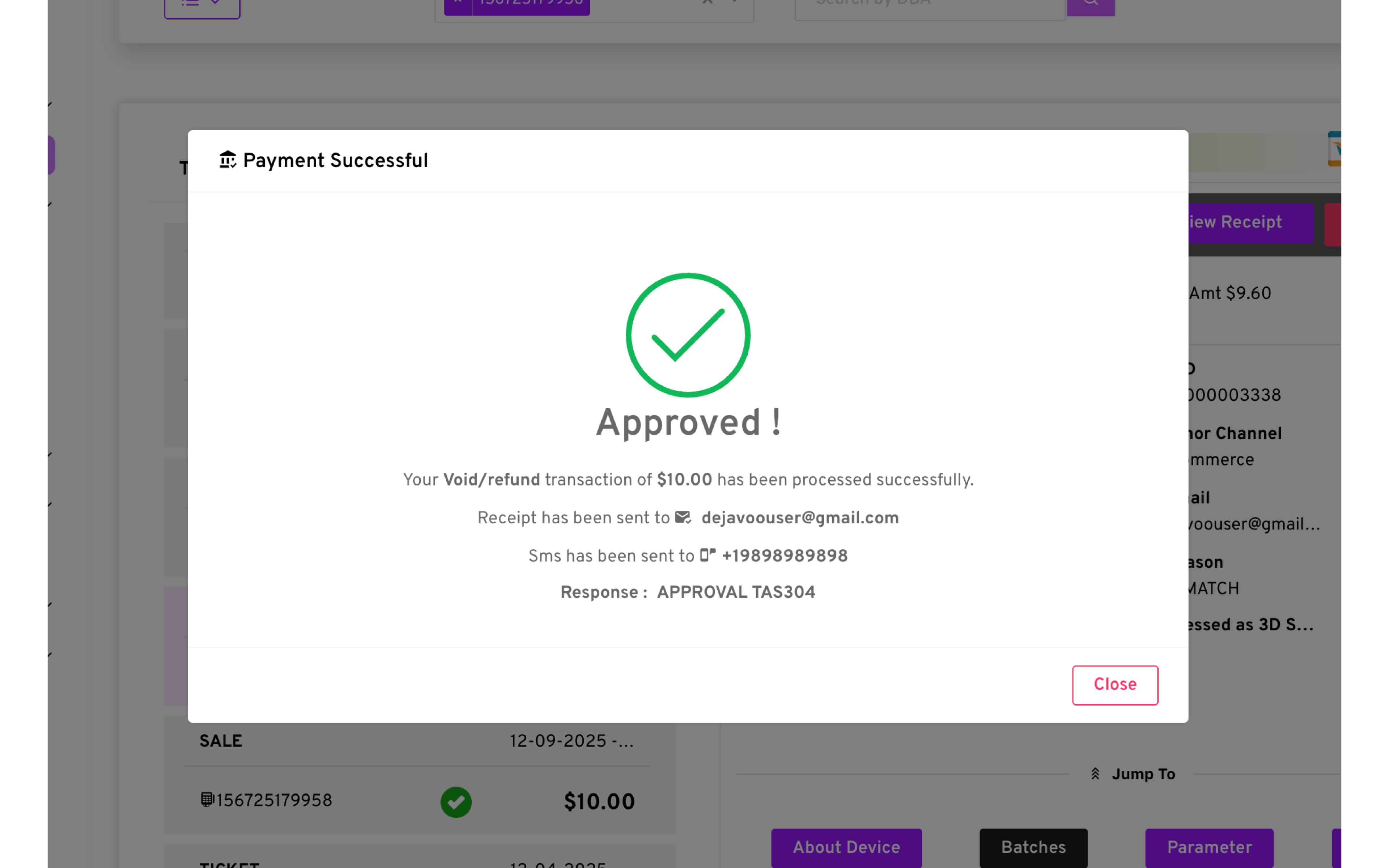
Review Result: A dialog will appear showing Success or Failure.
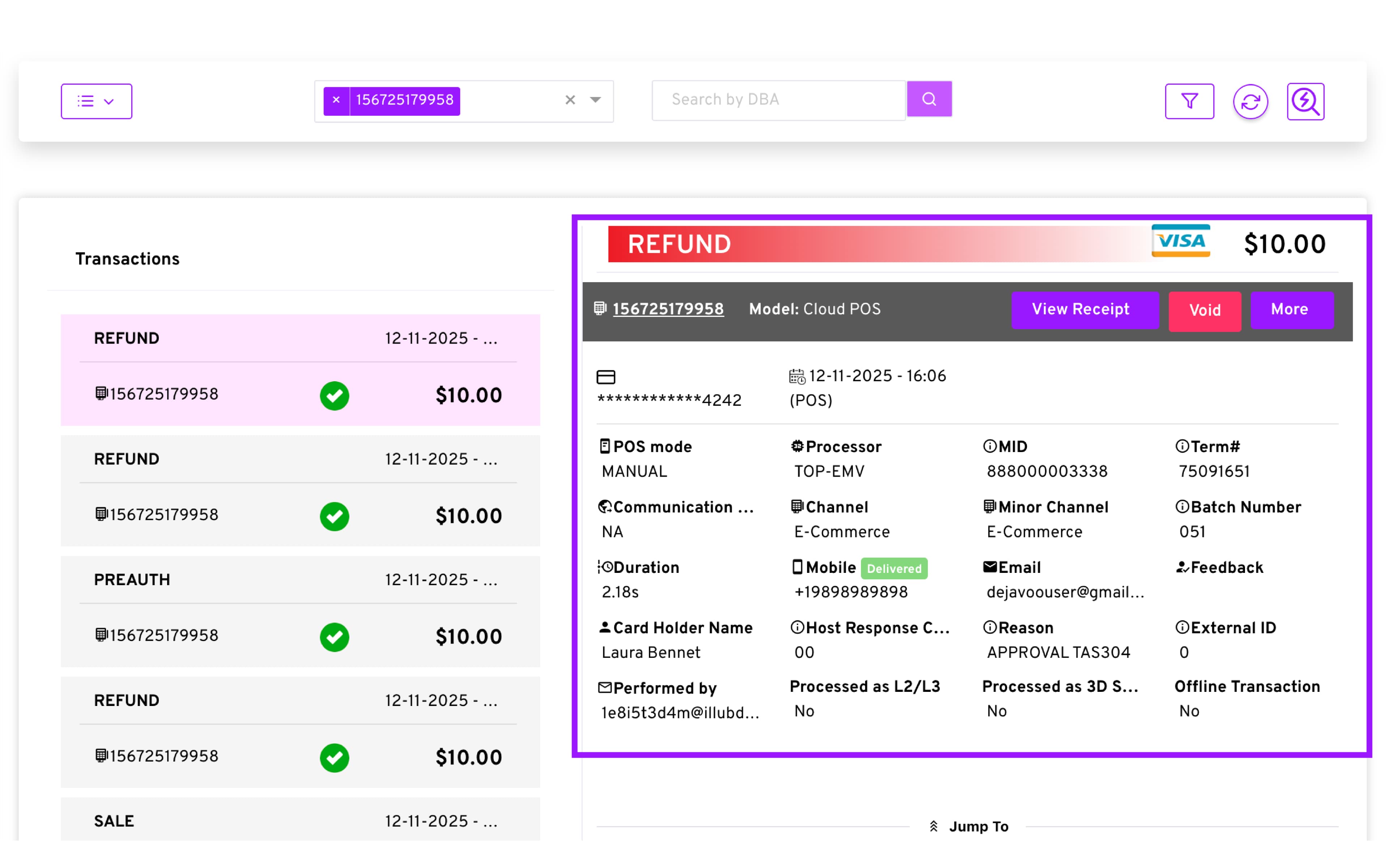
The transaction label will change from SALE → REFUND.
Important Refund Rules
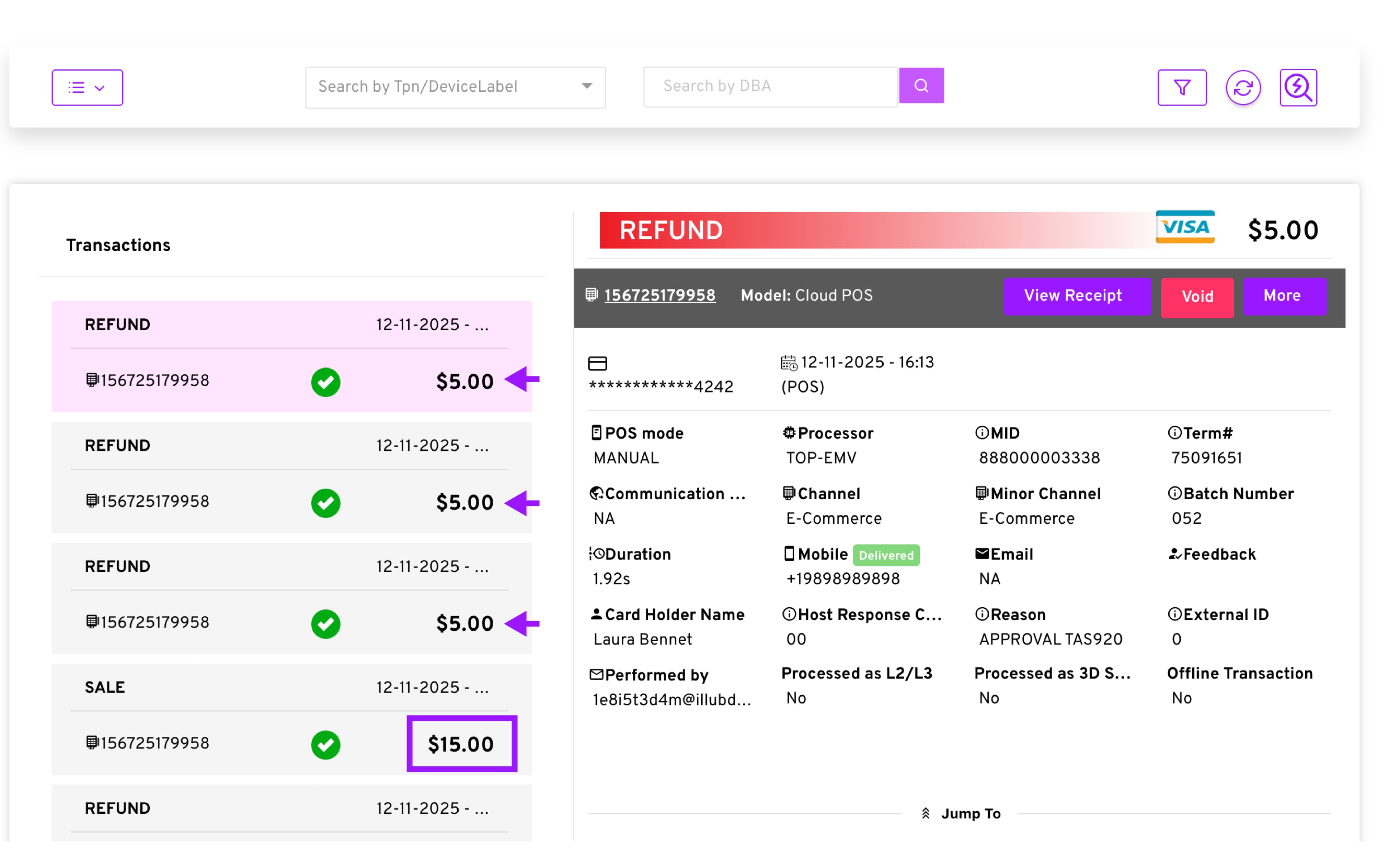
- Multi Refunds:
Total refund amount cannot exceed the original sale.
Up to three (3) refunds per sale.
-
Voiding a Multi Refund: If one refund is voided, its amount is added back to the available refundable balance.
-
Full Refund Limit: Once a sale is fully refunded, no additional refunds can be issued.
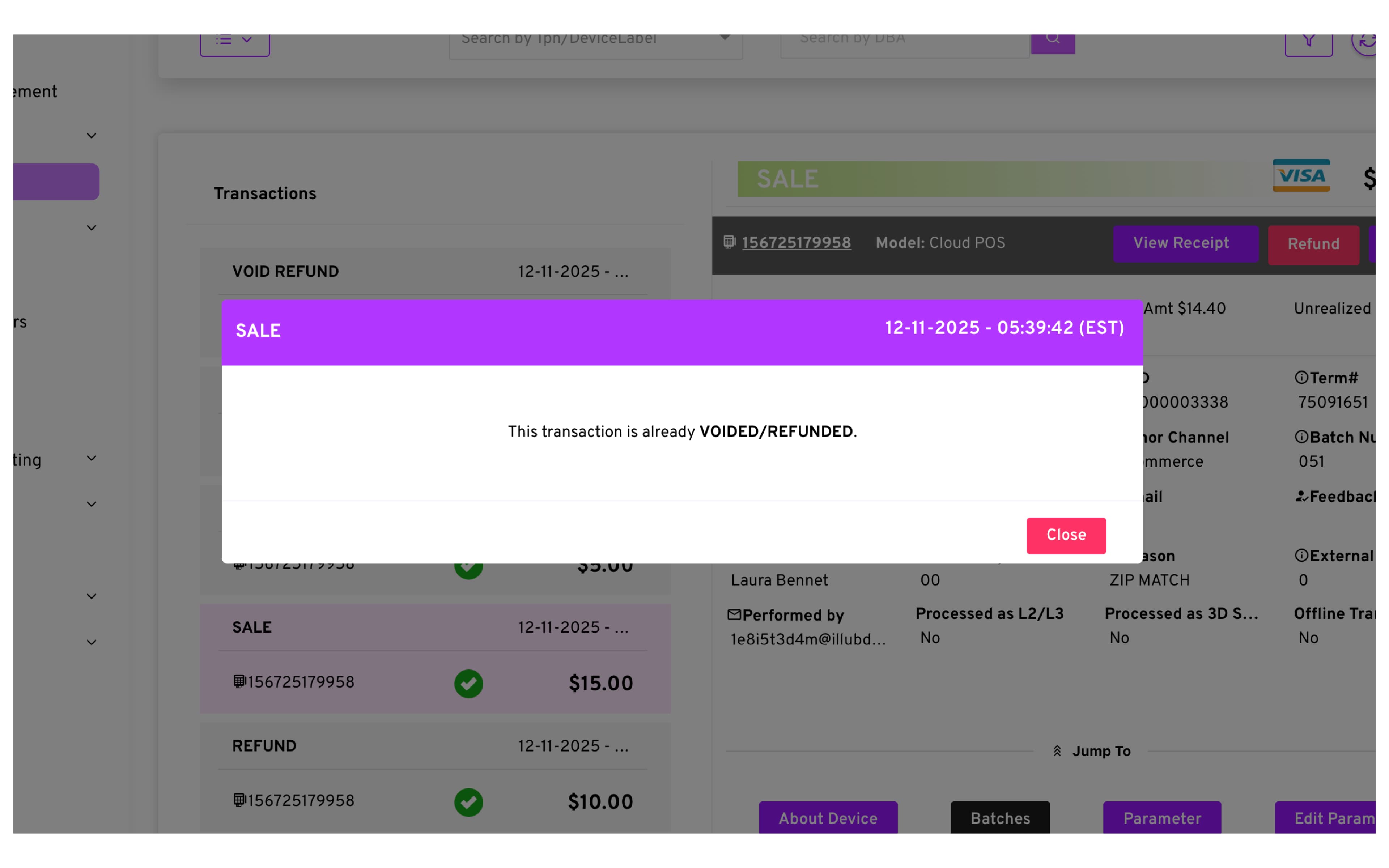
Tip Adjust
Tip Adjustment refers to the process of adding or modifying the gratuity amount on a credit or debit card transaction after the initial payment authorization but prior to the final settlement of the transaction.
How to Adjust Tips Before Settlement
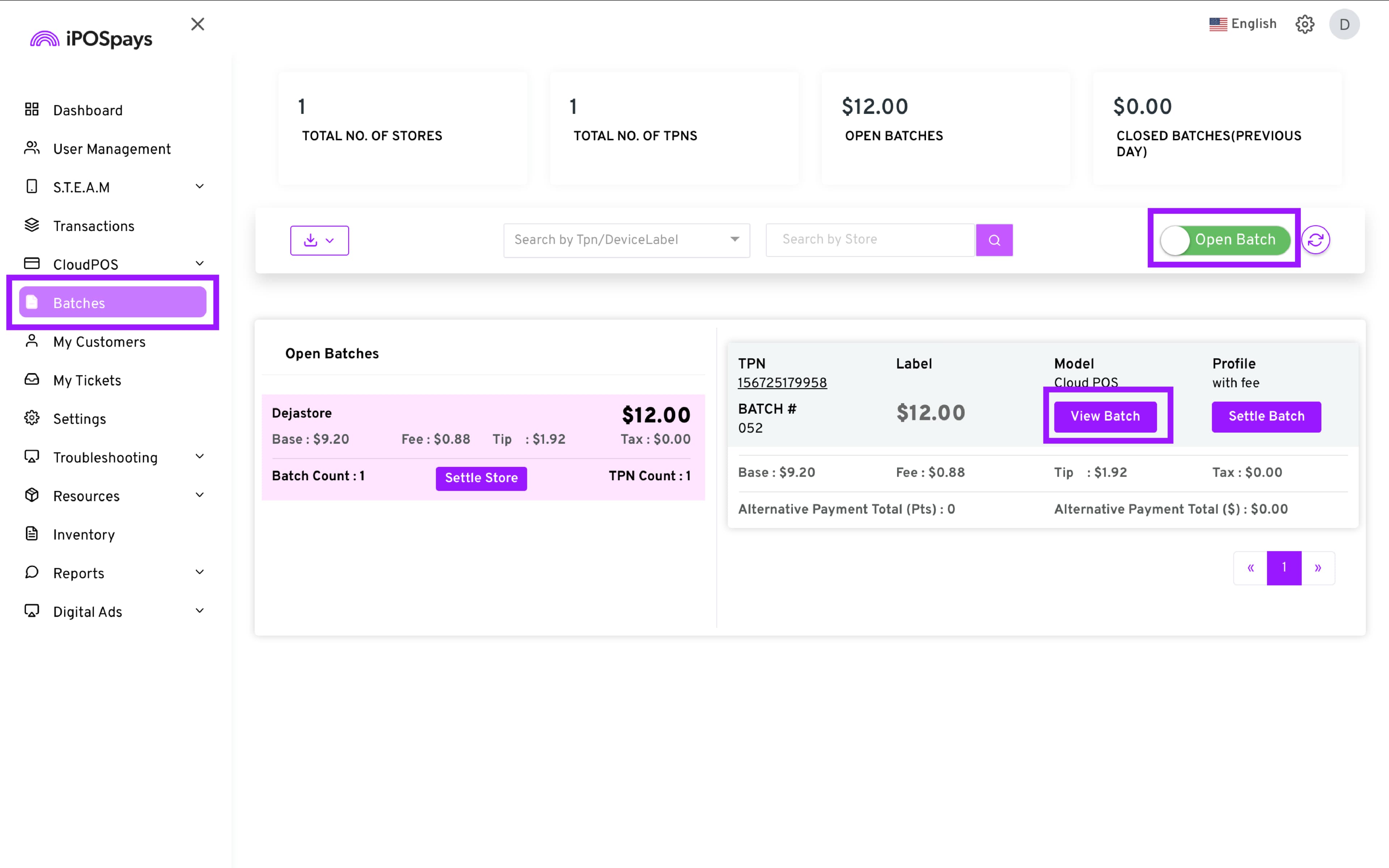
- Go to the Batches module → Locate the desired open batch by clicking → Open Batch → View Batch.
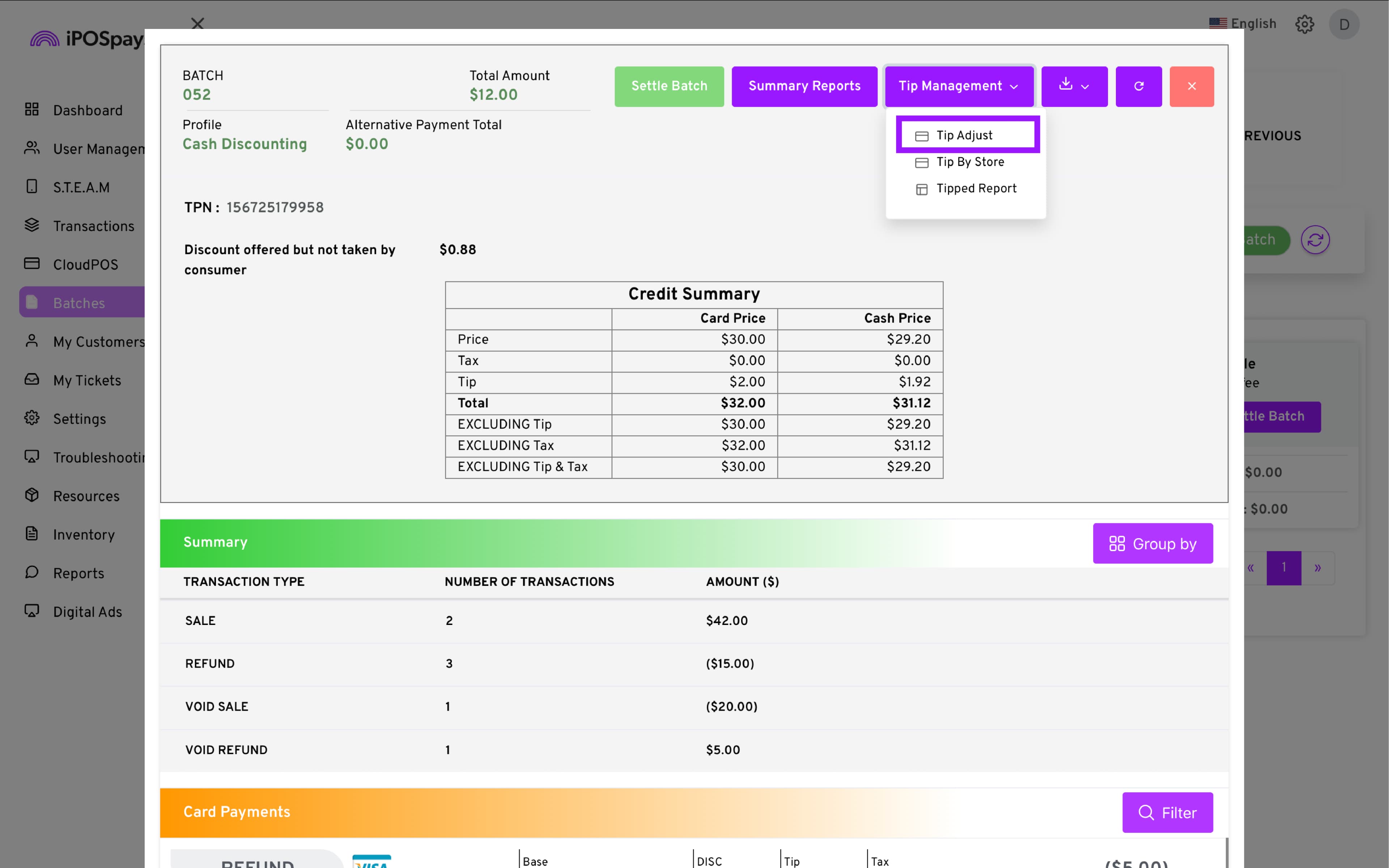
- Select Tip Management → Tip Adjust.
- Find the desired transaction and enter the tip amount you wish to add
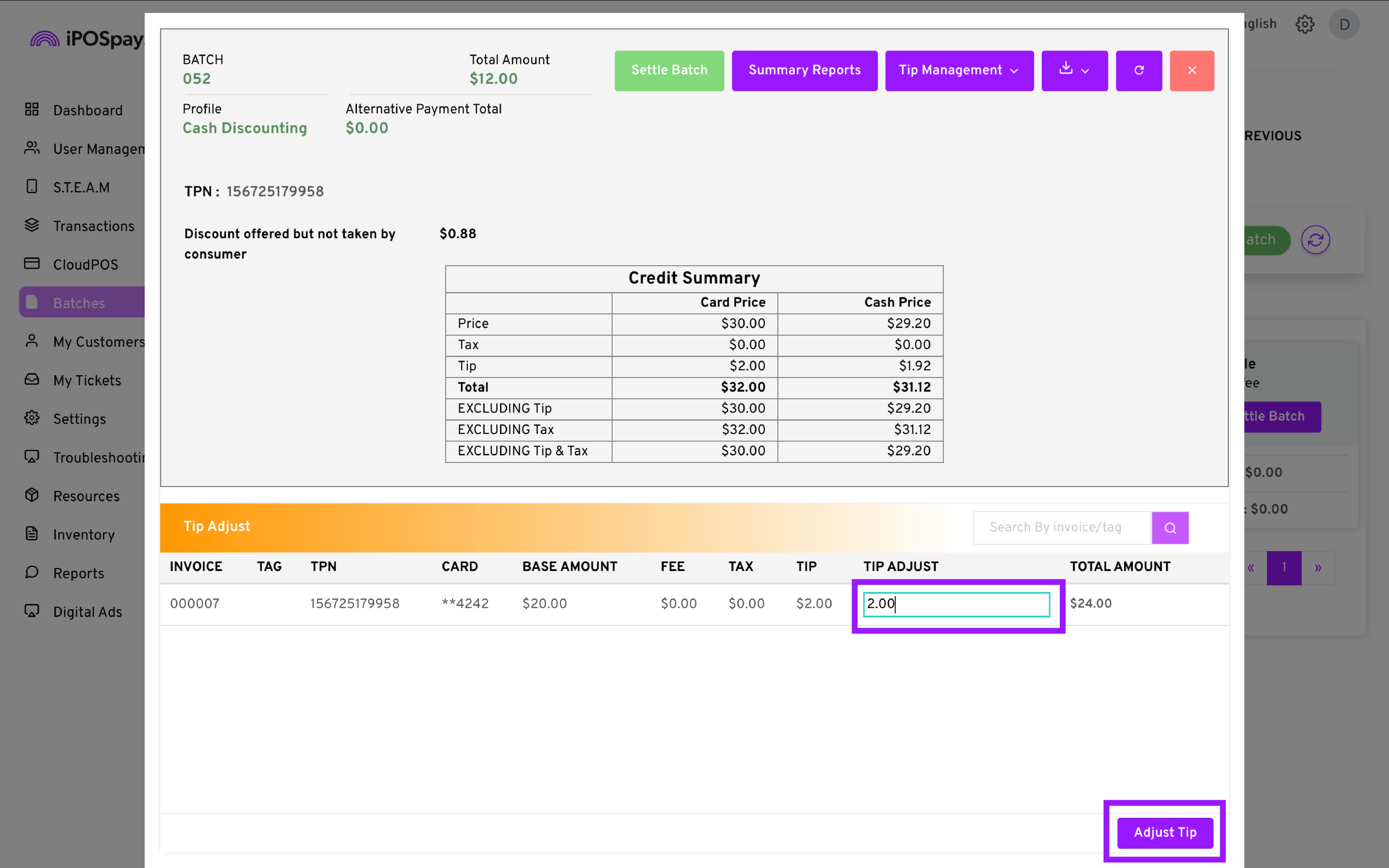
- A checkmark indicates that transaction has been successfully adjusted
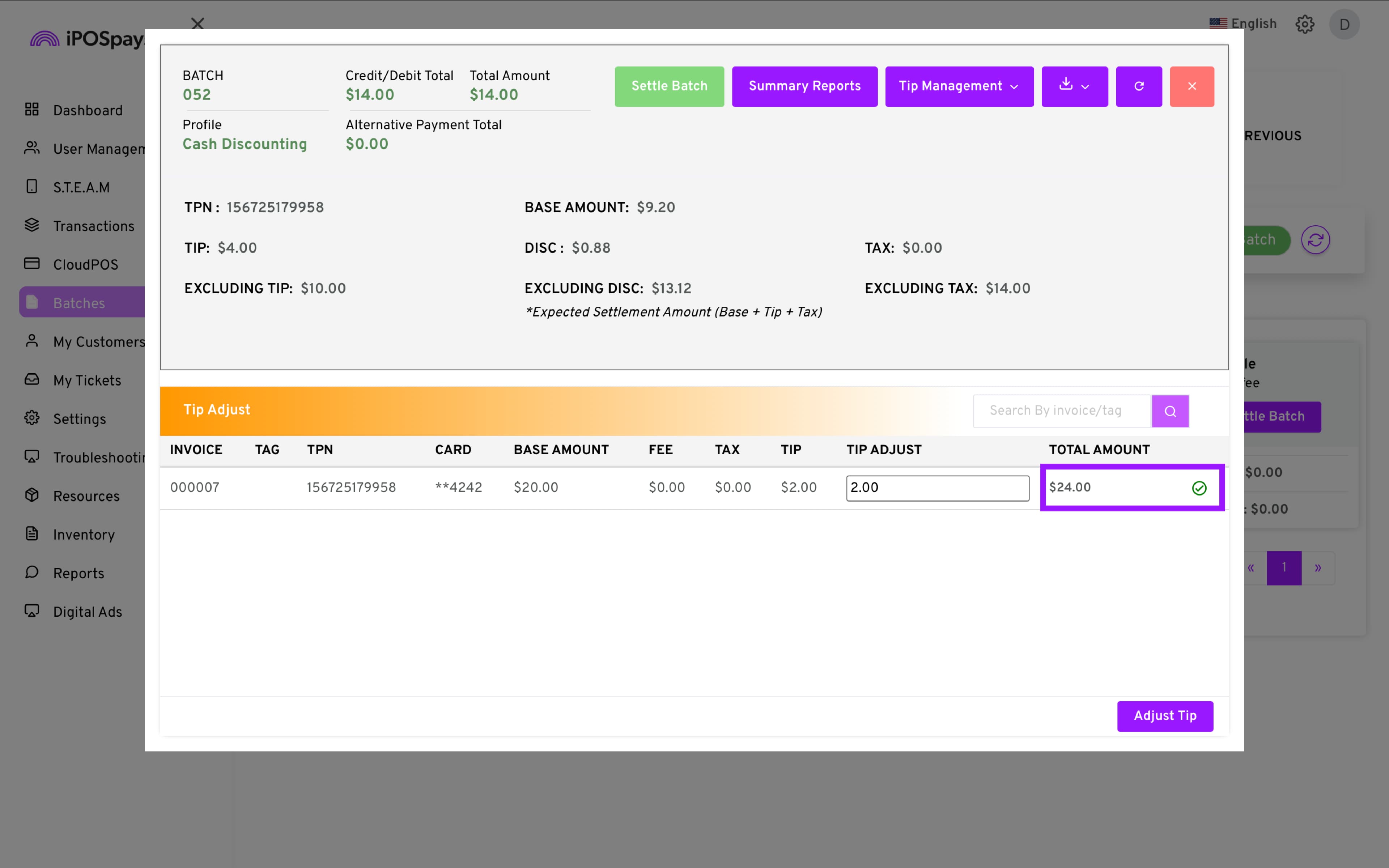
- Repeat these steps as needed until all the required transactions have been adjusted.
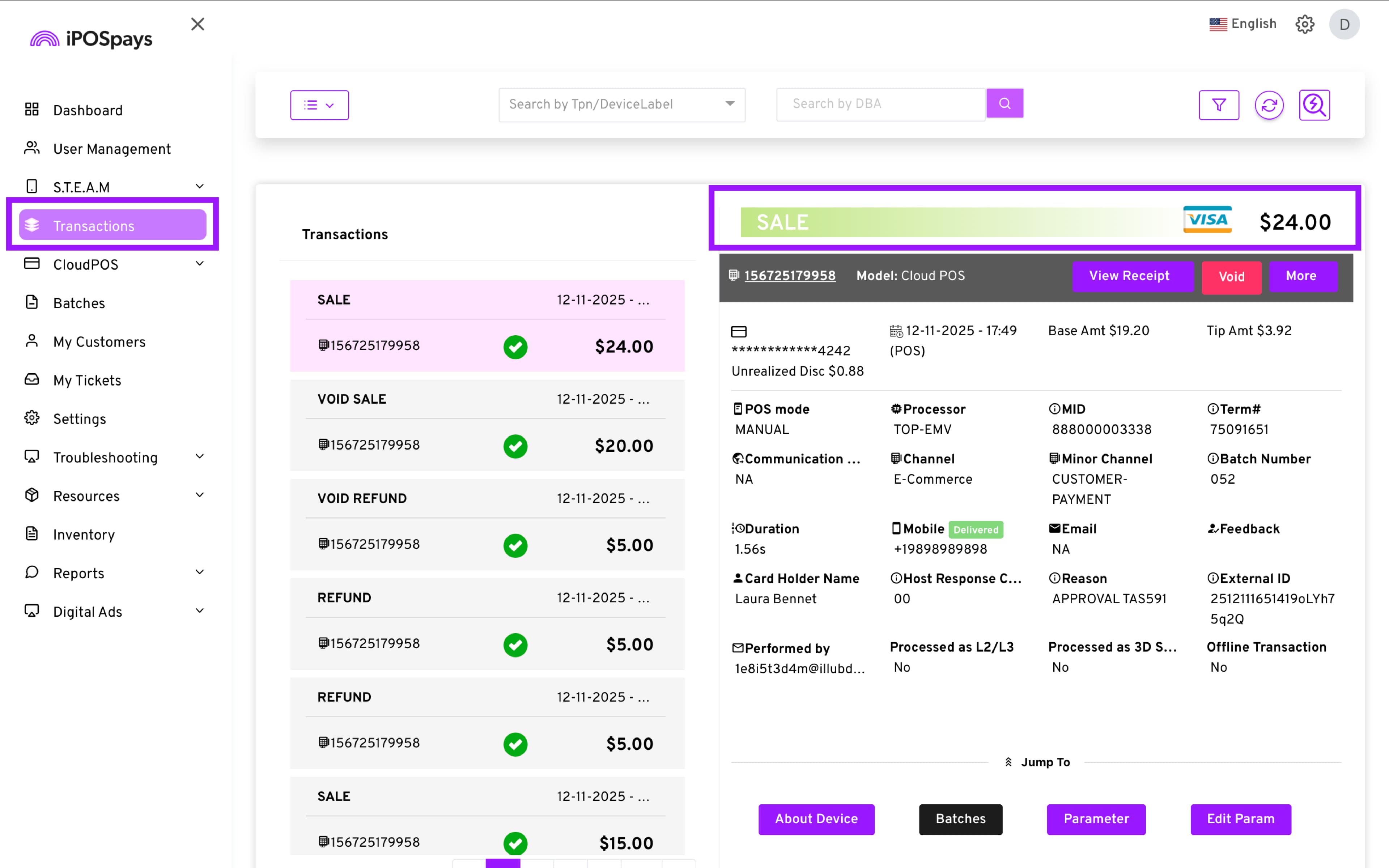
After a transaction has been adjusted (Tip Adjust) the new total will be reflected in the Transactions Module
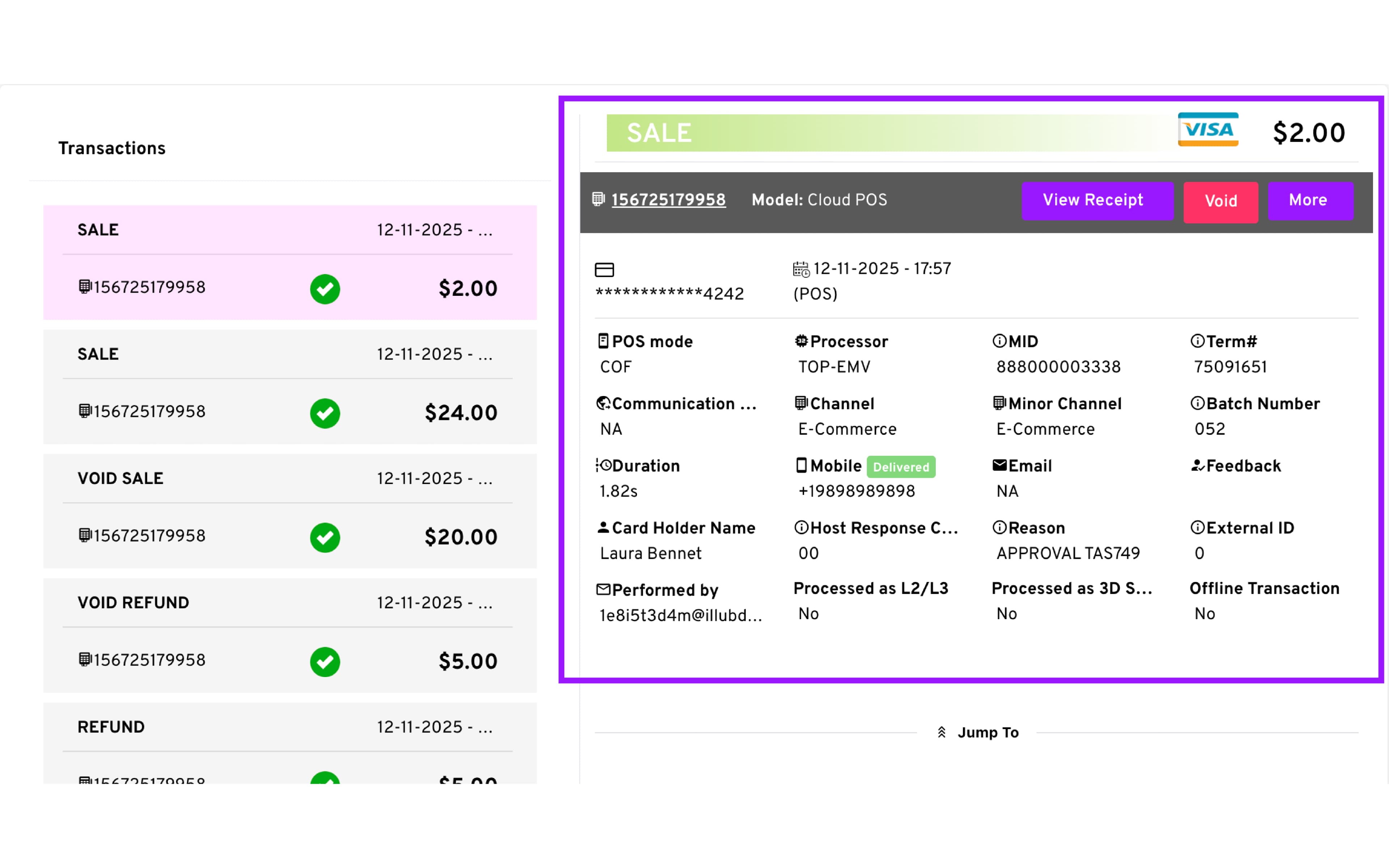
How to Adjust Tips After Batch Settlement (Additional Auth)
After batch settlement, tips must be processed as a separate transaction.
Key Notes:
-
Additional Auths reflect on the customer’s end as a separate transaction.
-
Only one Additional Auth per transaction is allowed.
-
Card details are retrieved automatically.
Steps
-
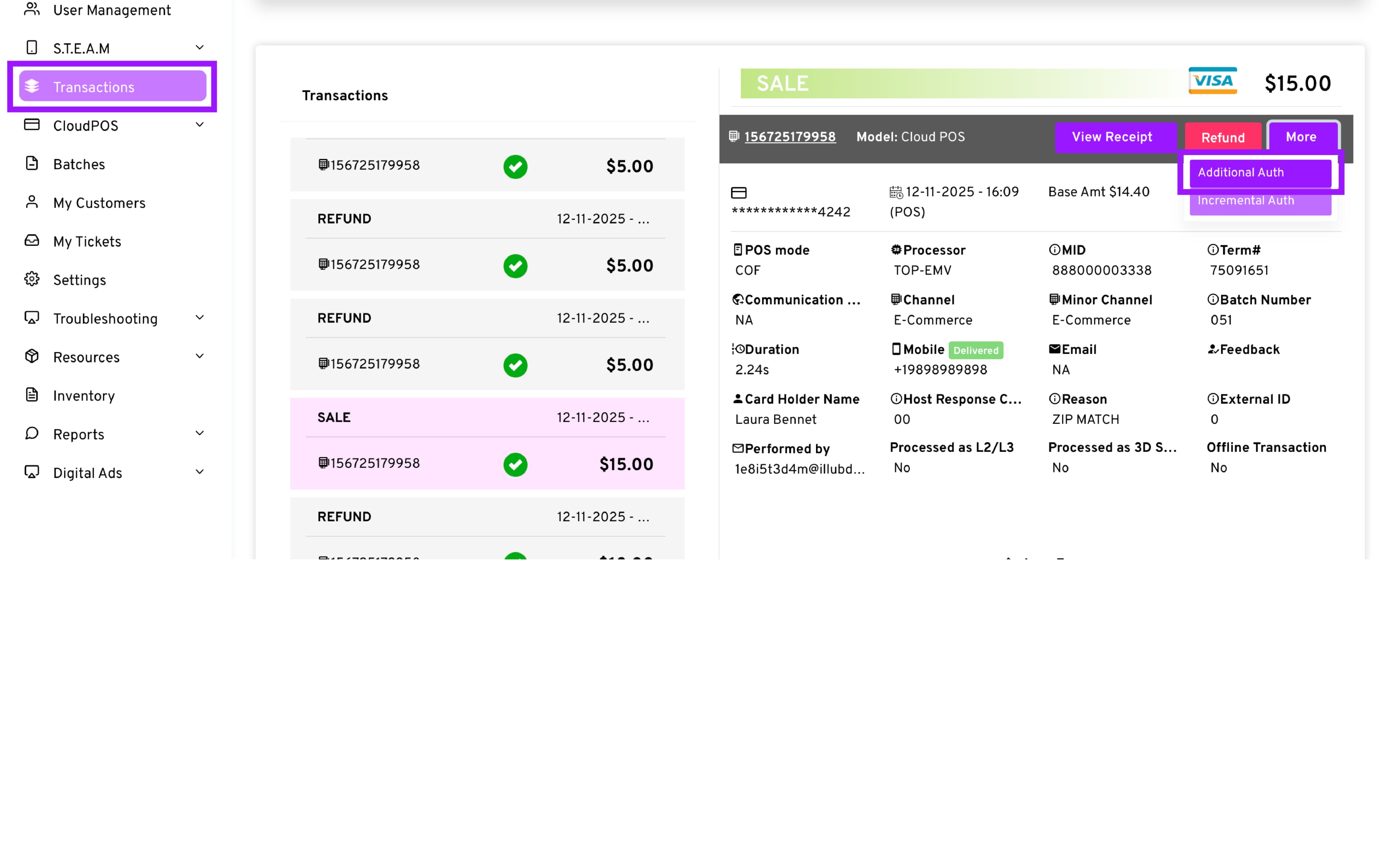
Go to the Transactions Module and select the desired transaction.
-
Click on “More” → Additional Auth
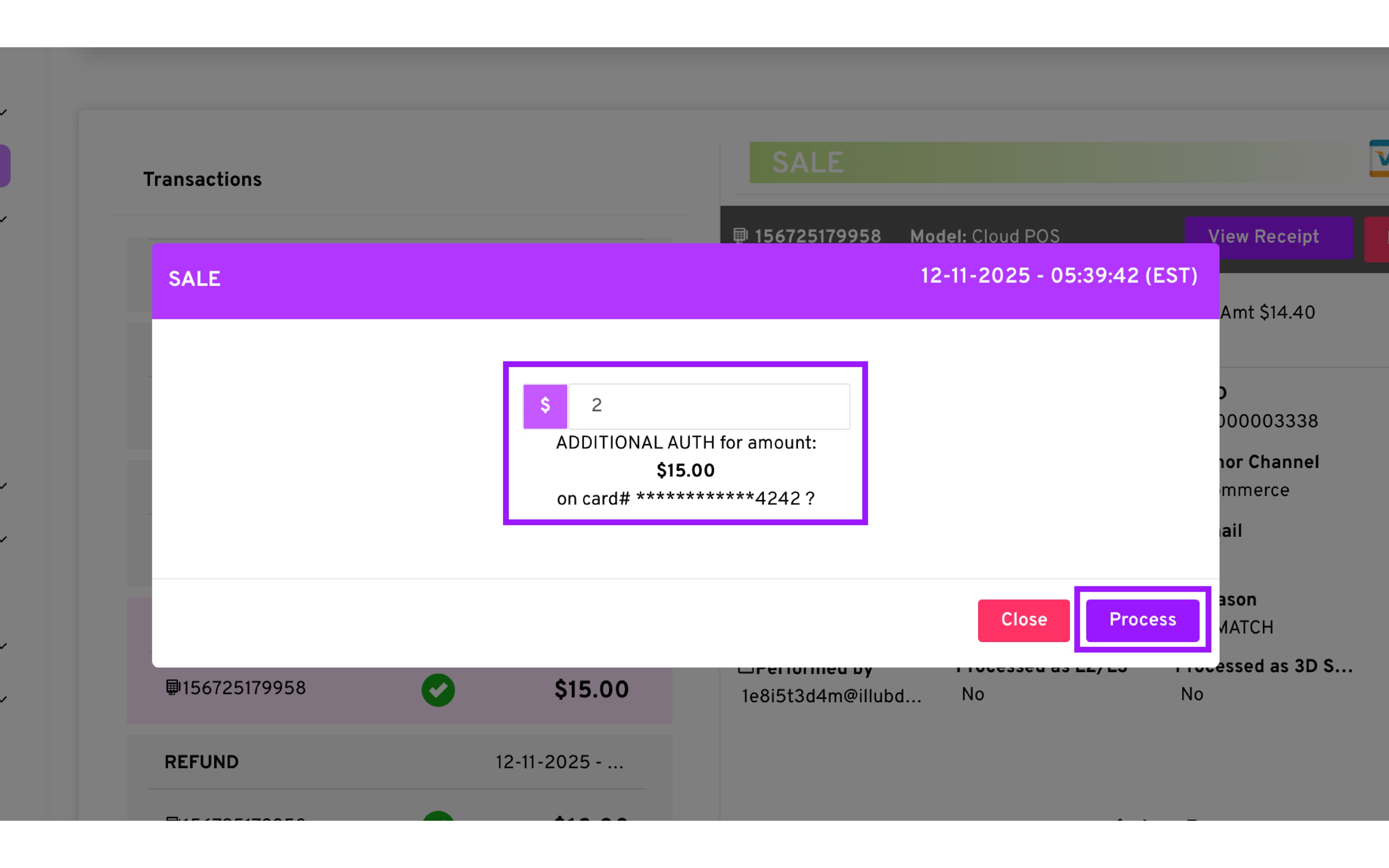
- Enter the desired Tip amount
-
Click Process.
-
A new Sale will appear representing the tip.
How to Use Incremental Auth
An incremental authorization is an additional approval request to increase the authorized amount on a card transaction after the original authorization, usually when the final cost is higher—like at hotels, car rentals, or gas stations. It allows the merchant to secure extra funds without running a new transaction.
Key Notes:
- iPOSpays Portal allows up to 5 increments per transaction.
Requirements:
-
Only supported by TSYS and Fiserv North.
-
Supported cards: Visa, Mastercard, and Discover.
Steps
-
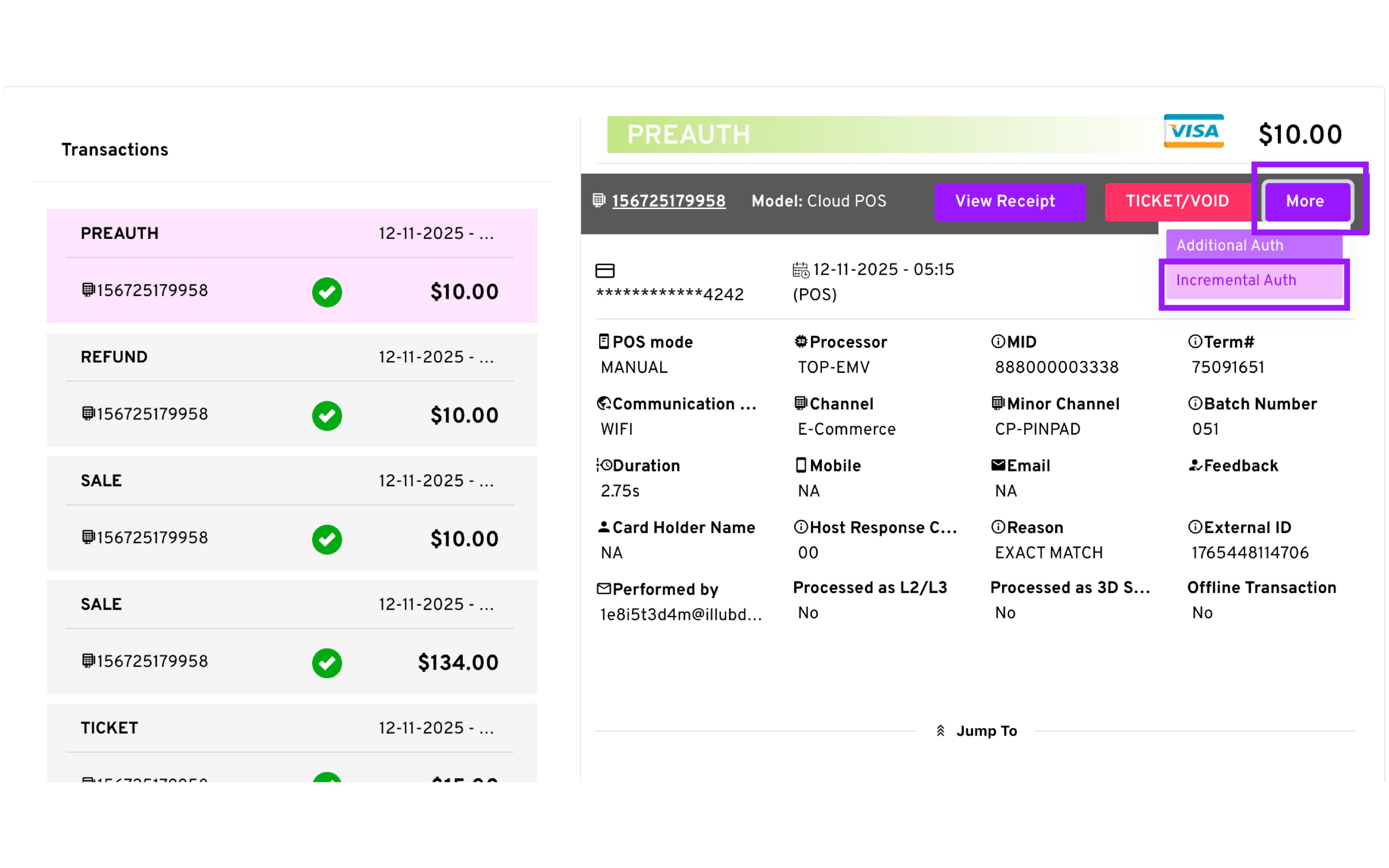
Go to the Transactions module and select the desired transaction.
-
Click on “More” → Additional Auth
- Enter the amount you wish to increment
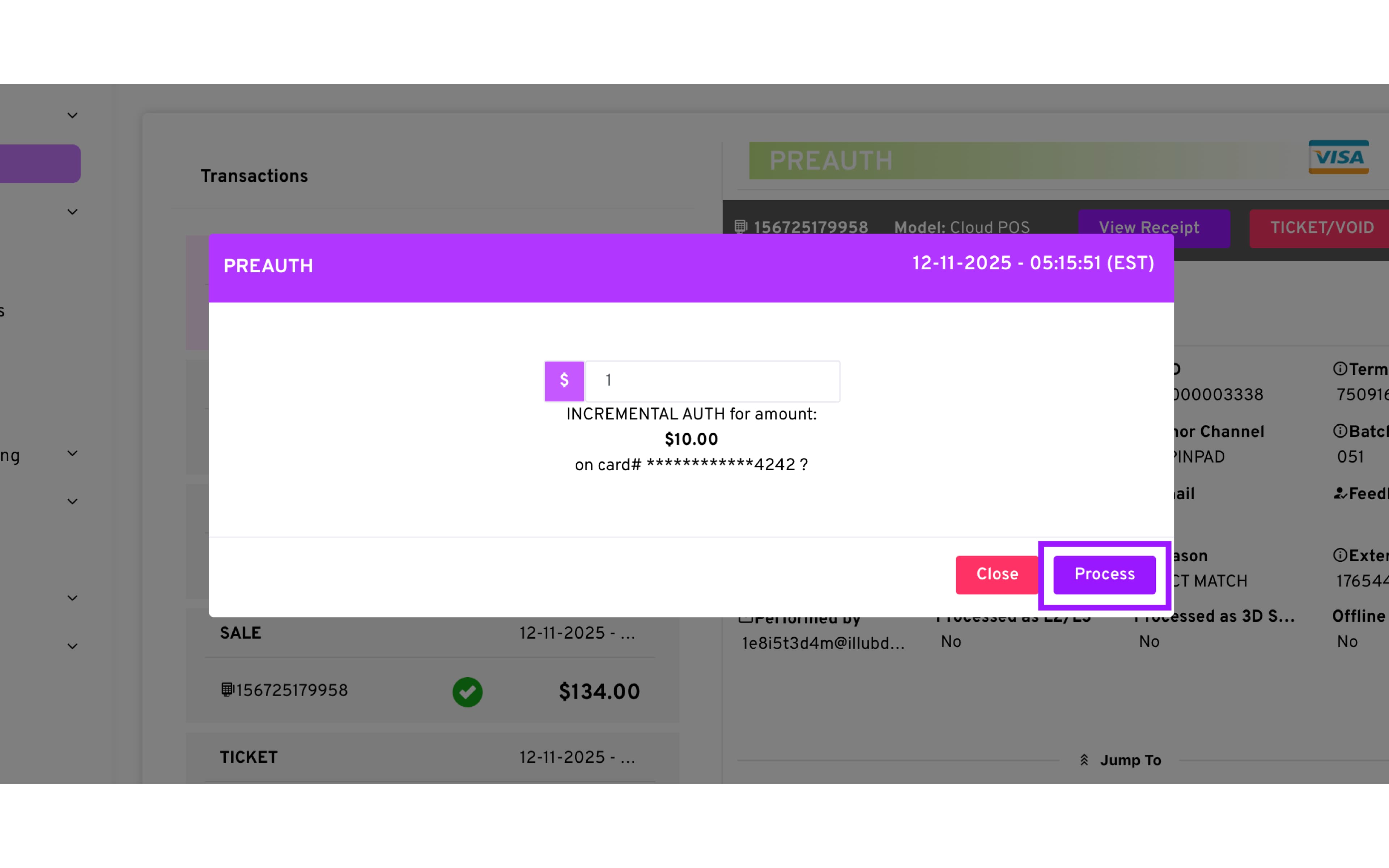
-
Click Process.
-
A new transaction appears labeled INC AUTH.
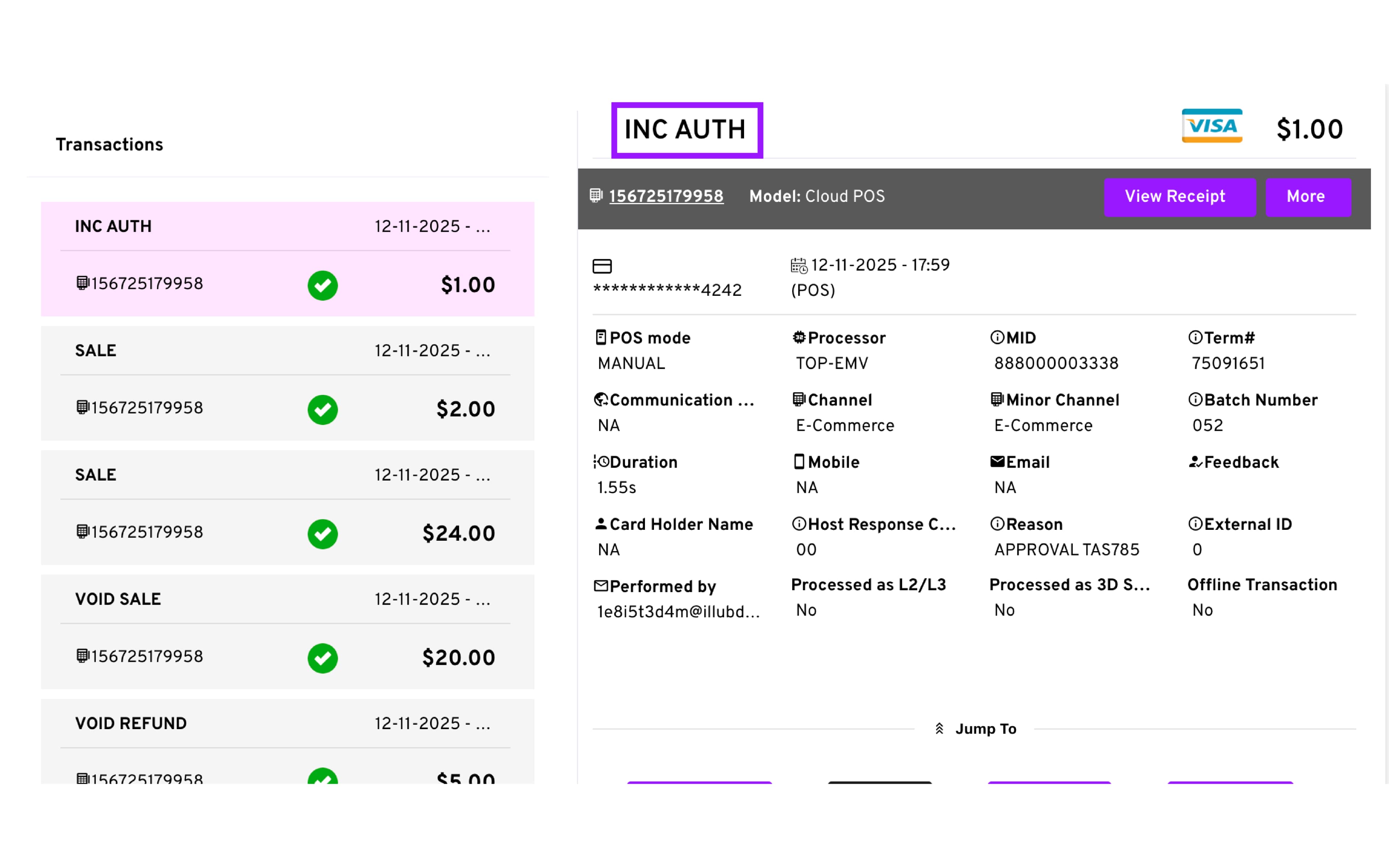
- If the Pre-Auth is voided, all increments will also show as void.
How to View/Resend a Transaction Receipt
-
Go to Transactions
-
Select the desired transaction.
-
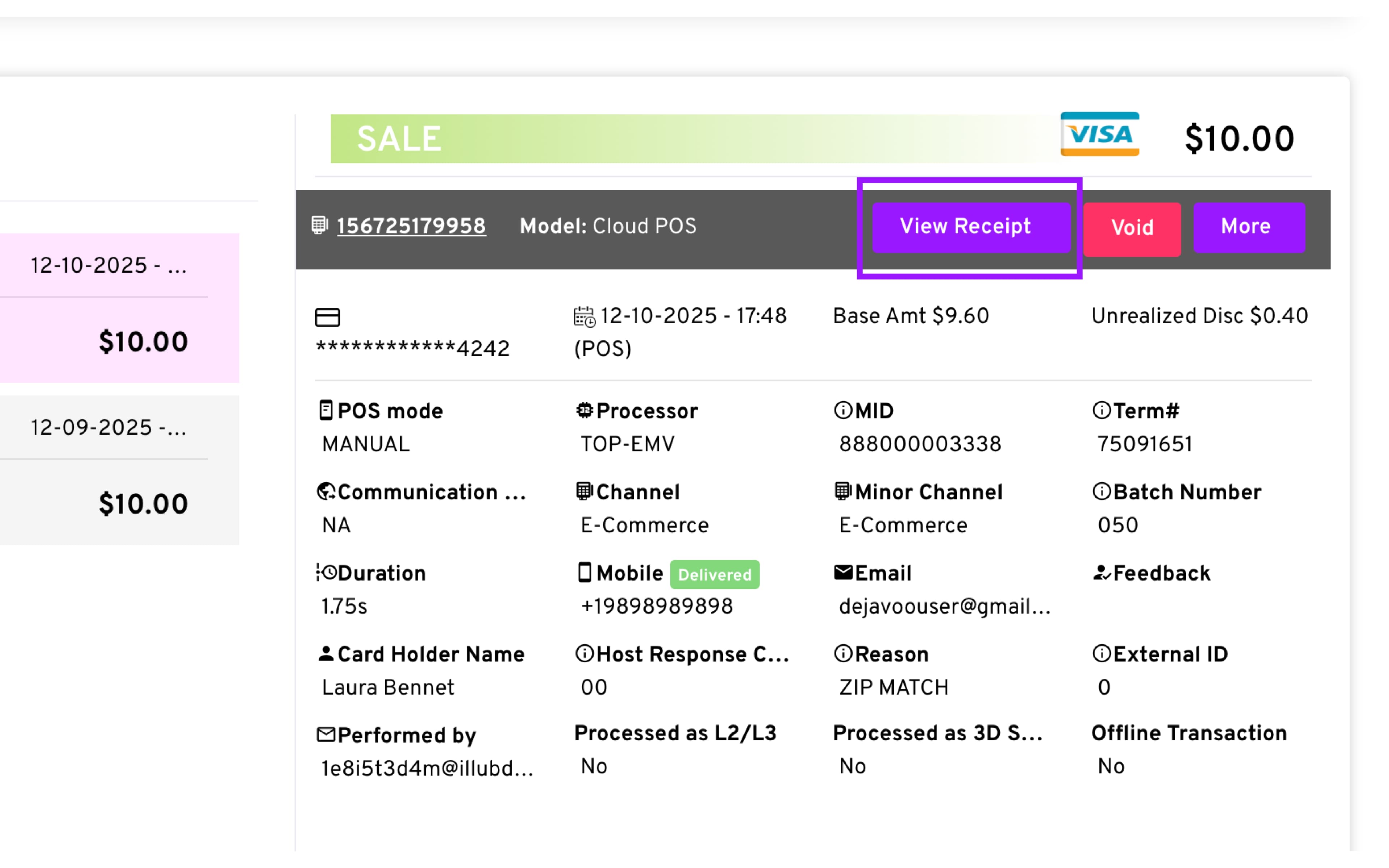
On the right side of the chosen transaction, click View Receipt
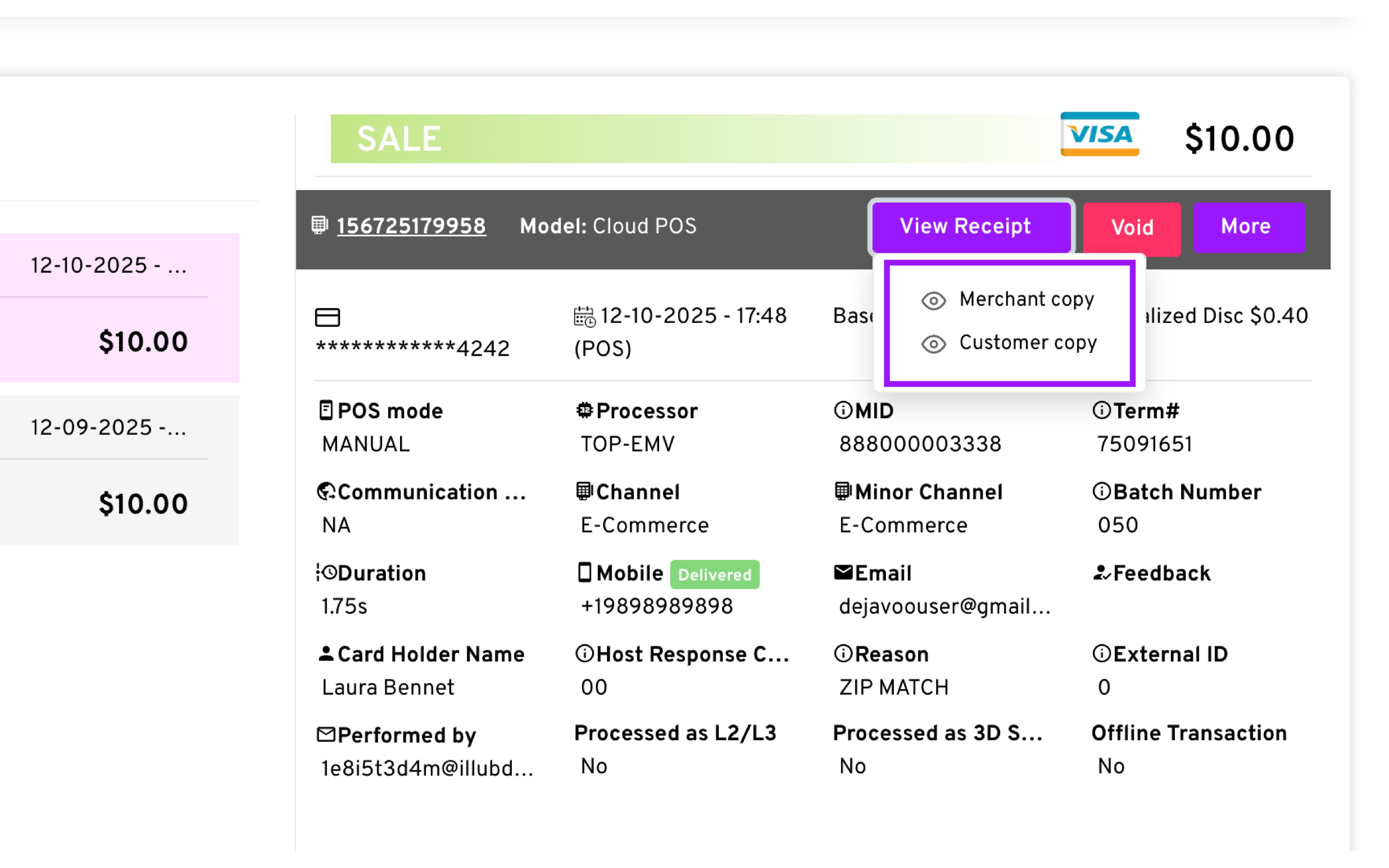
- Choose which receipt you wish to view: Merchant Copy or Customer Copy
-
View the receipt details.
-
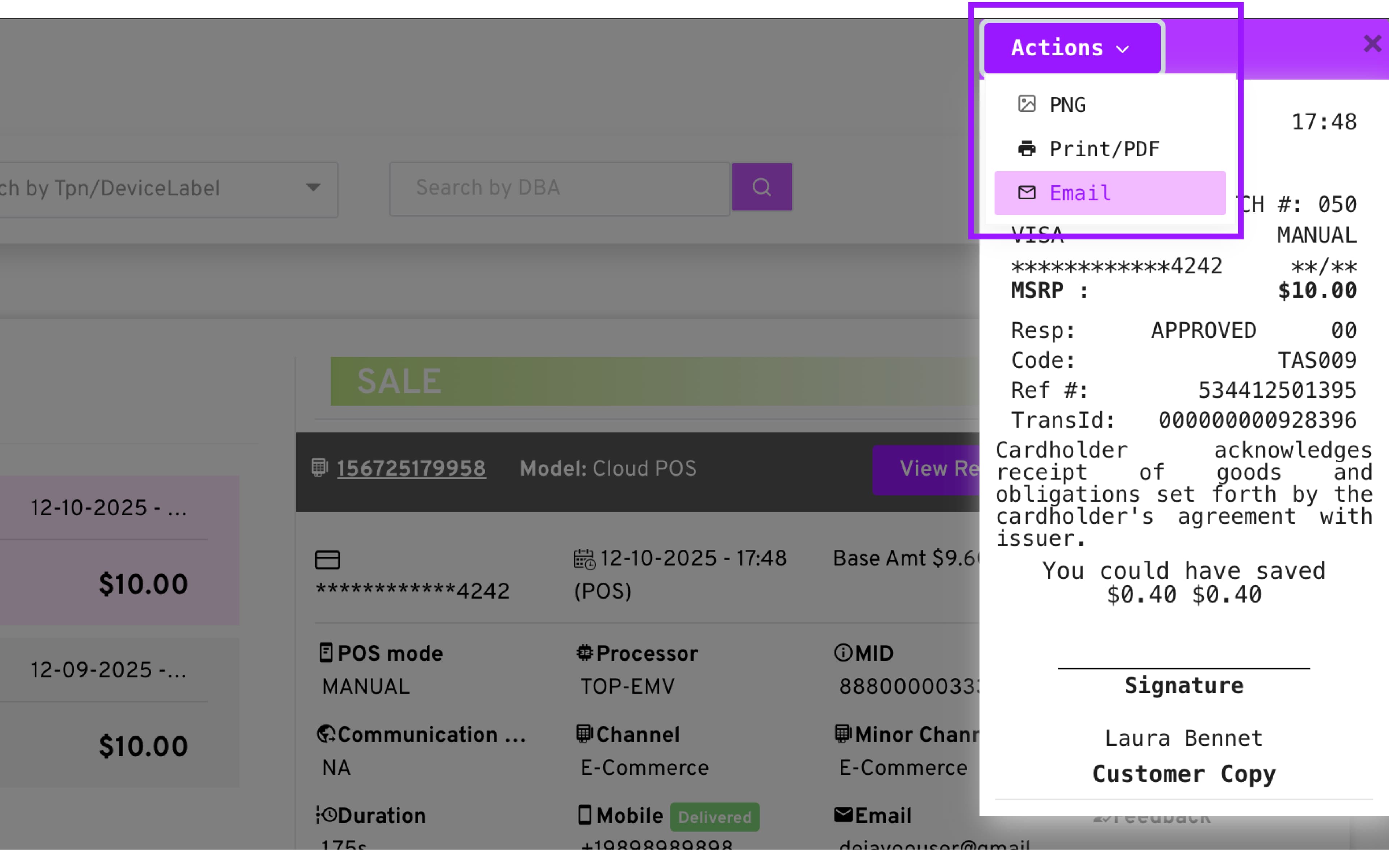
Select the Action menu in the top left to access the following options:
— PNG: Download a PNG copy of the transaction receipt
— Print/PDF: Print the transaction receipt or download it as a PDF
— Email: Forward the receipt via email
Settling a Batch & Batch Reports
Batch Status
-
Open Batches: Unsettled
-
Closed Batches: Settled
Reports are downloadable for both Open and Closed Batches.
Manual Batch Settlement
-
Navigate to the Batches Module
-
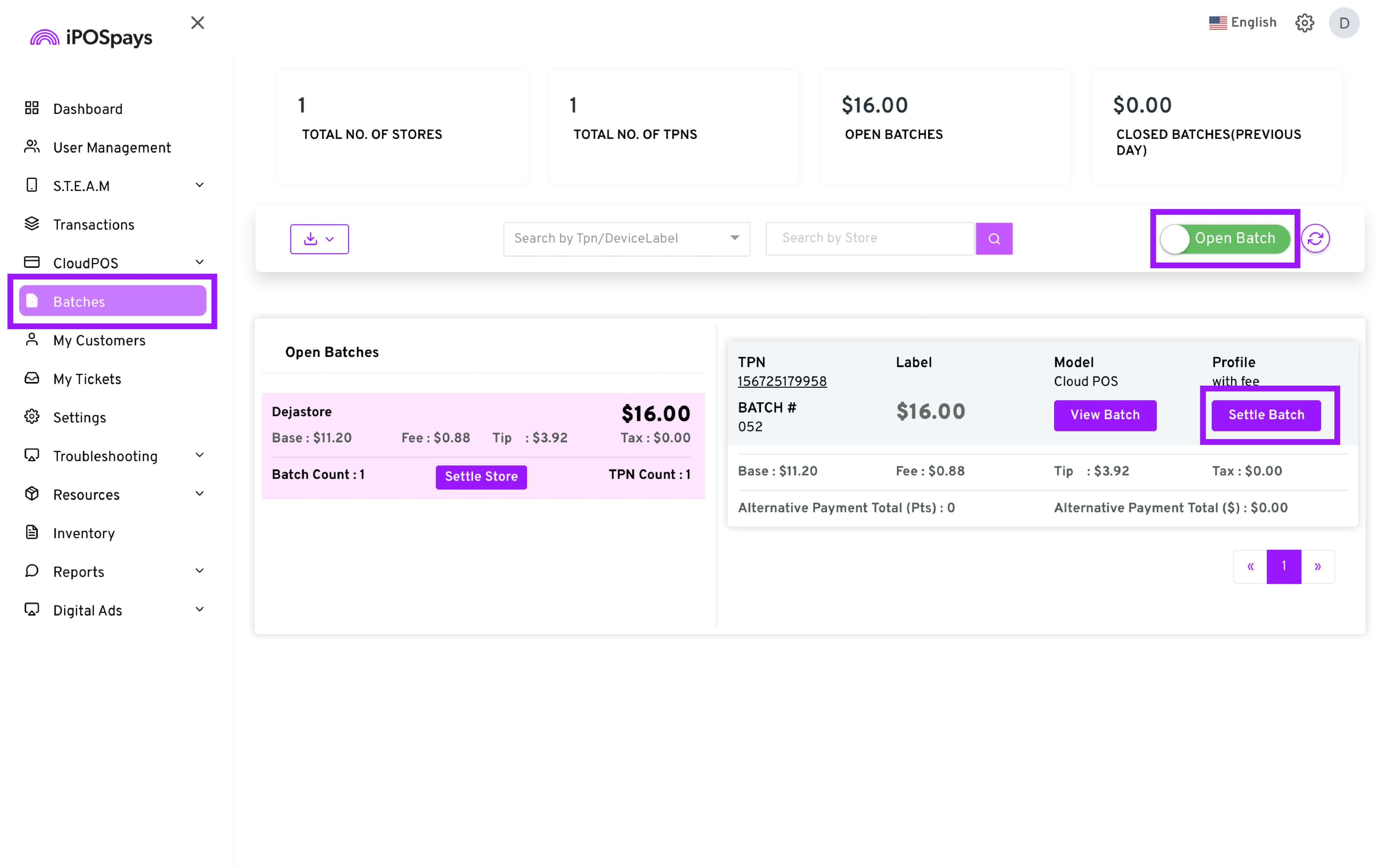
If needed, click the toggle on the right side to switch between Closed and Open Batches
-
Identify the batch you would like to settle and click on the “Settle Batch” button.
-
Click Confirm to process the settlement request
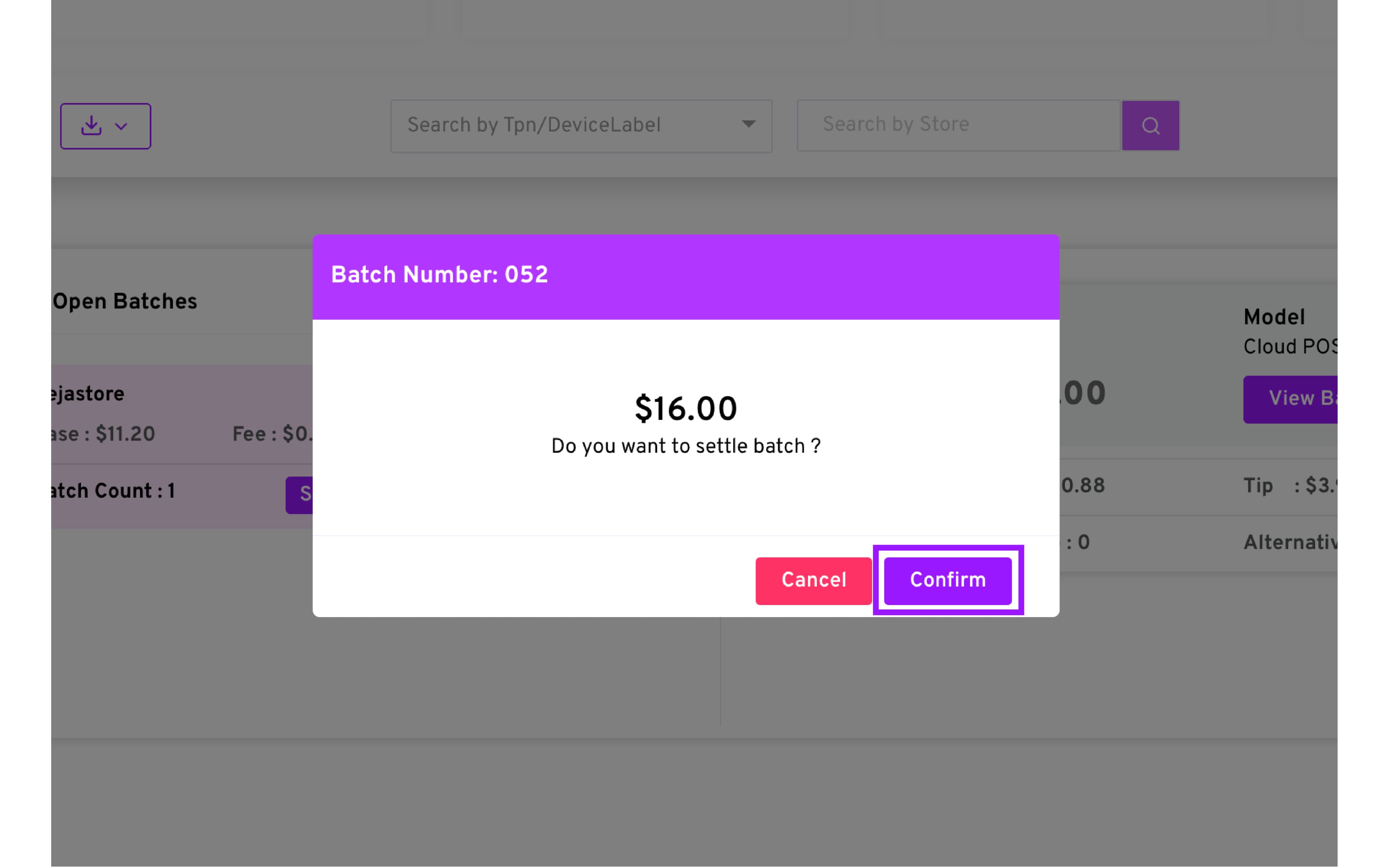
- A dialog box will be displayed showing the status of the settlement (Success or Failure)
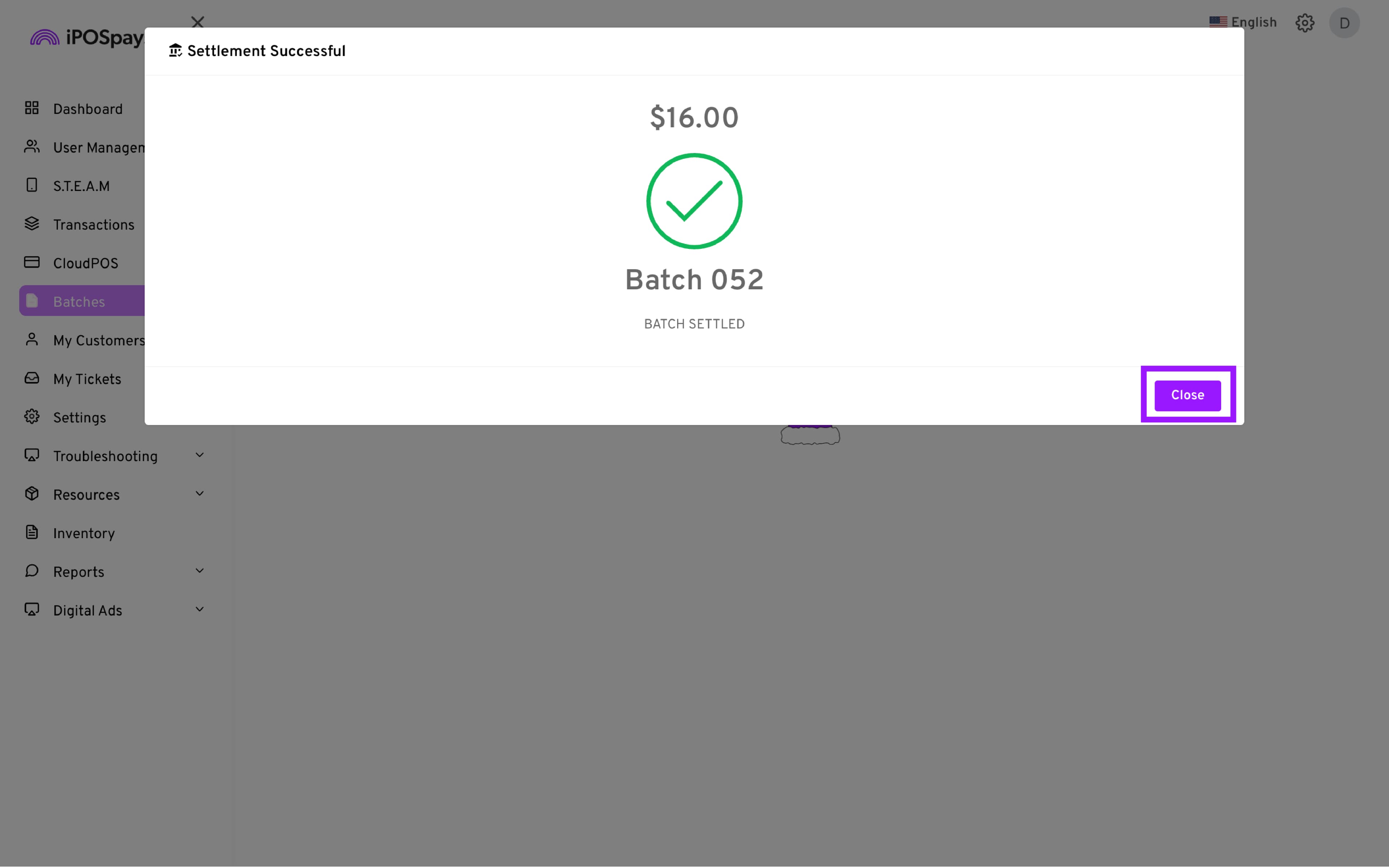
Automatic Batch Settlement
-
Automatic settlement is performed automatically by the system at the time it is scheduled to trigger. You may view the closed batches by navigating to the Batches Module and toggling between the Open and Closed batches option to filter the view.
-
Contact your ISO or Merchant Services provider if you need to adjust the automatic settlement time.
How to use Settle Store
This feature is available by default for CloudPOS TPNs and does not require ISOs to enable any additional options for it to function. It is particularly beneficial for merchants who operate multiple devices within the same store or location, as it ensures consistent functionality across all terminals without any extra setup.
-
Click on Batches from the side menu.
-
If the merchant has multiple stores, use the search box at the top of the Batches module to find and select the specific merchant store.
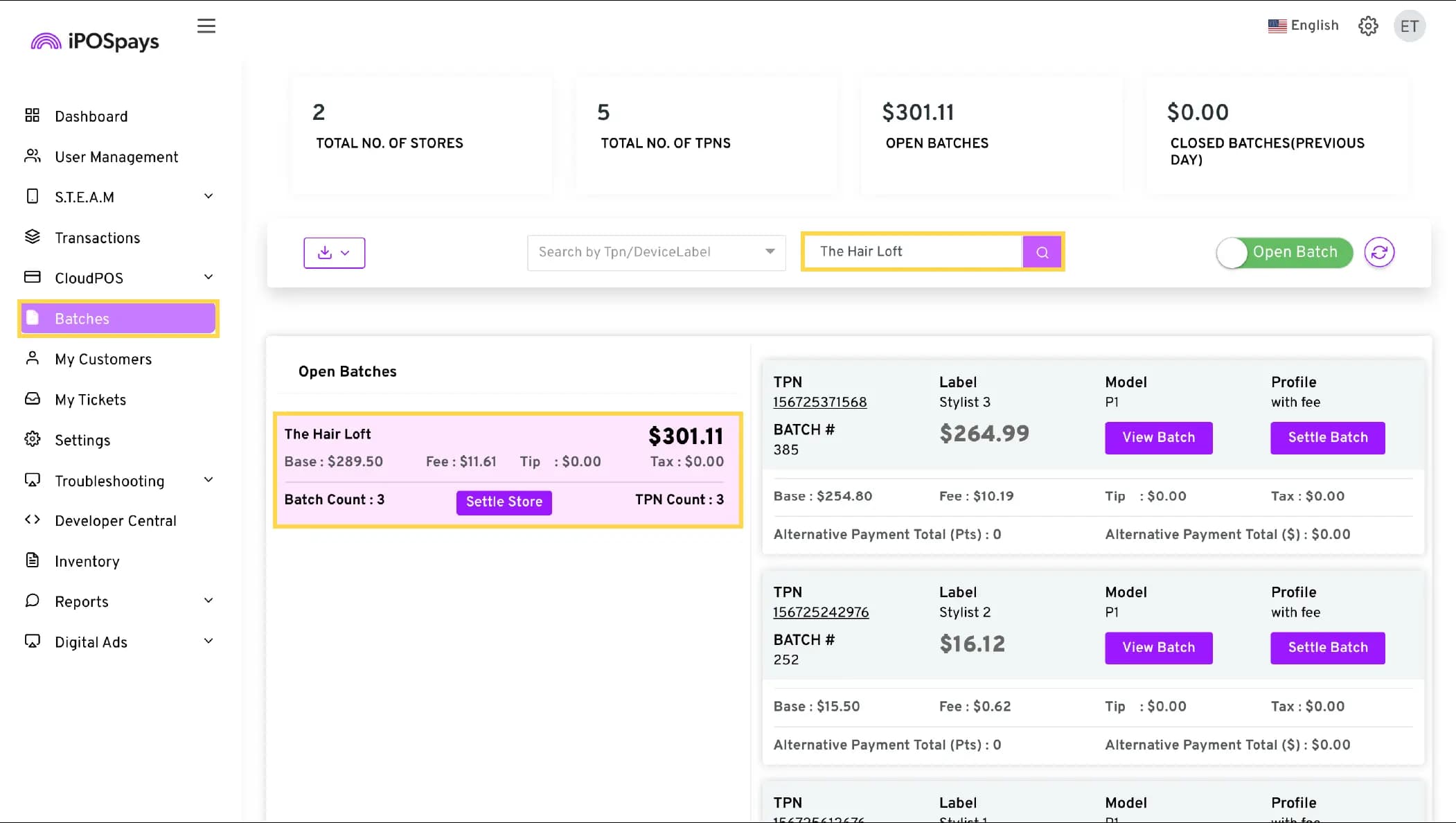
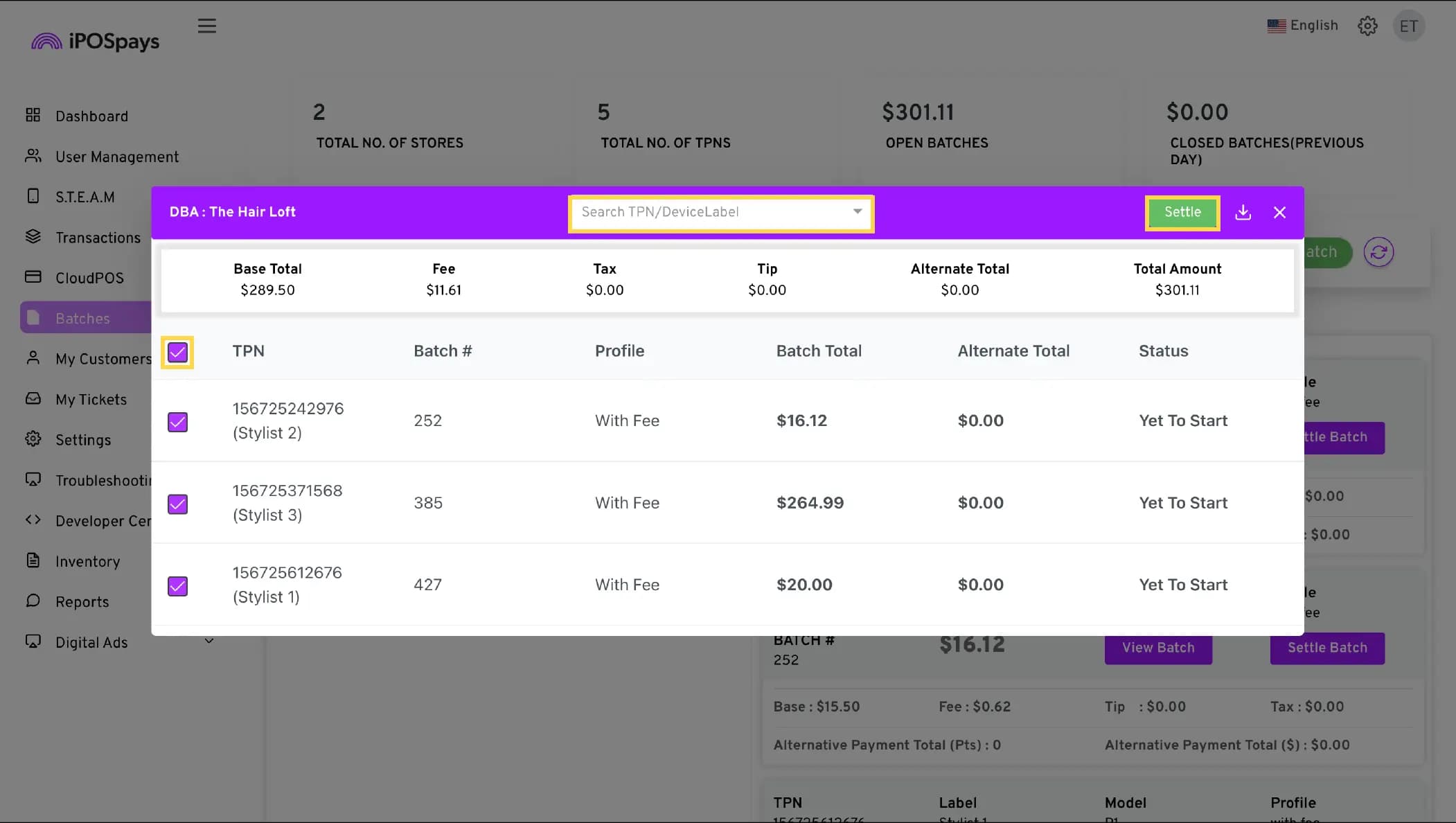
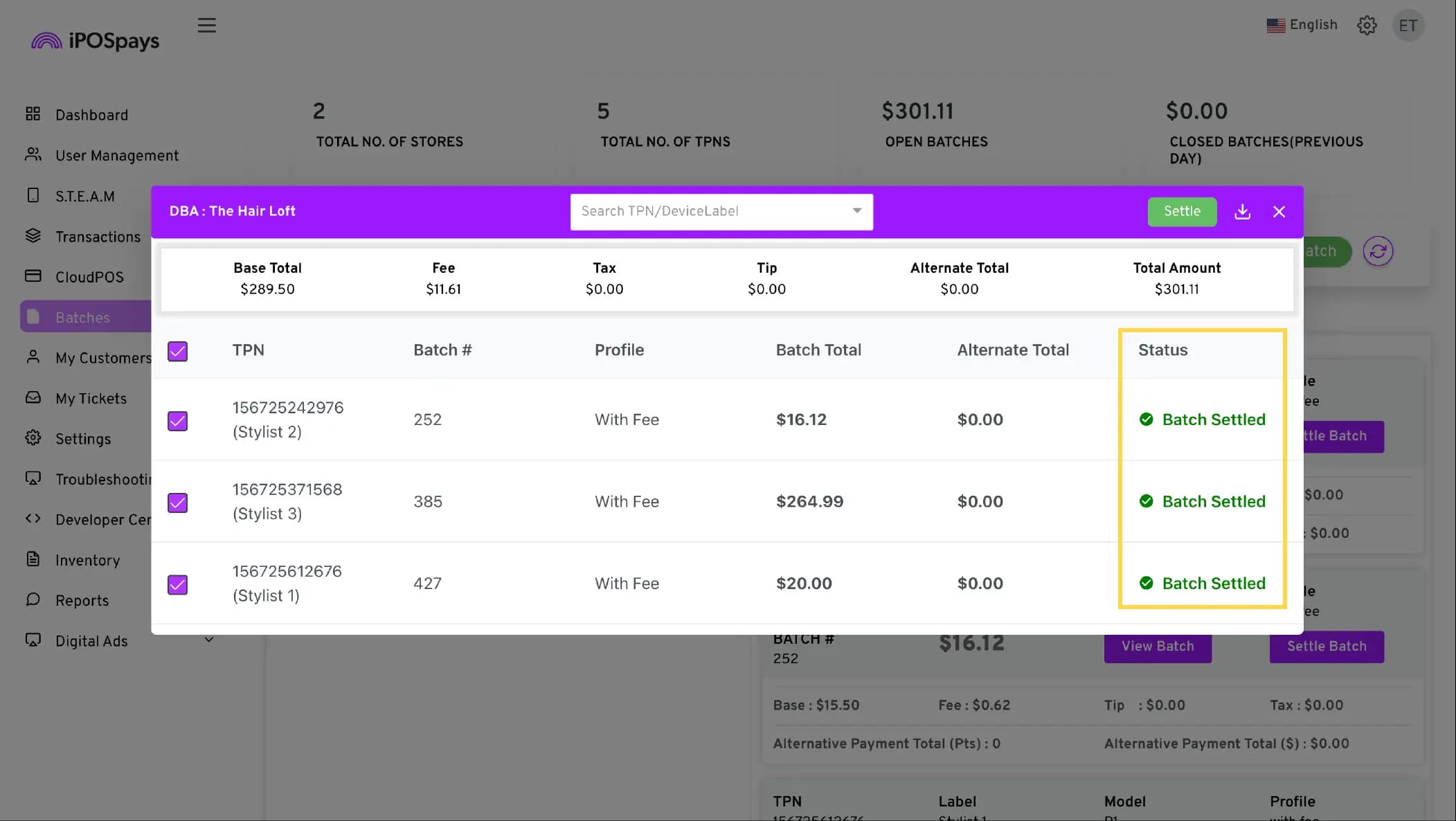
- Click Settle Store → A tab will appear displaying the TPNs linked to the store.
-
Check/uncheck the TPNs you want to include in the Store batch settlement.
-
Click Settle to finalize the process.
-
The batch status will update from “Yet to Start” to “✅Batch Settled.”
Batch Reports
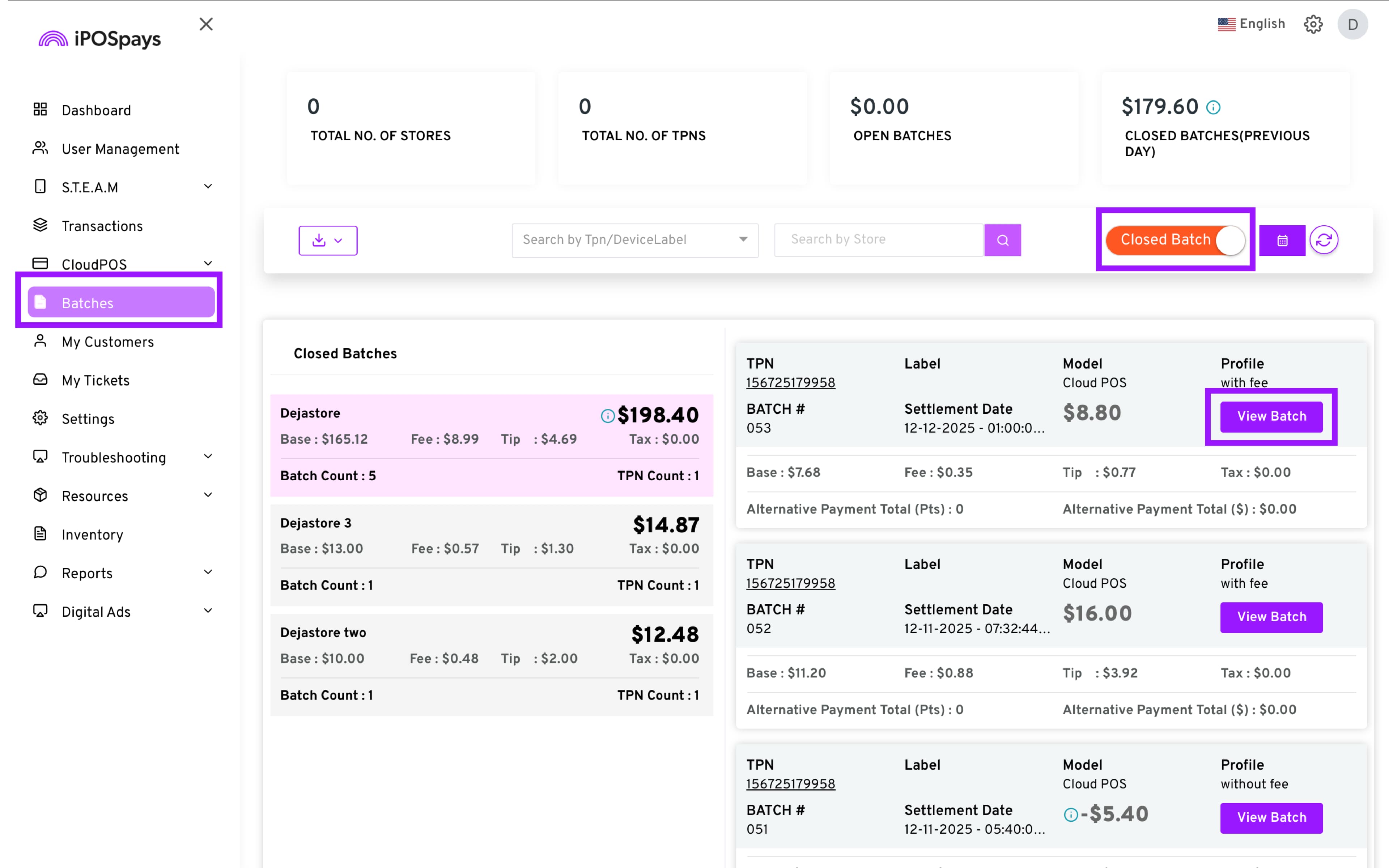
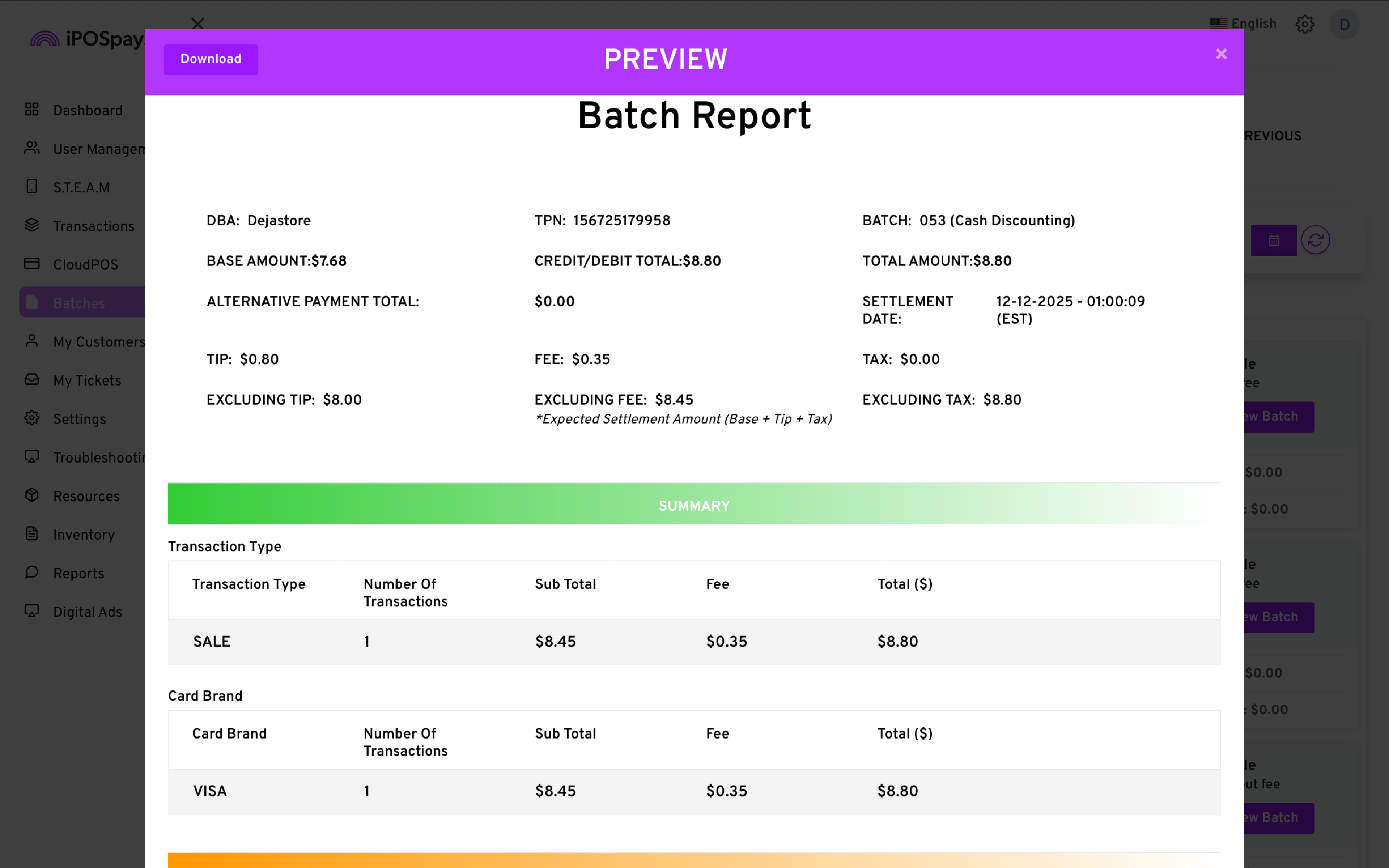
- To view the report for a specific batch, first locate the desired batch. Use the toggle in the upper right corner to switch between viewing Open or Closed Batches.
-
Click View Batch to see all the transactions.
-
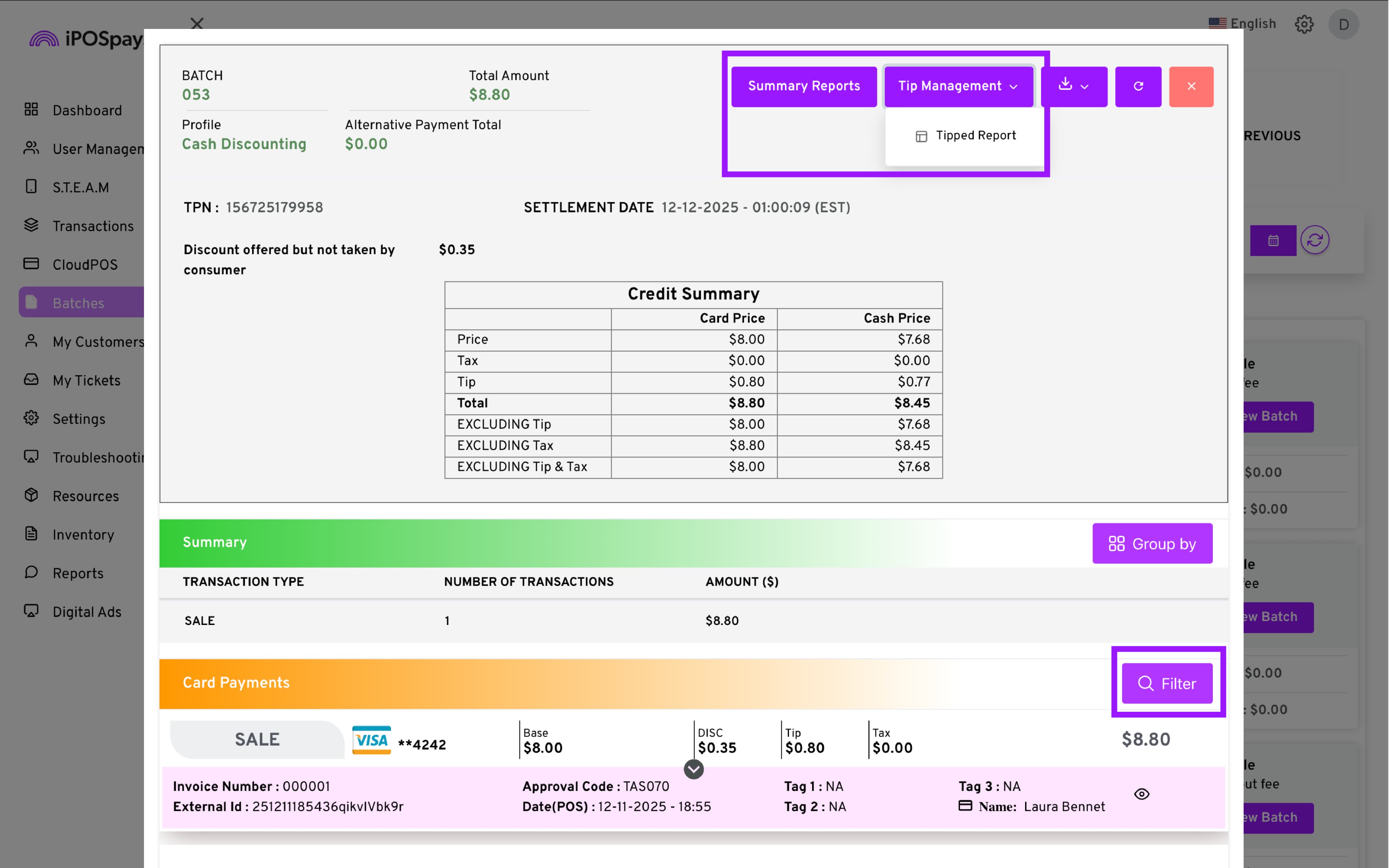
Access Summary Reports and Tip Management (tipped) reports.
-
If needed, you can use the Filter option to narrow down the report.
-
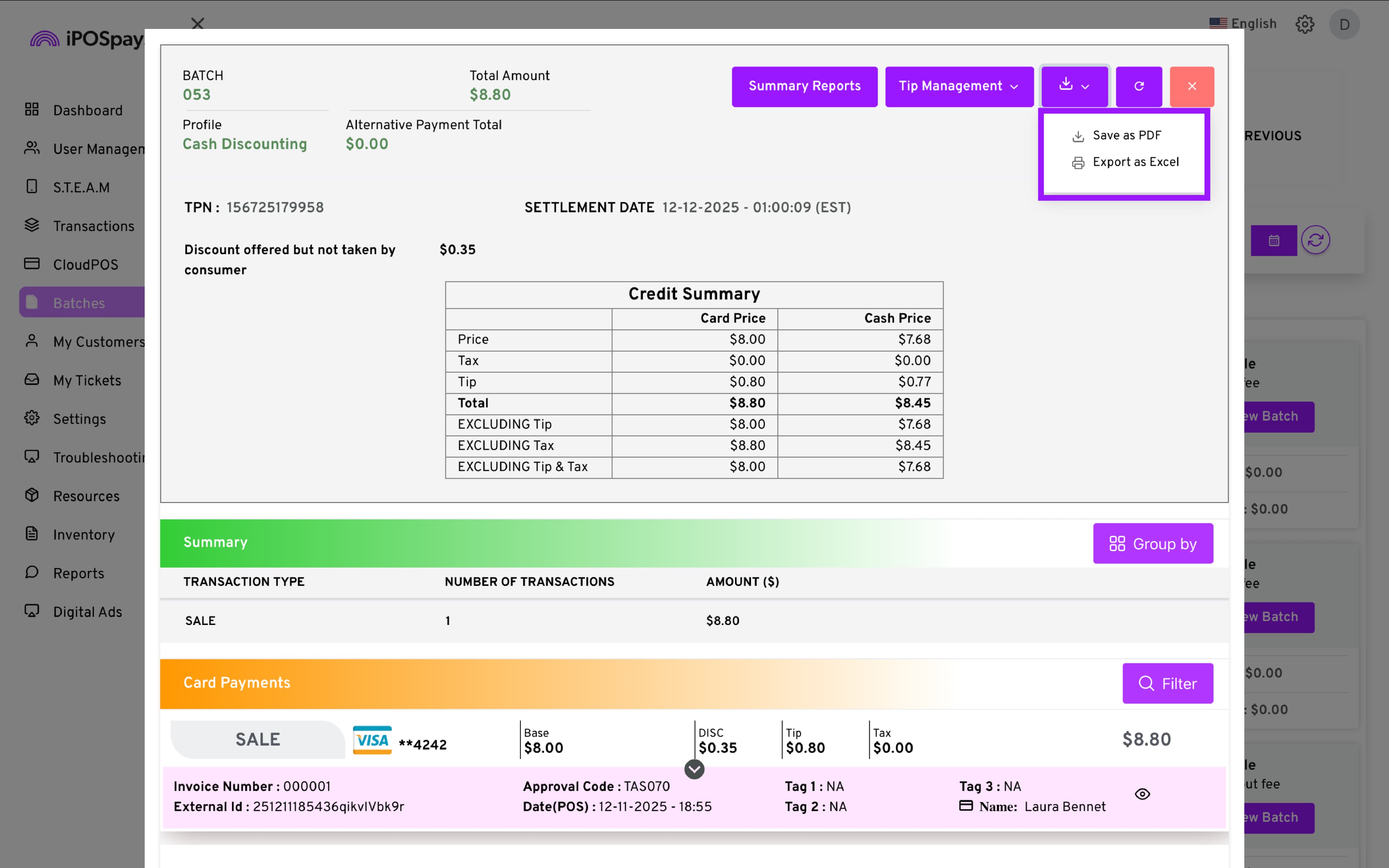
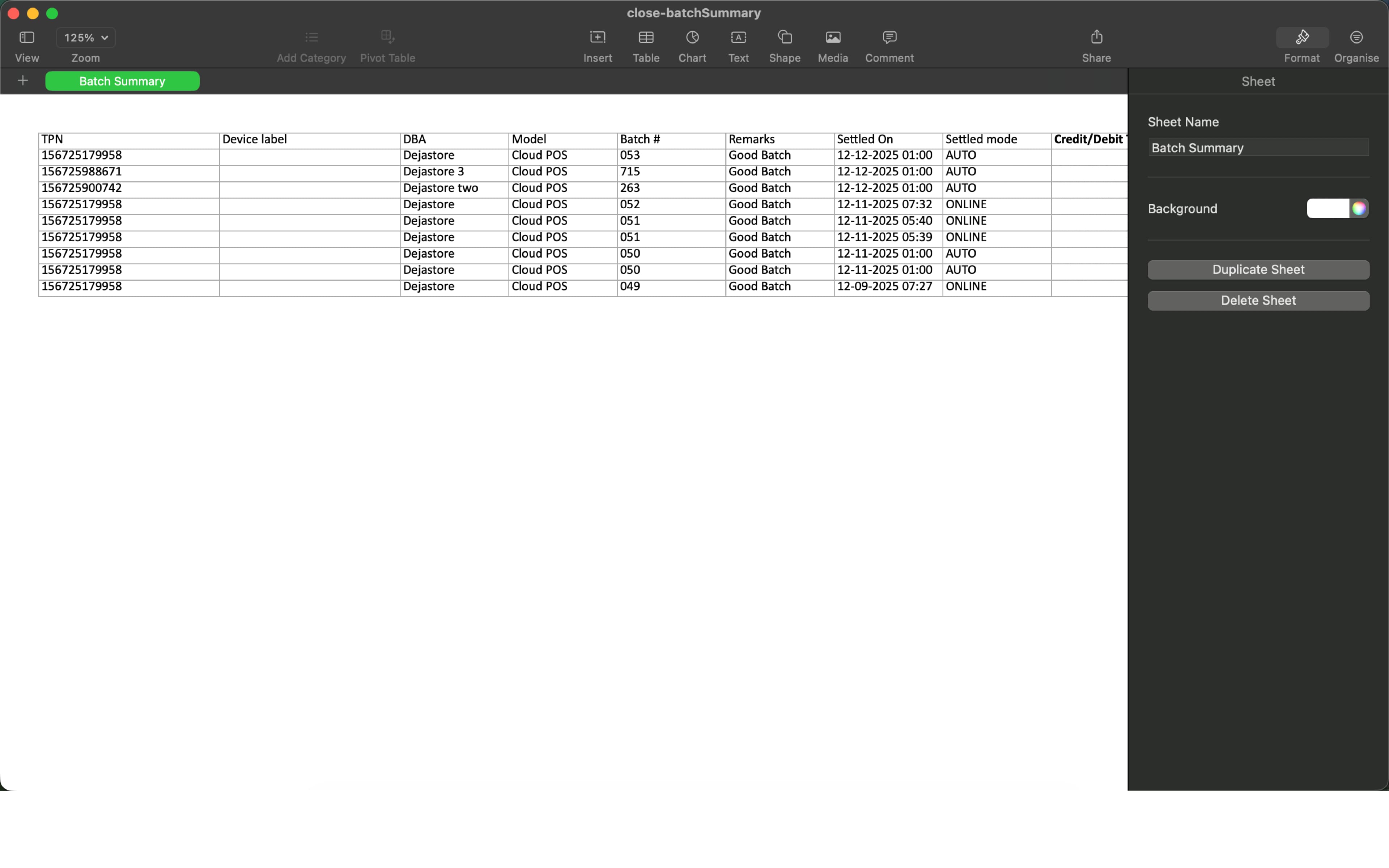
Download as PDF or Excel by clicking the download icon on the top right corner.
Download the Entire Closed Batch Reports
-
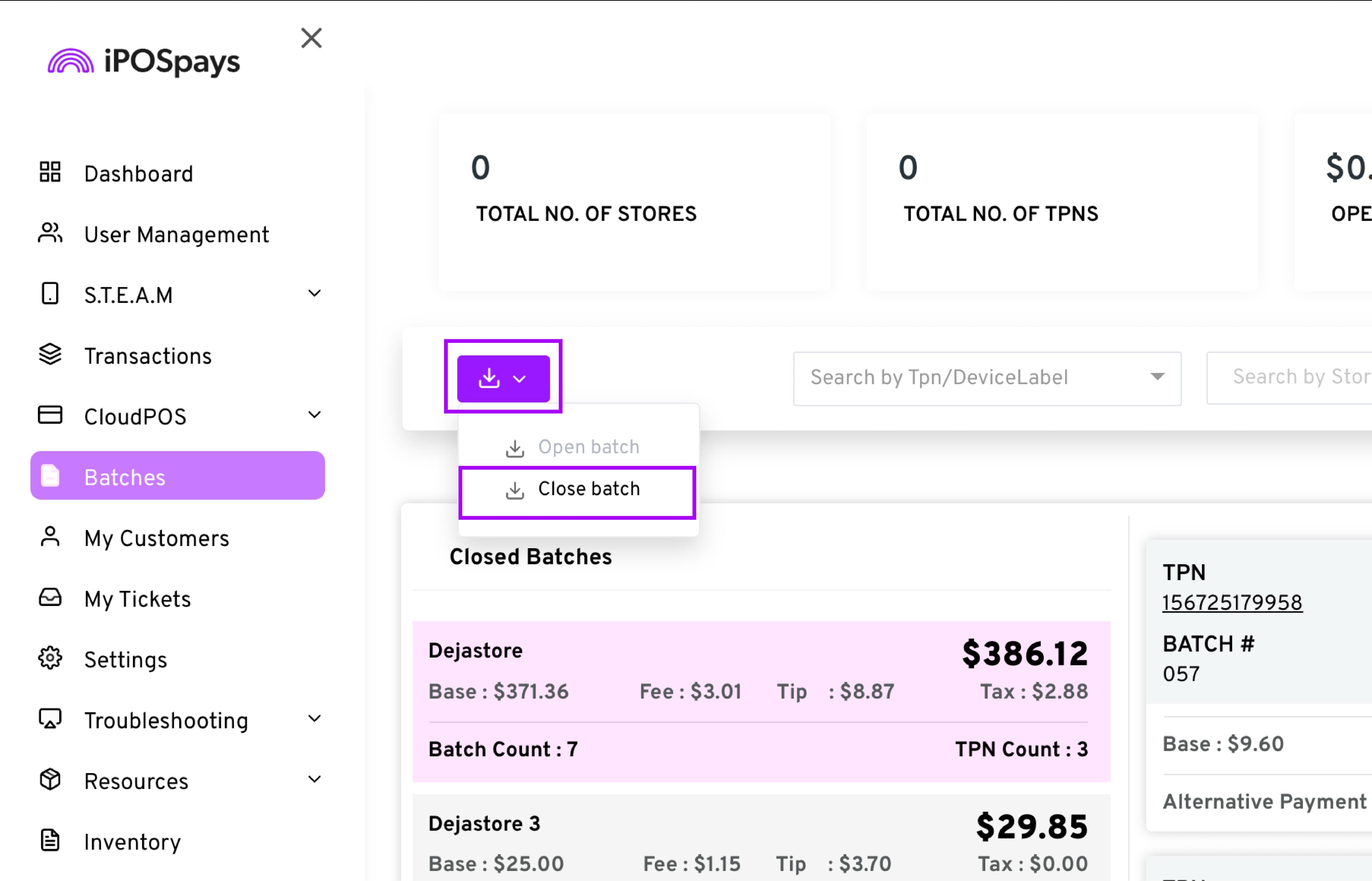
From the Batches module, click on the Download button located on the top left corner of the module.
-
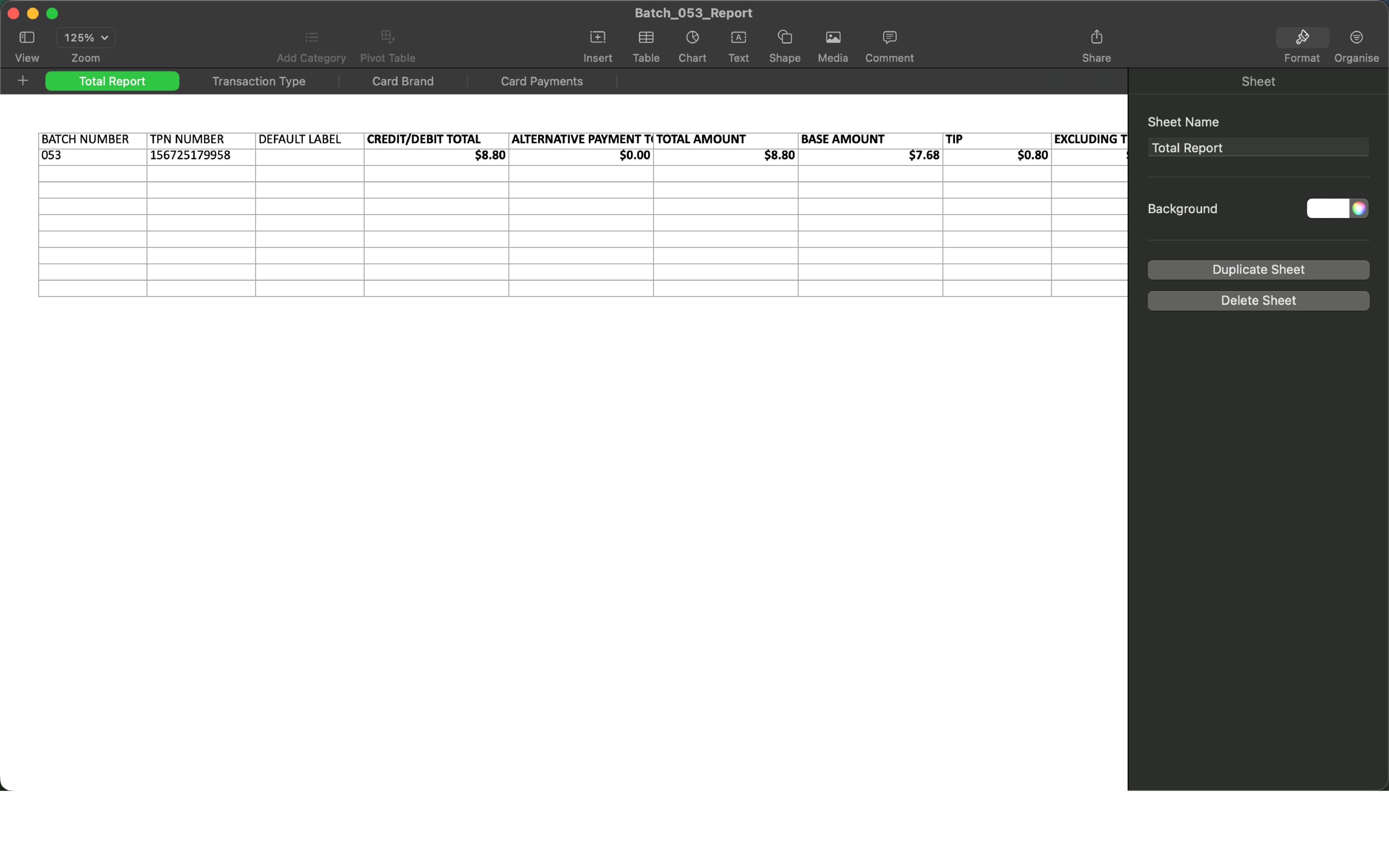
Select “⬇ Close Batch” to download a report of the closed batches as an Excel file.
- The report will be downloaded as an Excel file
How to Enable “Tag the Tx”
Tag the transaction allows you to enable prompts on the terminal to facilitate reporting, the labels are customizable and can be used for prompts such as server, invoice, table, etc.
To enable this feature:
-
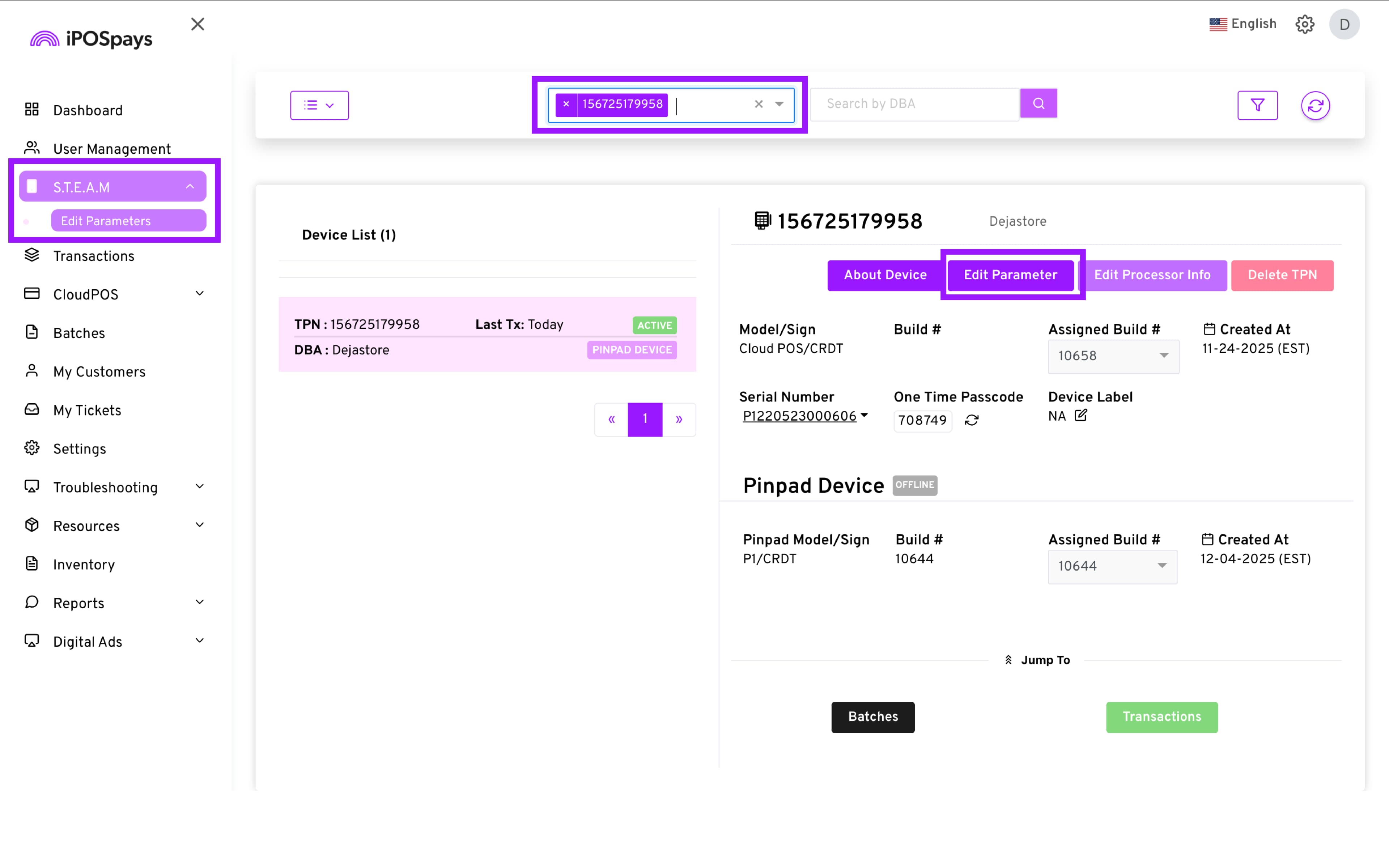
Go to S.T.E.A.M → Edit Parameters.
-
Search and select the desired TPN.
-
Click Edit Parameter.
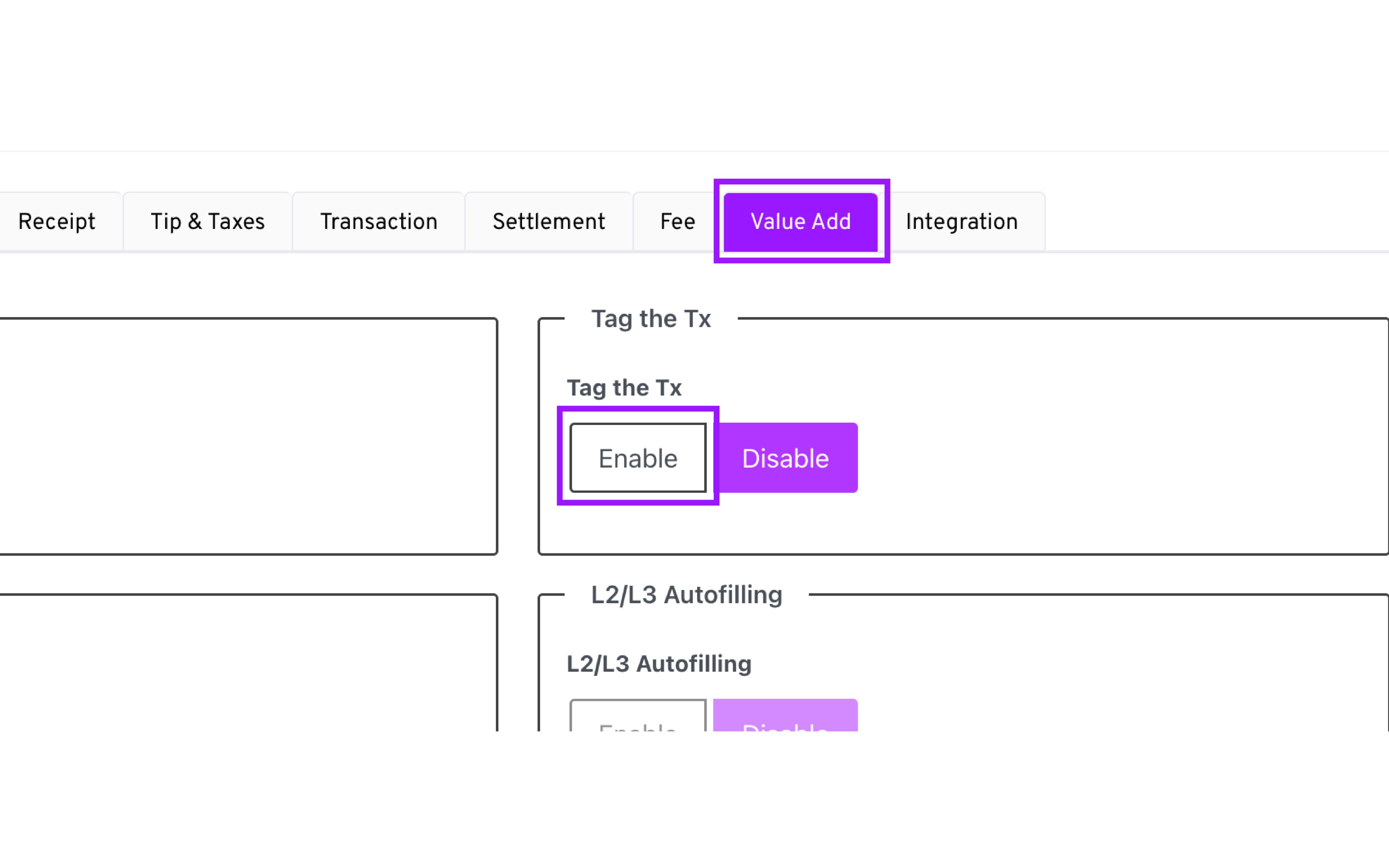
- Go to Value Add → enable “Tag the Tx.”
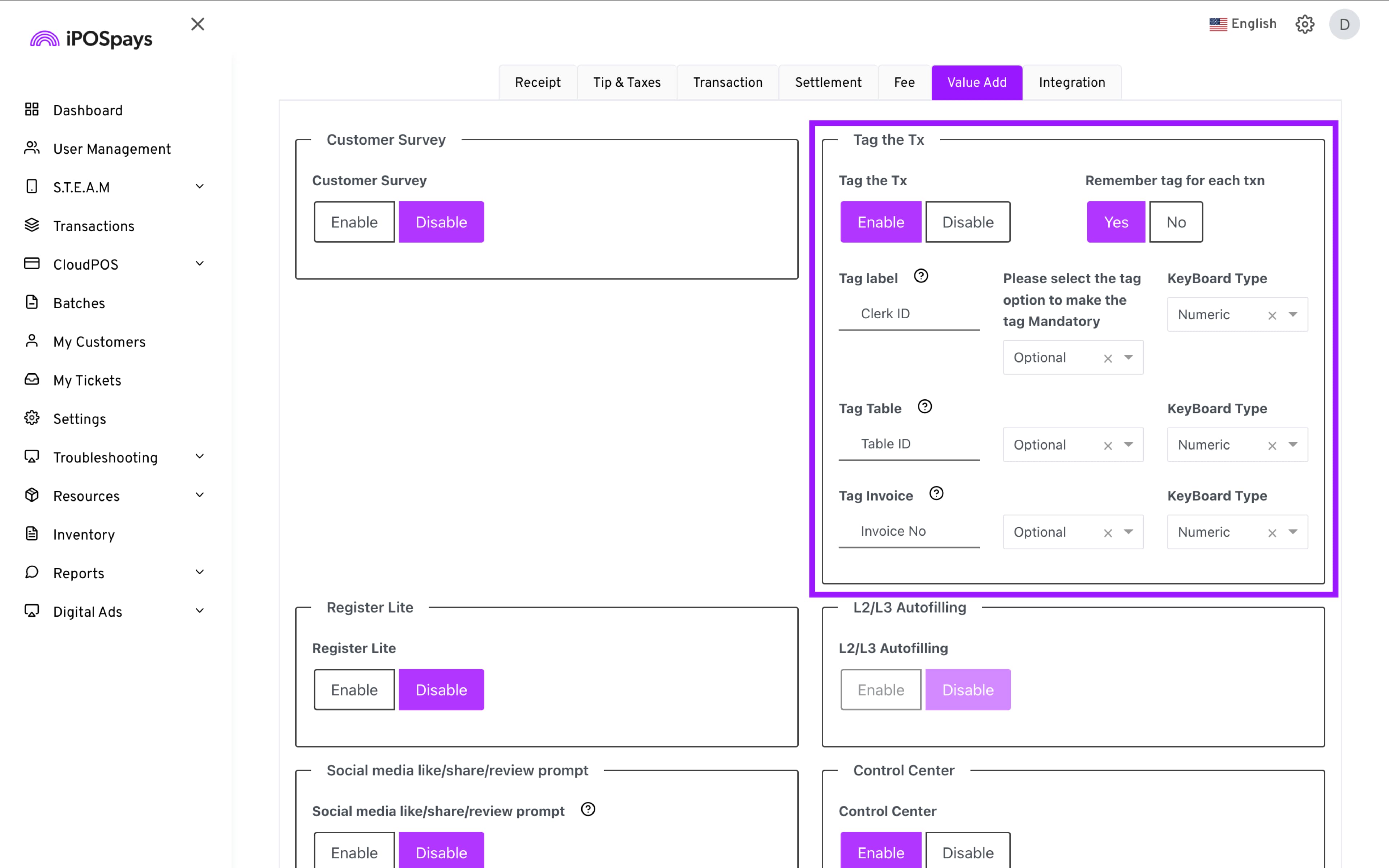
- Configure:
-
Tag labels
-
Mandatory/optional
-
Keyboard type
-
Remember-previous setting
-
Click Save.
-
Download parameters to the terminal if applicable.
If you require access to the STEAM - Edit Parameters module, contact your Merchant Services Provider to have it granted
Using Tags for Tip Reporting
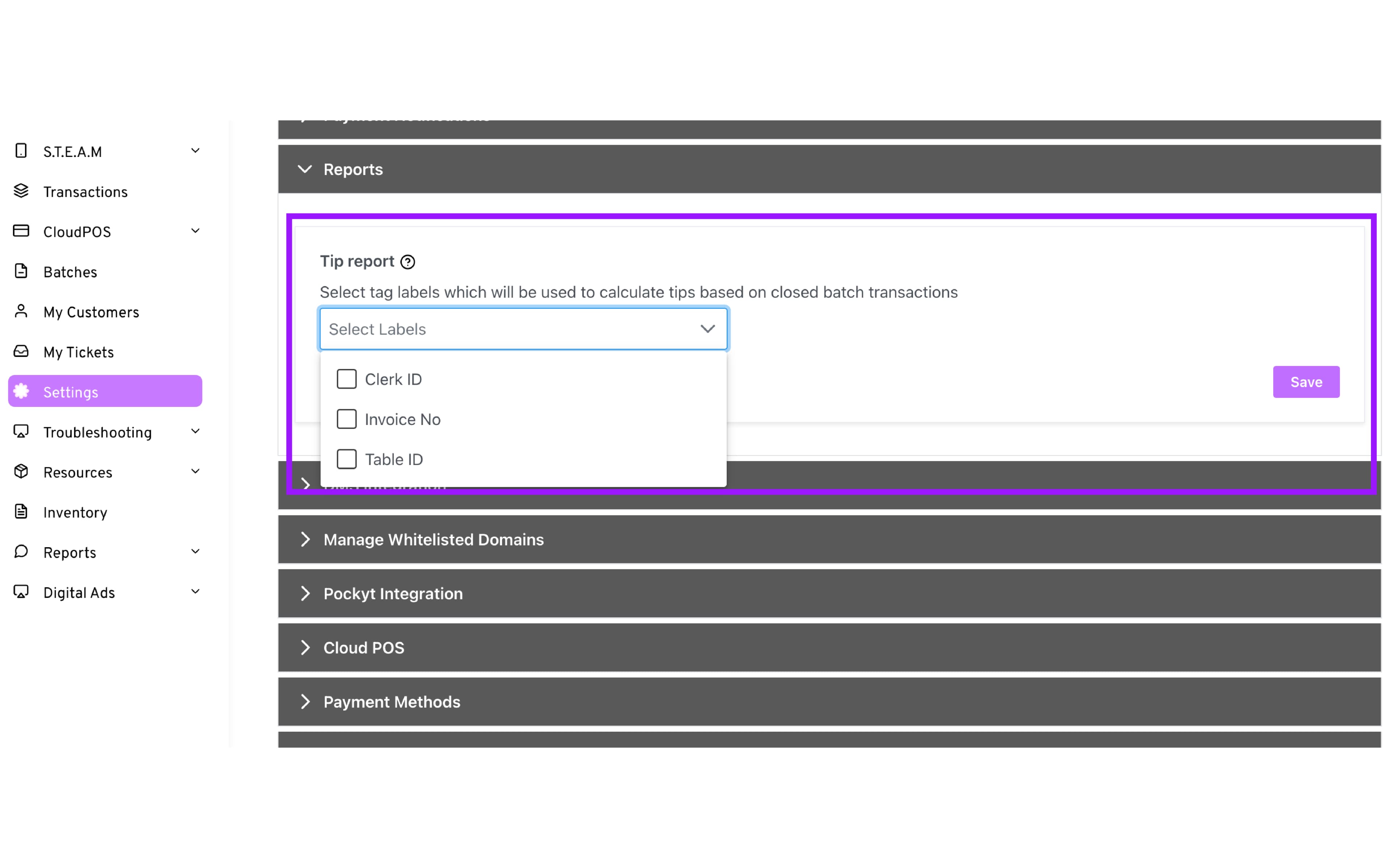
This setting allows you to group the Tip Report by a Tag Label, which will be used to calculate the tip totals on the closed batch reports.
To configure, select Settings → Reports → choose tag labels → Save
How to Download Tip Report
The batch must be closed before the Tip Report can be downloaded, as it relies on data from the Closed Batch report. In order to download the report:
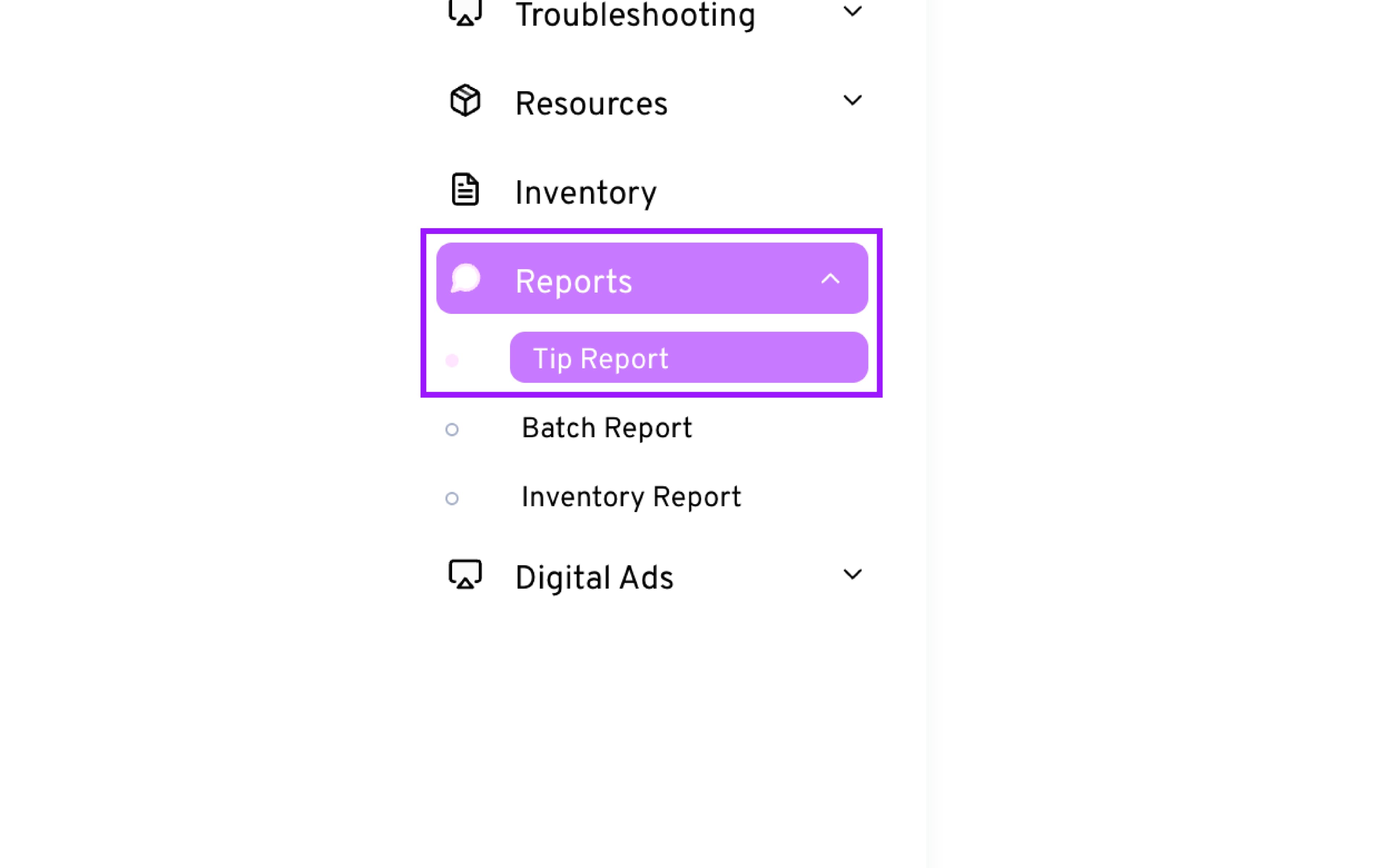
- Go to Reports Module → Tip Report.
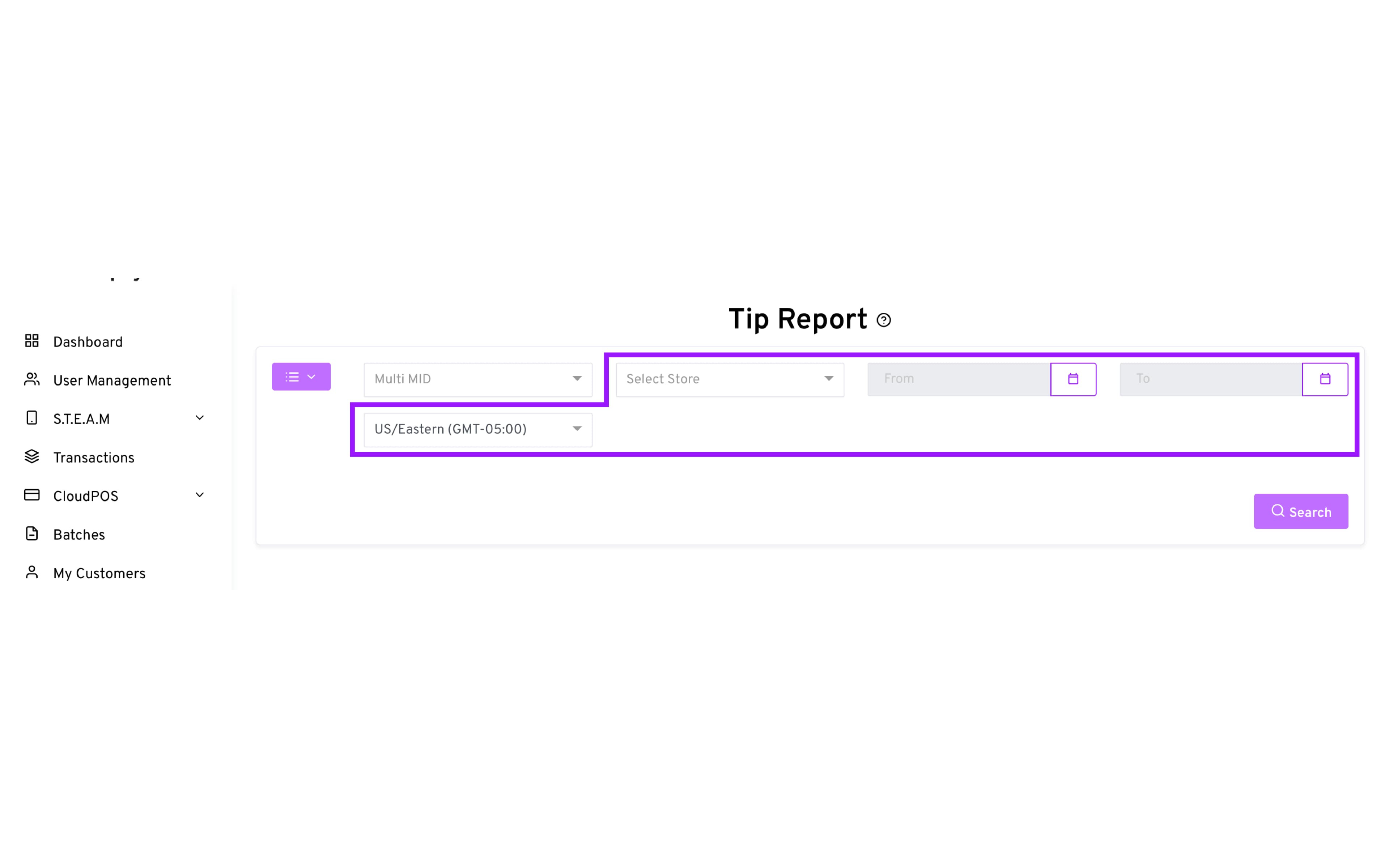
- Filter the report:
a. Store
b. Date Range, if needed
c. Timezone (optional)
-
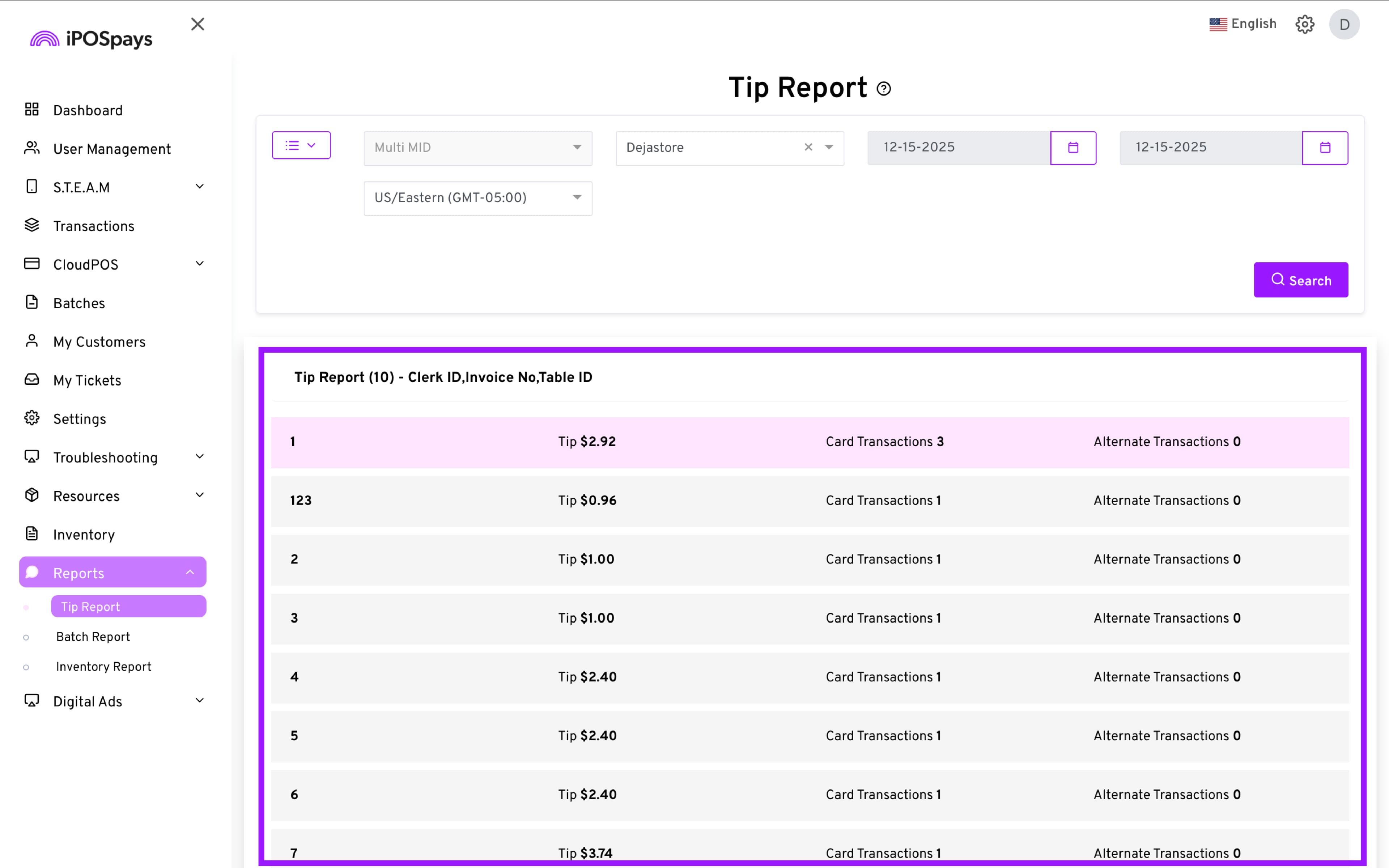
Click Search.
-
Review results with tag labels, tip amounts, and counts.
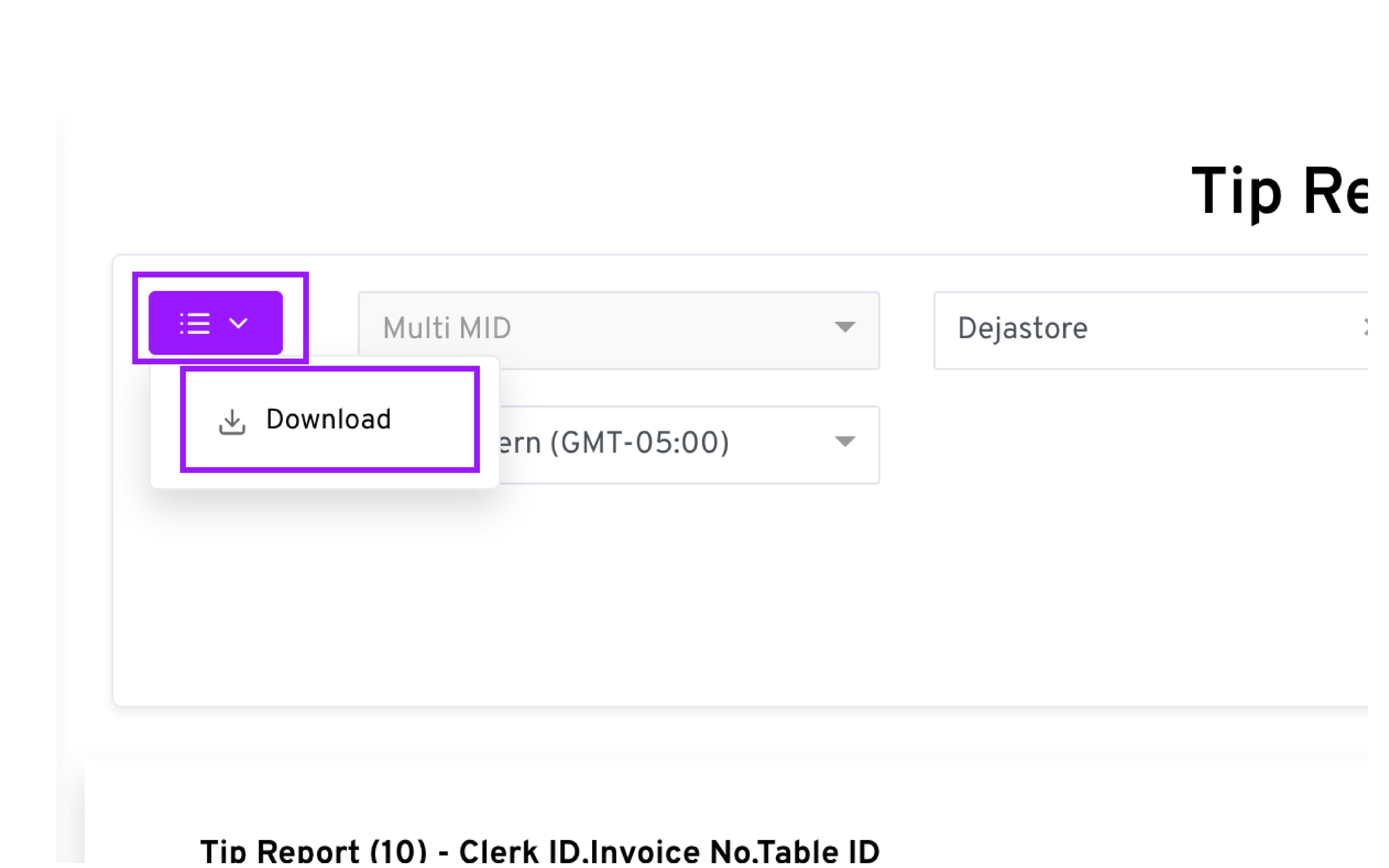
- If you need to download the report, click the Menu icon located on the top left corner and select Download
How to Download Batch Report
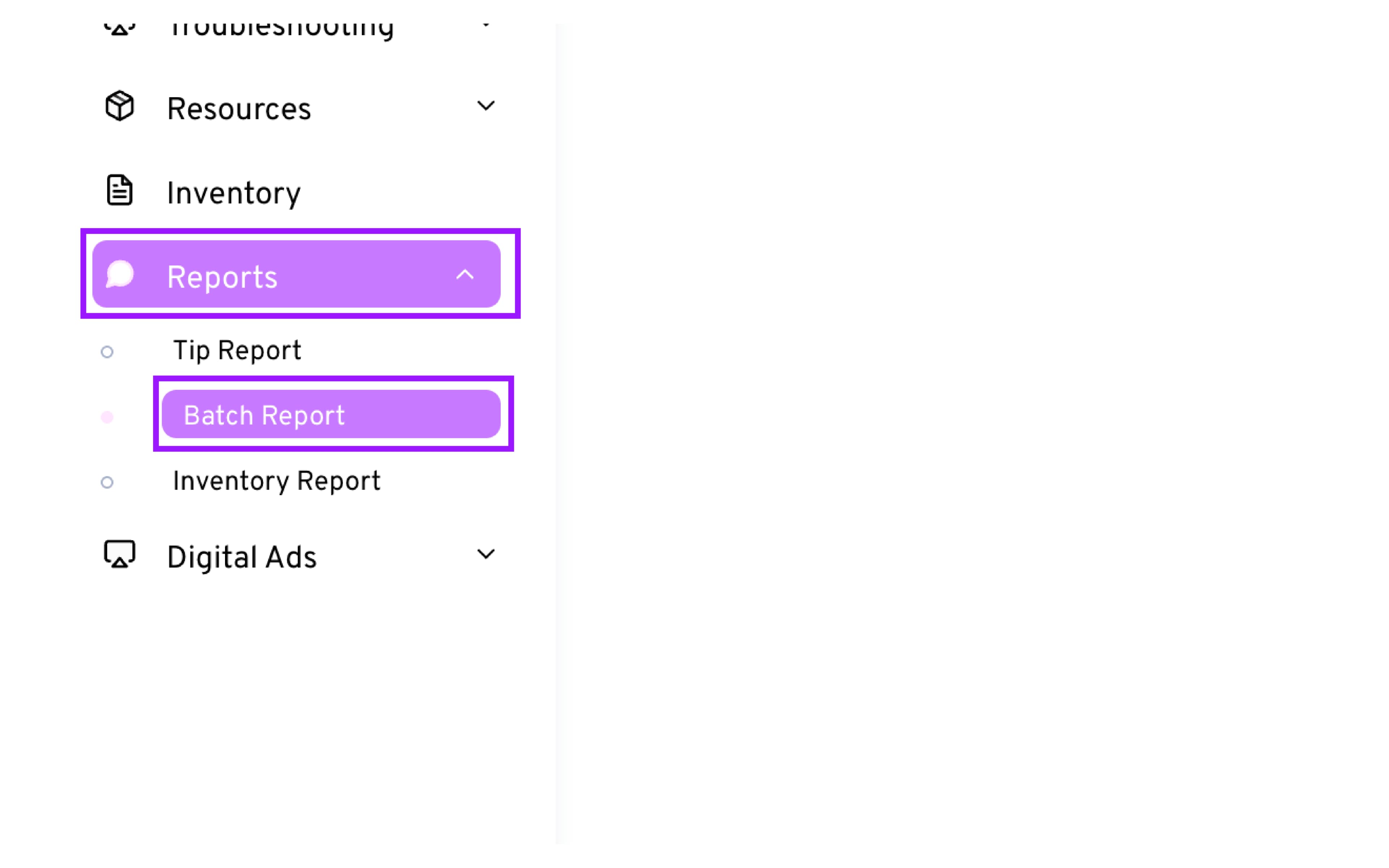
- Go to Reports → Batch Report.
- Filter the report:
a. Store
b. Date Range
c. Timezone (optional)
d. TPNs / Device label
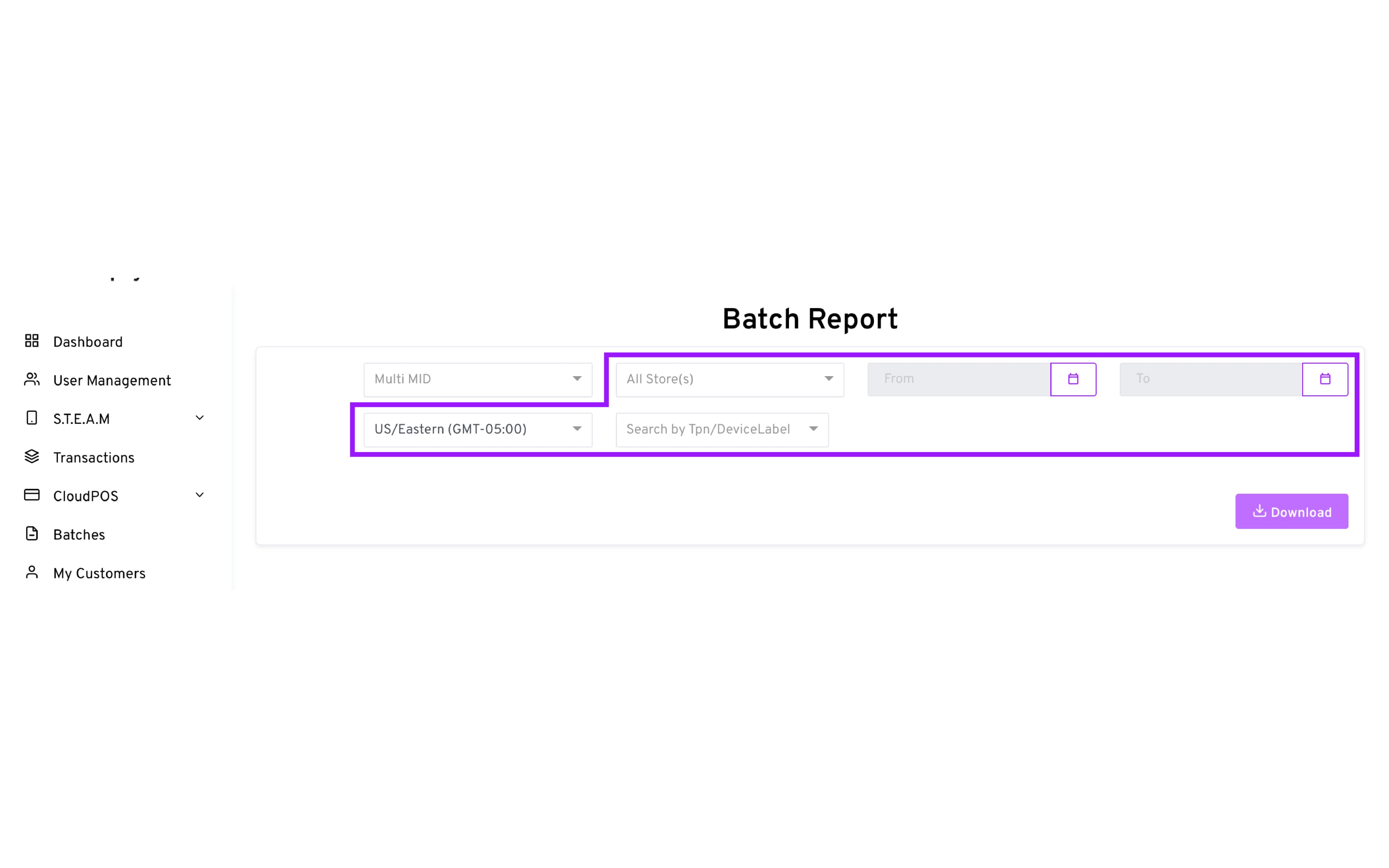
- Click Download to export as an Excel file.
How to Download the Inventory Report
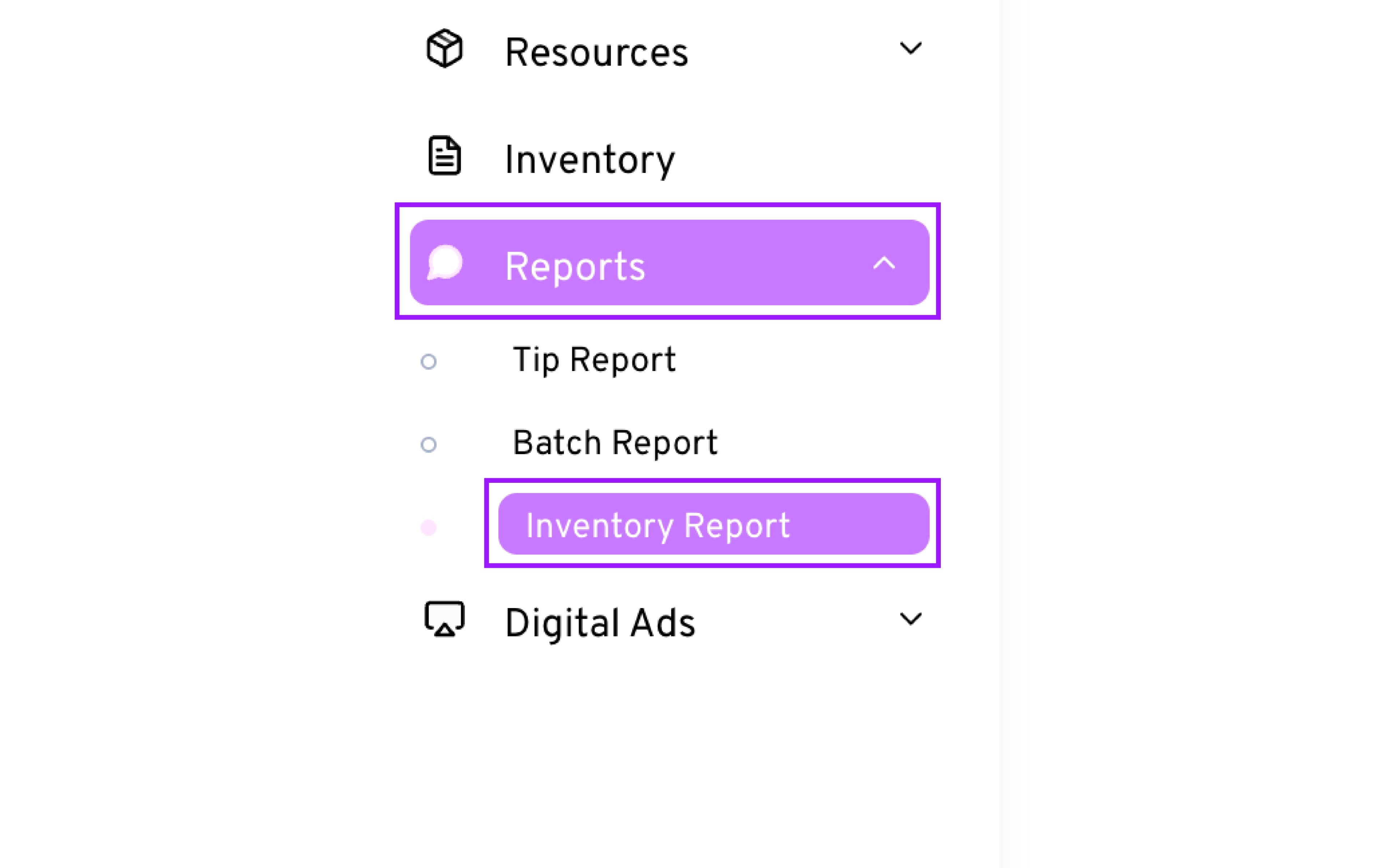
- Navigate to Reports → Inventory Report.
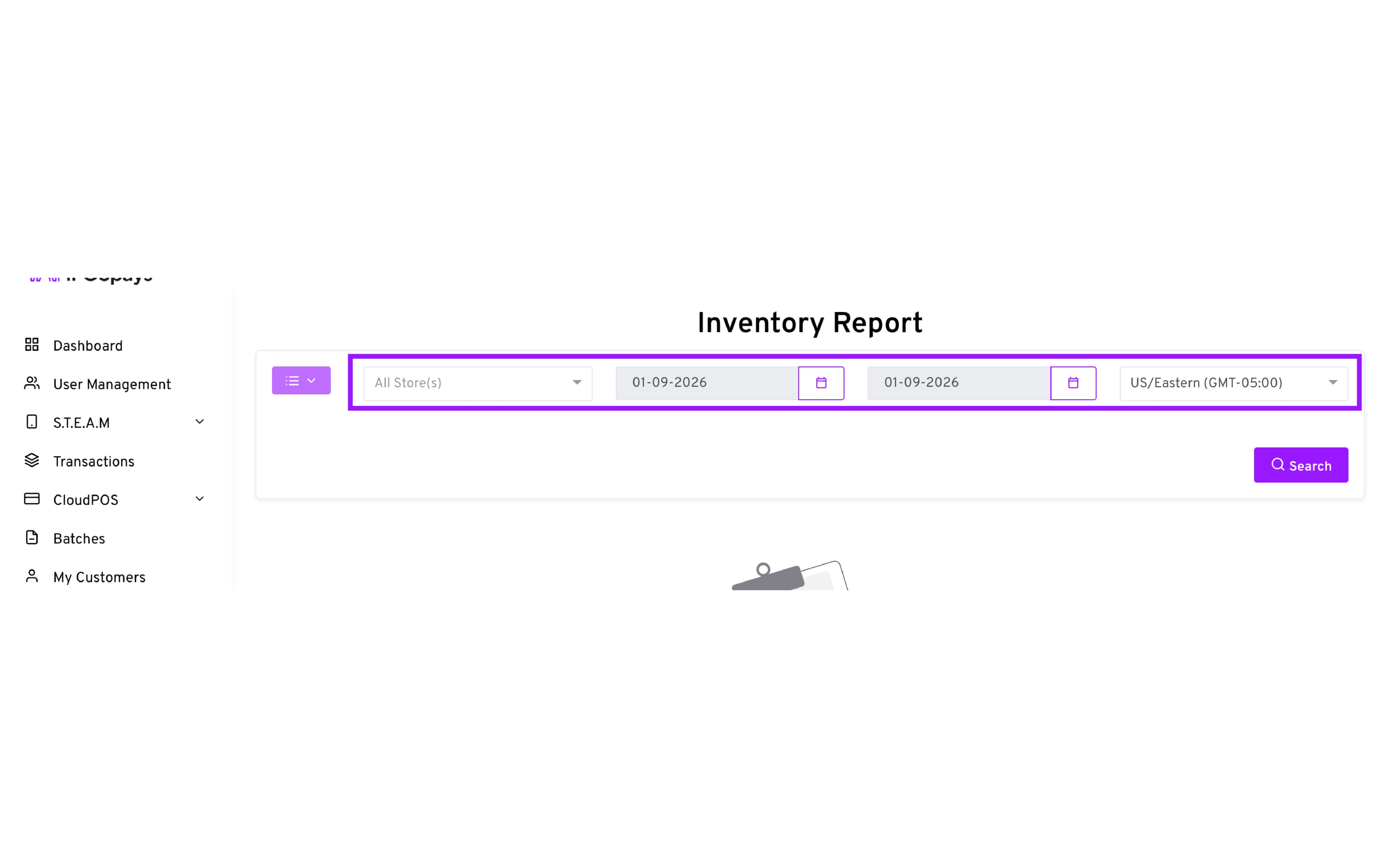
- Filter the report:
a. Store
b. Date Range
c. Timezone (optional)
-
Click Search.
-
Click Download to export as an Excel file.