Generate Payment Form on iPOSpays
The Generate Payment Form is a feature on the Merchant login of the iPOSpays portal that enables merchants to instantly create secure, shareable payment links for their customers — without requiring any API or website integration. This simplifies payment collection by allowing merchants to generate a Generic Hosted Payment Page (GHPP) URL for each Terminal Profile Number (TPN), enabling customers to complete payments easily through a secure hosted interface.
Feature Compatibility
-
Minimum Required POS Build: Not Applicable
-
Supported Payment Methods:
-
Card
-
Bank (ACH)
-
Google Pay
-
Apple Pay
-
Venmo (Through Pockyt Integration)
-
PayPal (Through Pockyt Integration)
-
-
Supported Processors: Not Applicable
-
Supported Platform: iPOSpays Portal (Merchant Account)
-
Supported Fee Types: All Fee Types
Key Features
-
Each generated URL is unique and tied to the selected TPN.
-
URLs can be reused or regenerated as needed.
-
Payments collected through GHPP appear in the Transactions section of the portal.
-
The Generic Hosted Payment Page (GHPP) is PCI-DSS compliant, ensuring secure and encrypted payment processing.
Prerequisites
1. Obtain a CloudPOS TPN
To create a GHPP link, a CloudPOS TPN and access to the iPOSpays portal with Merchant credentials is required. Contact your ISO to create a Merchant account and obtain the ClousPOS TPN.
How to Create CloudPOS TPN: Follow this video tutorial for full steps
2. Bank (ACH) Support in GHPP
GHPP supports Bank (ACH) payments, but it must be enabled for the CloudPOS TPN.
- Enabling Bank (ACH)
Contact your ISO to accept Bank payments through GHPP
Generate a Payment Form URL
Step 1: Log In to Your Merchant Account
Log in to the iPOSpays Merchant Portal using your merchant credentials.
Step 2: Access the Generate Payment Form
Navigate to Settings, Click → Generate Payment Form.
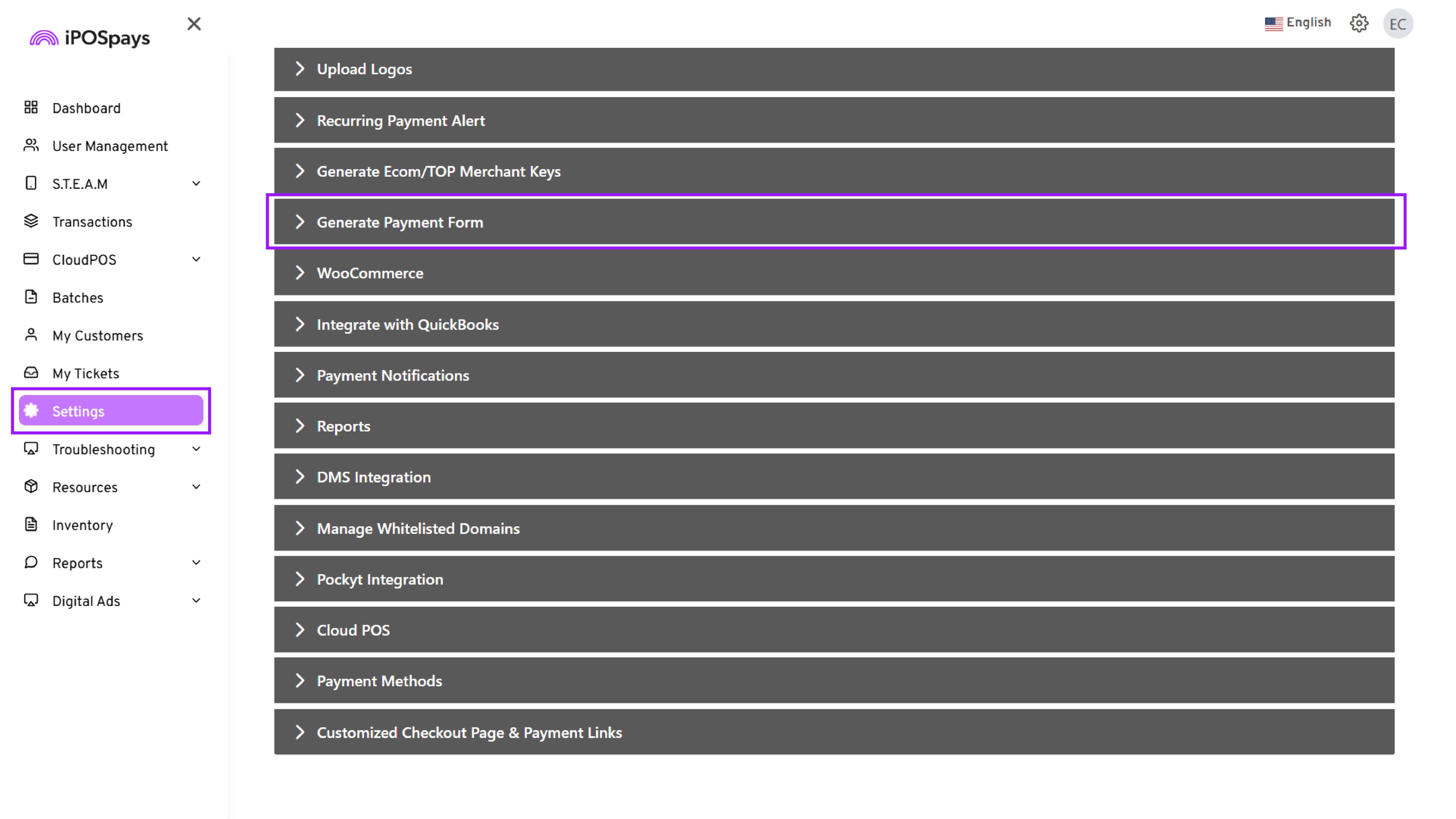
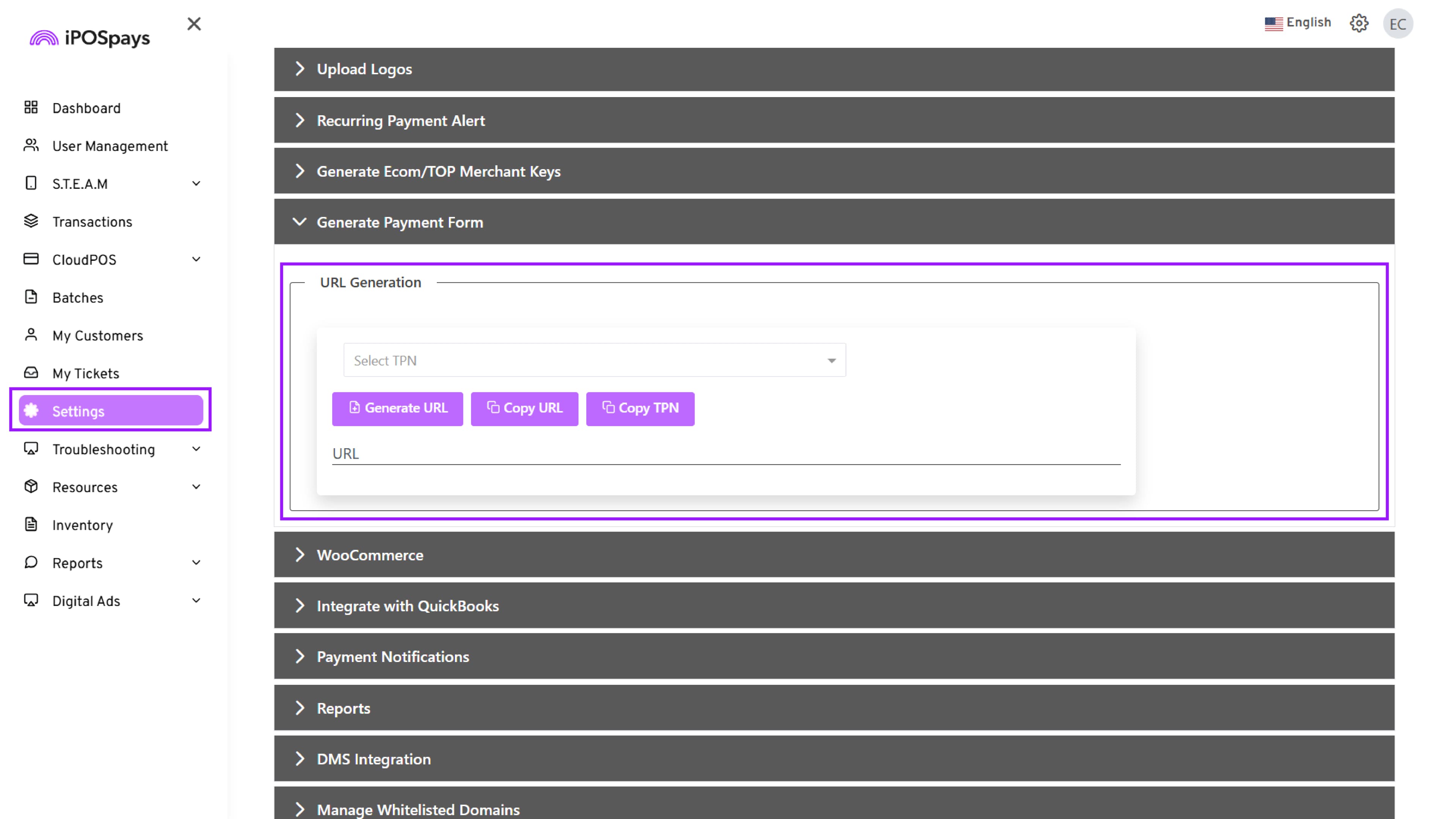
Under the URL Generation section:
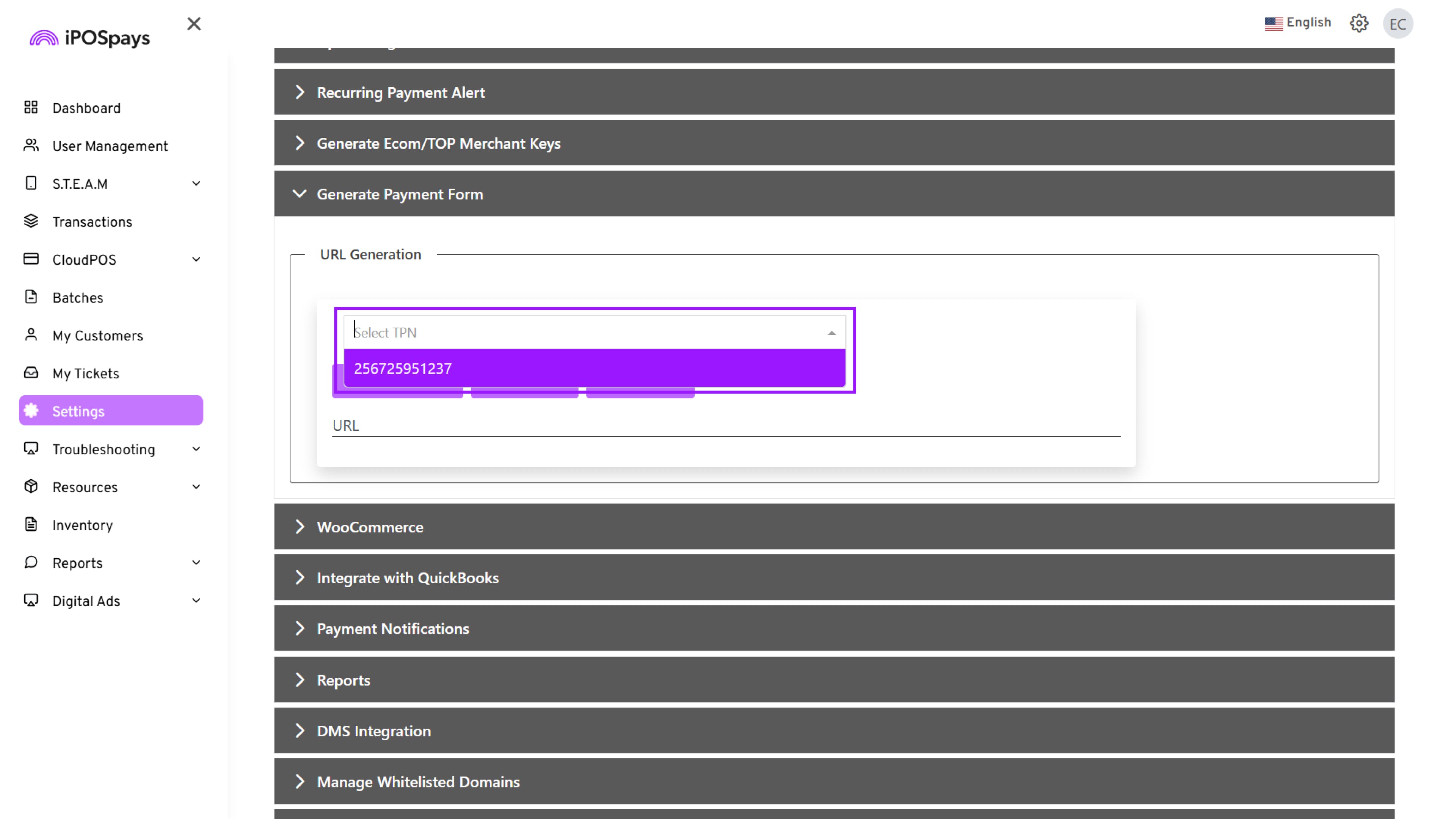
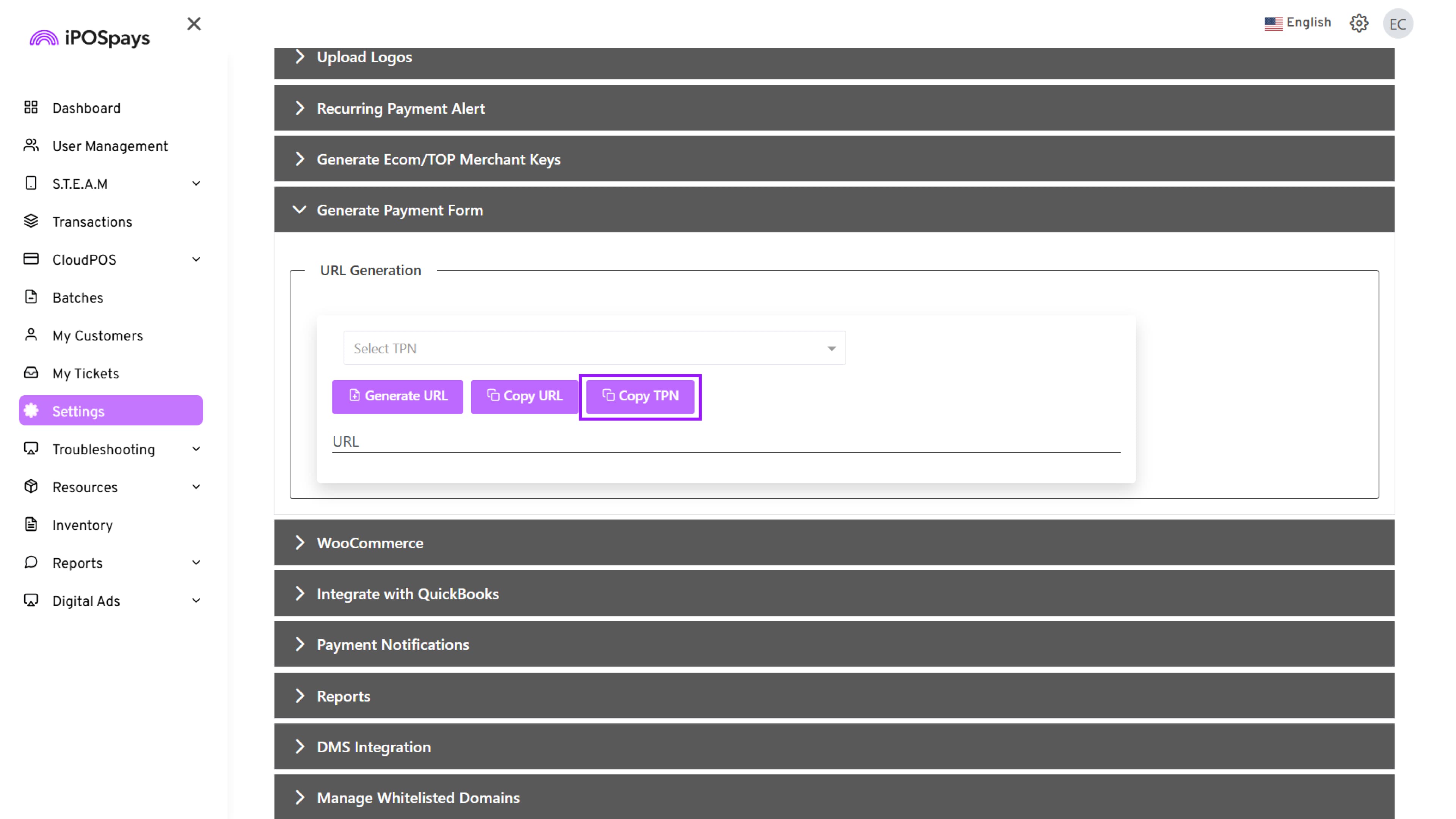
- Select TPN
Enter or search the TPN from the dropdown list.
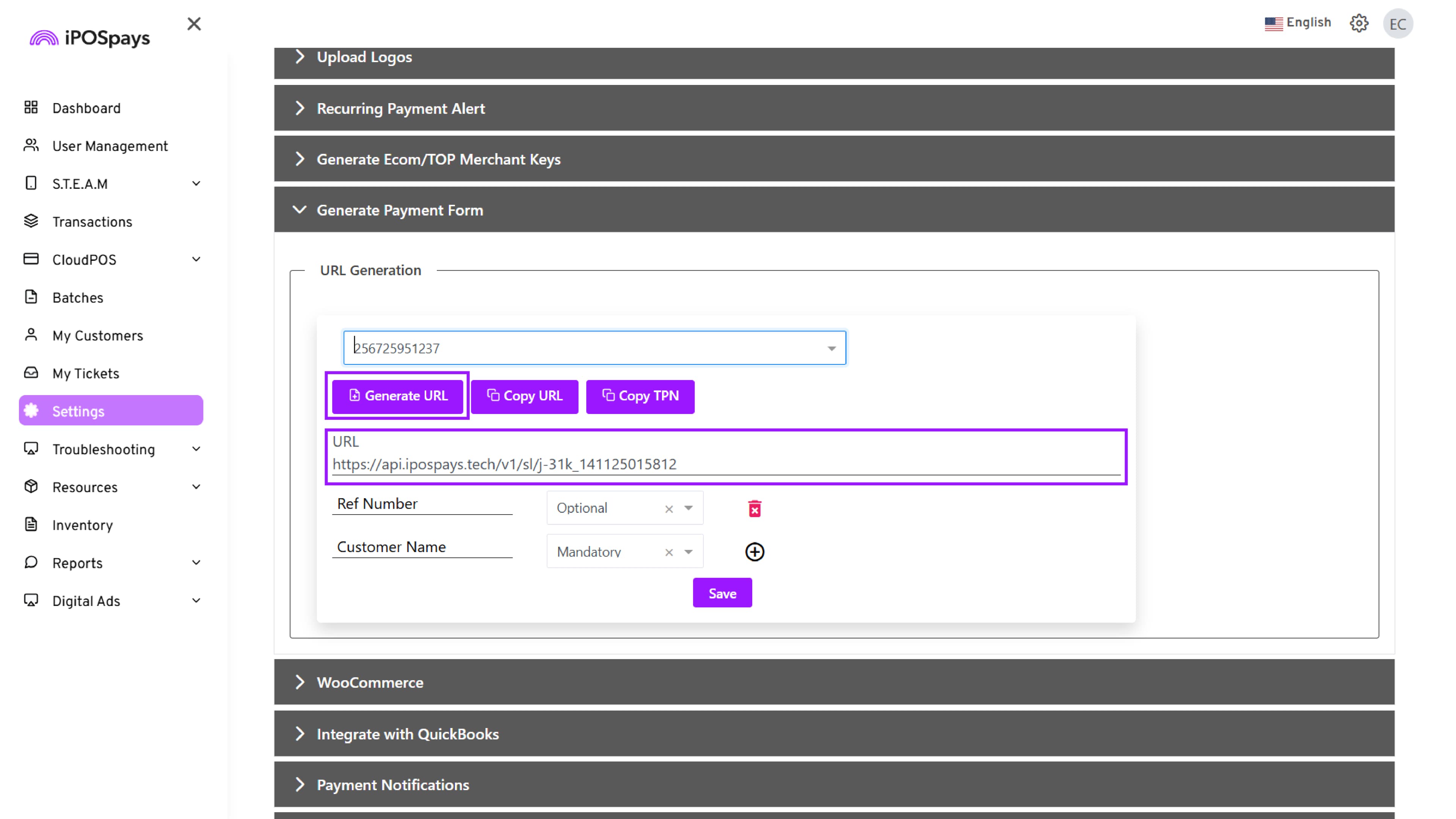
- After entering the TPN, the system automatically generates the URL. To create a new one, click Generate URL. The new GHPP URL replaces the old link, making the previous link invalid.
-
Once the URL is generated:
- Click Copy URL to share the payment link with customers.
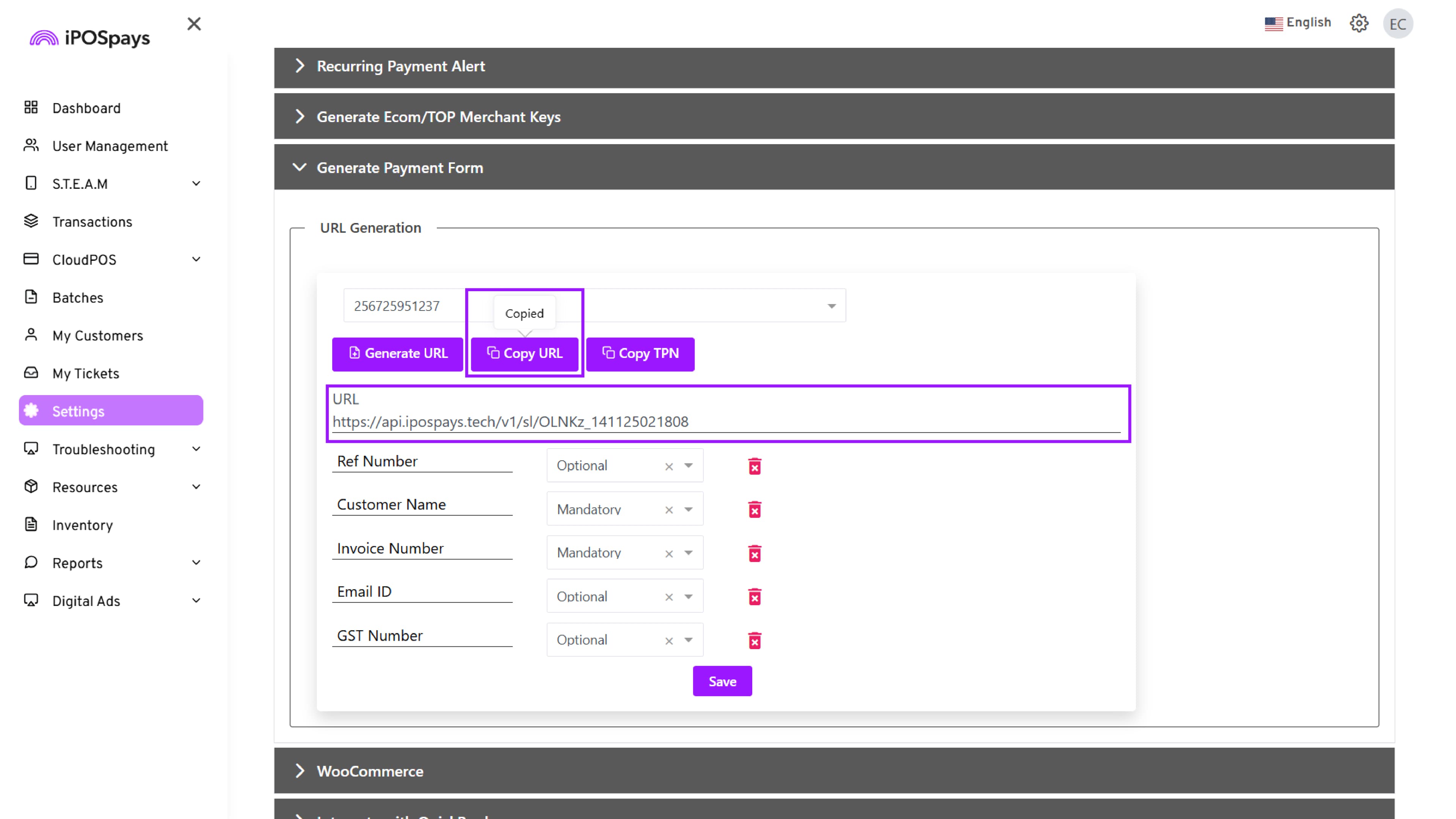
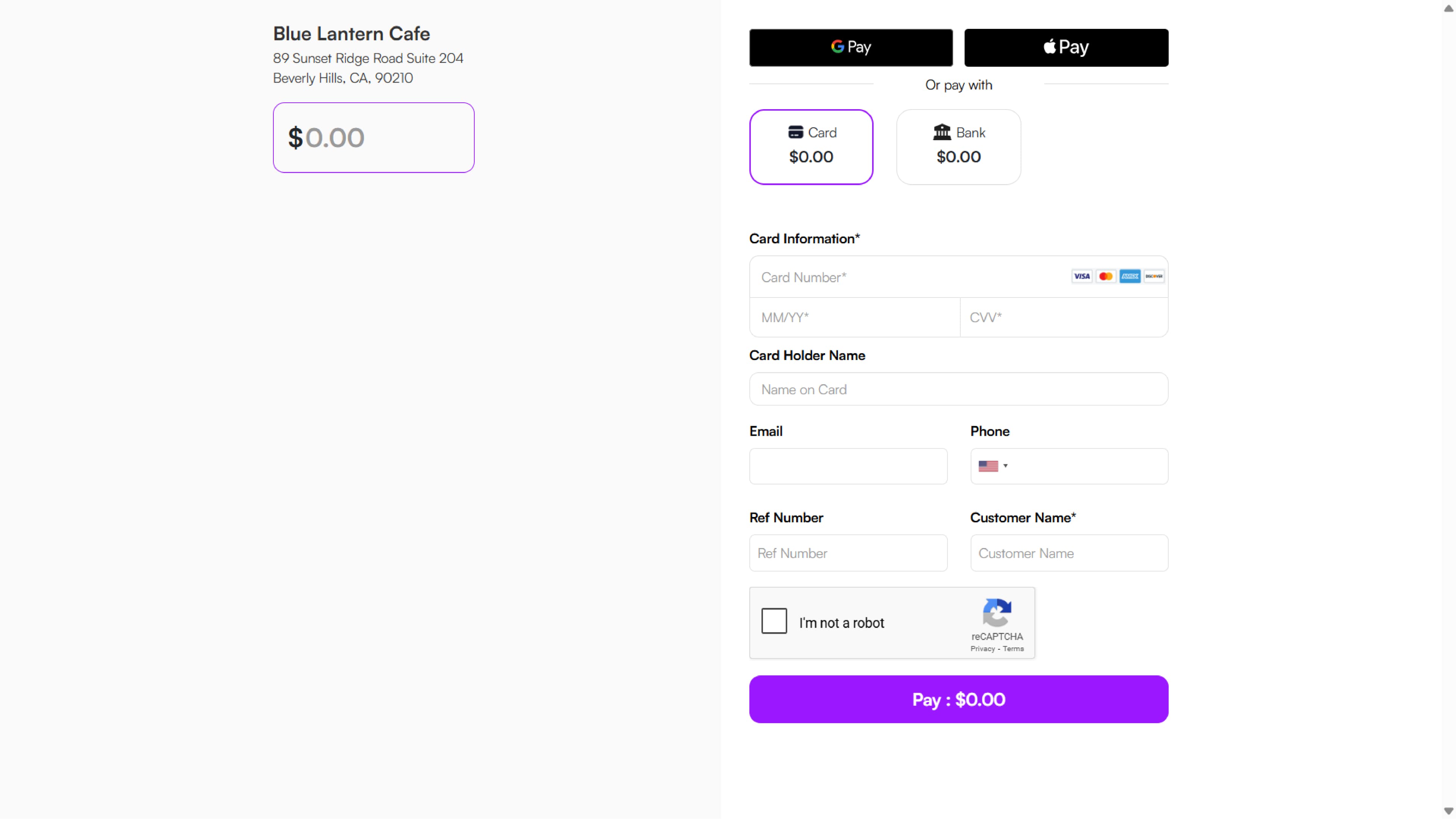
- Share the generated payment link with customers via email, SMS, or other digital channels to initiate payment. When customers open the link, they will be redirected to a secure hosted payment page where they can complete the transaction.
- (Optional) Click Copy TPN to copy the terminal number for record-keeping or integration reference.
Add Custom Input Fields
If you want to collect additional details from customers during the payment process, use the Custom Input Fields feature.
Custom input fields allow merchants to capture additional transaction-related details, such as Reference Number or Customer Name. These details will appear on the GHPP form and in the transaction records, making it easier to identify and track individual payments.
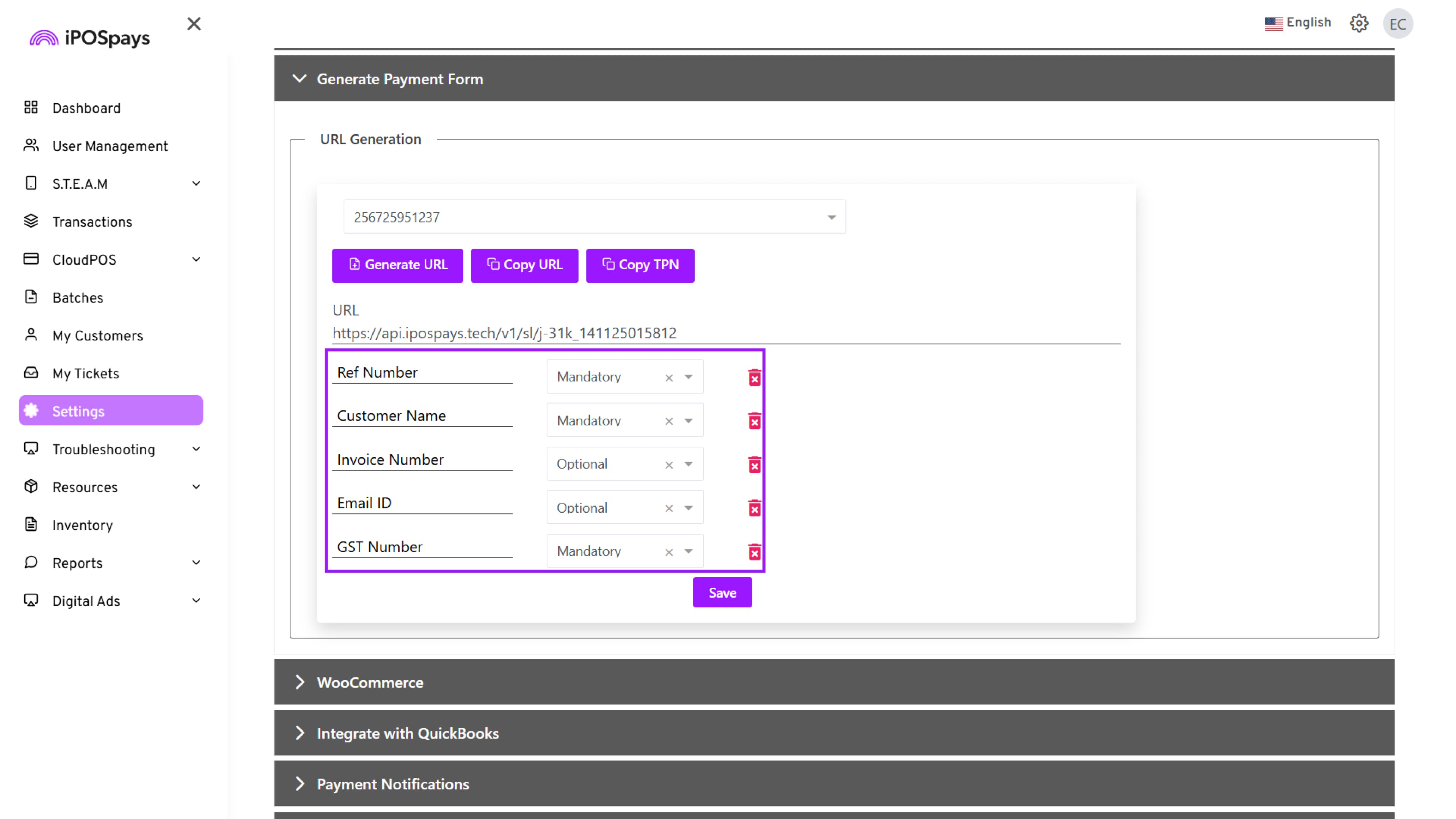
- Under the Custom Input Fields section, enter a Field Name (e.g., Ref Number, Customer Name, etc.).
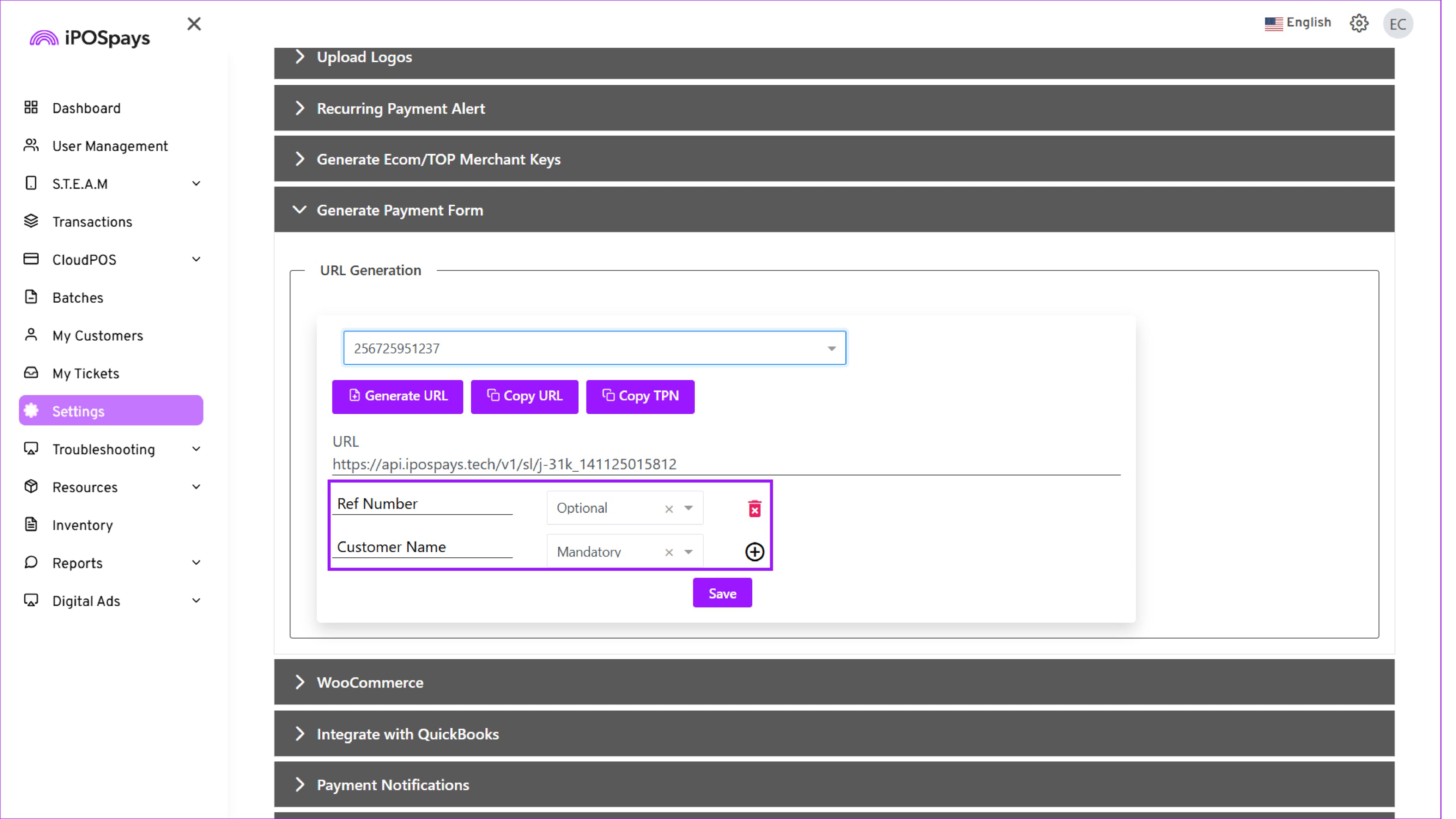
- Use the Dropdown menu next to each field to set it as:
-
Mandatory – The customer must complete this field before proceeding with the payment.
-
Optional – The customer can skip this field.
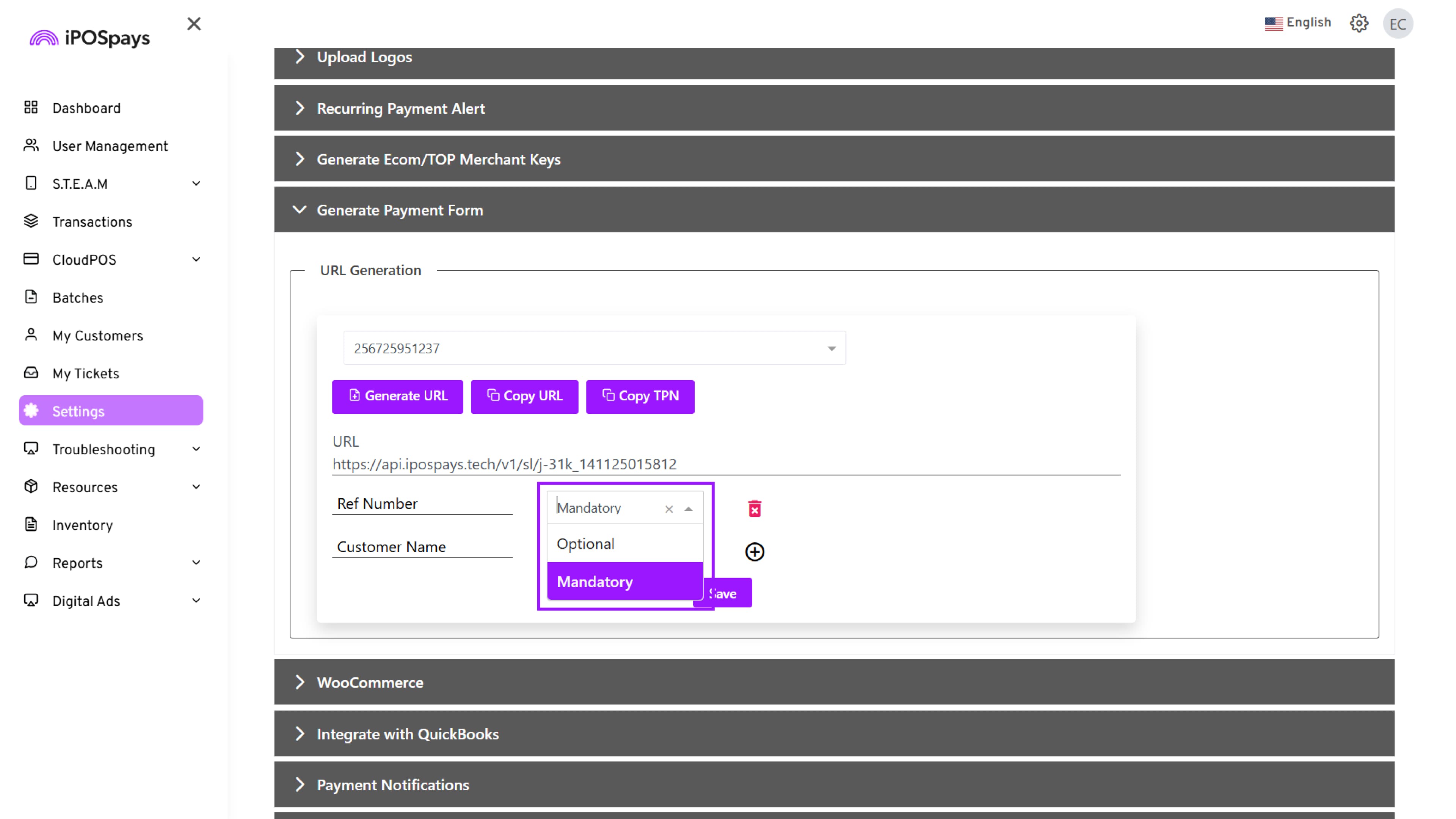
- To remove a field, click the Delete (🗑️) icon next to it.
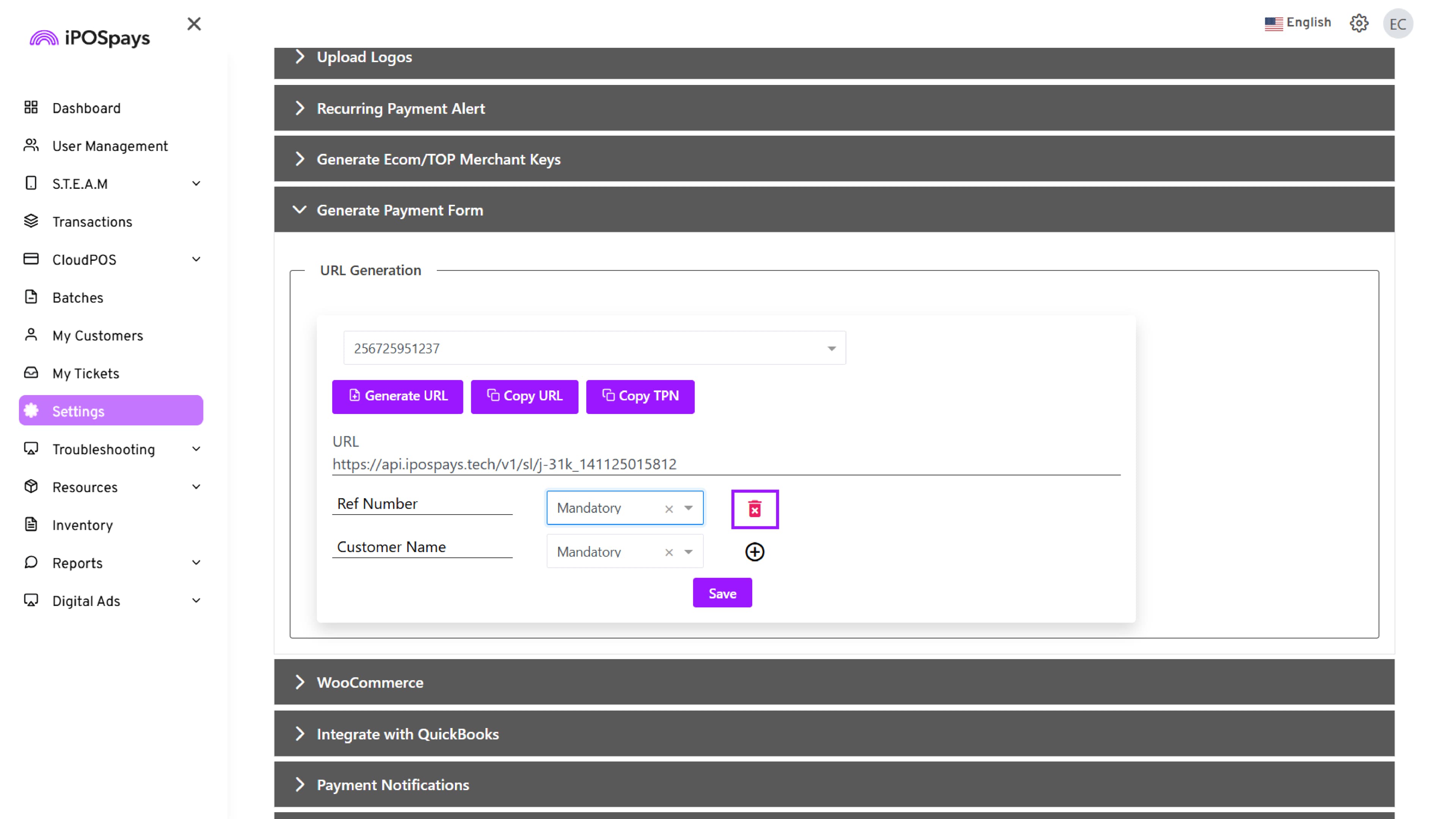
- You can add up to five (5) custom input fields* per payment form. To add additional fields, use the ( ⊕ ) icon.
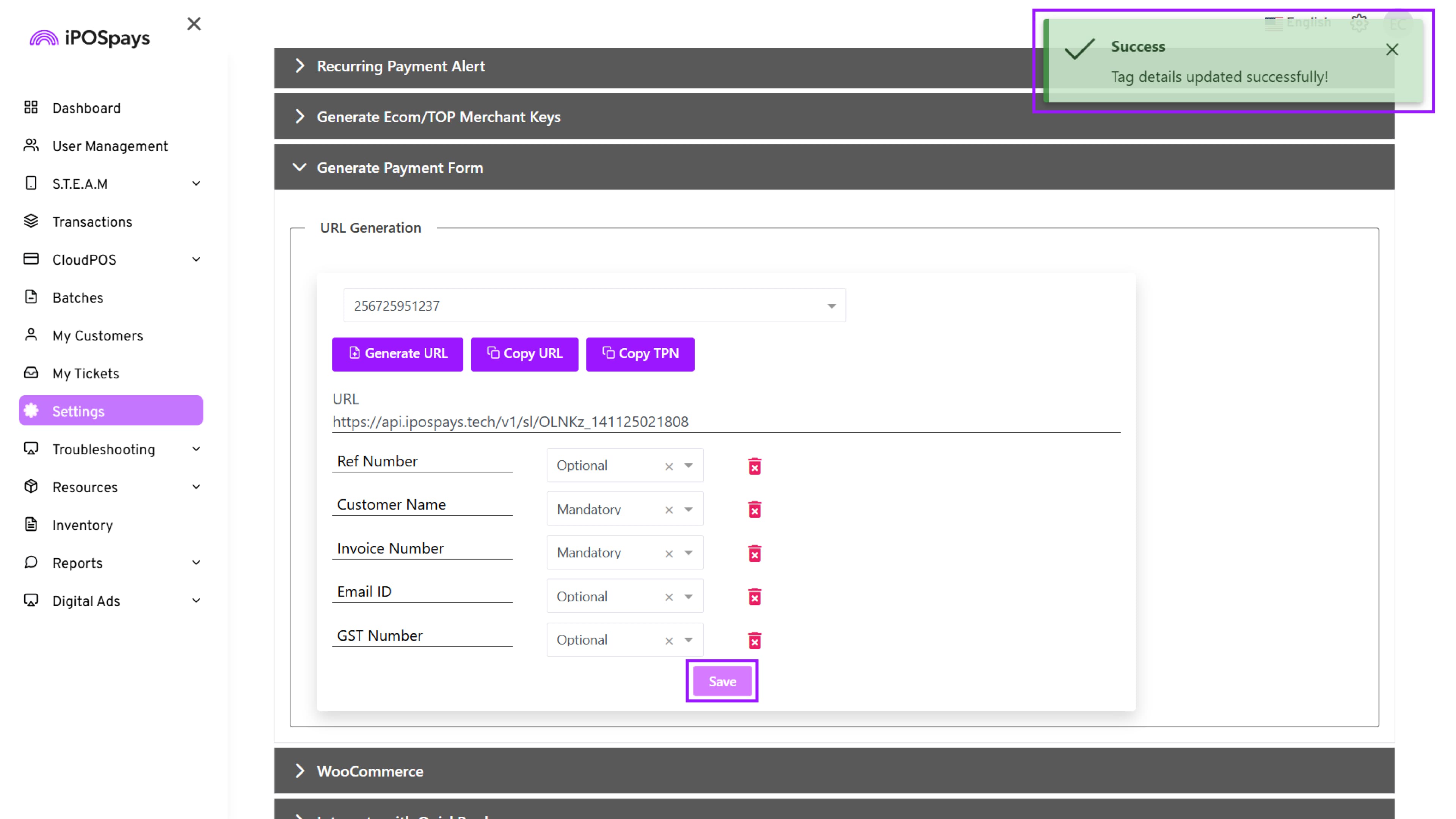
- After configuring all required fields, click Save to apply the changes.
GHPP — Customer Workflow
When customers open a GHPP URL, they must follow these steps:
-
The customer clicks the GHPP URL.
-
The secure payment page opens.
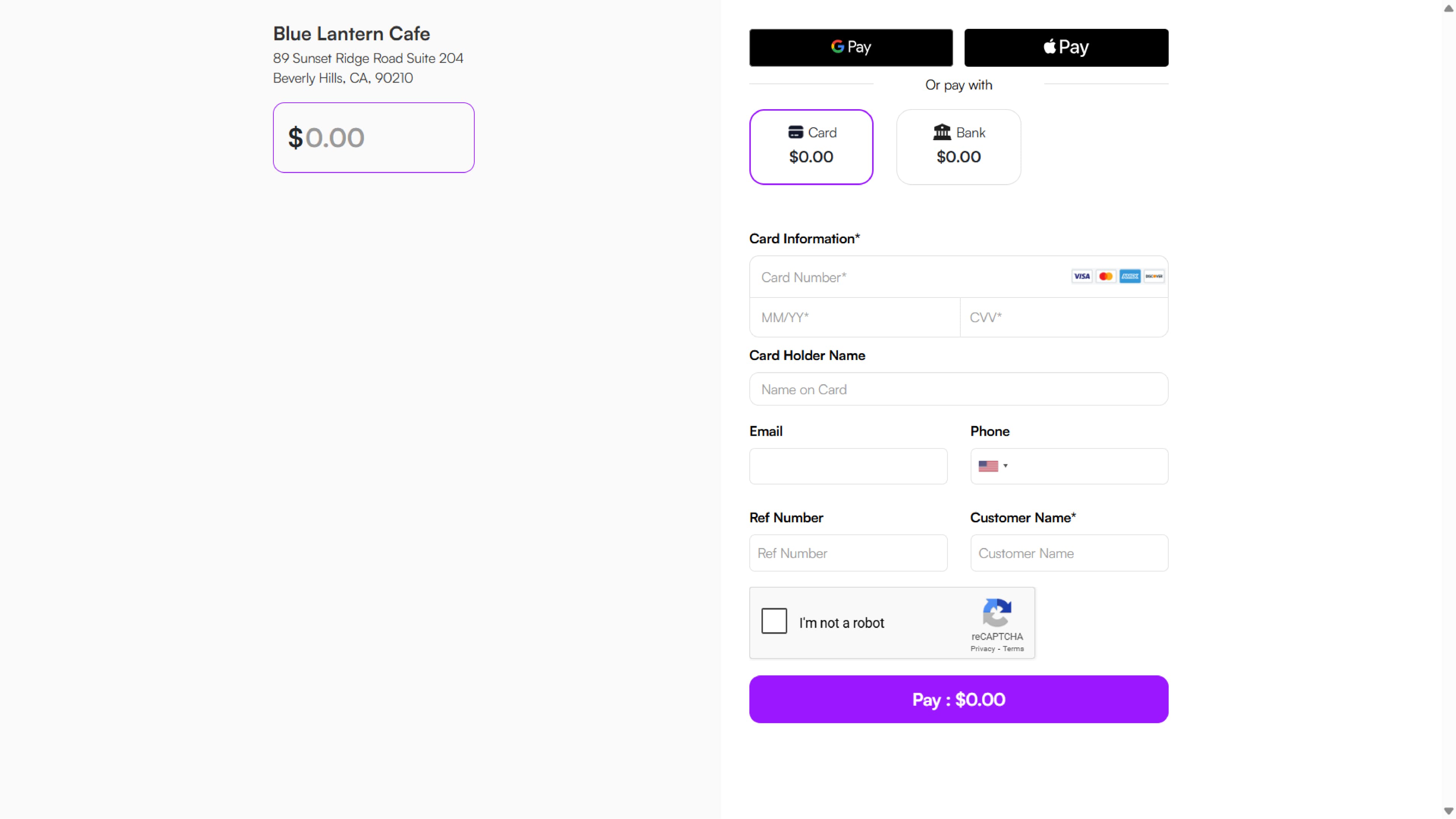
- Enter the desired amount in the designated field.
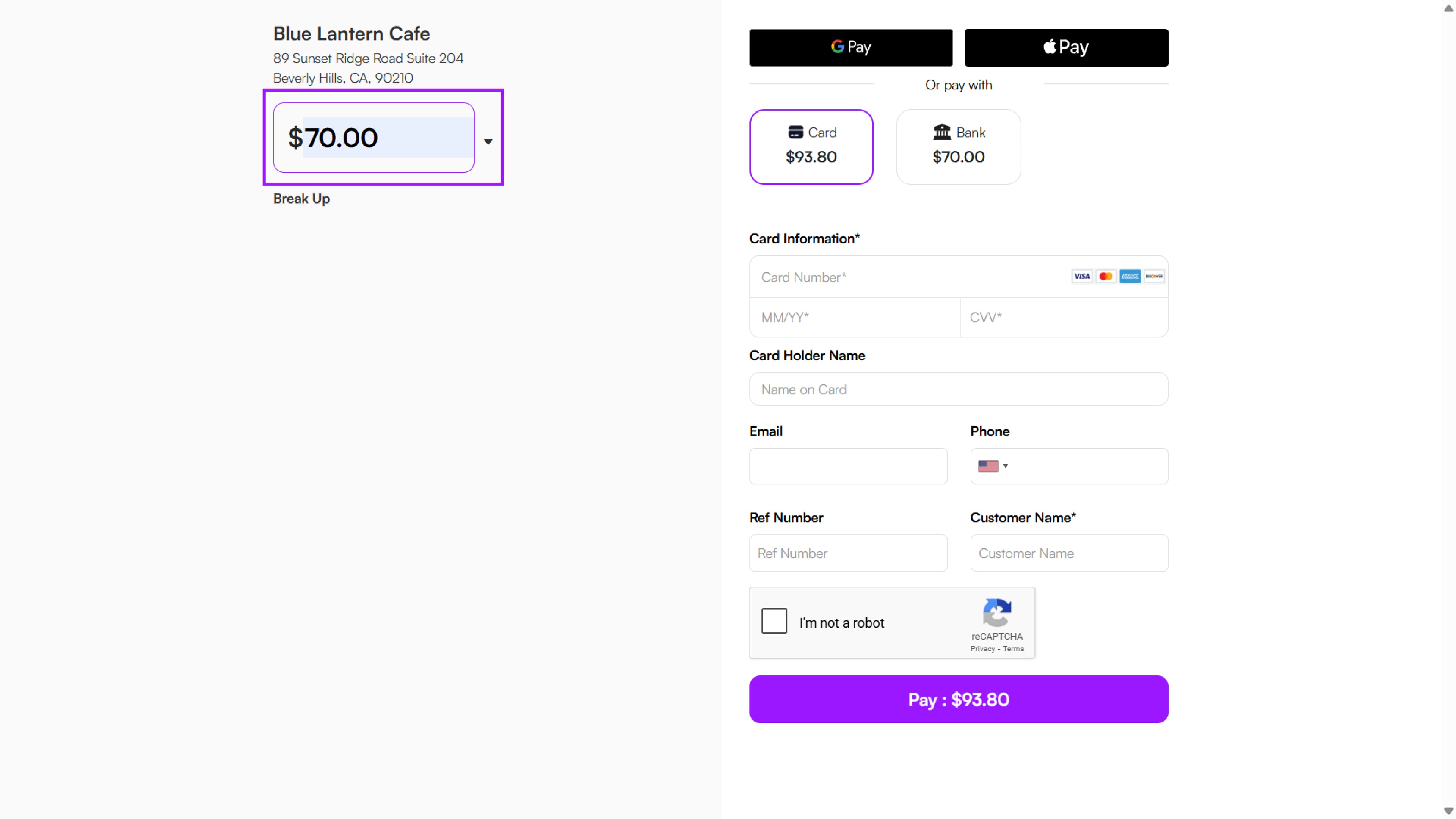
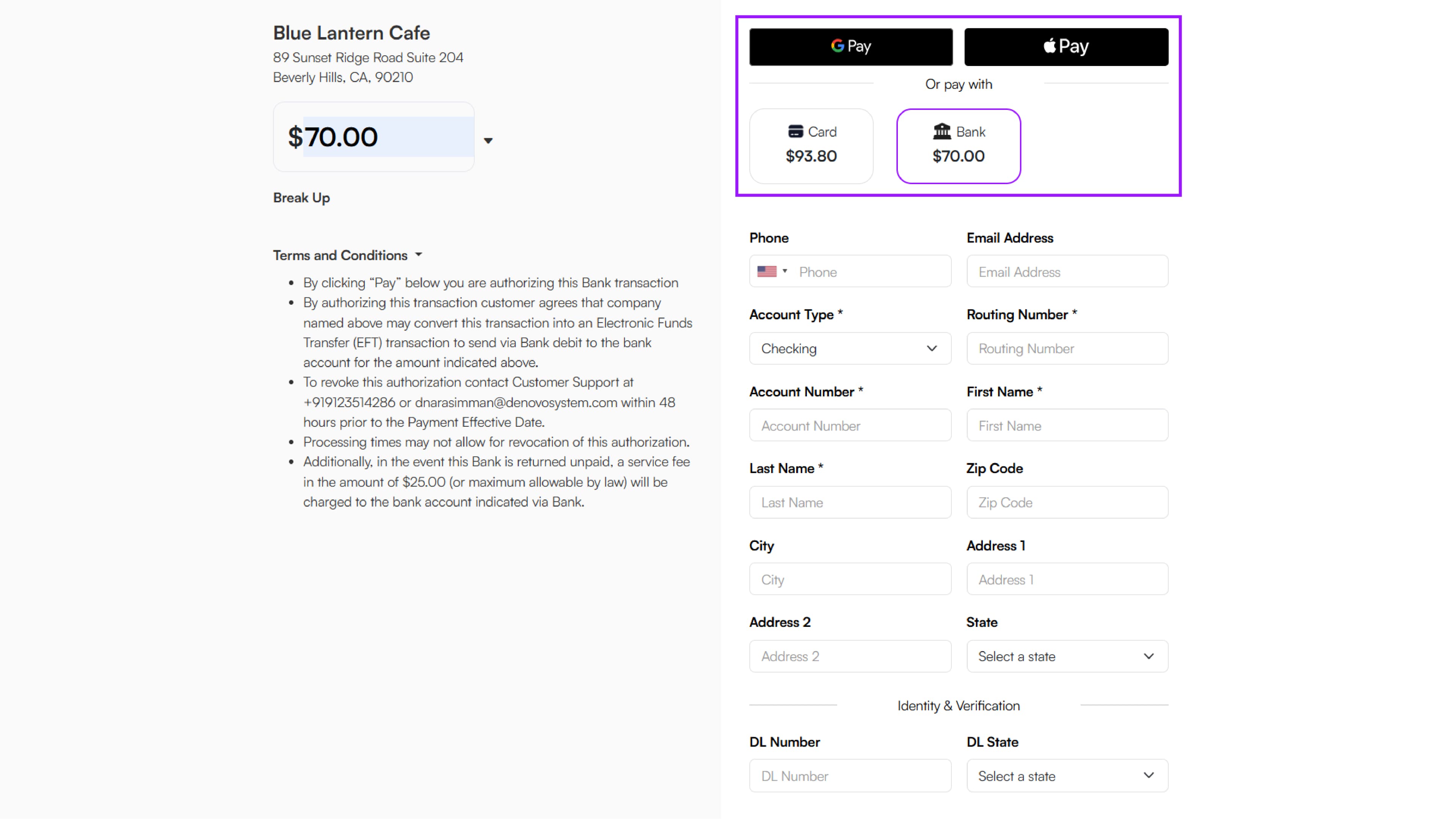
-
Customer selects a payment method:
a) Card
b) Google Pay(if enabled)
c) Apple Pay(if enabled)
d) Bank (if enabled)
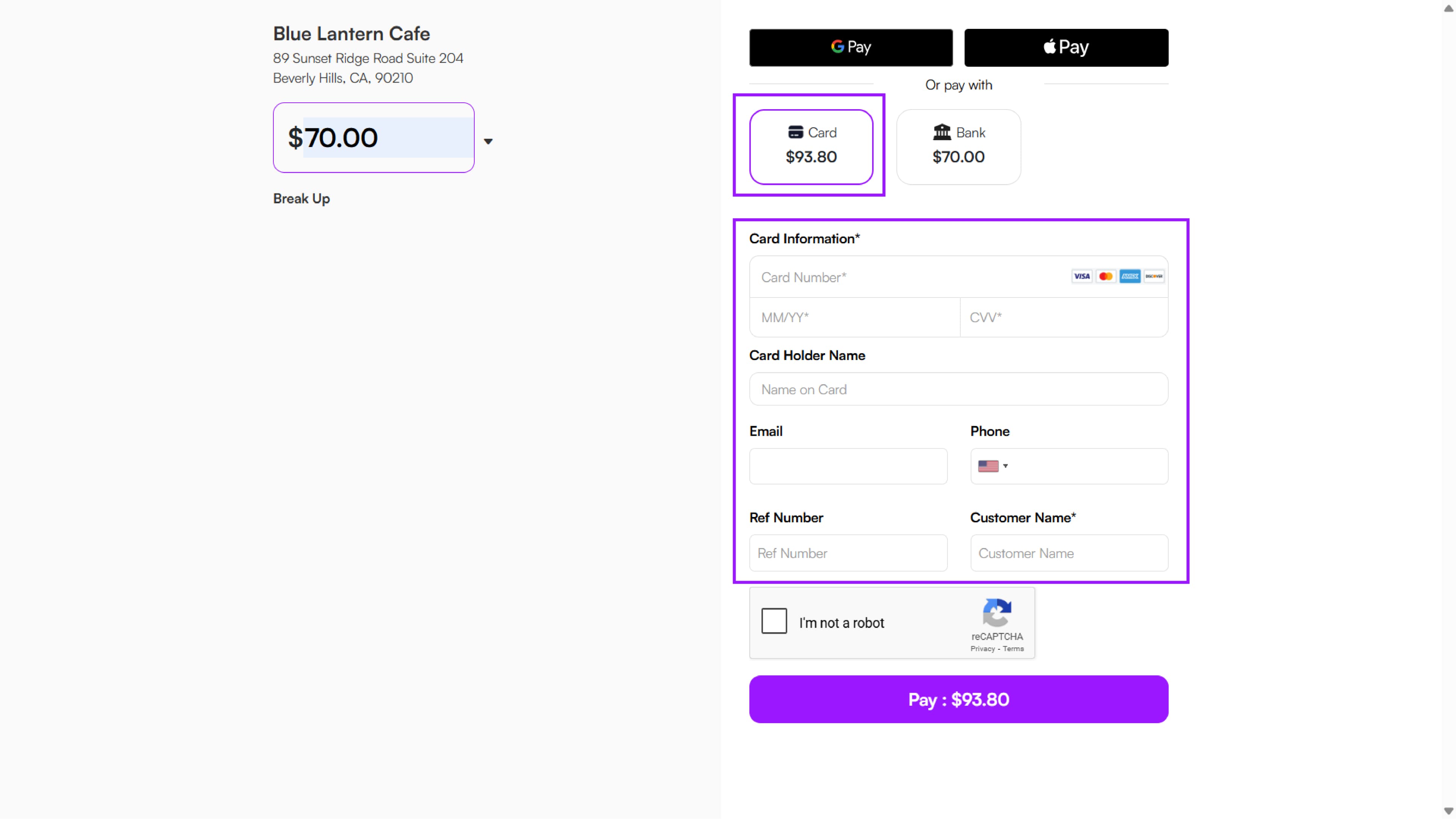
- If the customer chooses Card, they must enter the following details:
-
Card number
-
Cardholder name
-
Email and/or Phone number
-
Other required fields
(Fields marked with * are mandatory.)
- If the customer chooses Bank, they must enter the following details:
-
Phone number
-
Email address
-
Account type
-
Routing number
-
Account number
-
First and last name
-
Zip code
-
Other required fields
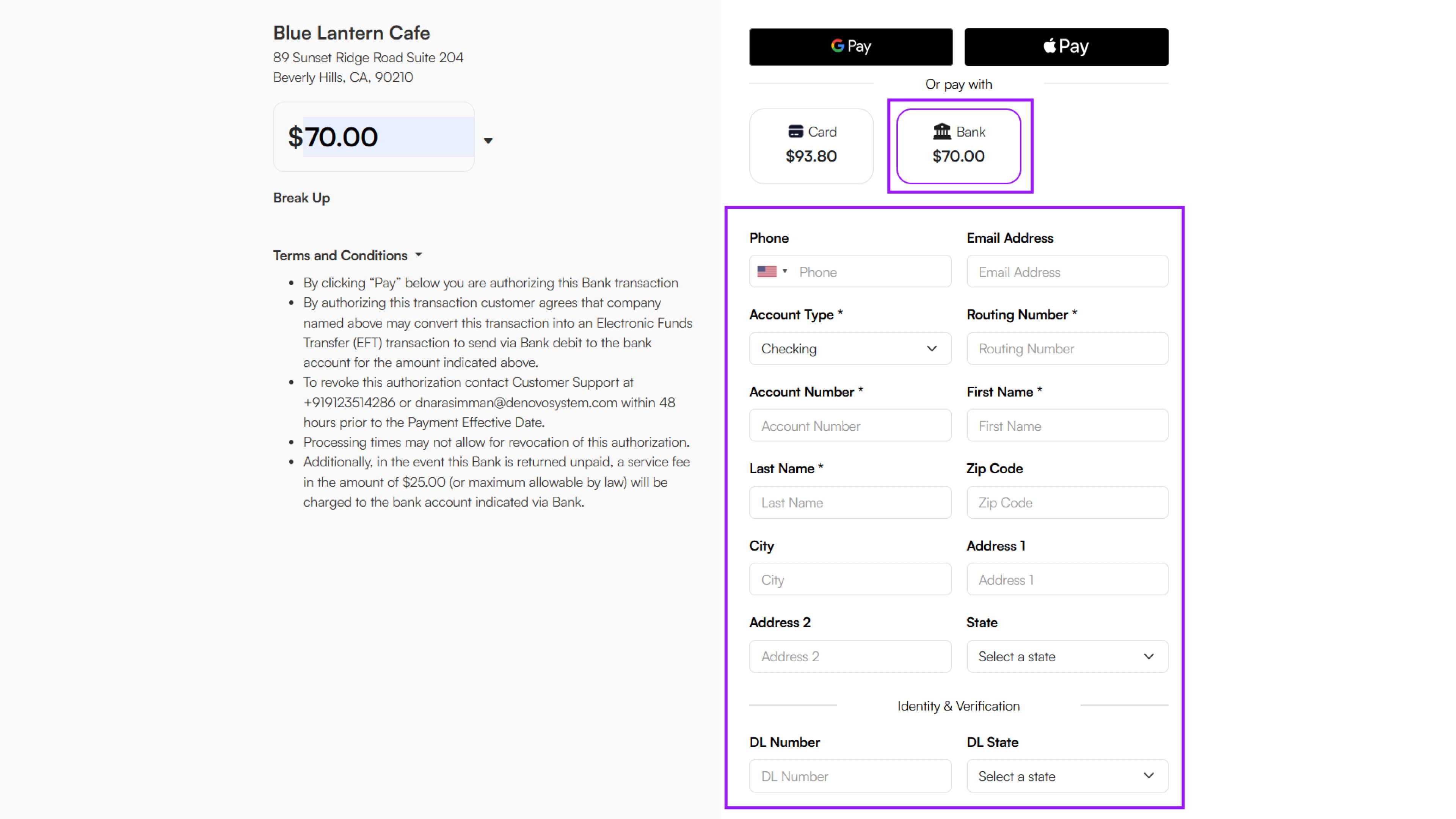
- Once all the details are filled in, the customer clicks Pay.
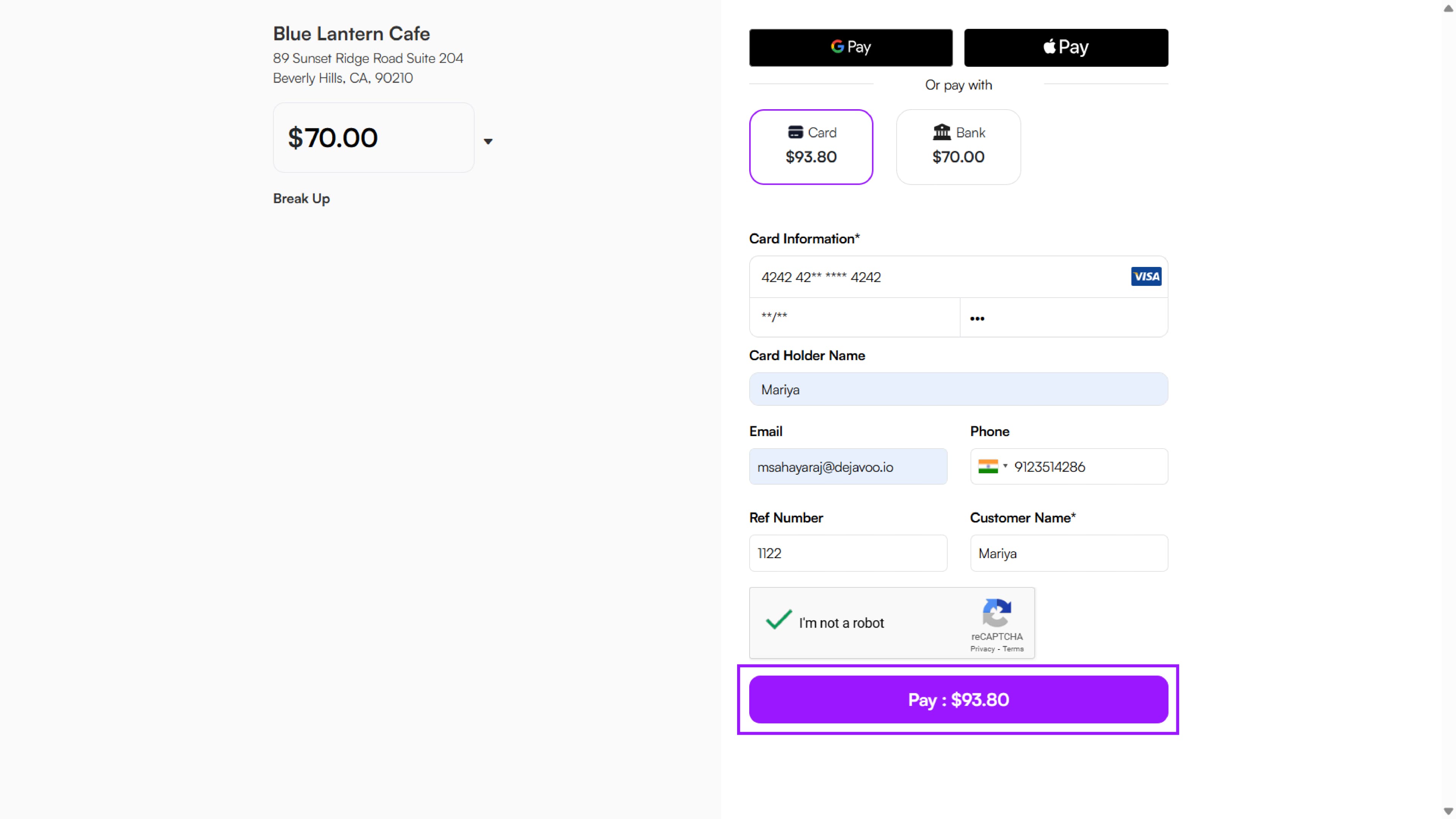
- Payment processes → A confirmation screen is displayed with an ‘Approved’ or ‘Declined’ notification.
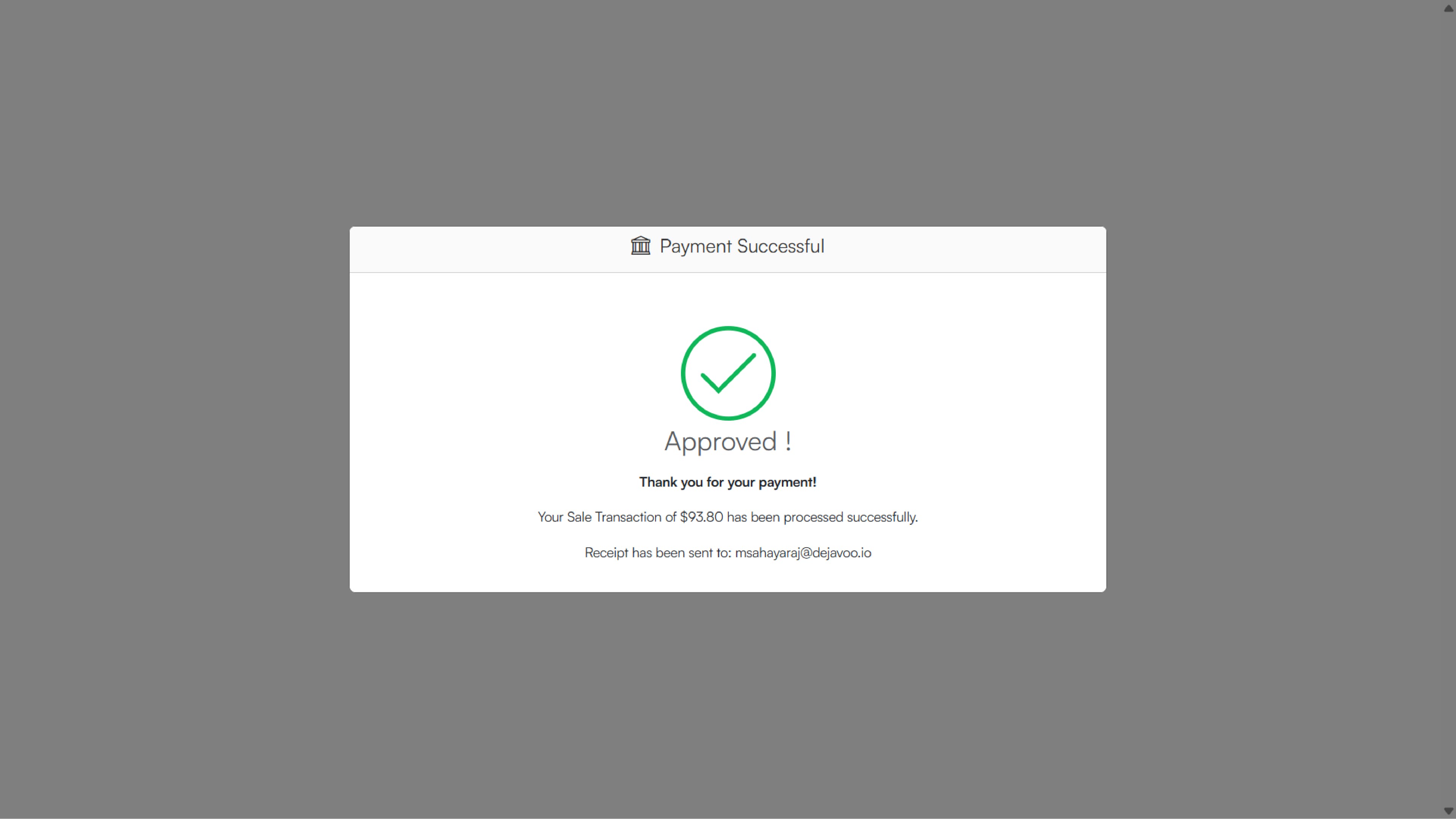
- Once the payment is completed, the customer will receive a payment receipt at their registered email address or phone number
GHPP – Additional Functional Details
GHPP transactions support:
-
Void (before batch settlement)
-
Refund (after settlement)
-
Partial Refund (after settlement)
How to Void or Refund a GHPP Transaction
-
Log in to your iPOSpays Merchant Portal.
-
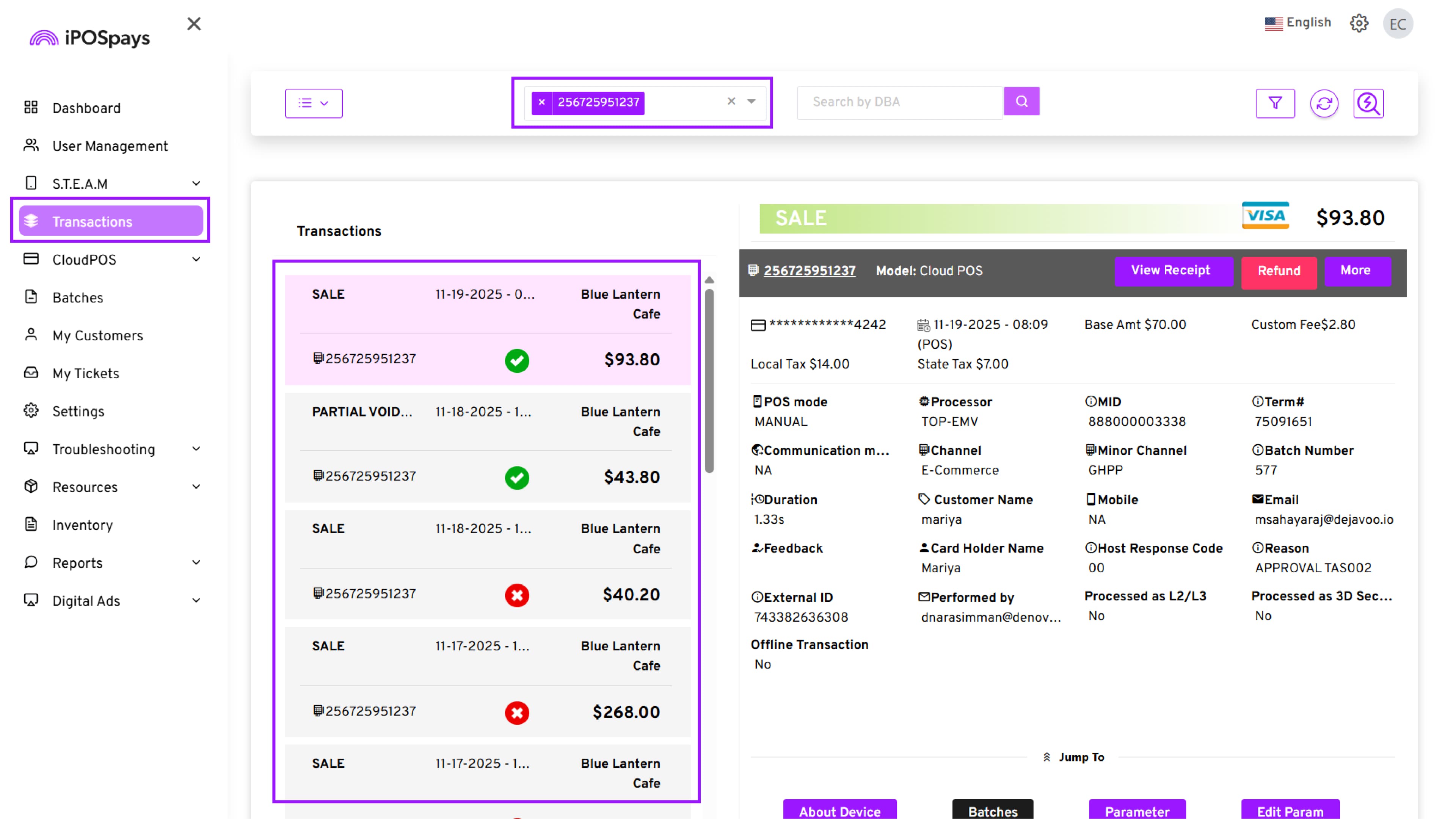
Navigate to Transactions.
-
Search/Select the TPN used for GHPP.
-
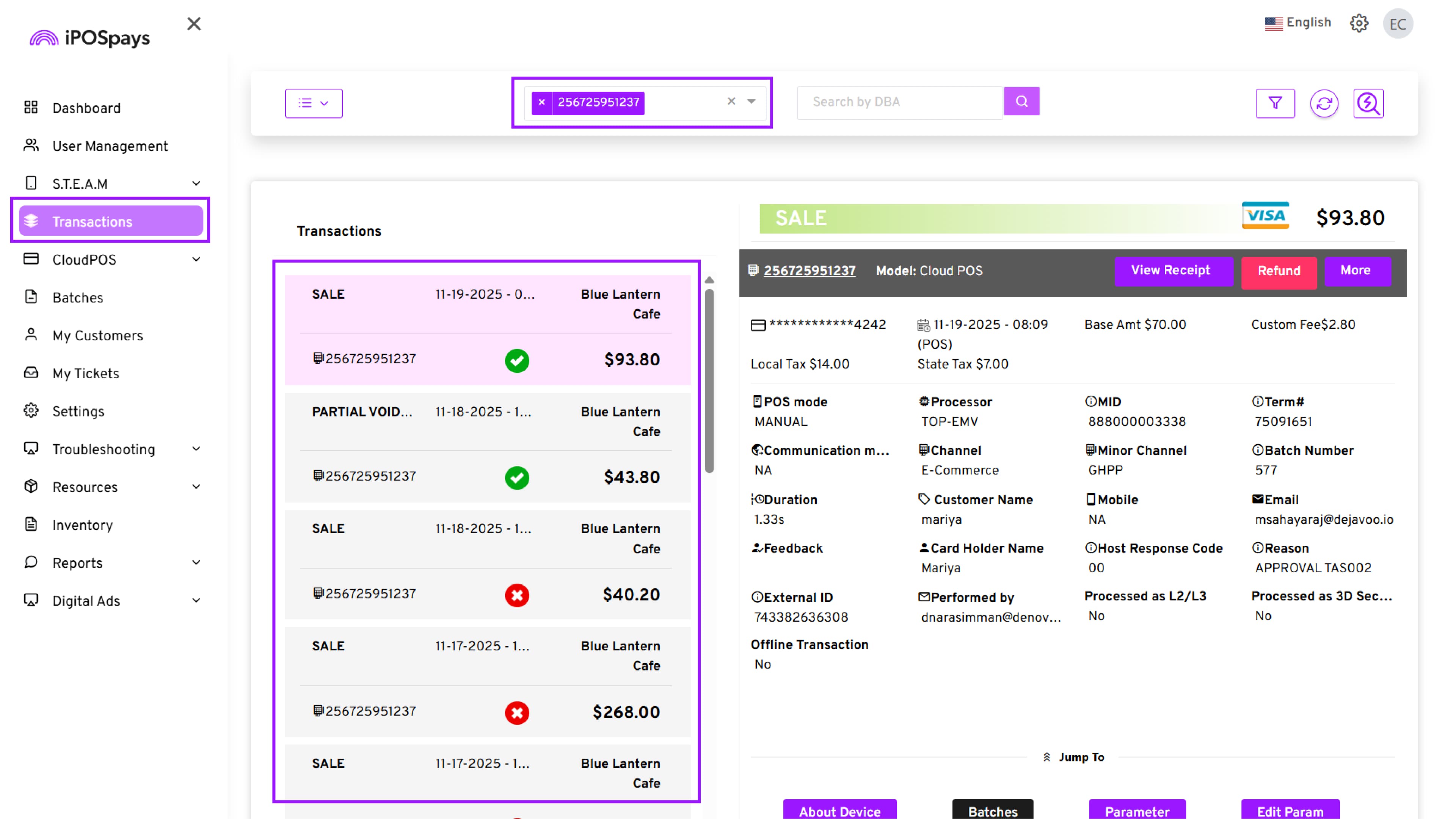
The left panel will list all transactions for that TPN (sorted by date).
-
Click the specific GHPP transaction.
-
On the right panel, you will see complete transaction details:
- Sale / Void / Refund status
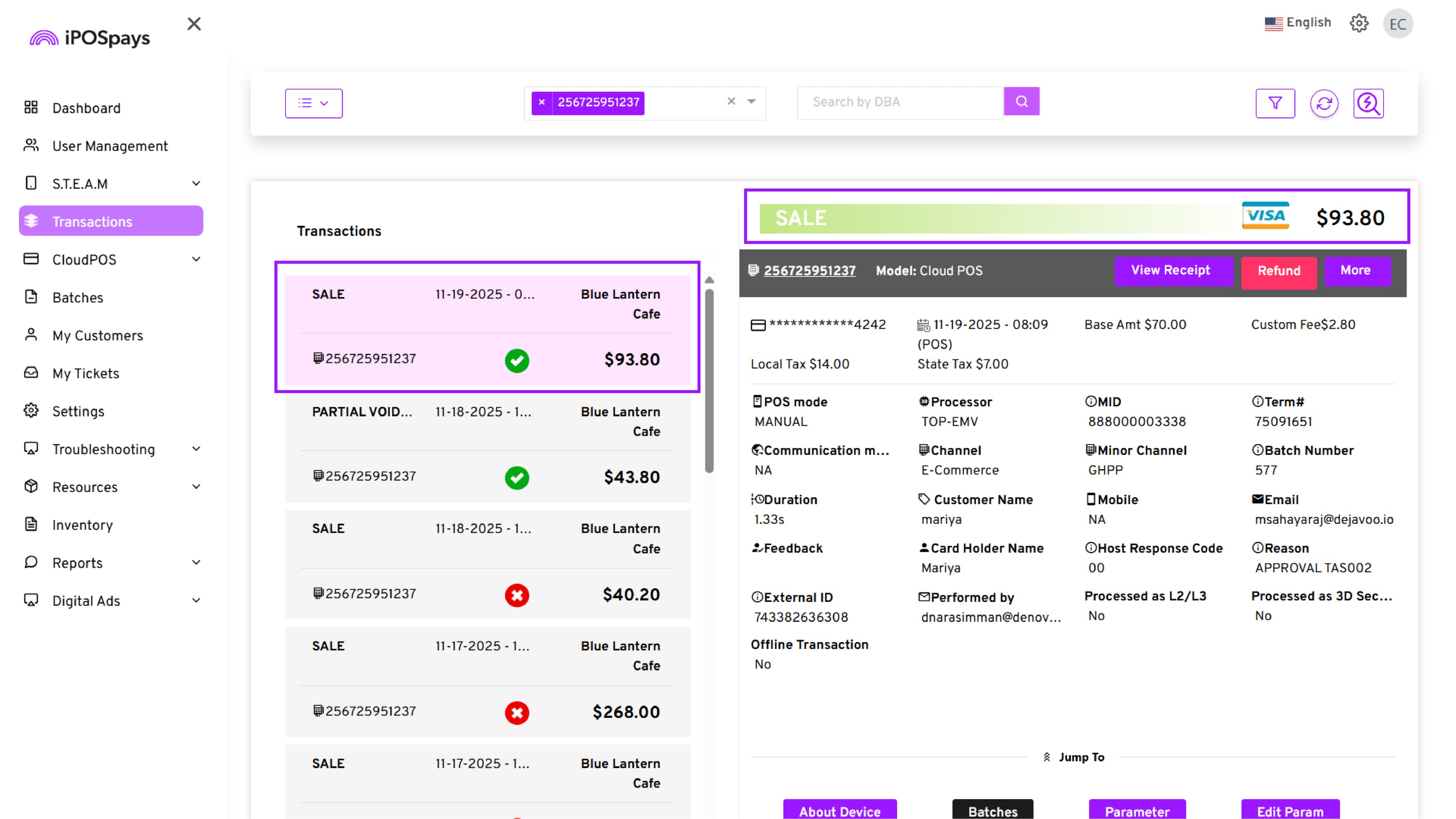
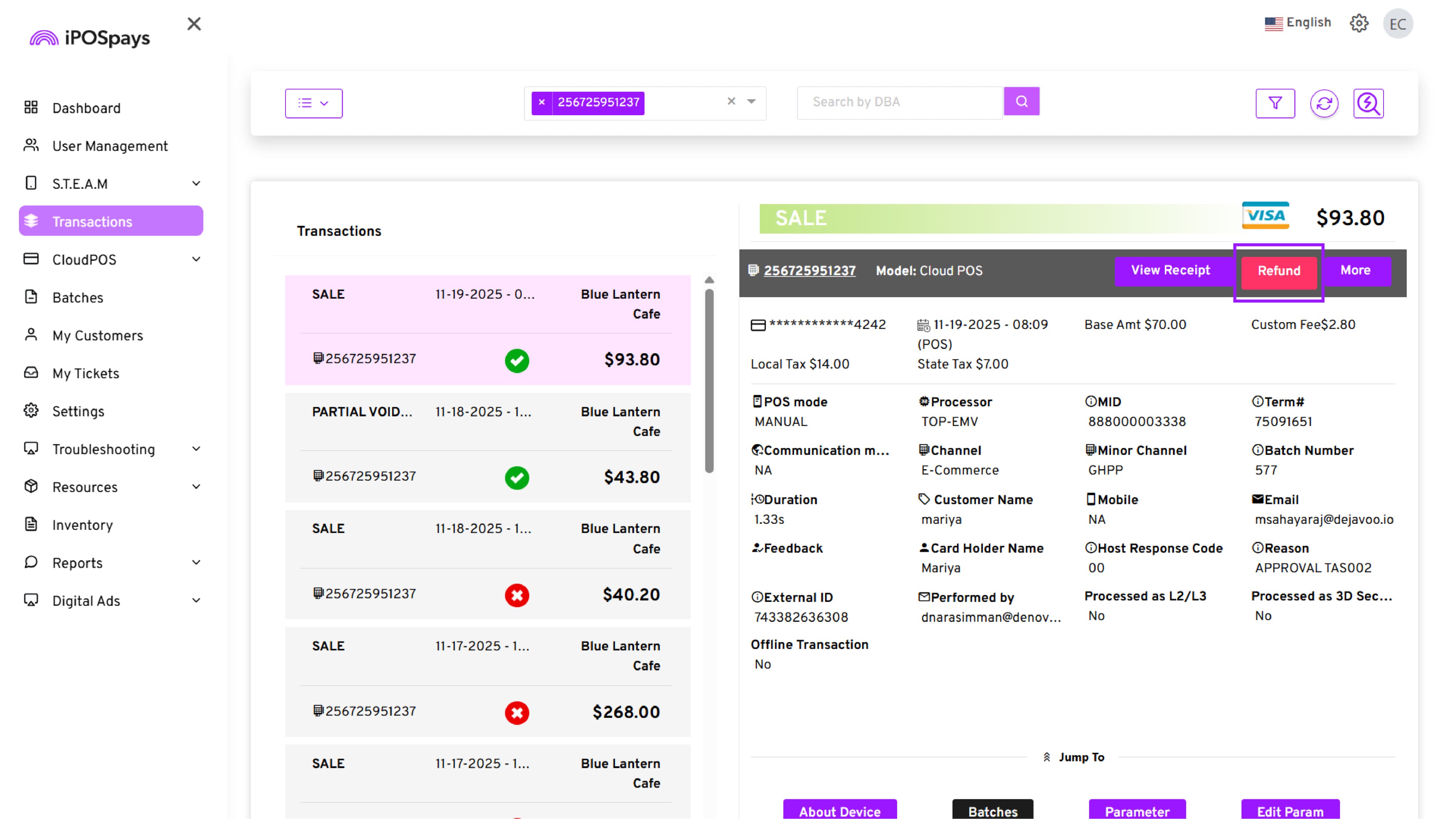
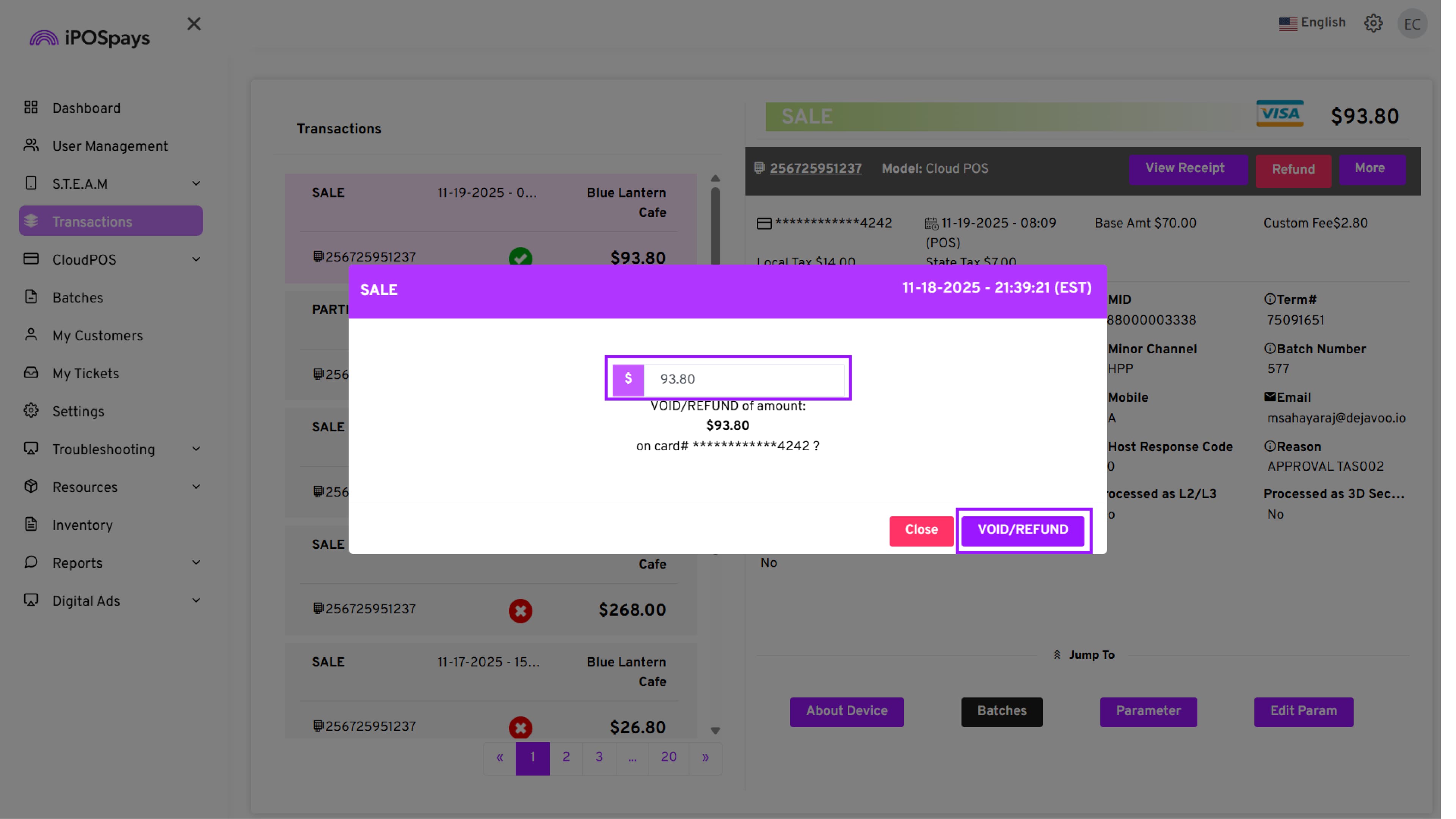
- Click Void/Refund. A confirmation dialogue will appear showing the amount eligible for void or refund. Click Void/Refund again in the dialogue box to confirm.
- Once the Void/Refund process is completed, the status will display immediately
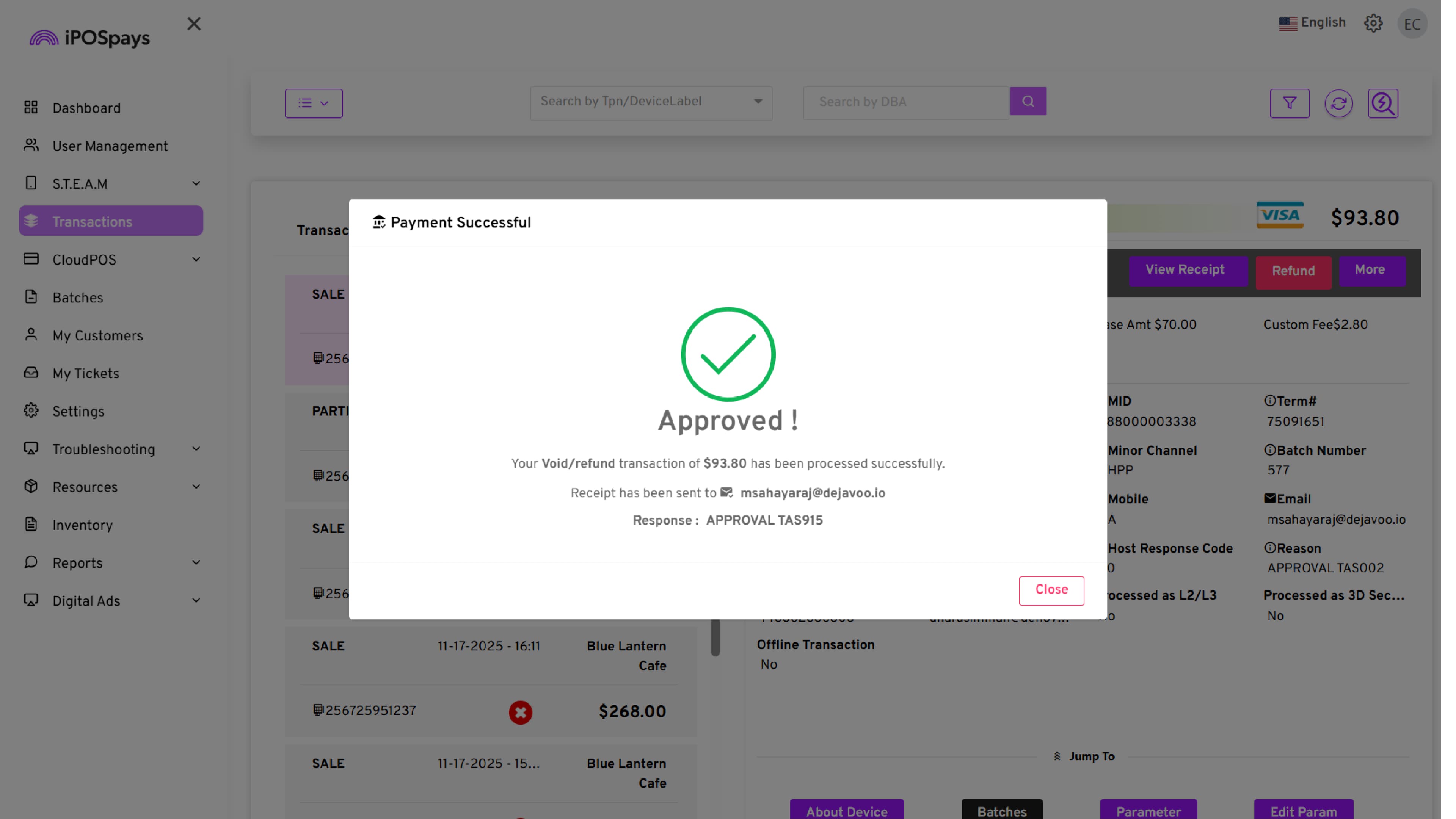
- The customer will receive the payment receipt at their registered email or phone number.
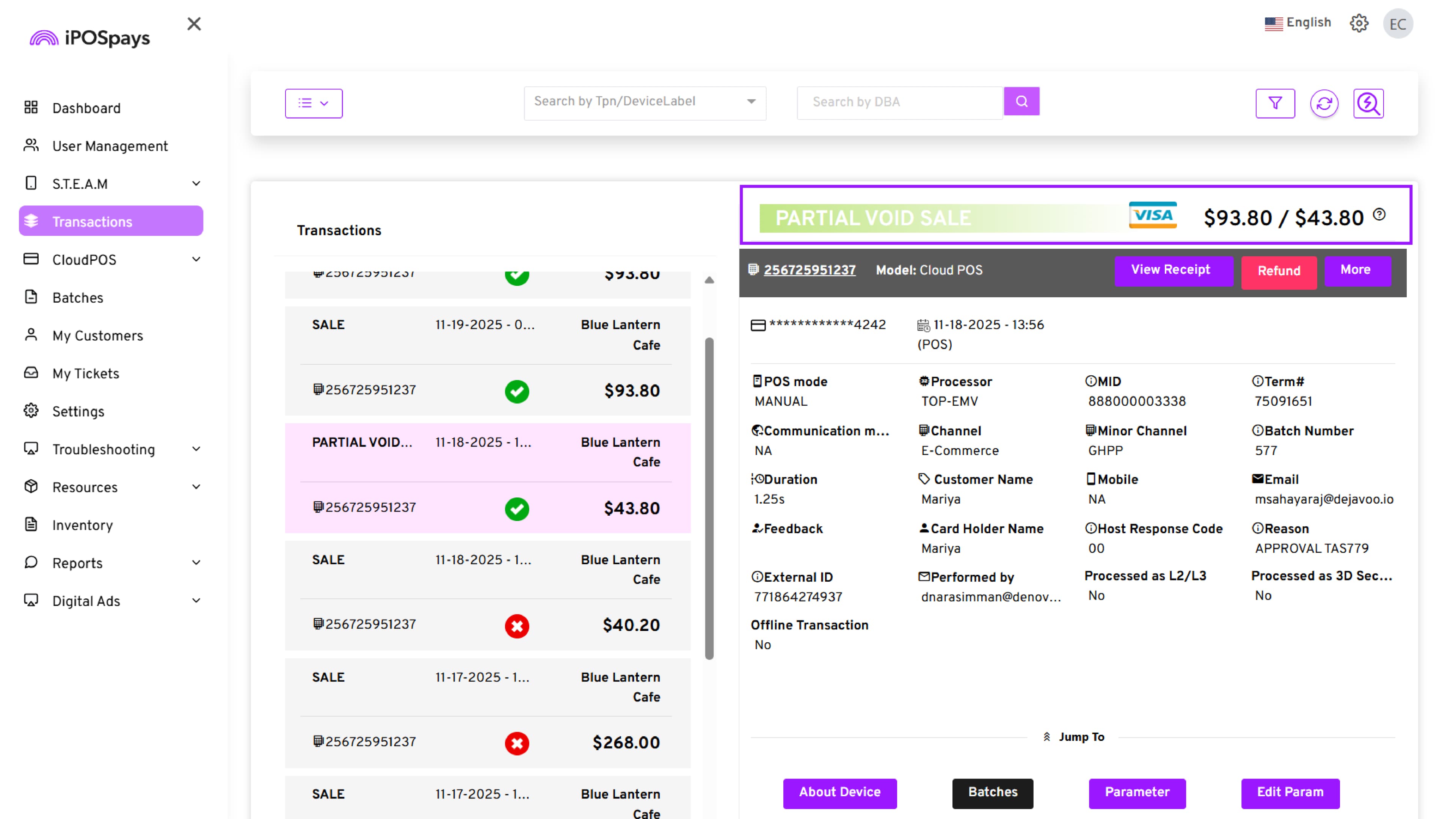
How to Partial Refund a GHPP Transaction
-
Go to Transactions → Search for the TPN.
-
Select the settled GHPP transaction.
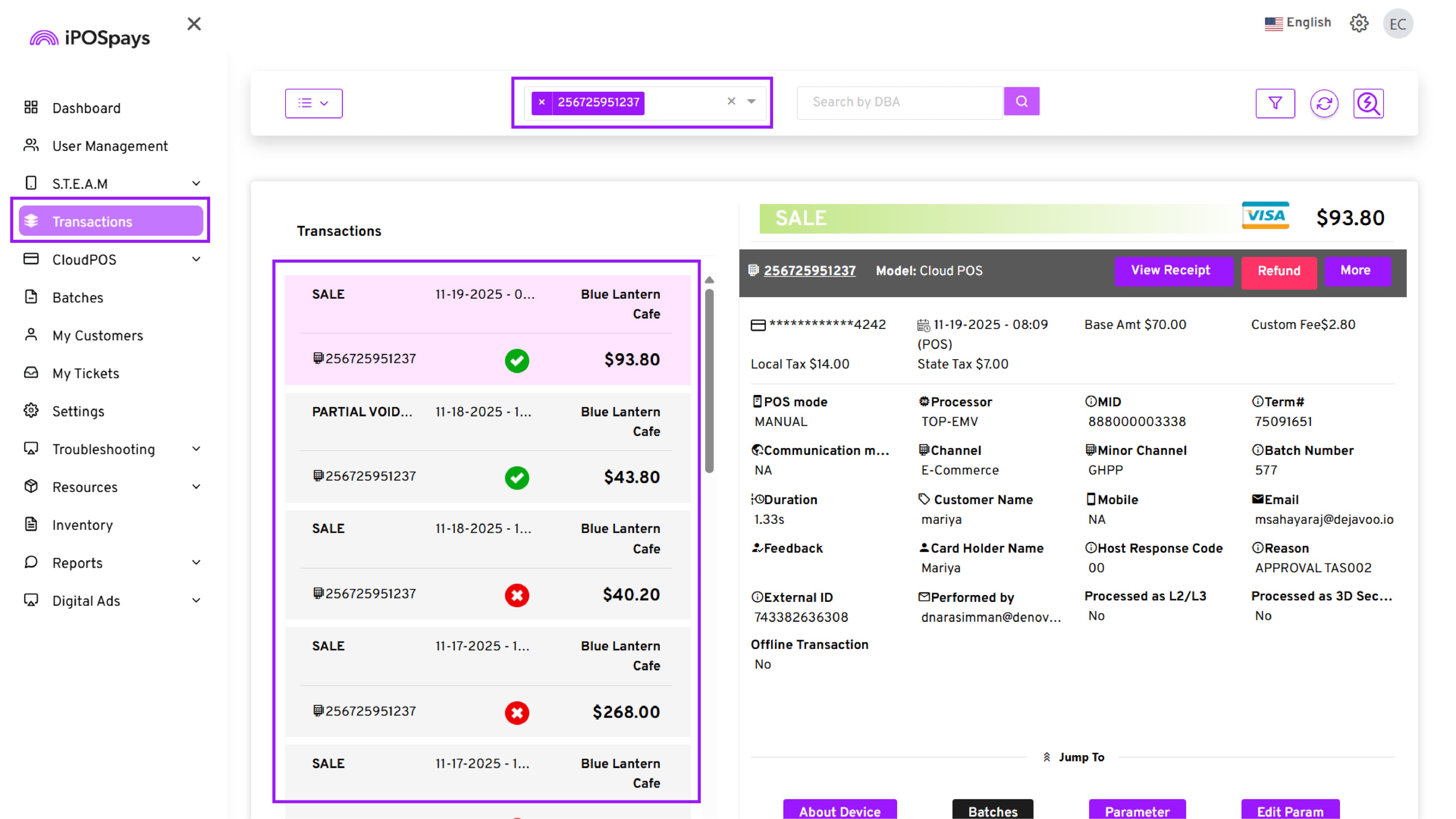
- Click Void/Refund.
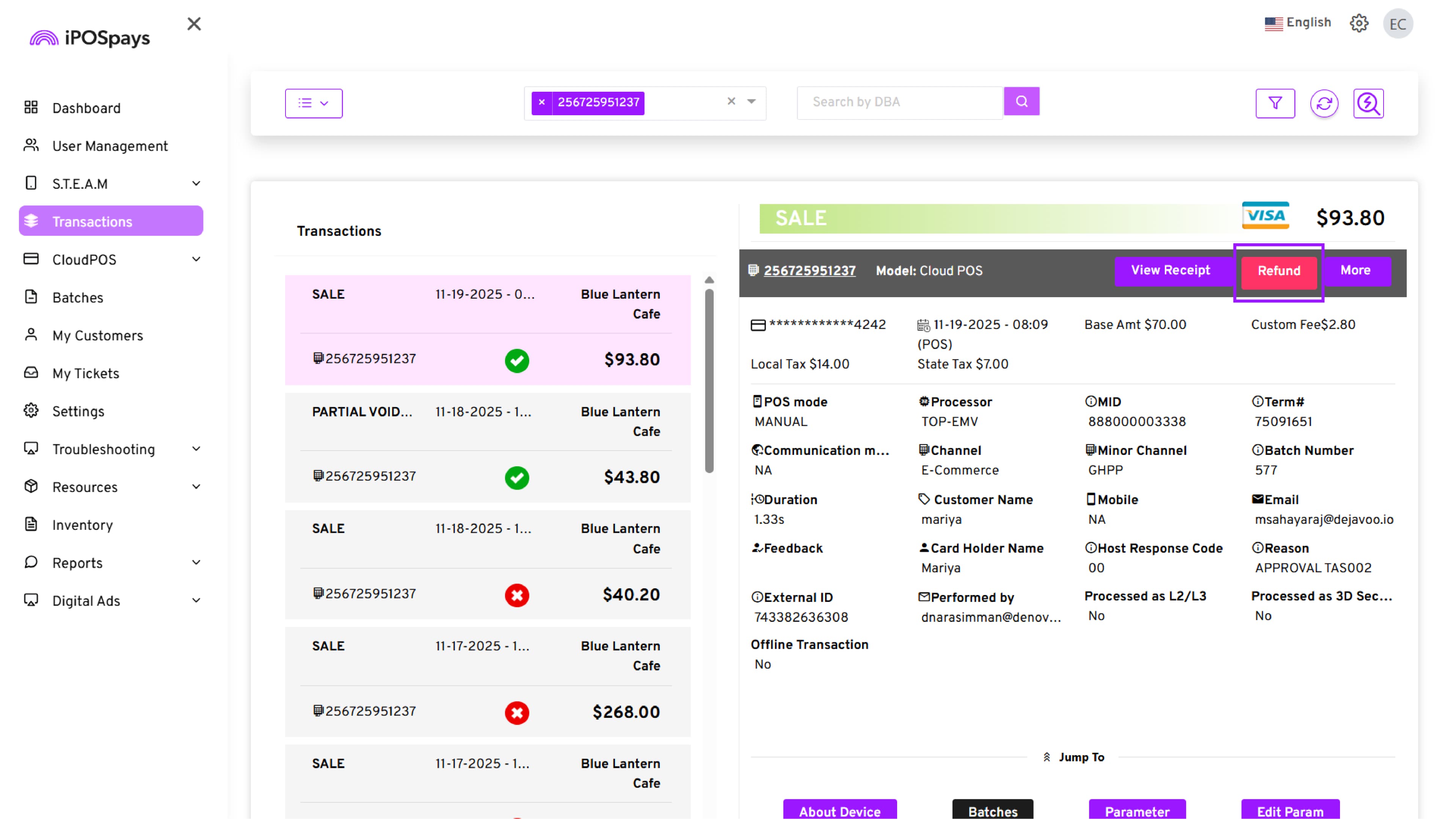
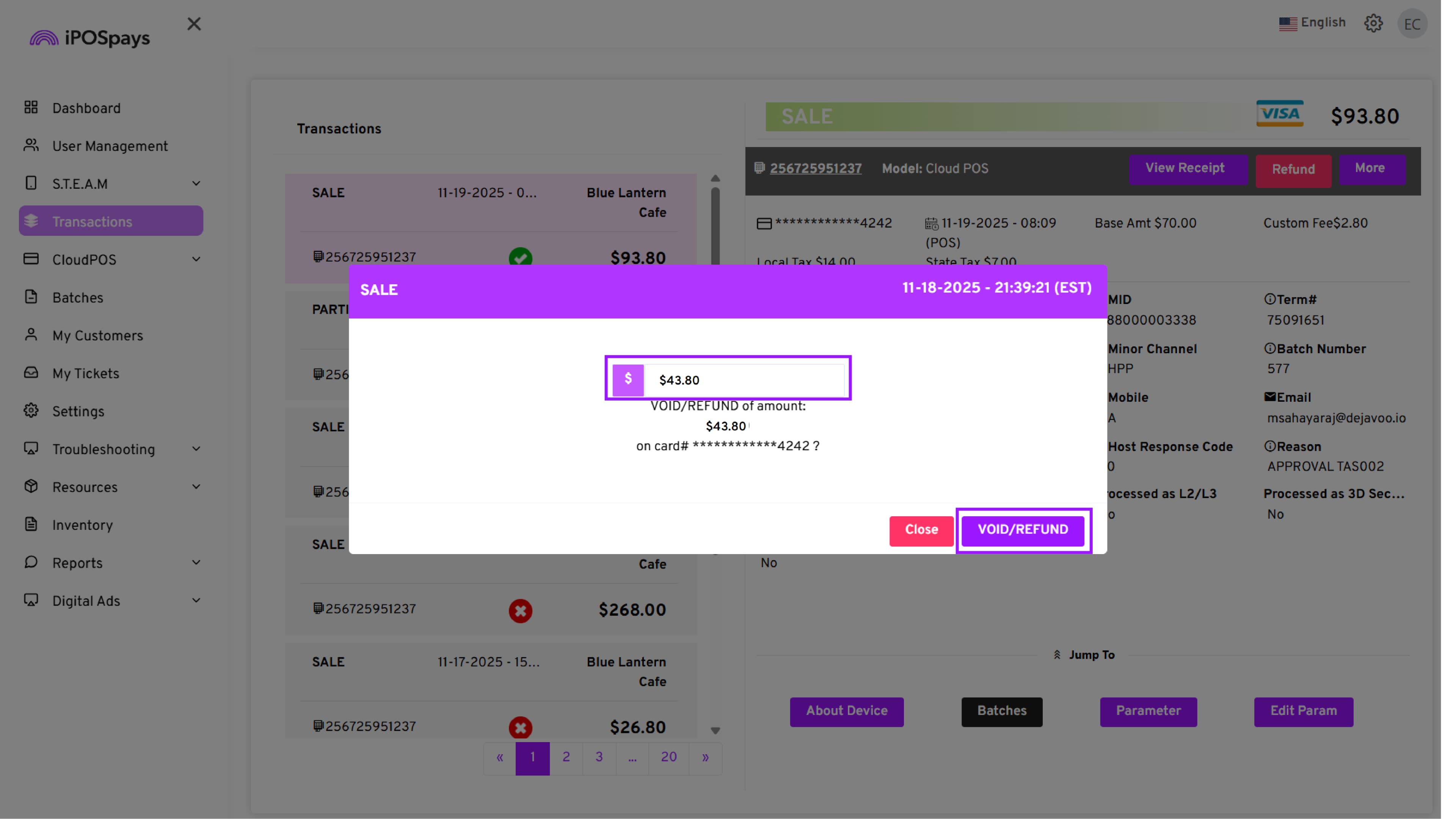
-
Enter the Partial refund amount. (To process a partial refund, enter an amount less than the original payment. This option is available only for settled transactions.)
-
Click VOID/REFUND
- Once the Void/Refund process is completed, the status will display immediately.
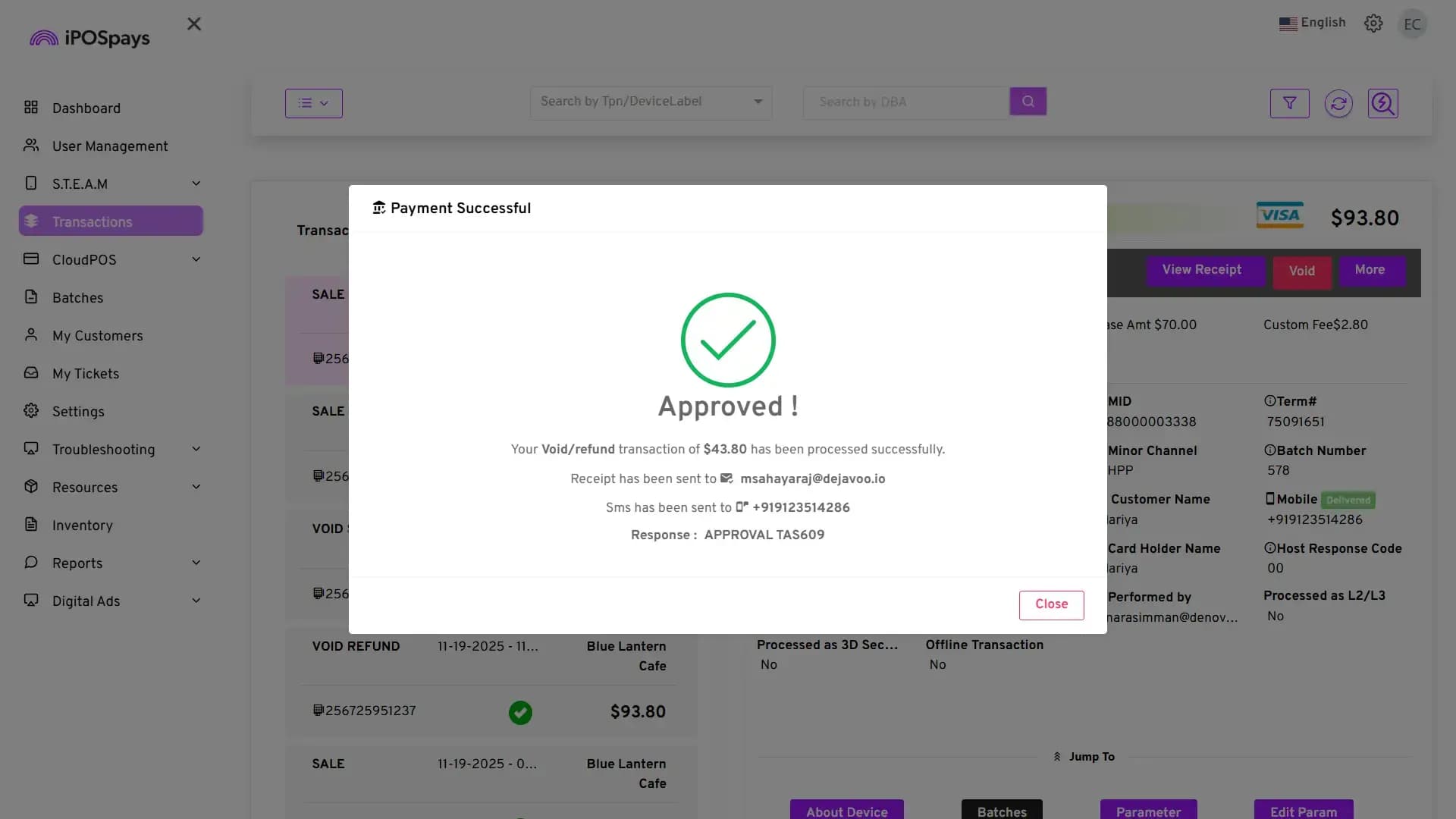
-
The customer will receive a payment receipt at their registered email address or phone number.
-
To view the status, navigate to the Transactions section in the iPOSpays portal and search using the TPN.
View Receipt for GHPP Transactions
-
Go to Transactions → Search for the TPN.
-
Select the GHPP transaction you want to view.
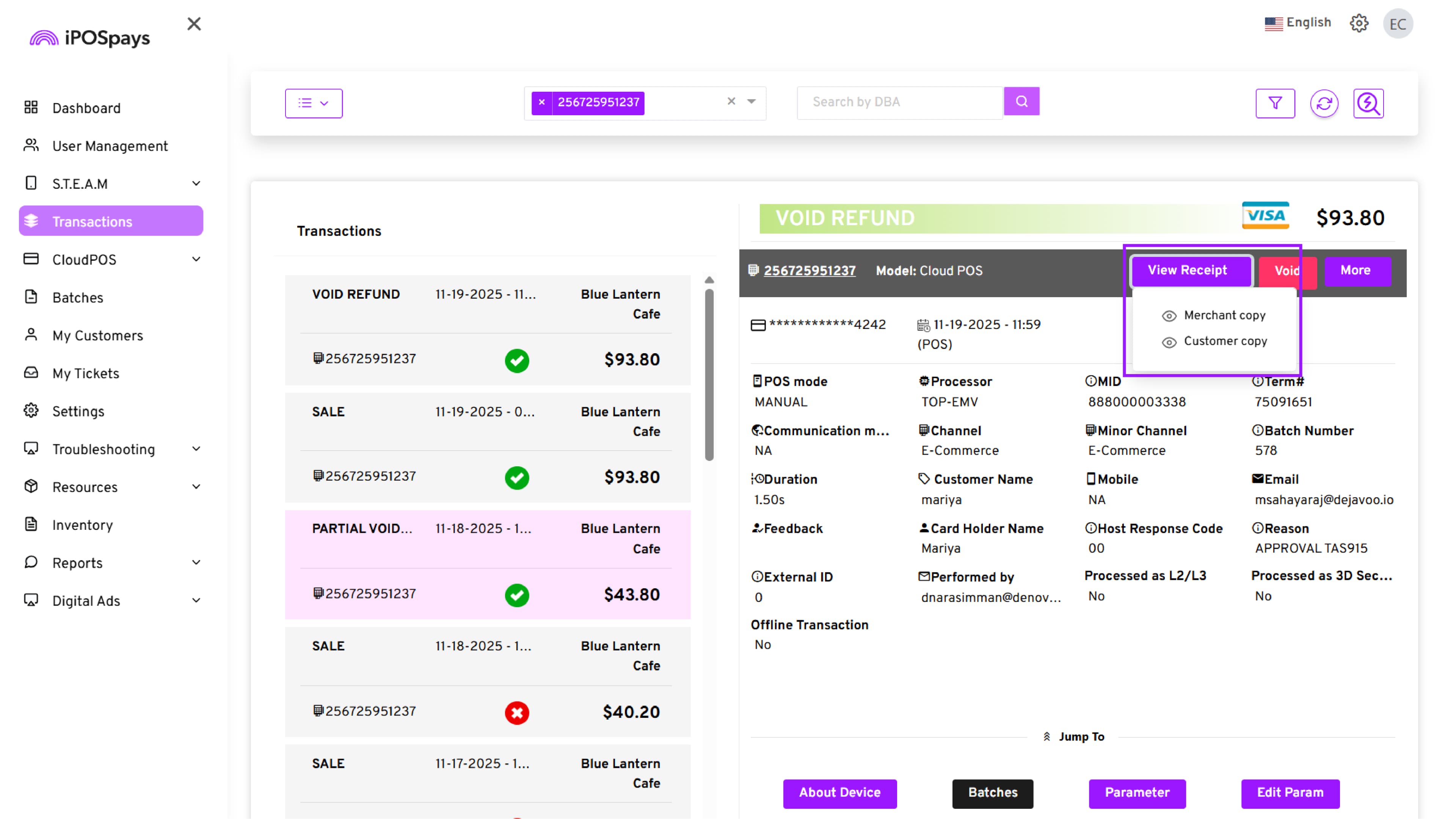
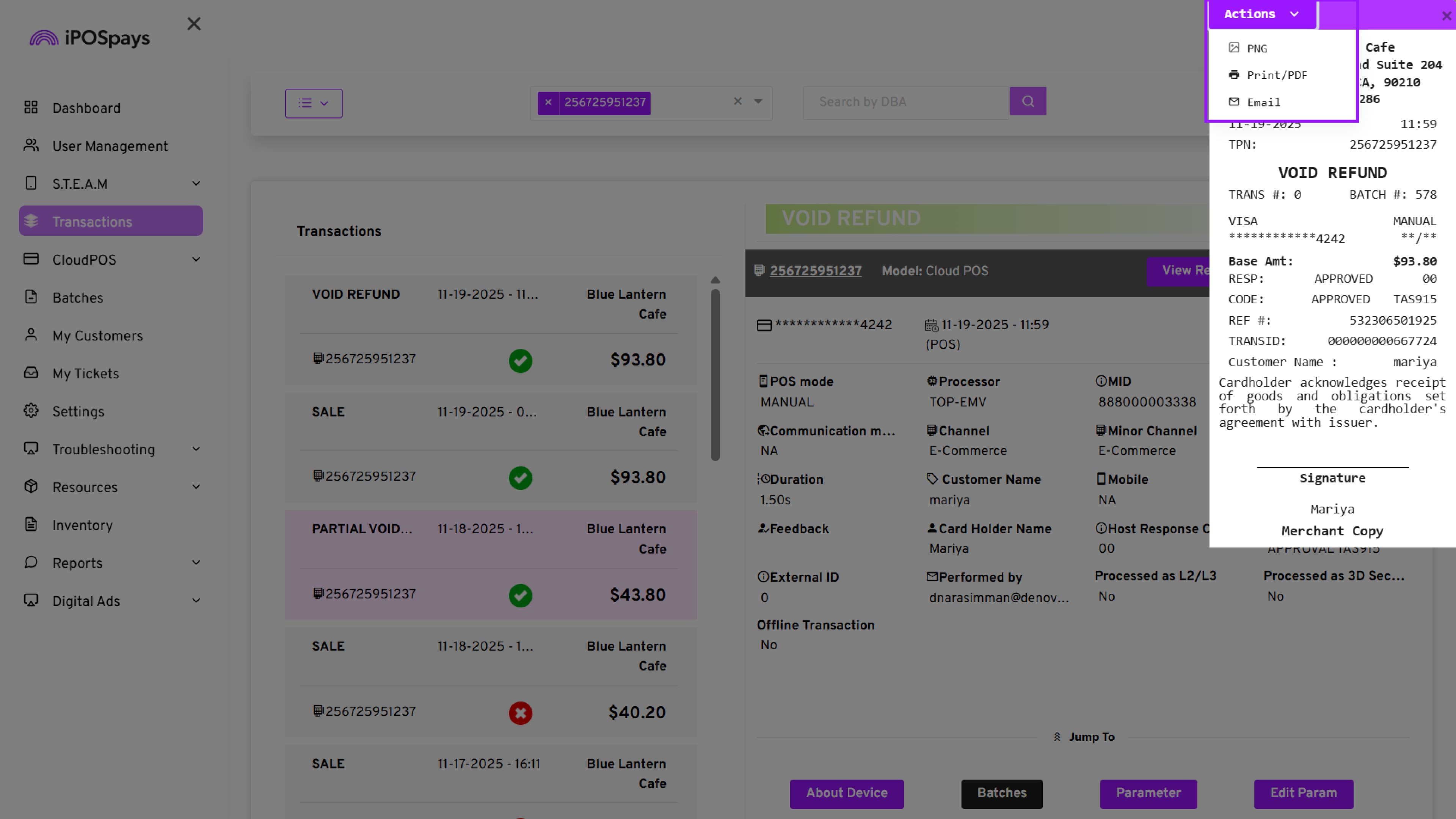
- Click View Receipt. You will see two options: Merchant Copy and Customer Copy
- Select the desired receipt from the available options (Merchant Copy or Customer Copy). The receipt will be displayed.
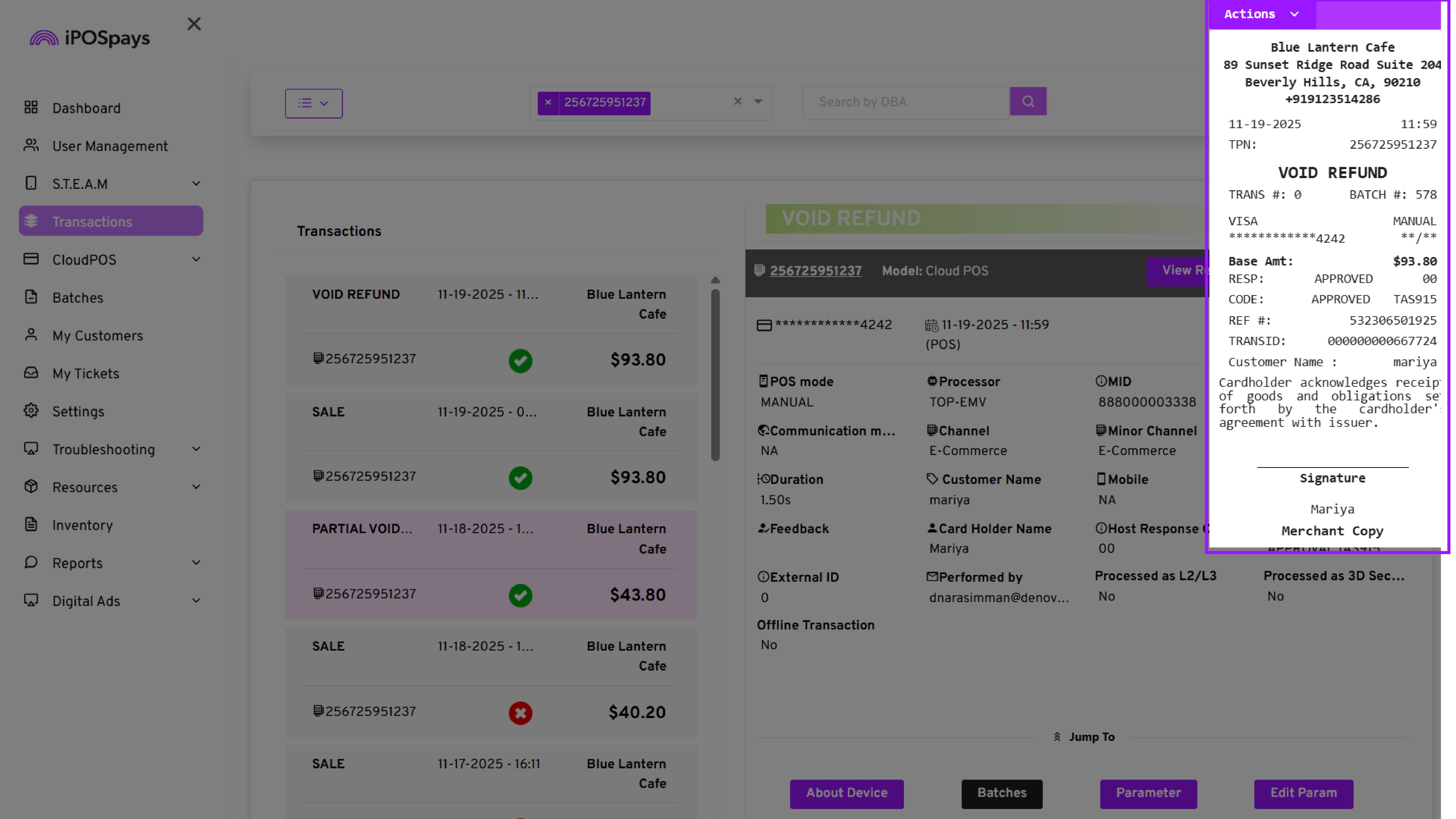
- If you click the Actions button on the receipt, you will see three options:
a. PNG: Downloads the receipt as an image file (PNG format). This can be saved or shared as a picture.
b. Print / PDF: You can print the receipt directly, or choose Save as PDF to download it as a PDF file.
c. Email: Allows you to send the receipt directly to an email address. Enter the email ID, and the system will send the receipt.
More Options in a GHPP Transactions
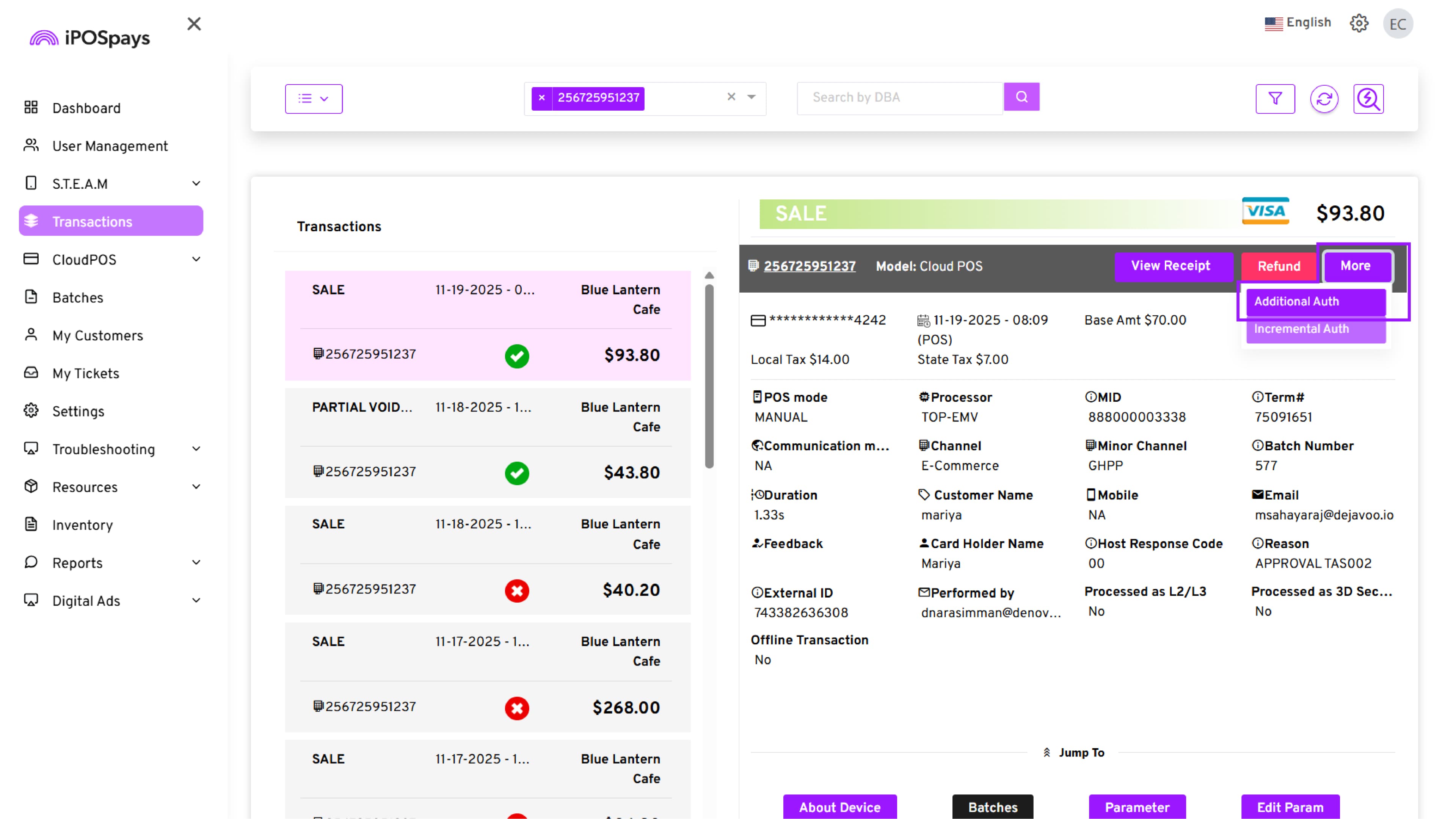
- Click More to view additional options. You have 2 options
a. Additional Auth
b.Incremental Auth (not available for GHPP transactions)
- Select Additional Auth if you need to increase the authorized amount.
Additional Auth cannot be performed for transactions in an open batch.
This action is only available once the batch is settled, ensuring the original transaction amount is finalized. If the batch is still open, the system will not allow any amount adjustments through Additional Auth.
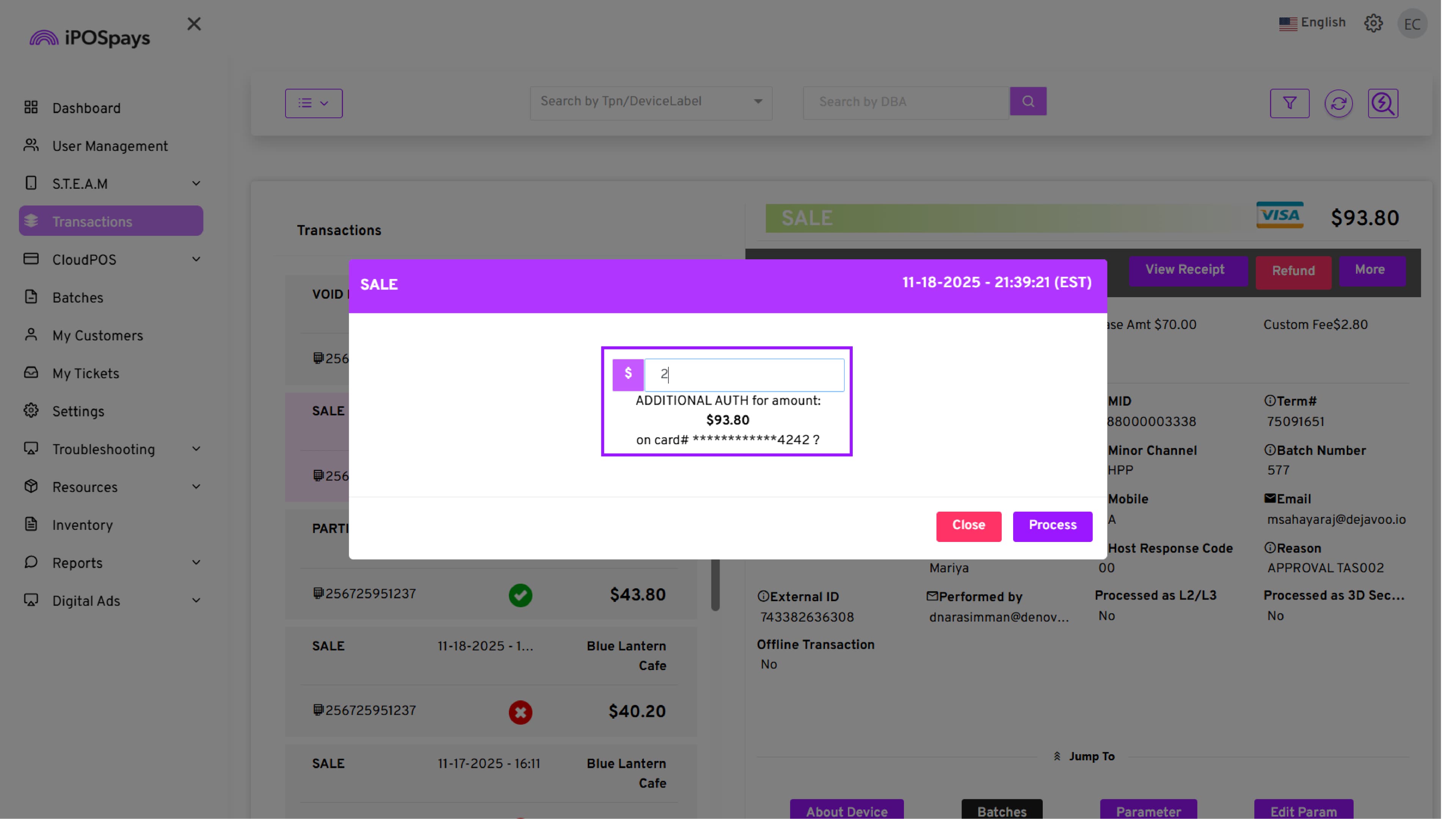
- You can enter the tip amount or any authorized amount in the box and click ‘Process’.
- The system will immediately show the status as Approved or Declined.
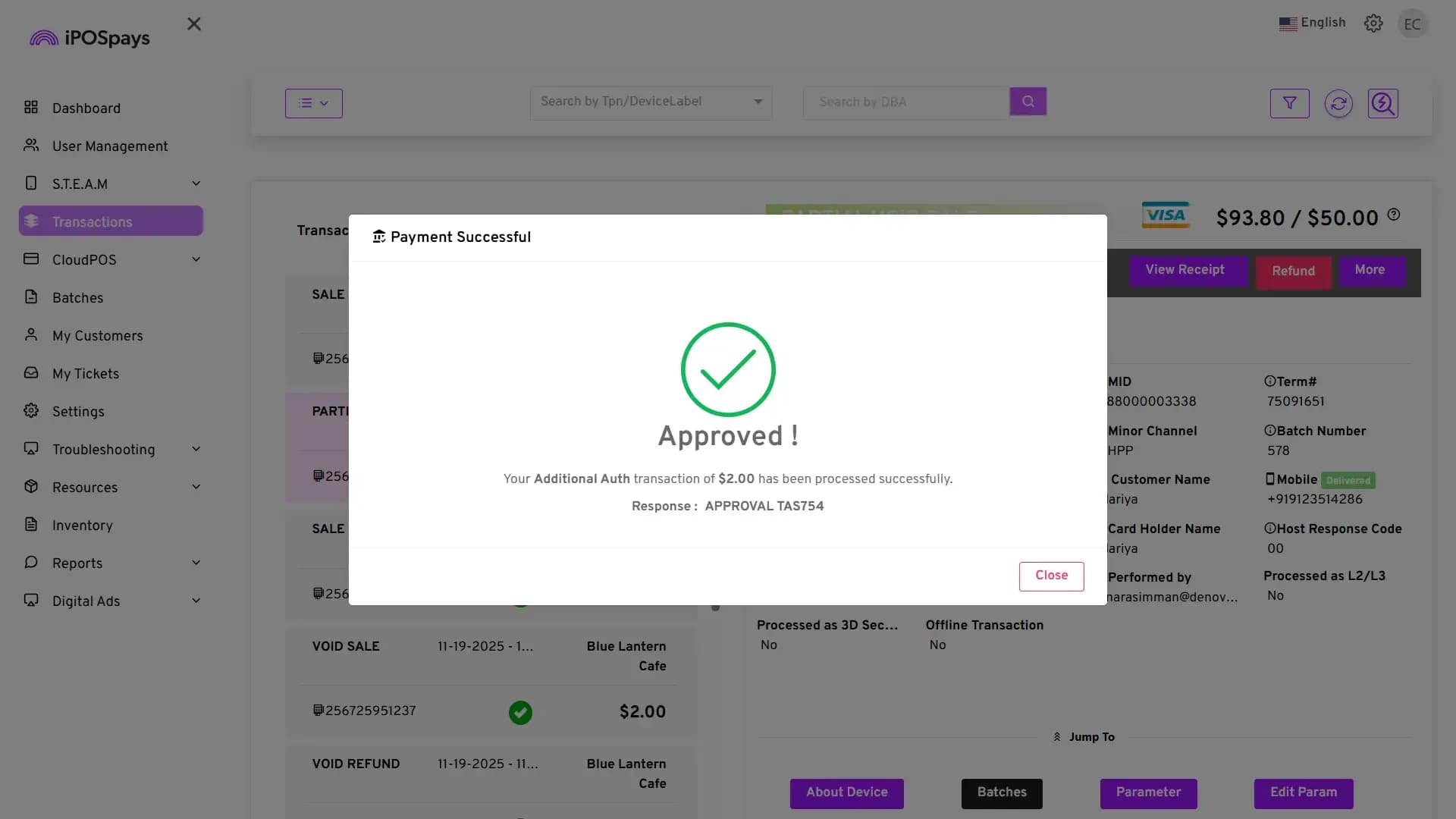
In GHPP, you can enable only Additional Auth (e.g., for adding tips). Incremental Auth is not available for GHPP transactions.