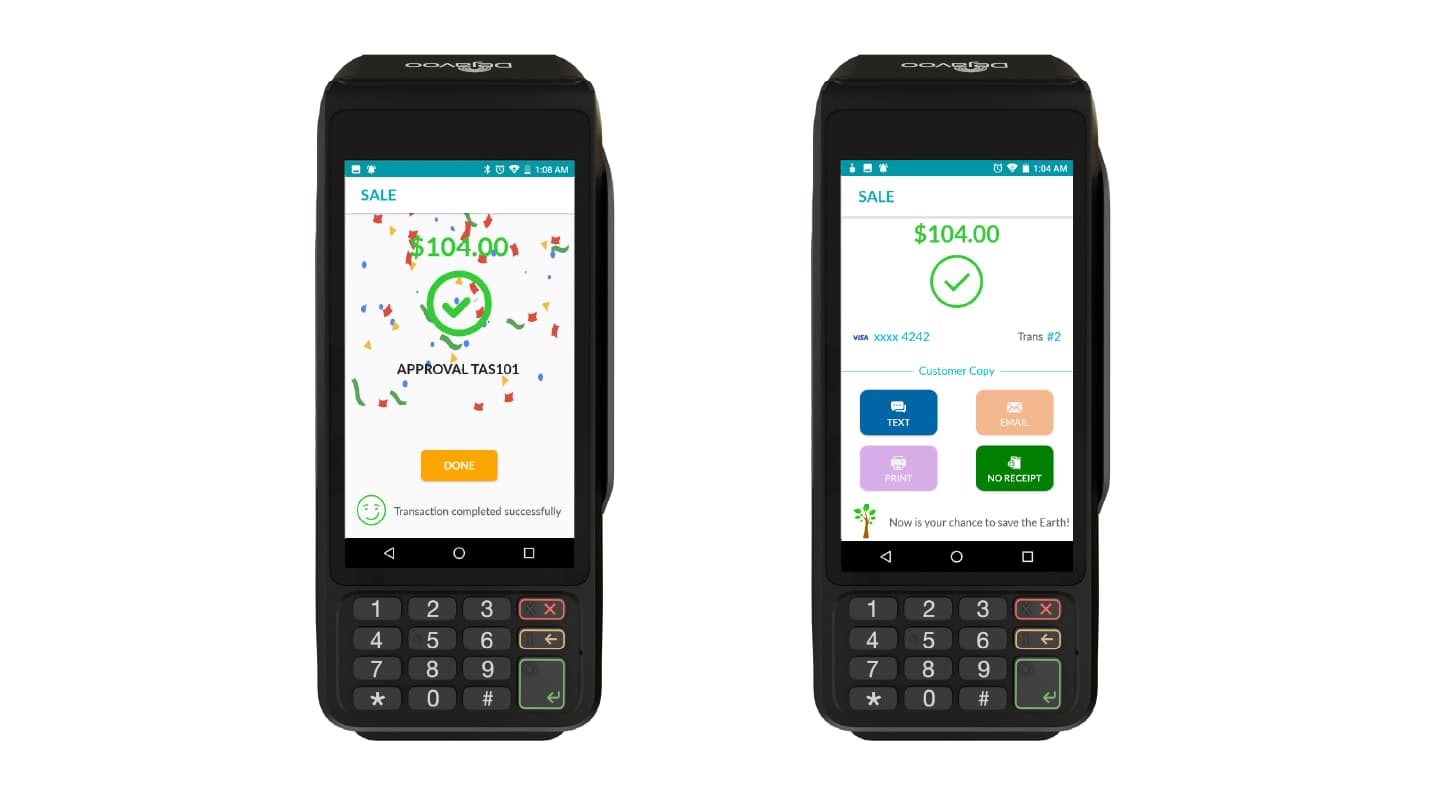
How to Integrate a Master Payment Terminal With a PIN pad
Merchants using a Dejavoo Master Payment Terminal can integrate a compatible PIN pad to process customer-facing transactions securely. This integration allows merchants to enter the transaction amount on the master terminal and transfer it directly to the PIN pad, where the customer completes the payment. This document explains how to integrate a Master Payment Terminal with a PIN pad using Wi-Fi pairing on iPOSpays.
Feature Compatibility
-
Minimum Required POS Build: Supported on all builds. For P18, the minimum required build is 10162.
-
Supported Processors: Supported by all processors
-
Supported Fee Types: Supported by all fee types
-
Supported Terminals:
-
Master Devices:
-
Android P Line Terminals: P1, P3, P8, P18
-
Android QD Line Terminals: QD2, QD4, QD5
-
-
PIN pad Devices:
-
Android P Line Terminals: P1, P3, P5, P8, P12, P17, P18
-
Android QD Line Terminals: QD2, QD3, Q3Pro, Q3mini, QD4, QD5
-
-
The Master device build number must be higher than or equal to the PIN pad build number.
Pairing Methods Overview
On a PIN pad, two pairing methods are available:
-
Wi-Fi pairing
-
USB pairing
Refer to How to Integrate a P1 Master Terminal With a P17 PIN pad Terminal for detailed USB pairing steps.
How to Enable PIN pad Integration from the Portal
To integrate a PIN pad with a master payment terminal, PIN pad mode must be enabled for the master terminal’s TPN.
Step 1: Log In to the iPOSpays Portal
Log in to the iPOSpays Portal using your ISO credentials.
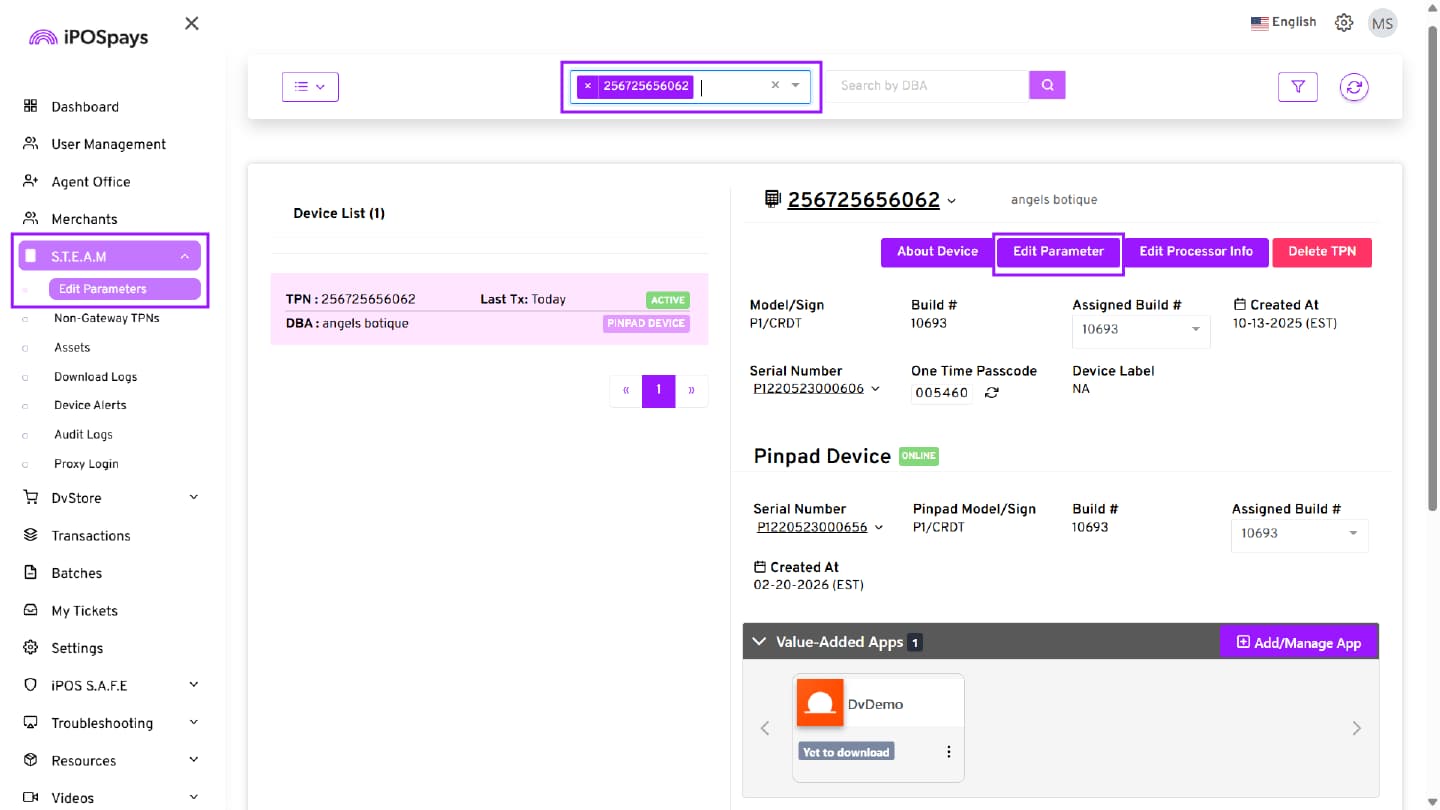
Step 2: Locate the Master Terminal TPN
-
From the side menu, click: S.T.E.A.M → Edit Parameters
-
Search for the TPN you want to enable PIN pad integration.
-
Click Edit Parameter.
Step 3: Configure Integration Settings
-
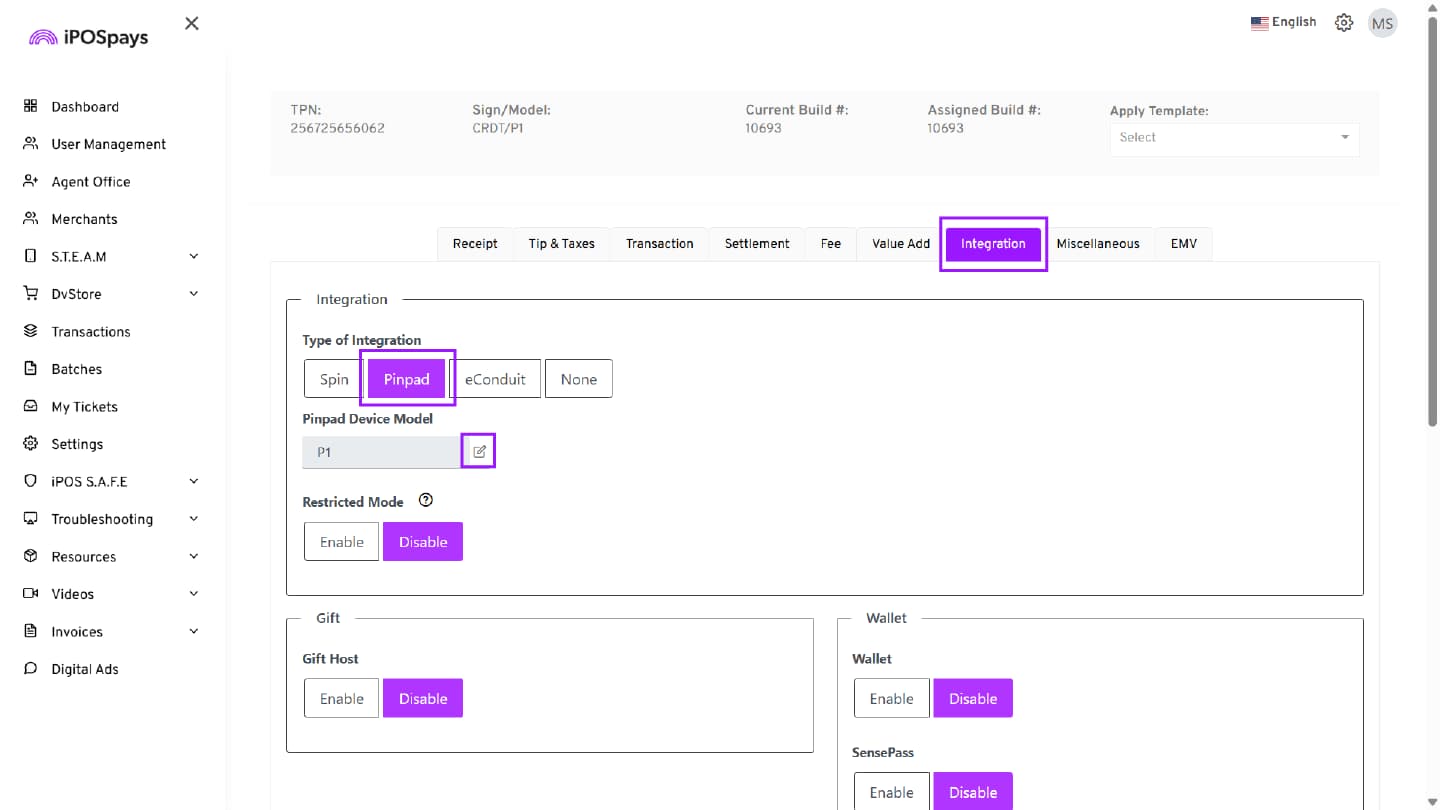
Select the Integration tab.
-
Under Type of Integration, select Pinpad.
-
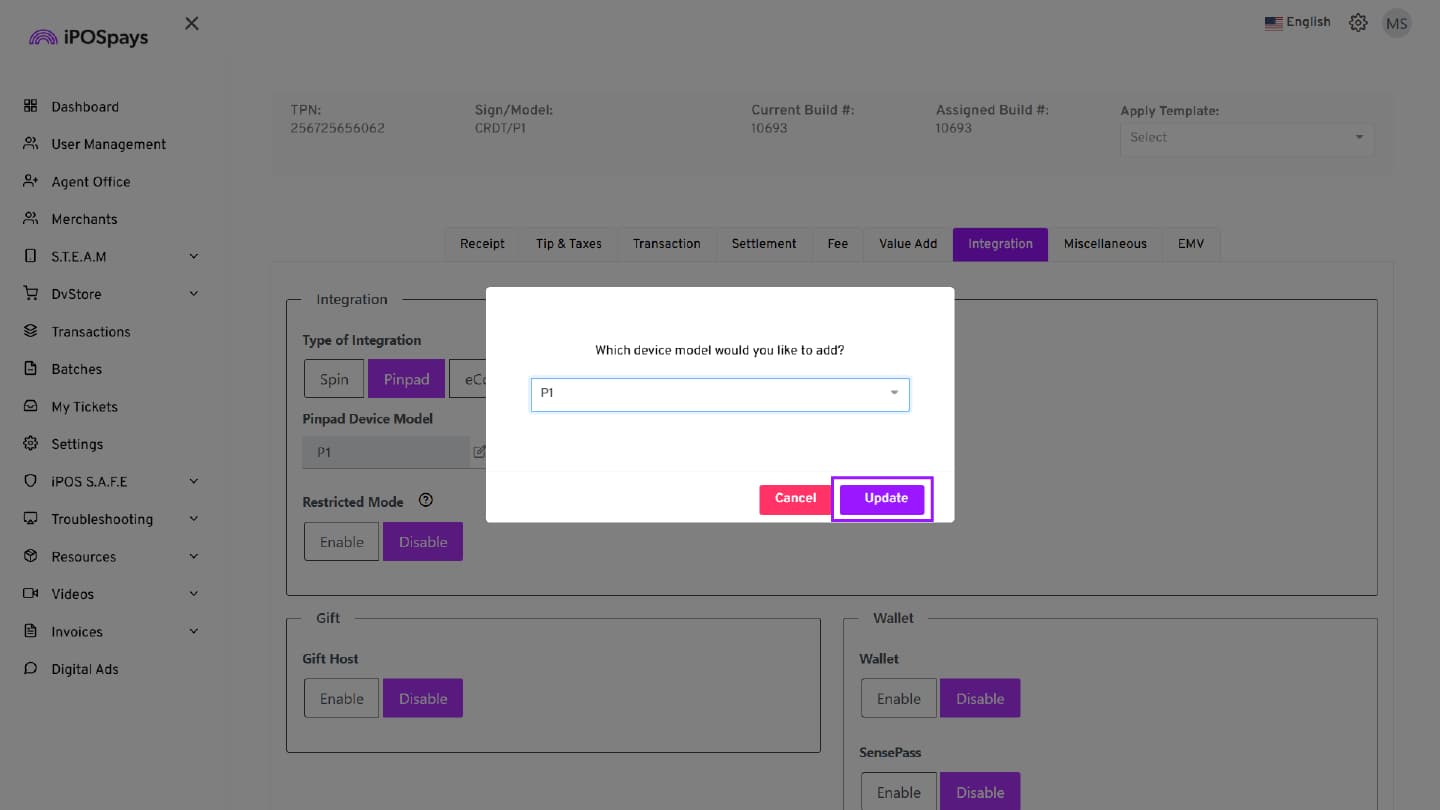
In the Pinpad Device Model field, click the Edit (✎) icon.
-
In the pop-up window:
-
Click the drop-down arrow
-
Select the appropriate PIN pad device model (for example, P1).
-
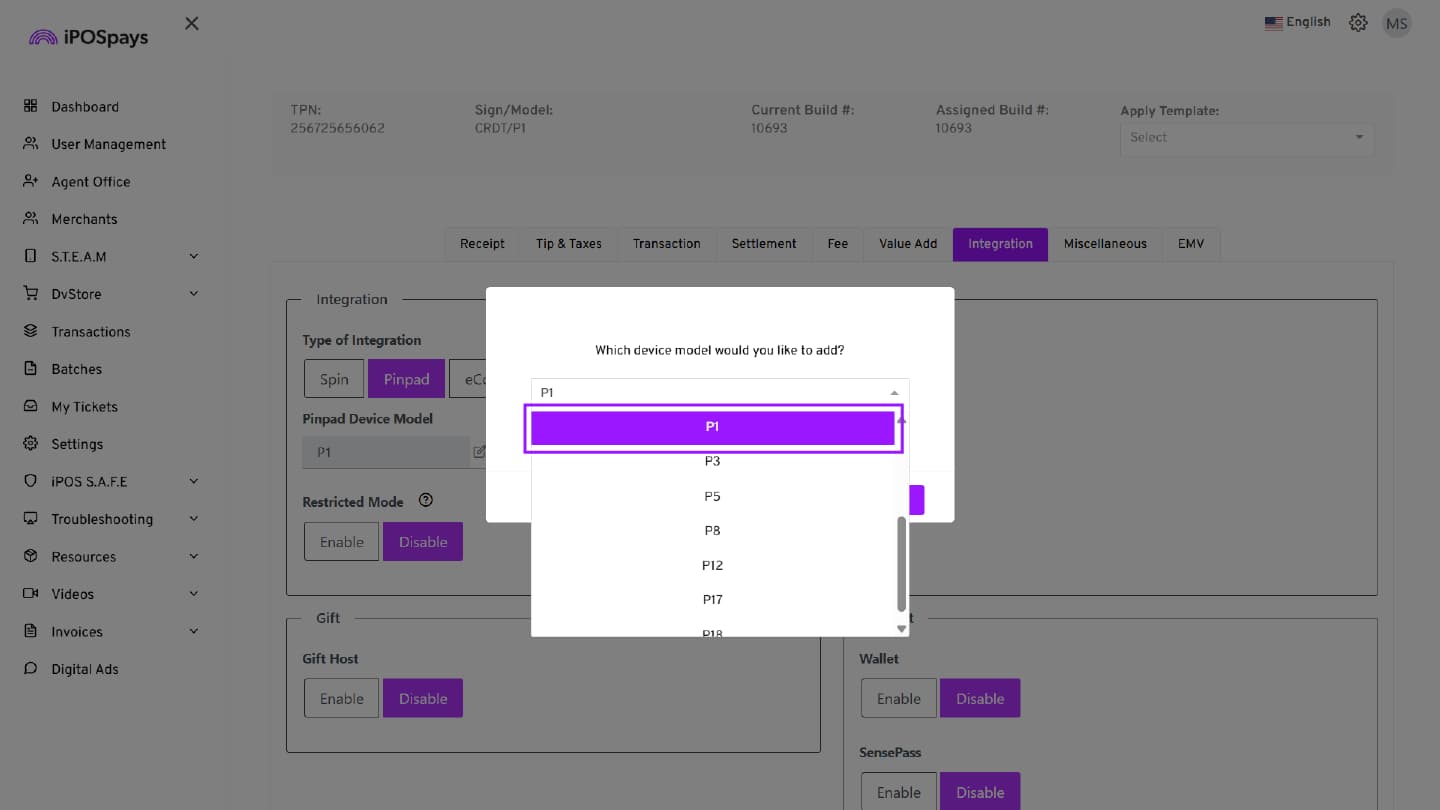
- Click Update to confirm the selection.
Step 4: Save the Configuration
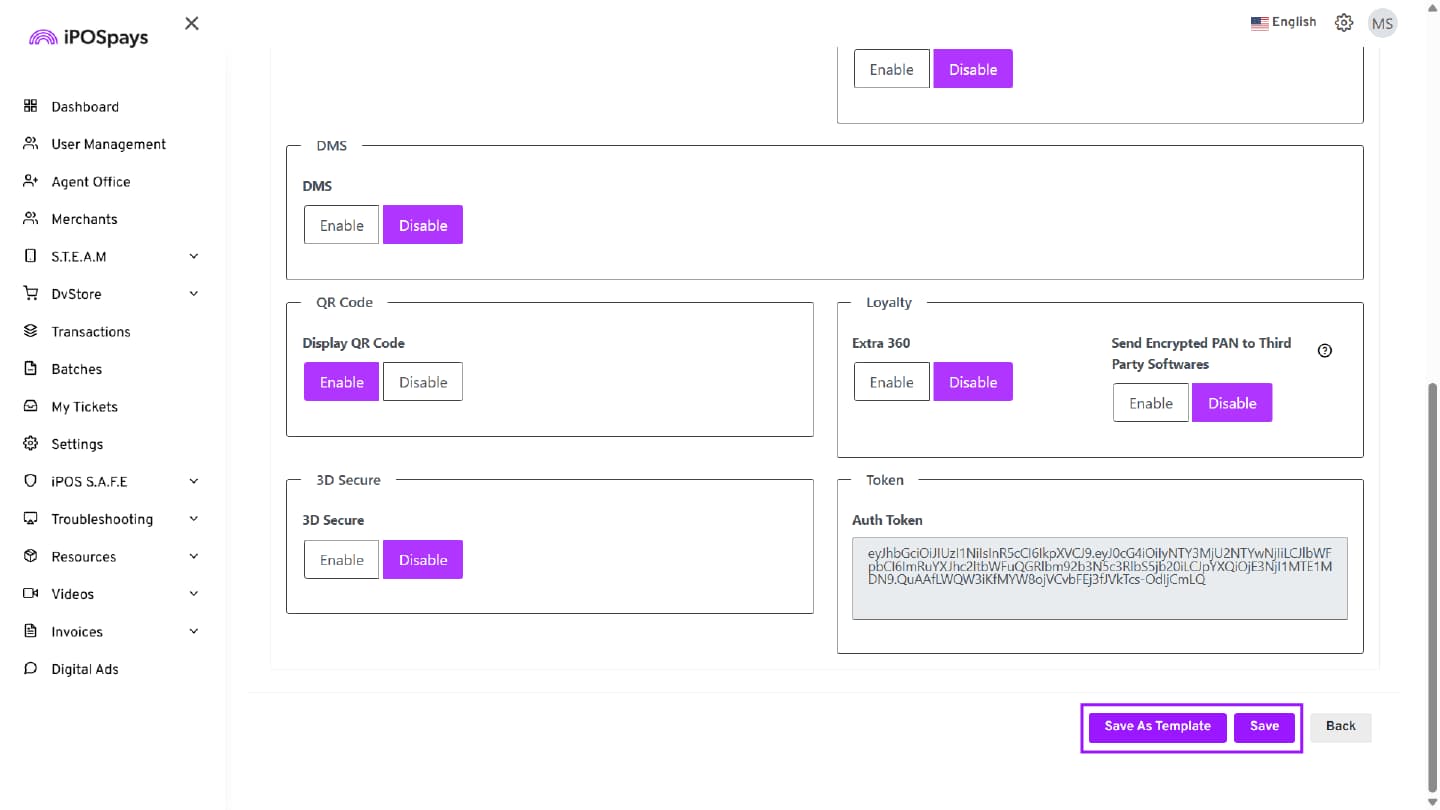
Once you have configured the required parameters, you have two options:
-
Save → Applies the current parameter configuration directly to the selected TPN.
-
Save as Template → Saves the current parameter configuration as a reusable template.
Pairing the Master Terminal With the PIN pad (Wi-Fi)
There are two pairing methods available (Wi-Fi or USB). This section covers pairing through a shared Wi-Fi network.
Both terminals must be connected to the same Wi-Fi network. This ensures both devices operate within the same subnet, which is required for IP-based communication during pairing.
Step 1: Download Parameters on the Master Terminal
-
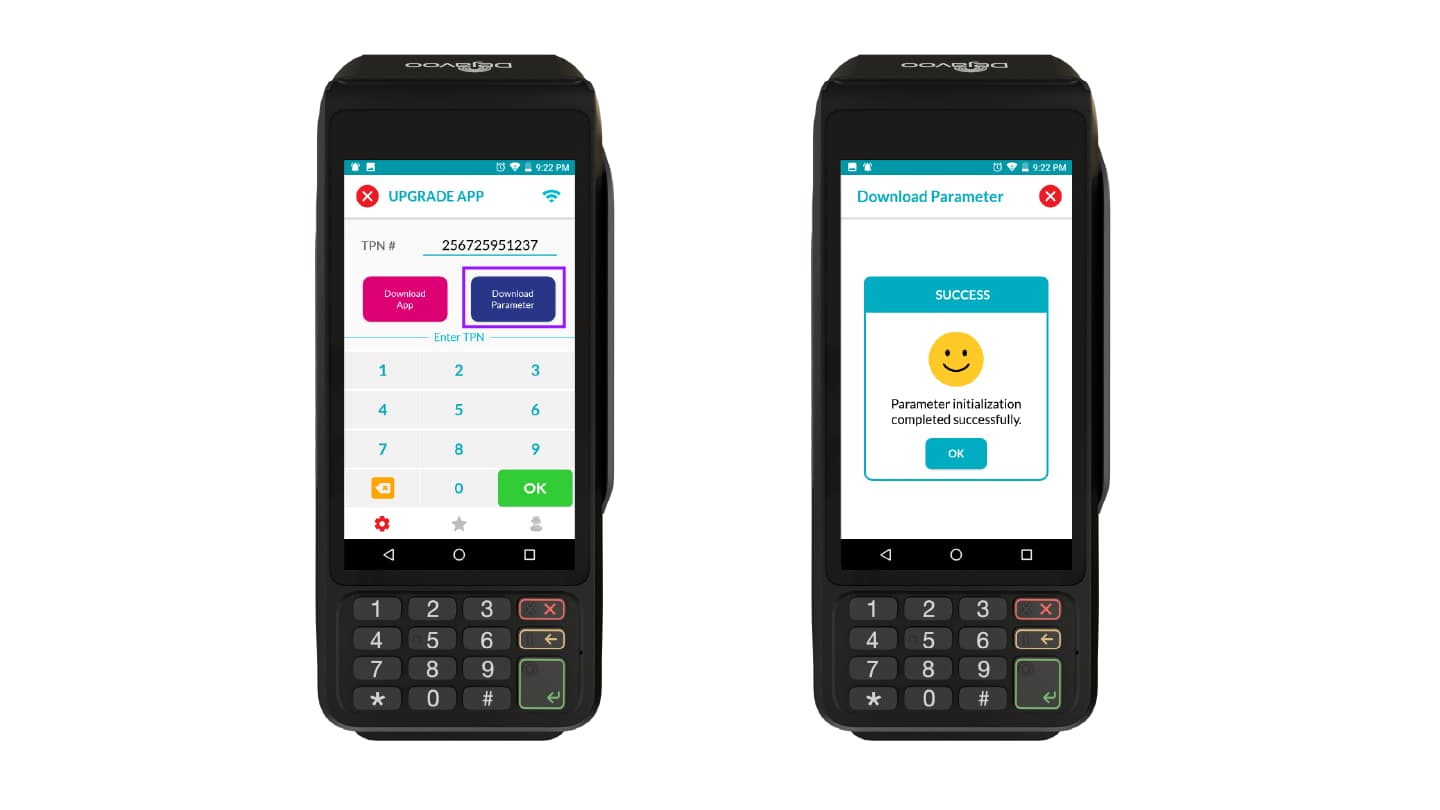
Connect the master terminal to Wi-Fi.
-
Perform a Parameter Download on the master terminal.
-
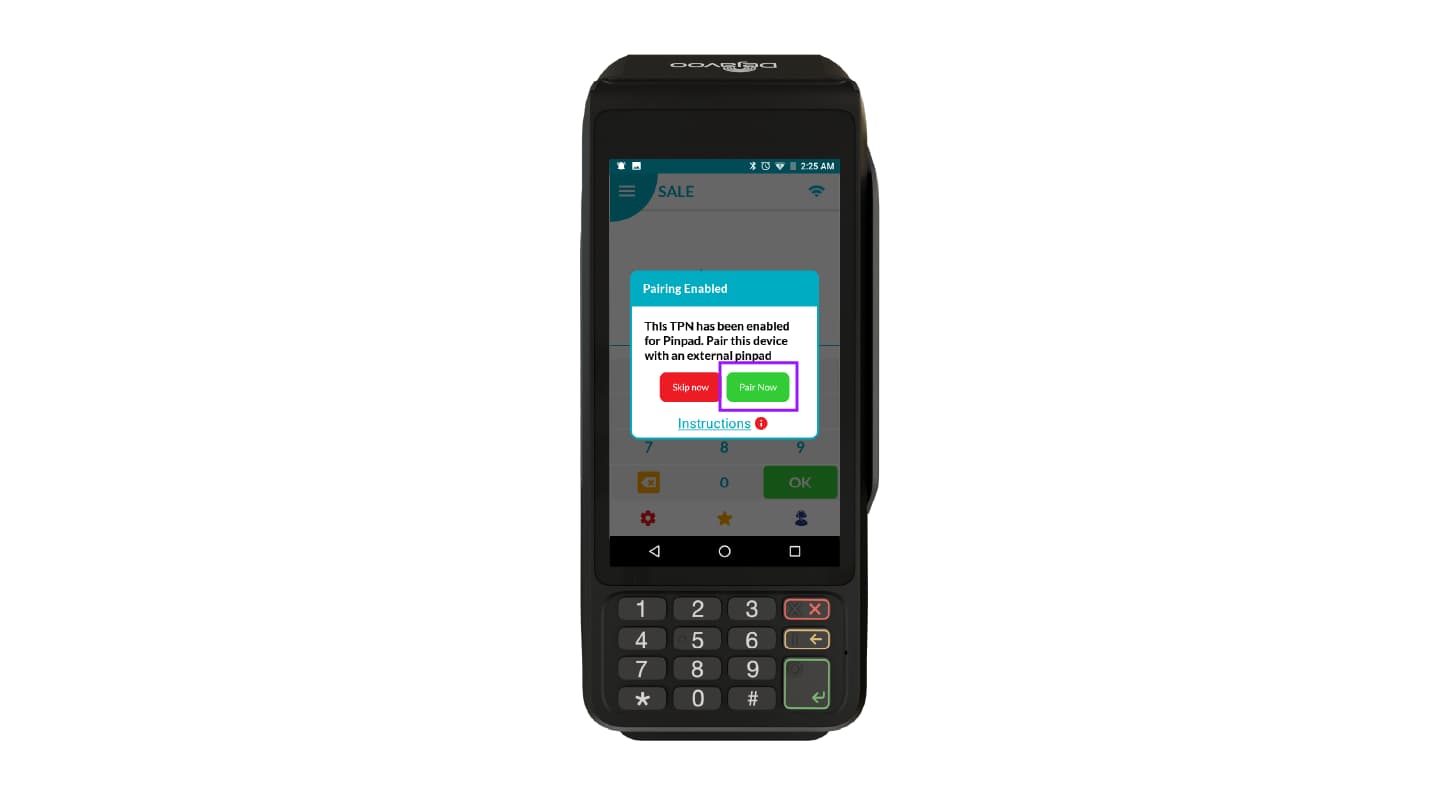
After the download completes, a prompt will appear to begin the pairing process.
-
Tap Pair Now to navigate to the PIN pad section in Settings.
Step 2: Configure Master Terminal for Pairing
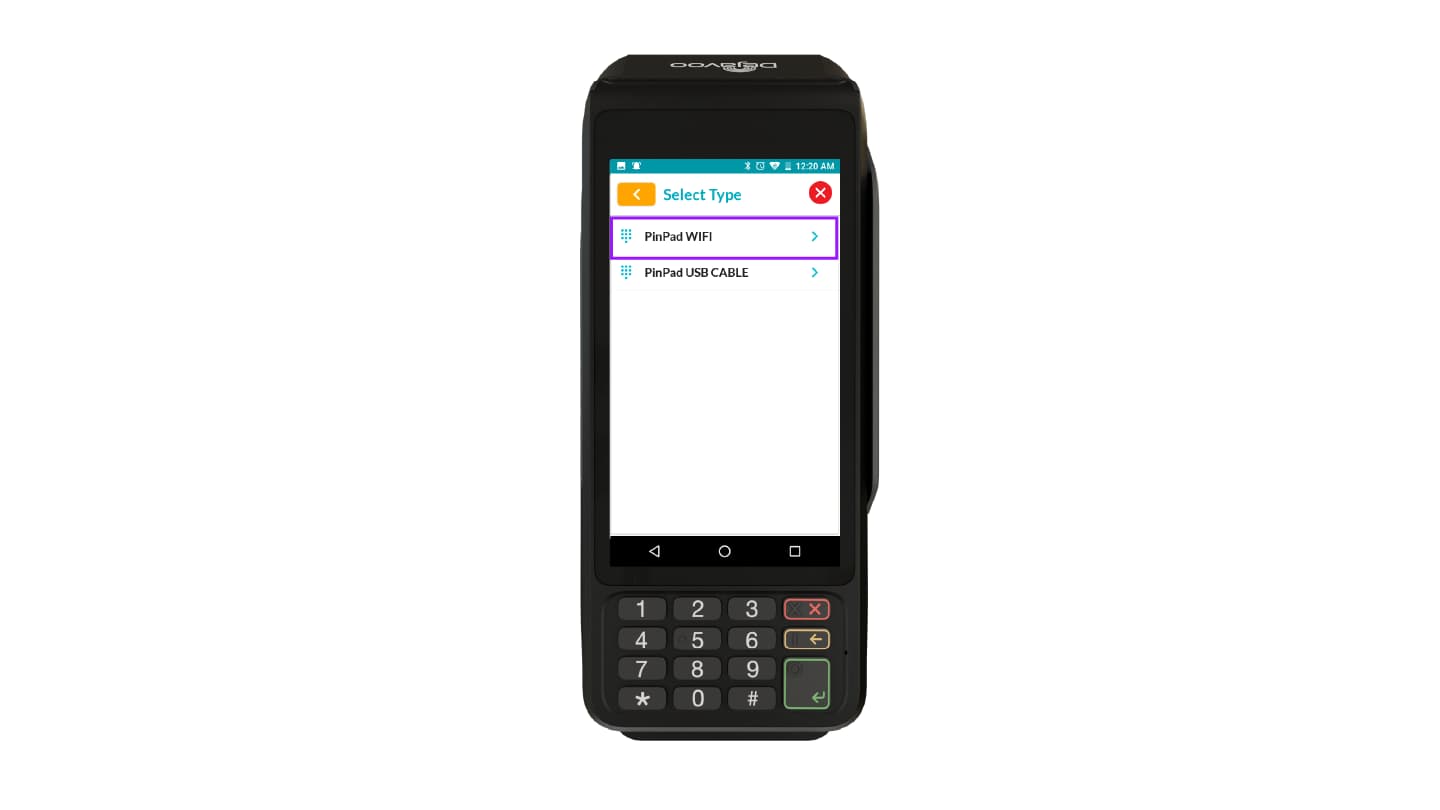
- Select PinPad WIFI.
- Verify that Master is selected in the Set the device as field.
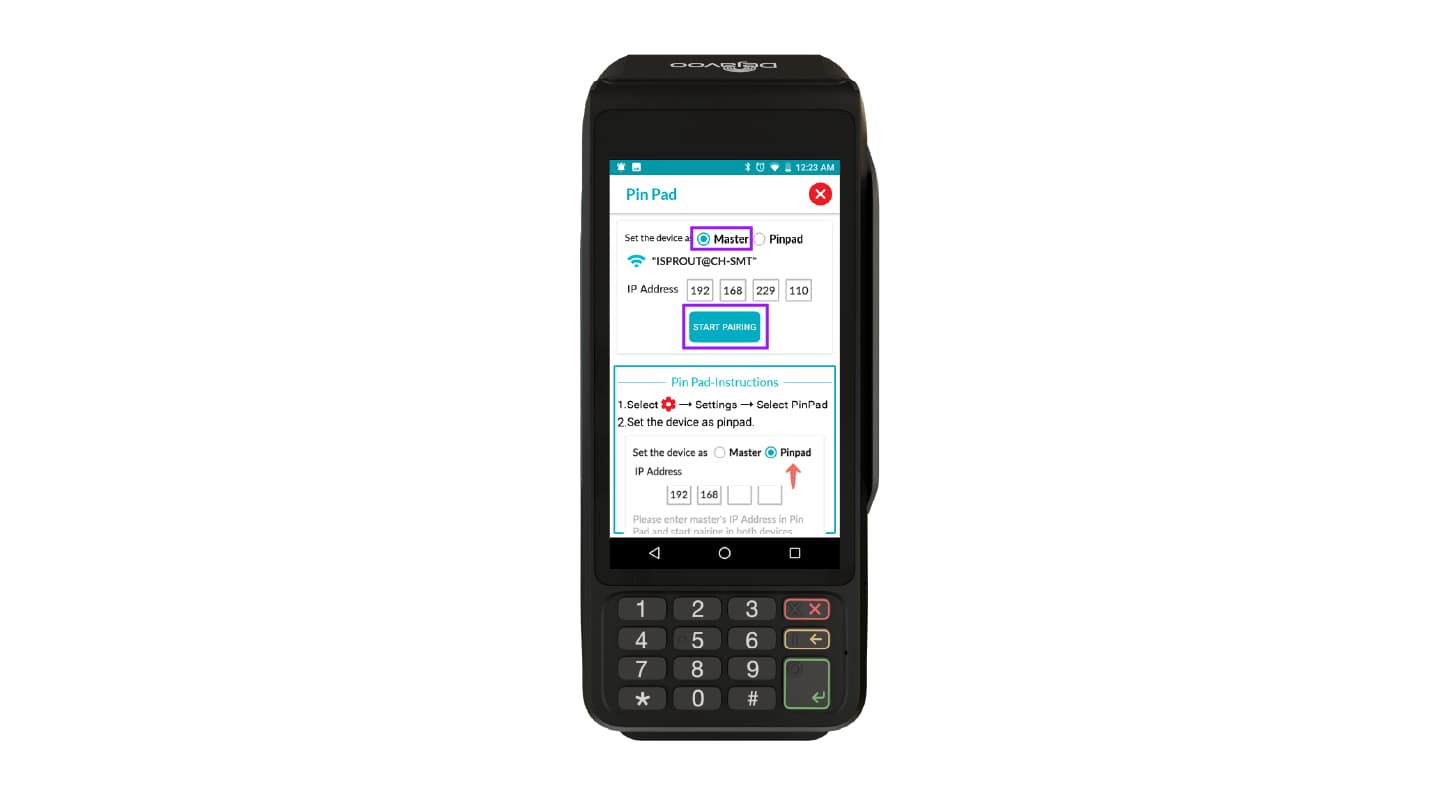
Step 3: Configure the PIN pad for Wi-Fi Pairing
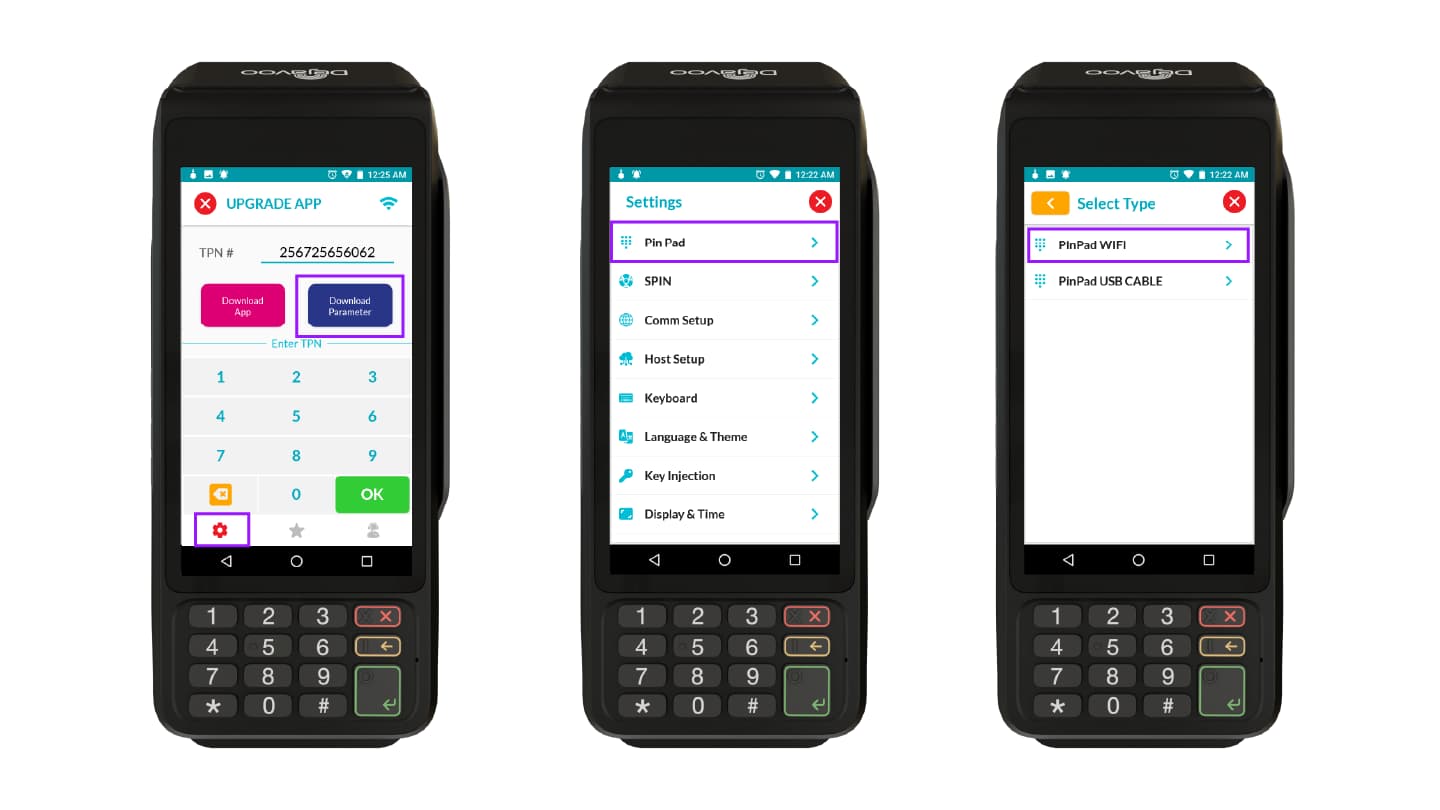
On the PIN pad terminal:
-
Go to Settings.
-
Select Pin Pad.
-
On the Select Type screen, choose PinPad WIFI.
-
The Pin Pad screen opens.
Step 4: Enter the Master Terminal IP Address
On the PIN pad:
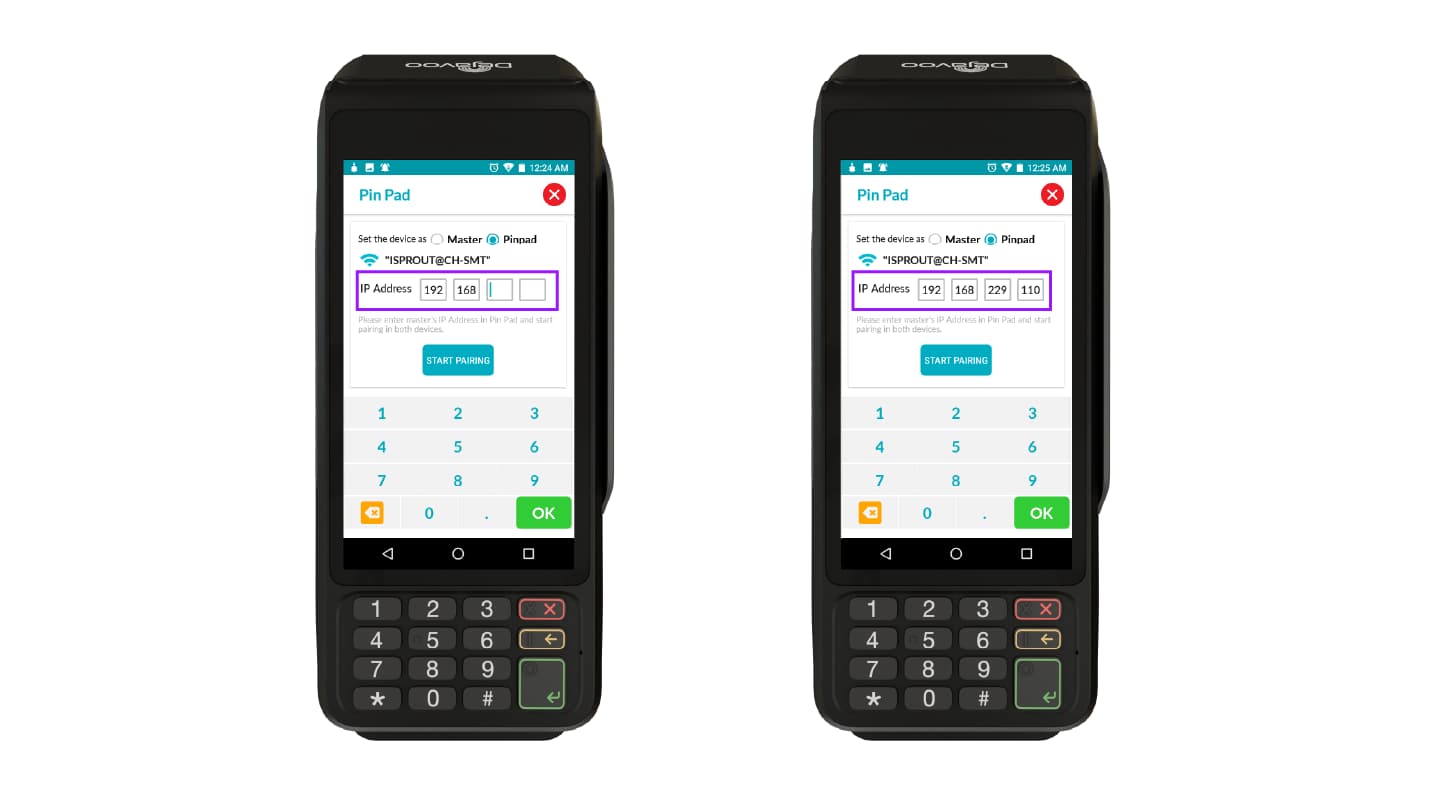
- Enter the IP address of the Master terminal in the IP Address field.
The IP address can be viewed from the master terminal’s network settings.
Step 5: Start Pairing
-
Tap the Pairing option on both terminals to initiate the pairing process.
-
Once successful, both terminals will confirm the connection.
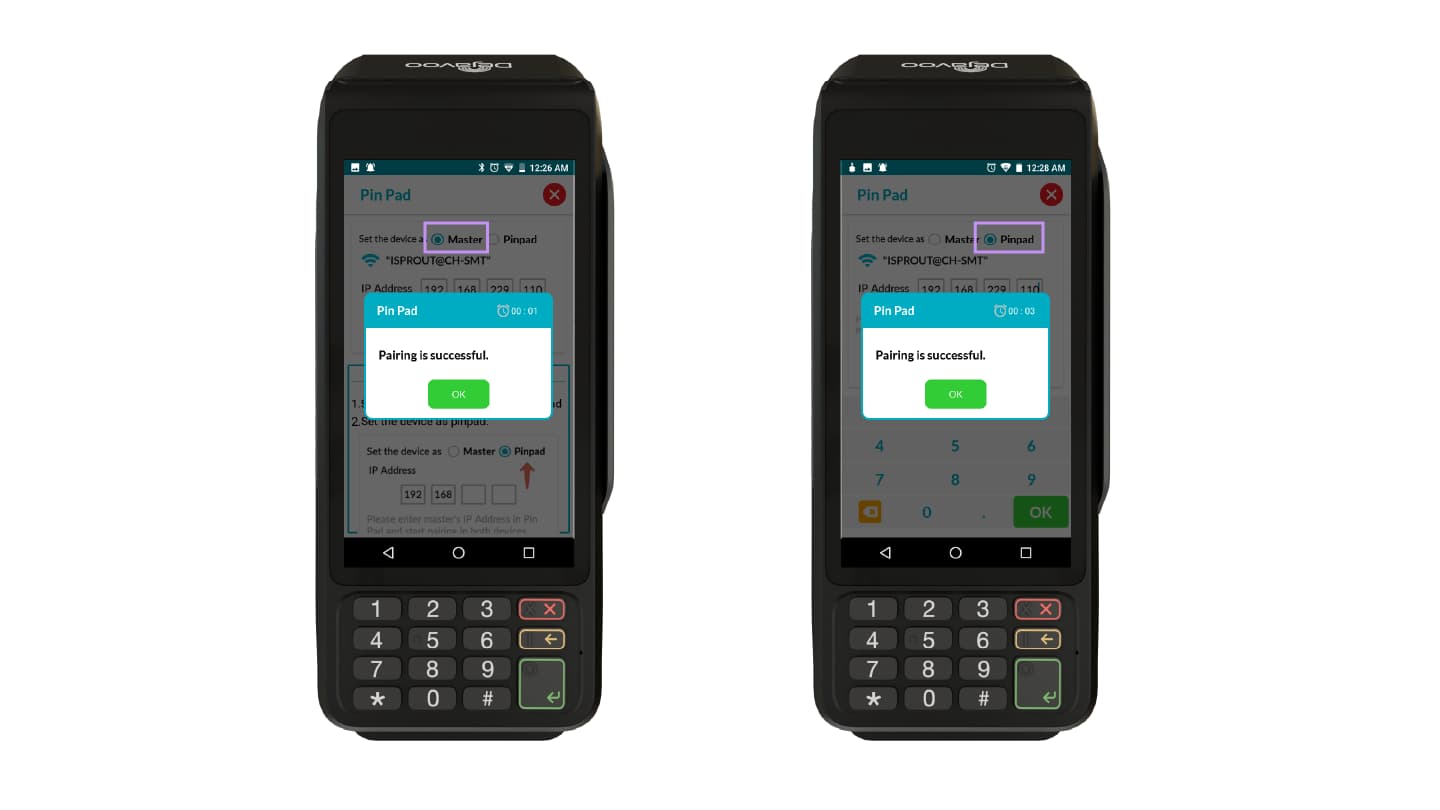
- The Master terminal and PIN pad are now connected through Wi-Fi.
Processing Transactions Using the Integrated PIN pad
After successful pairing:
Step 1: Initiate the Transaction
Initiate the transaction from the Master payment terminal.
Step 2: Enter the Amount
-
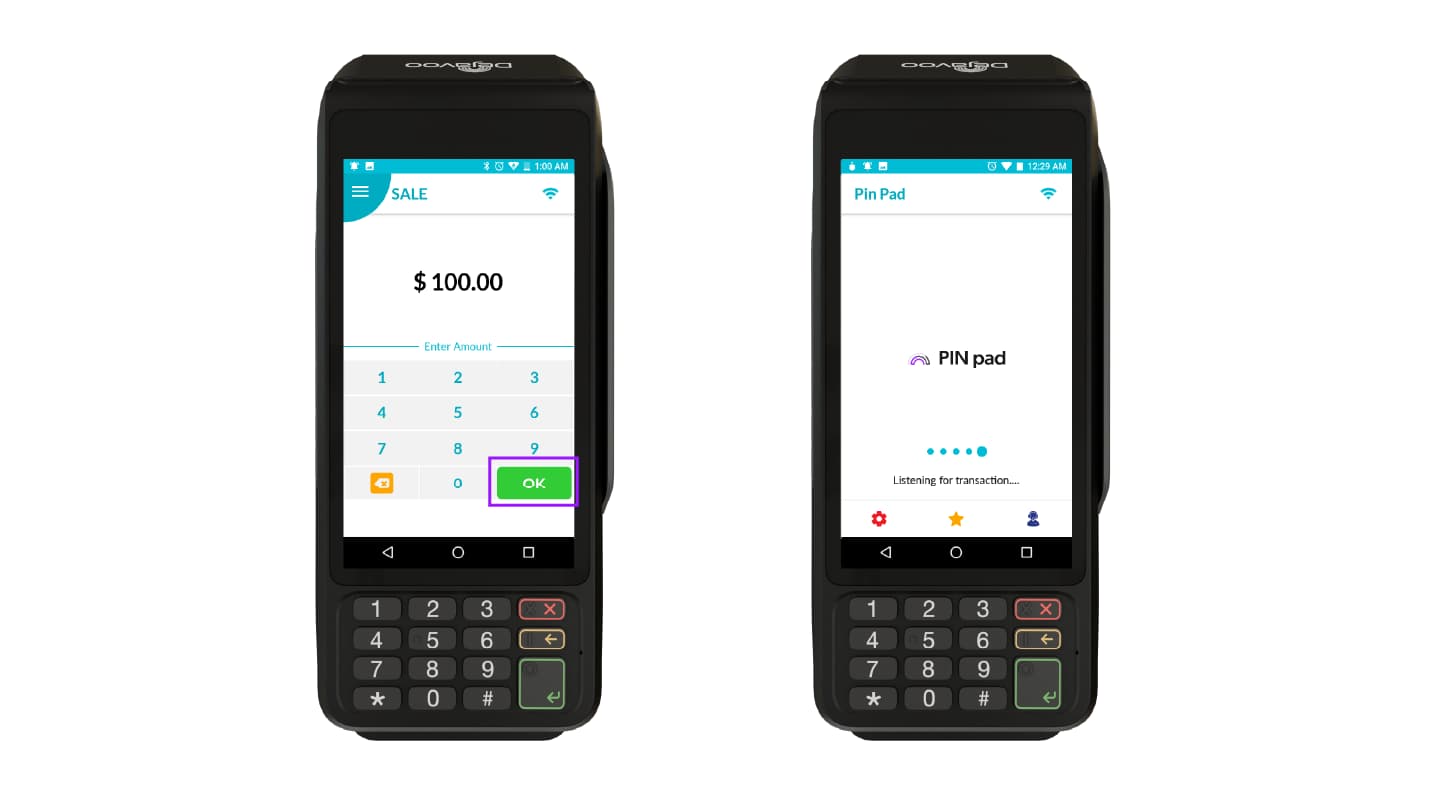
Enter the transaction amount on the Master terminal.
-
Click OK
Step 3: Amount Transfer to PIN pad
The entered amount will automatically transfer from the Master terminal to the integrated PIN pad.
Step 4: Customer Completes Payment
-
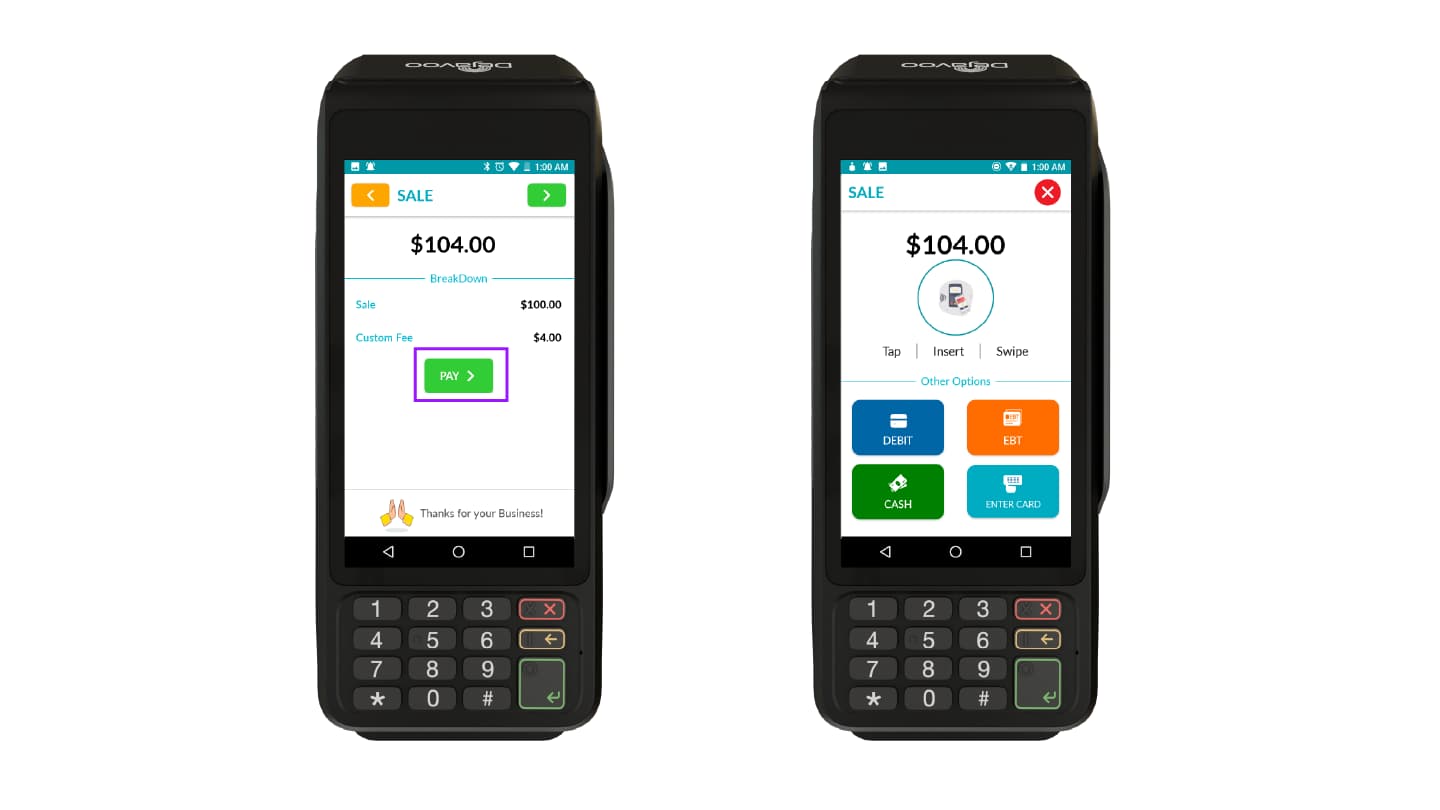
The customer completes the payment on the PIN pad.
-
Click PAY to proceed with the transaction.
-
Select the required payment method and complete the transaction.
-
Step 5: Transaction Confirmation
Once the transaction is completed, the transaction status is sent back and displayed on the Master terminal.