How to Onboard an Agent Office on iPOSpays
This guide explains how to onboard an Agent Office on the iPOSpays portal, configure hierarchy and privileges, and assign a merchant under the Agent Office. It ensures proper hierarchical structure and controlled access within the ISO–Agent–Merchant framework.
Steps to Onboard an Agent Office
To onboard an Agent Office, complete the following steps:
Step 1: Log In to the iPOSpays Portal
Log in to the iPOSpays Portal using your ISO credentials.
Step 2: Navigate to Agent Office
-
From the left-hand menu, click Agent Office.
-
Click the Actions menu.
-
Select Add Customer.
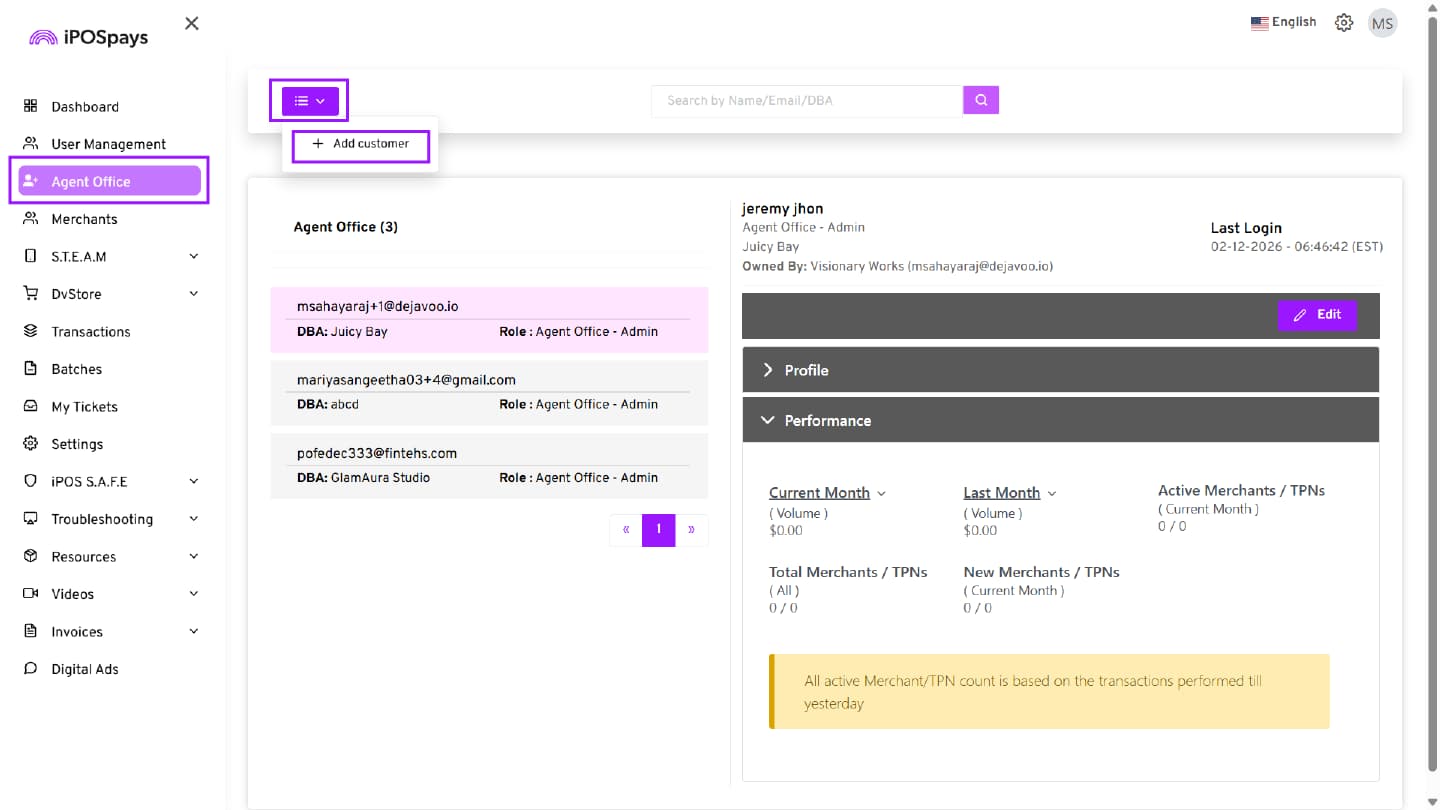
- You will be directed to the Agent Office creation page.
Step 3: Enter Agent Office Details
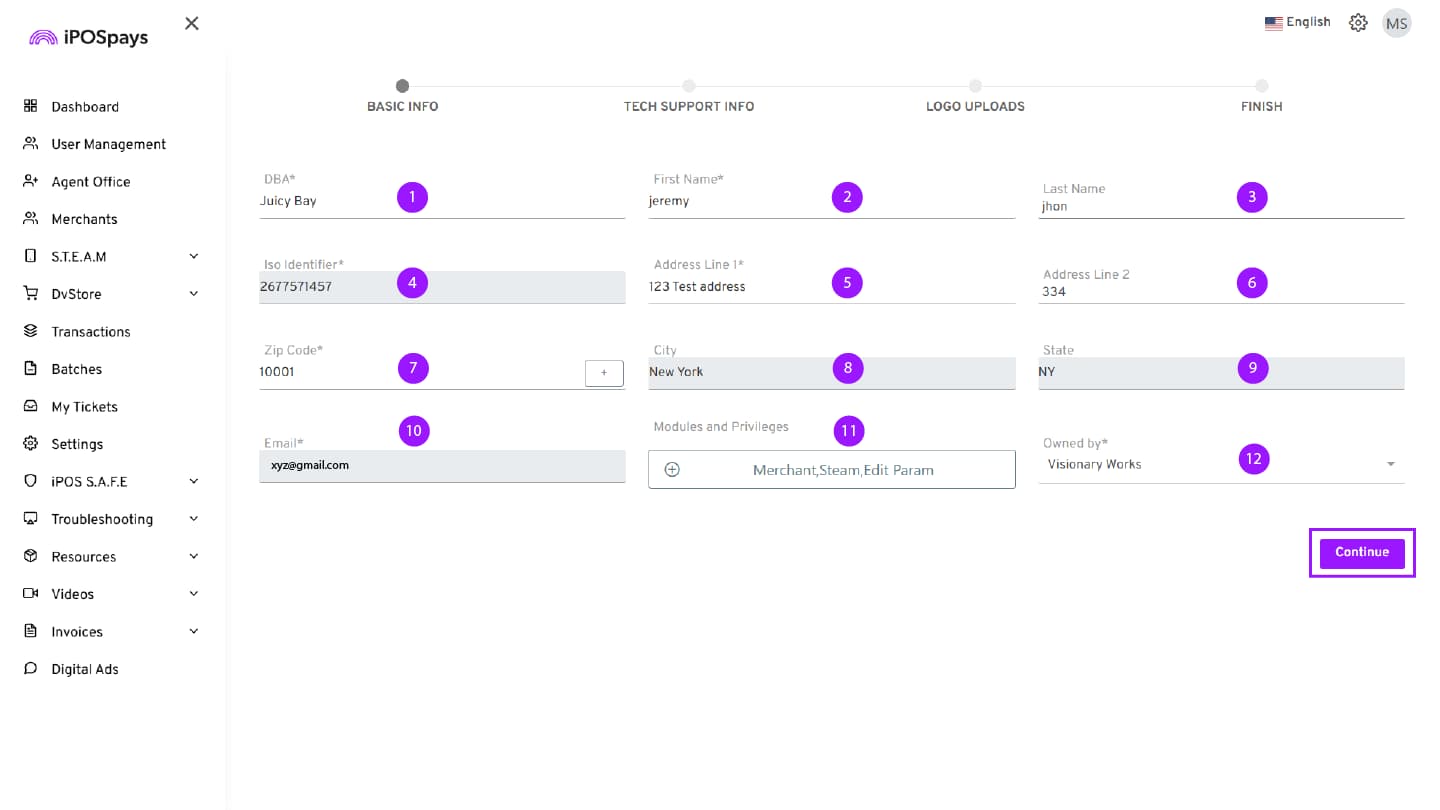
Complete the required fields in the Agent Information section:
-
DBA – Enter the merchant’s business name.
-
First Name – Enter the merchant’s first name.
-
Last Name – Enter the merchant’s last name.
-
ISO Identifier – Enter the ISO Identifier associated with the merchant.
-
Address Line 1 – Enter the primary business address (street address).
-
Address Line 2 – Enter additional address details such as suite, unit, or floor number if applicable
-
ZIP Code – Enter the ZIP code and select the appropriate city from the dropdown. If the city isn’t listed, click the + icon to add it
-
City – This field populates automatically based on the ZIP code.
-
State – This field populates automatically based on the ZIP code.
-
Email – Enter a unique email address. This email will be used as the login ID and for all Agent Office communications.
Step 4: Configure Modules and Privileges
- Modules and Privileges – Click the drop-down menu to select the required modules and assign privileges to the Agent Office.
-
The ISO can control what level of access the Agent Office will have.
-
The following modules and privileges are available:
Merchant
-
Enable this module to allow the Agent Office to onboard and manage merchants.
-
If the Merchant module is not enabled, the Agent Office will not be able to create or manage merchants in the iPOSpays portal.
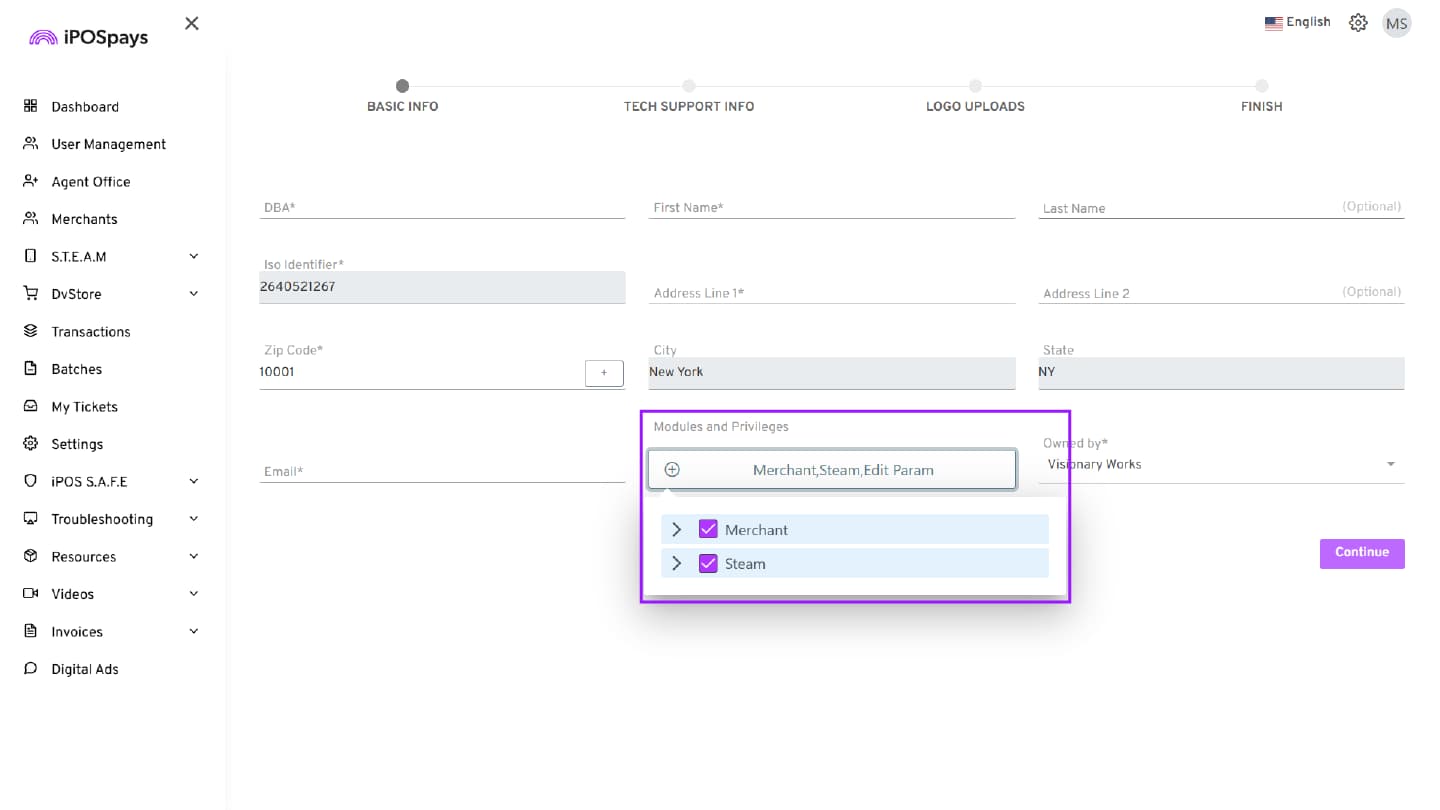
Steam
Enable this module to allow access to the S.T.E.A.M section.
Under the Steam module, the following privileges are available:
-
Assign Build – Allows the Agent Office to assign builds within S.T.E.A.M.
-
Edit Param – Allows the Agent Office to edit device parameters.
Under Edit Param, the following sub-privileges are available:
-
All Params – Grants access to all parameter configurations.
-
Edit Fee – Allows modification of fee-related settings.
-
Select the appropriate modules and privileges based on the required hierarchy and access level.
Step 5: Define Hierarchy Using the “Owned by” Field
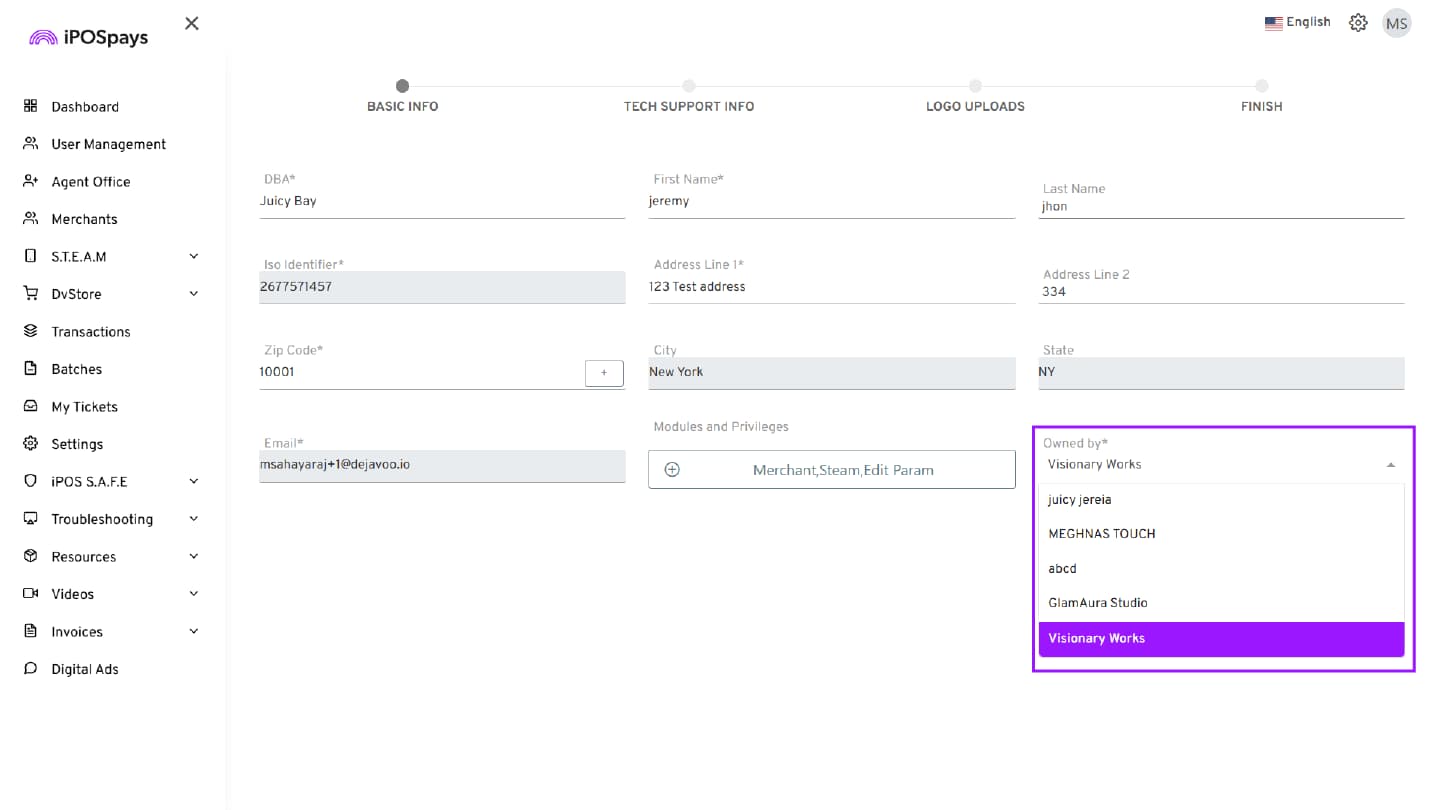
- Click the down arrow in the Owned By field.
-
The Owned By field determines the hierarchical structure.
-
To create a direct Agent Office under the ISO:
- Select the ISO name from the drop-down.
-
To create a Sub Agent Office under an existing Agent Office:
- Select the respective Agent Office as the owner from the drop-down.
-
This structure can continue with multiple sub-levels as required.
- Click Continue to proceed.
Fields marked with an asterisk (*) are mandatory.
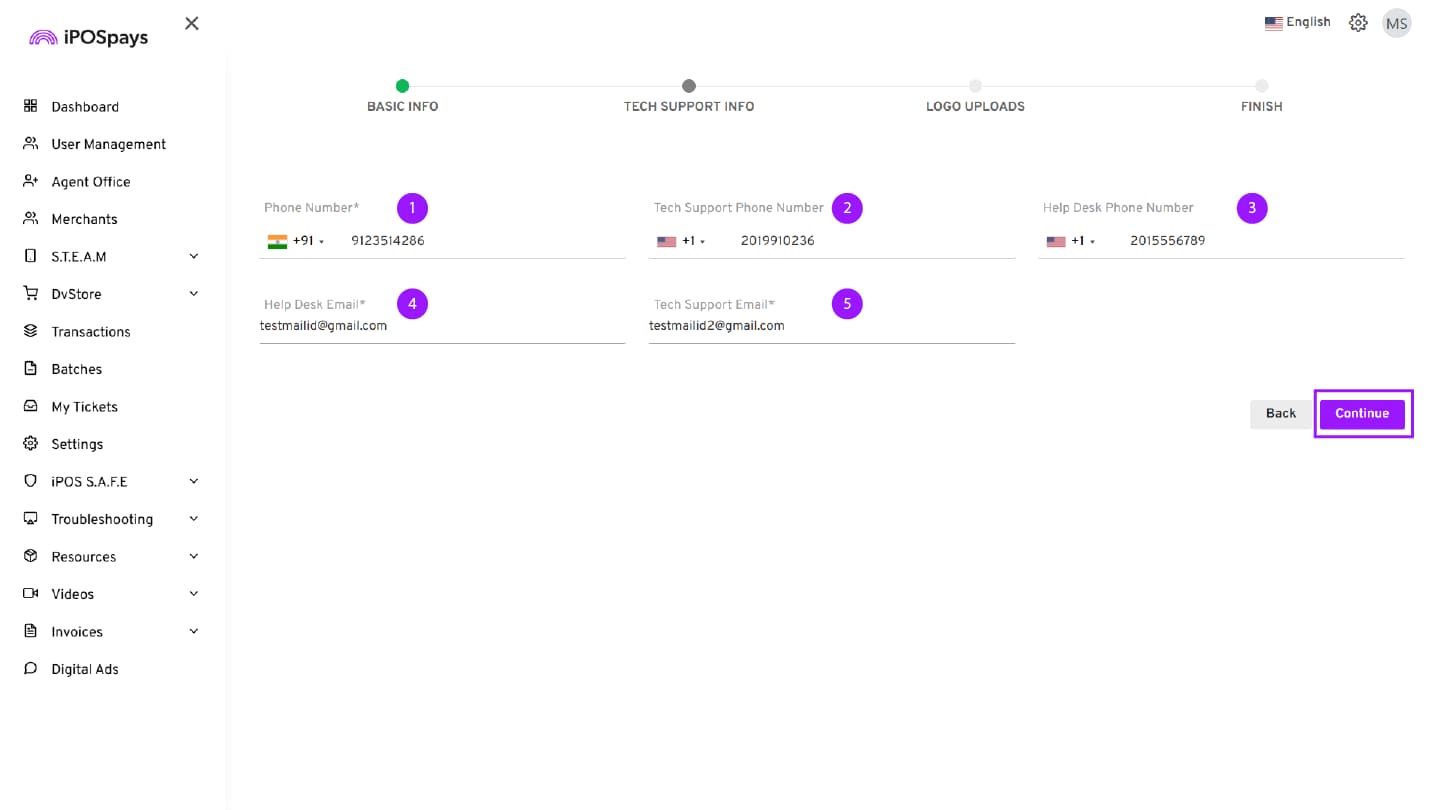
Step 6: Add Tech Support Information
In the Tech Support Info section, enter the required support contact details for the Agent Office.
-
Phone Number – Enter the primary contact number of the Agent Office.
-
Tech Support Phone Number – Enter the technical support contact number.
-
Help Desk Phone Number – Enter the help desk contact number.
-
Help Desk Email – Enter a valid help desk email address.
-
Tech Support Email – Enter the technical support email address.
If the Agent Office does not have dedicated support contacts, you may enter the ISO’s support details instead.
- After entering all required information, click Continue.
Fields marked with an asterisk (*) are mandatory.
Step 7: Upload Logo
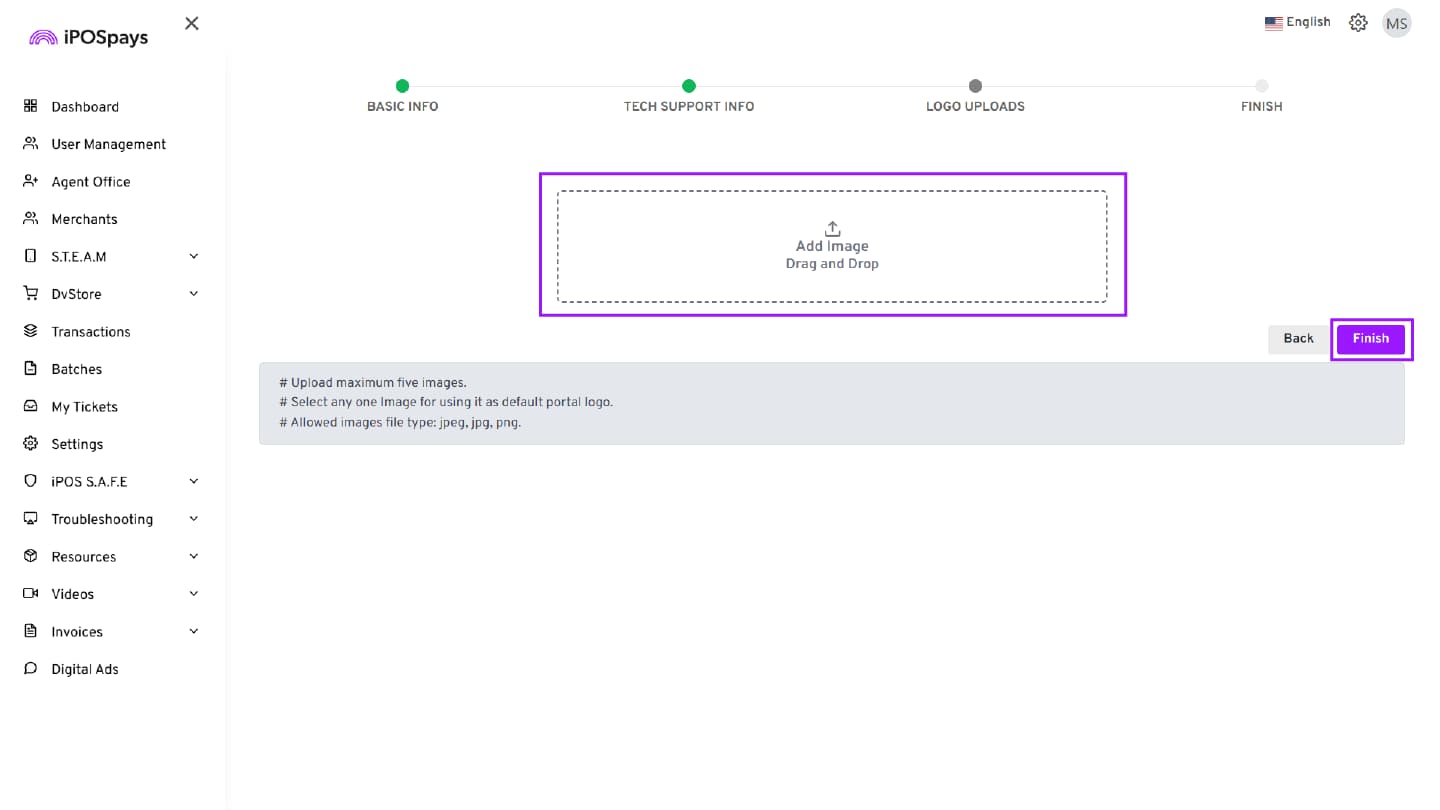
Upload the Agent Office logo if required.
-
The uploaded image will appear as the default logo for that Agent Office account.
-
Click Finish to complete the onboarding.
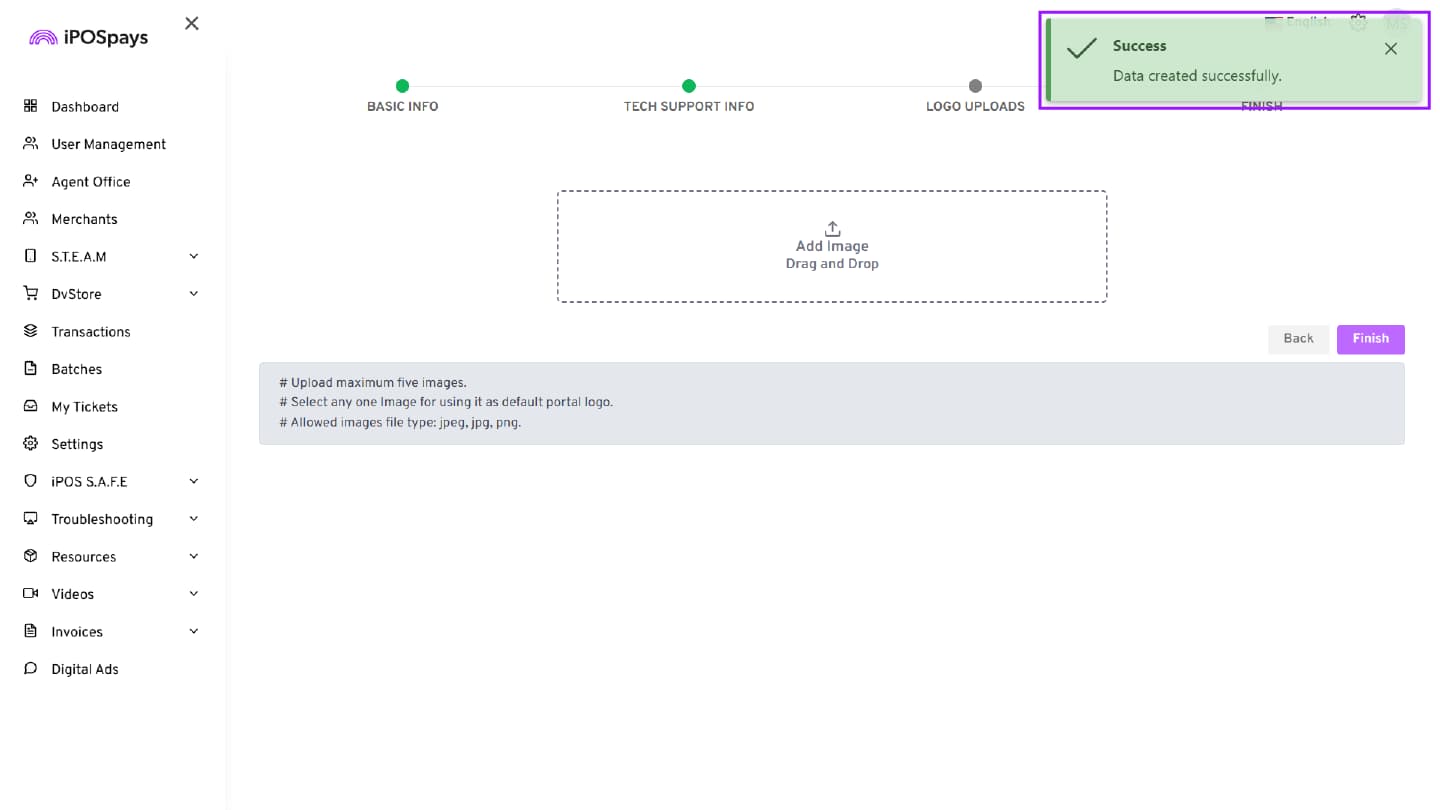
- The Agent Office is now successfully created.
Assigning a Merchant to an Agent Office
A merchant can be:
-
Onboarded directly by an Agent Office (if privileges are enabled), or
-
Onboarded by the ISO and assigned to a specific Agent Office.
Step 1: Log In as ISO
Log in to the iPOSpays Portal using your ISO account.
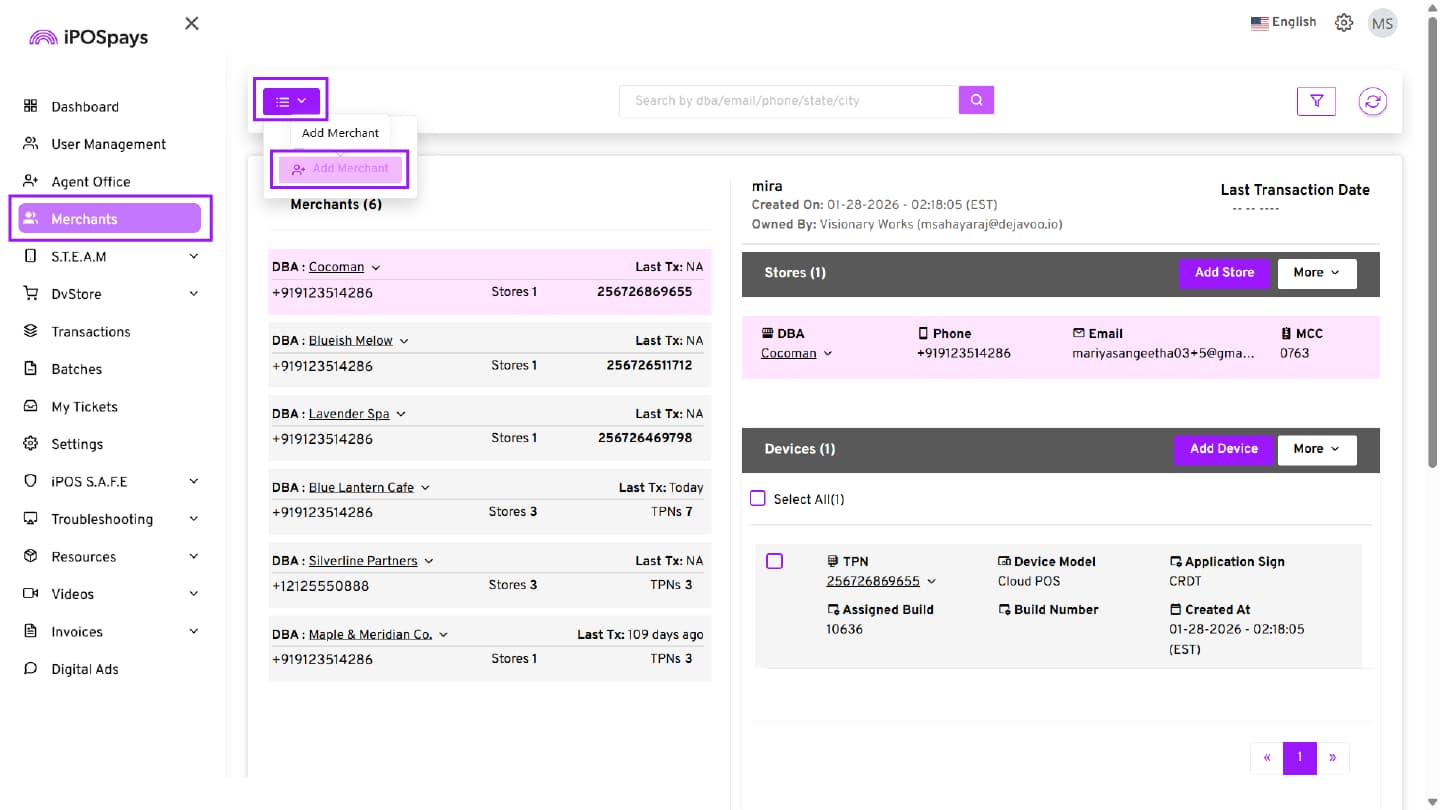
Step 2: Navigate to Merchants
-
Click the Merchants tab from the left-hand menu.
-
Click the Actions menu.
-
Select Add Merchant.
Refer to the Merchant Onboarding process (Merchant Info → Store Info → Add Device → Edit Parameters) in the How to Onboard a Merchant on iPOSpays steps.
In the Merchant Info section, locate the Owner field and select the appropriate Agent Office or Sub Agent Office from the drop-down list. If Agent Offices are not configured, this field will default to the ISO name.
Creating an Add-On User Under an Agent Office
-
An Agent Office can create Add-On Users.
-
Add-On Users can be granted the same modules and privileges as the primary Agent Office user.
-
There is no restriction on the number of Add-On Users an Agent Office can create.
-
In the hierarchical structure, the Add-On User appears under the same level as the Agent Office and can be granted equivalent authority based on assigned privileges.
Steps to Create an Add-On User
Step 1: Log In as Agent Office
- Log in to the iPOSpays Portal using the Agent Office account credentials.
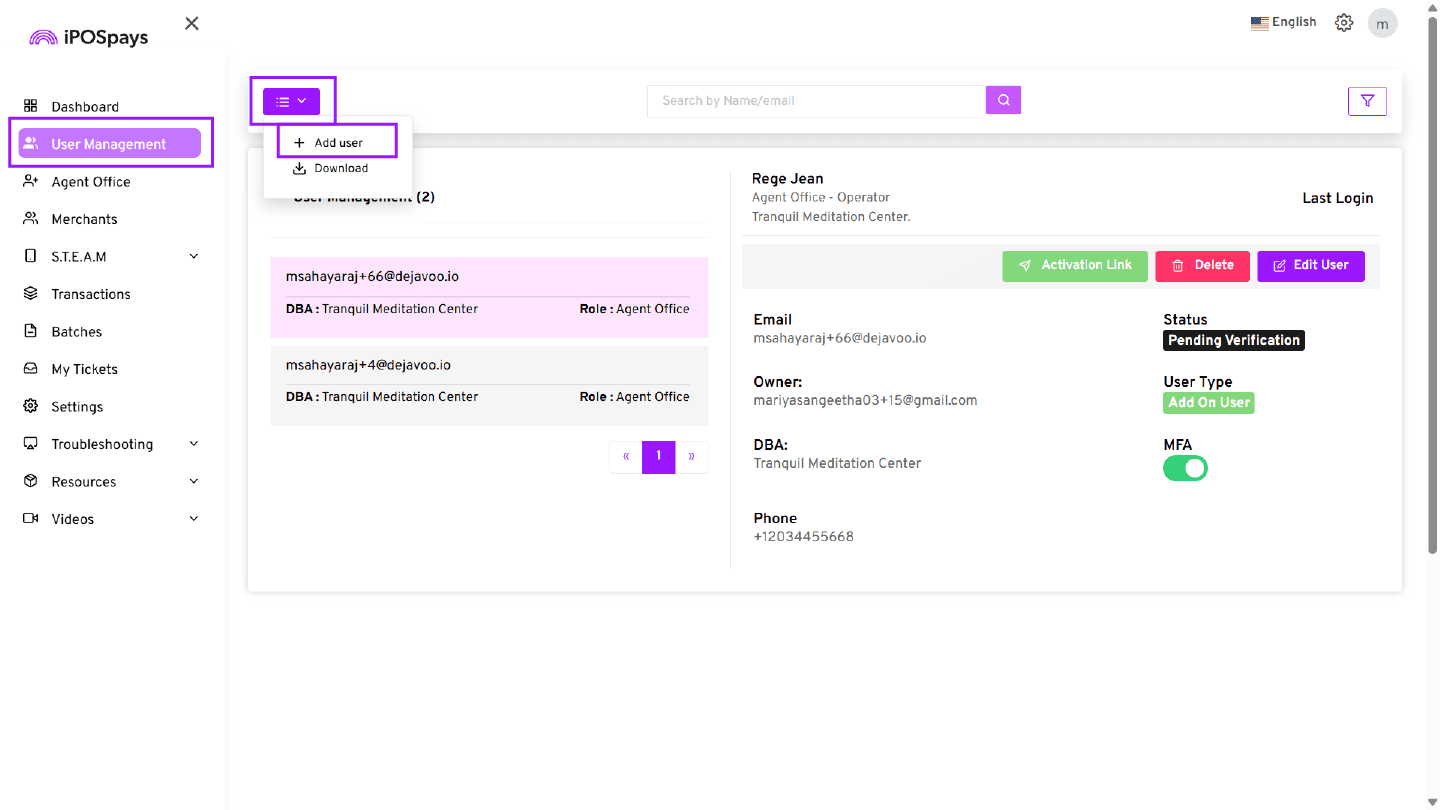
Step 2: Navigate to User Management
From the left-hand menu:
-
Click User Management
-
Click the Actions menu
-
Select Add User
The ADD USER page will pop up
Step 3: Enter User Details
In the Add User section, enter the required details to create a new user account.
-
First Name – Enter the user’s first name.
-
Last Name – Enter the user’s last name.
-
Email Address – Enter a valid email address for the user.
-
Phone Number – Enter the user’s primary contact number. (Select the appropriate country code before entering the number.)
-
User Role – Select the appropriate role from the dropdown list. (The selected role determines the user’s access level and permissions within the portal.)
Fields marked with an asterisk (*) are mandatory.
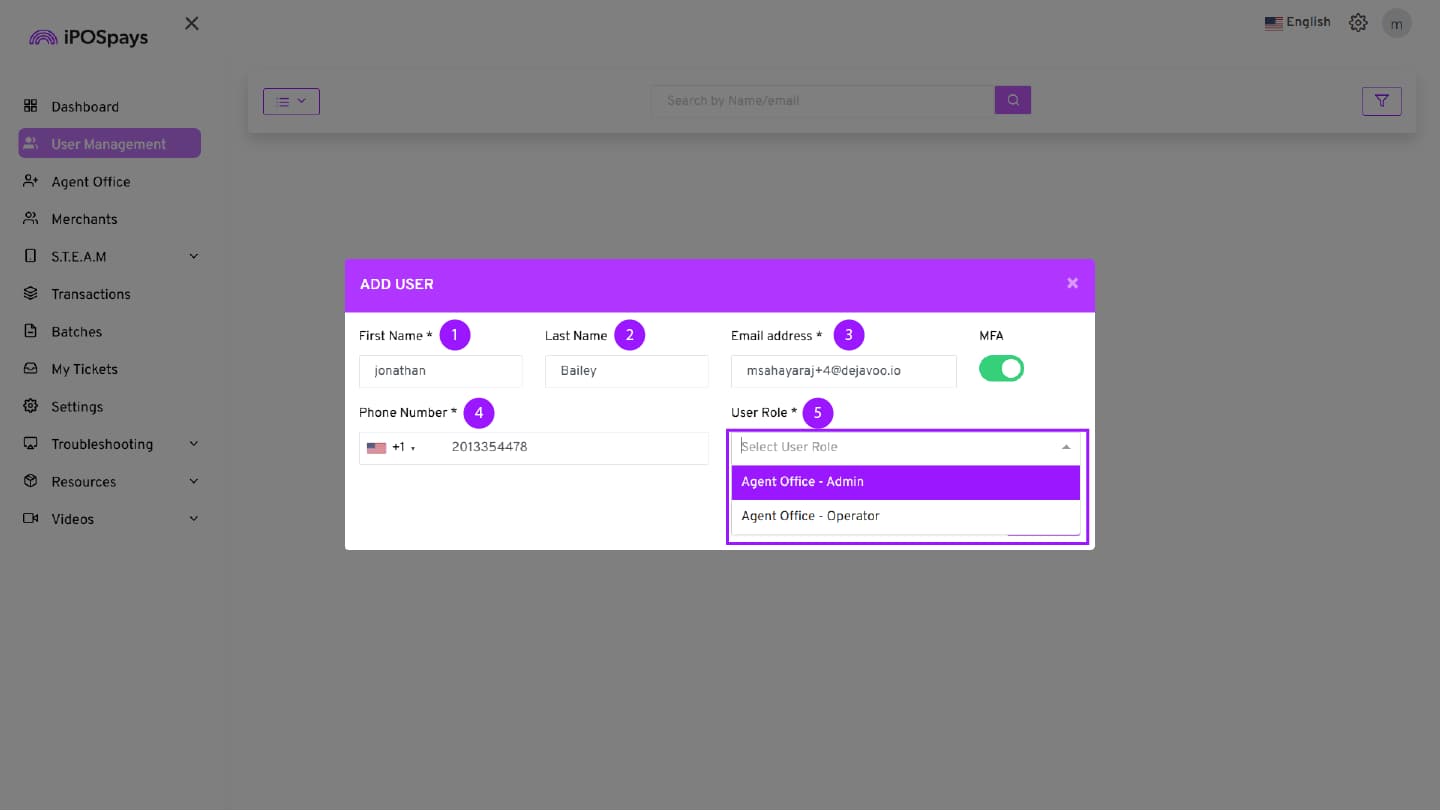
User Role Selection and Field Configuration
In the User Role dropdown, select the appropriate role.
The following roles are available:
-
Agent Office – Admin
-
Agent Office – Operator
The system displays fields based on the selected User Role:
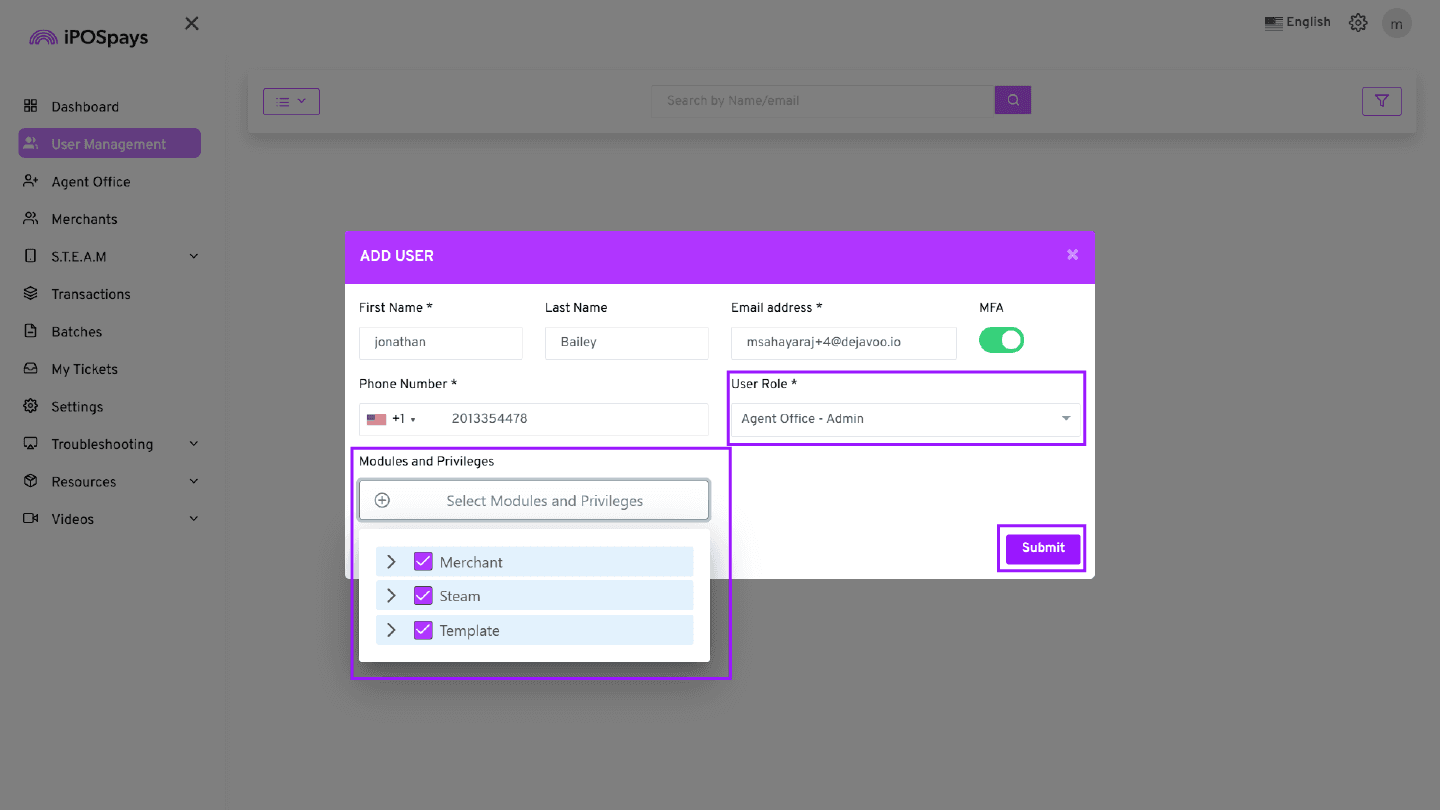
Agent Office – Admin:
-
The user will have full access across all stores under the merchant.
-
The Modules and Privileges section will appear.
-
Click Select Modules and Privileges, choose the required modules and specify the appropriate privileges.
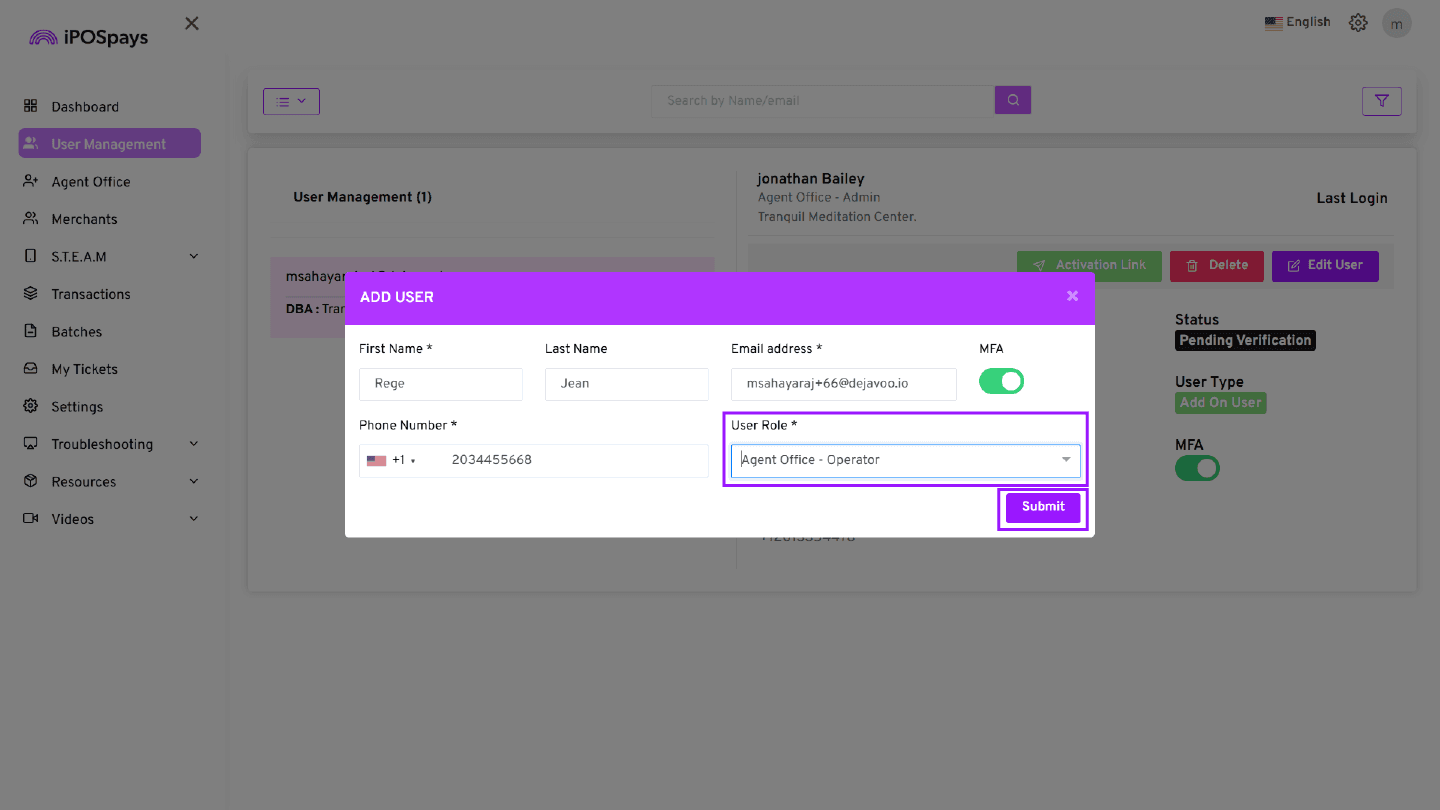
Agent Office – Operator:
- The user will have limited access across assigned stores under the merchant, and the Modules and Privileges section will not be available for this role.
Step 4: Submit the User Configuration
After entering all required details and completing the role-based configuration, click Submit. A confirmation message will appear once the user has been successfully onboarded.
The Add-On User has been successfully onboarded and can operate within the assigned permissions.